Claude Code × Telegram: Now the Claude Lobster Can Work for the Boss Anytime, Anywhere T_T
With Claude Code Channels, you can drive the Claude Code on your own computer from Telegram: chase bugs on your commute, build reports, look things up, and get pinged when a task is done. This post walks you through the setup step by step.
 Khan LeeCTO

Contents
What is Claude Code?
- Claude Code is Anthropic’s AI coding tool. It understands your entire codebase, edits files and runs commands, and works in the Terminal, VS Code or the desktop app.
- Claude Code Channels is a messaging bridge on top of it that links a Telegram Bot to the Claude Code session running on your machine.
In short: it turns your computer into an AI worker you can remote-control anytime.
Step 0: Before you start
Check a few things first:
- You have a computer with Claude Code installed
- You have a paid Claude Code subscription. Freeloaders don’t get a 24-hour worker!
- Your Claude Code version is above 2.1.80. If you installed it before March 20, 2026, you’ll almost certainly need to update.
- You have a Telegram account
This is the one I installed last week

This is the one I installed while writing this post

If you’re not comfortable with the terminal, just install through the GUI. But you’ll have to use the terminal sooner or later, and next week I’ll show you how to make yours look great.
Once all that’s ready, we can start setting up Claude Code × Telegram.
Step 1: Open the terminal and install Bun (no idea what it is, but the AI told me to)
In the terminal, enter:
curl -fsSL https://bun.sh/install | bashThen close the terminal and open it again
Step 2: Type claude in the terminal to open the Claude Code CLI, then enter this command
/plugin install telegram@claude-plugins-official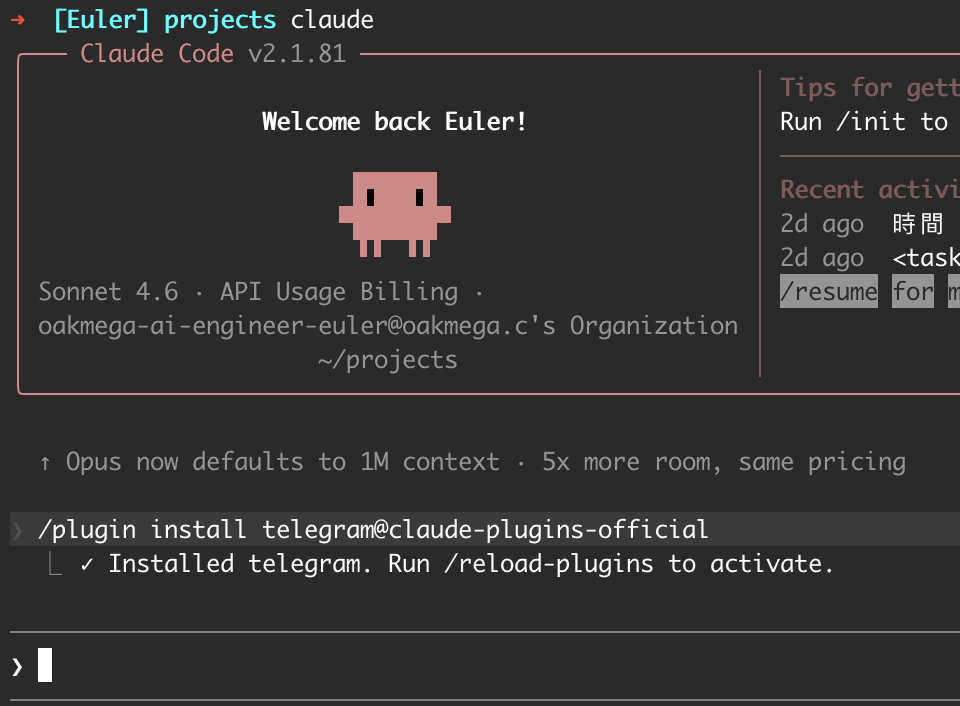
Step 3: Create a Telegram Bot
Open Telegram, search for @BotFather and start a chat.
Send:
/newbotBotFather will ask you two things:
- Name (display name): spaces allowed, e.g. My Claude Assistant
- Username (handle): must end in bot, e.g. my_claude_bot
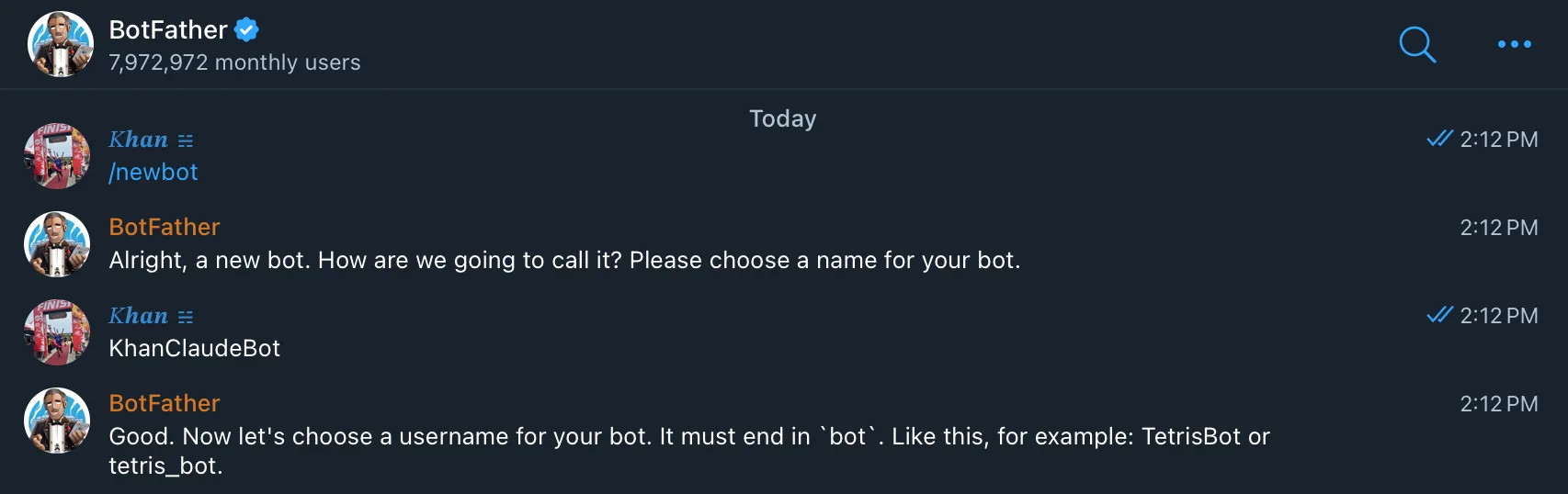
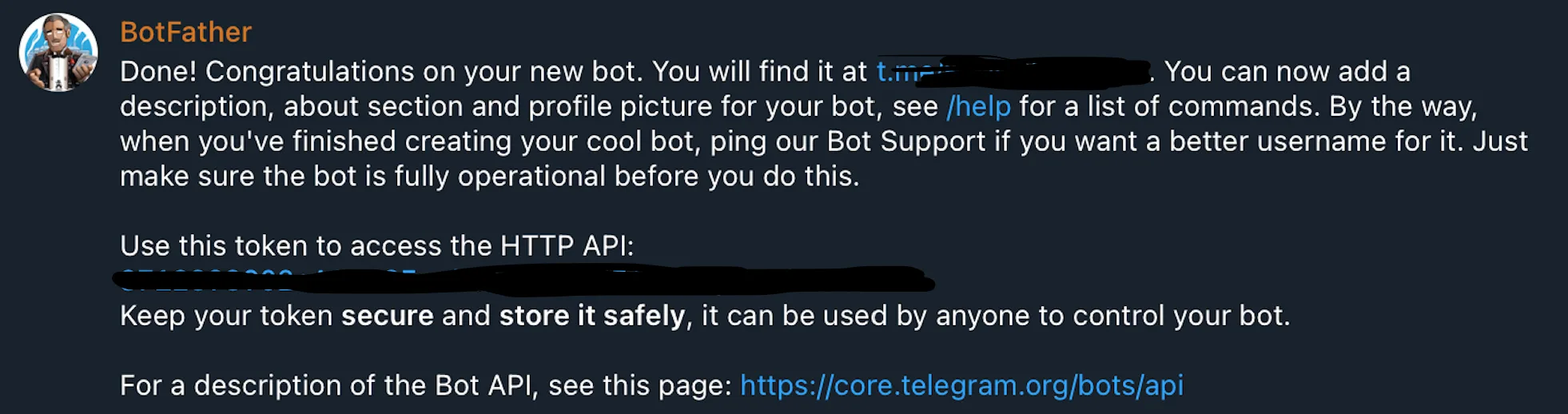
Once it’s created, BotFather gives you a Bot Token that looks like this:
123456789:AAHfiqksKZ8WhateverRestOfToken⚠️ This token is as sensitive as an API key. Don’t share it publicly
Step 4: Set the Telegram environment variable and connect
Back in the Claude Code CLI, run:
/telegram:configure 123456789:AAHfiqksKZ8...Replace the string at the end with your own token.
Claude then kindly walks you through the rest, step by step
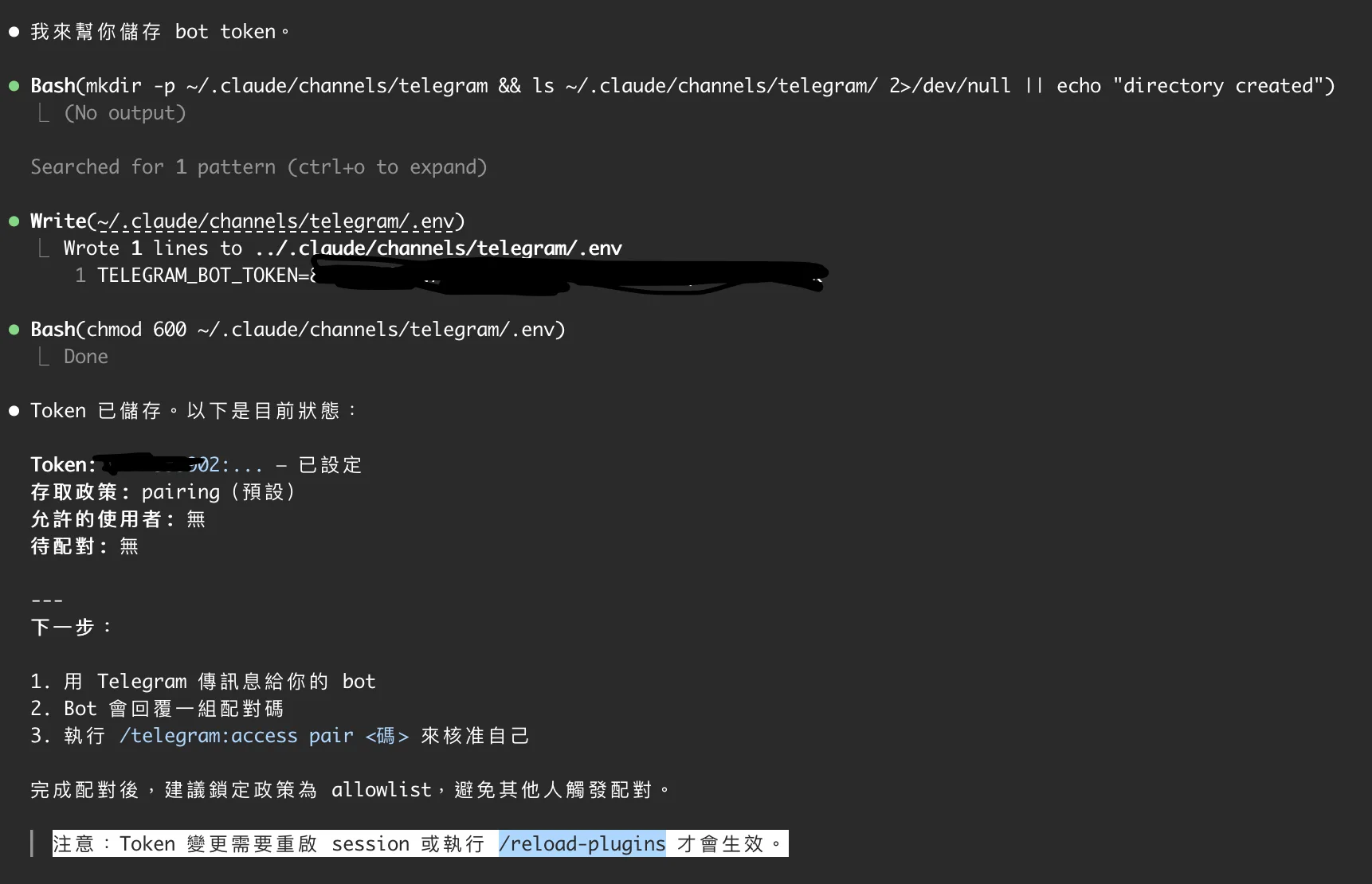
Then I hit a snag: Telegram wouldn’t reply at all
So I told Claude I’d done everything by the book. It checks whether Bun from step 1 is installed and running, then tells you to restart the current Claude session like this
Step 5: Restart the Claude CLI in Channels mode
Exit the current session and relaunch from the terminal with:
claude --channels plugin:telegram@claude-plugins-official⚠️ You must add the --channels flag, or the bot won’t connect
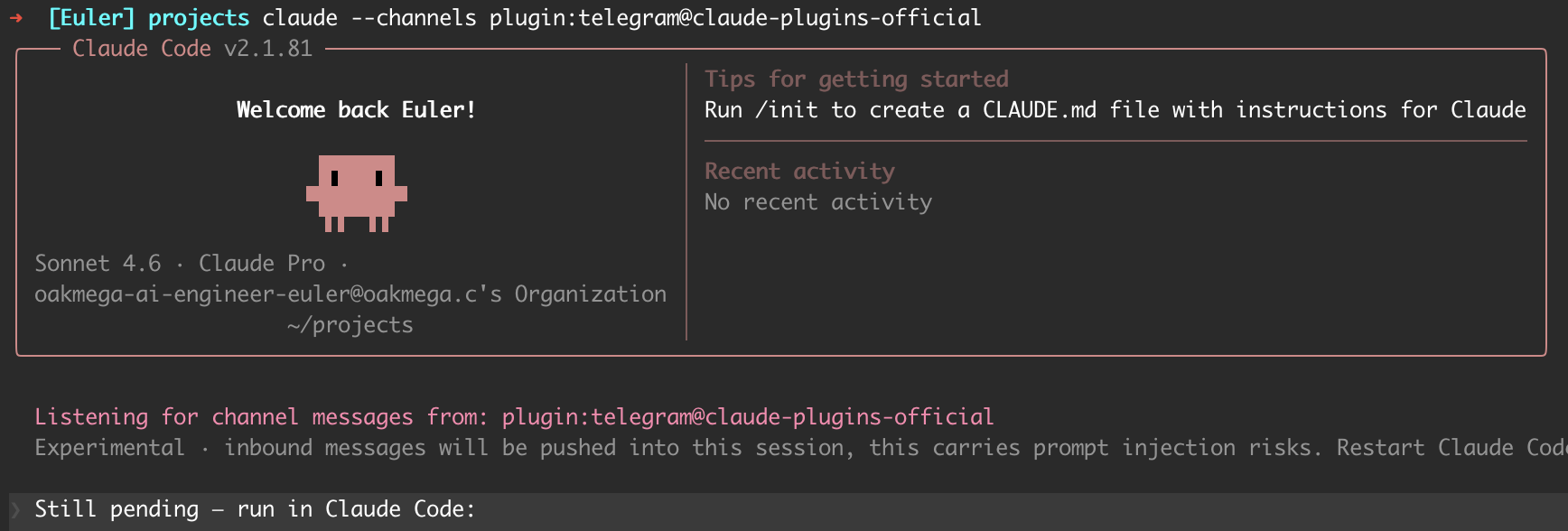
Step 6: Pairing
Once Claude Code is running, open Telegram and send a message to the bot you just created.
The bot replies with a 6-character pairing code, e.g. A3F9KL
Back in the Claude Code session, enter:
/telegram:access pair A3F9KLOnce paired, your next Telegram message goes straight to Claude Code.
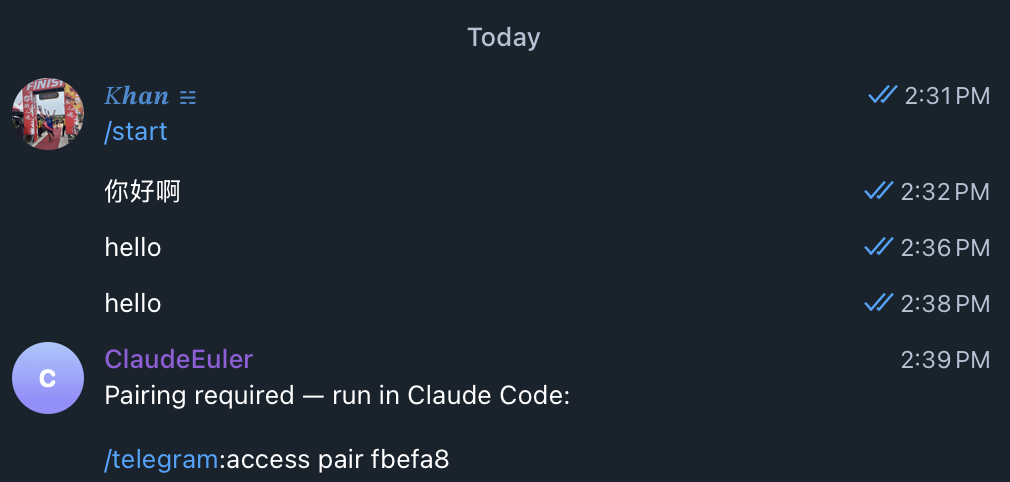
Step 7: Lock down access in the Claude Code CLI
After pairing, switch to allowlist mode right away
so strangers can’t trigger your bot:
/telegram:access policy allowlistNow only paired accounts can interact with the bot.
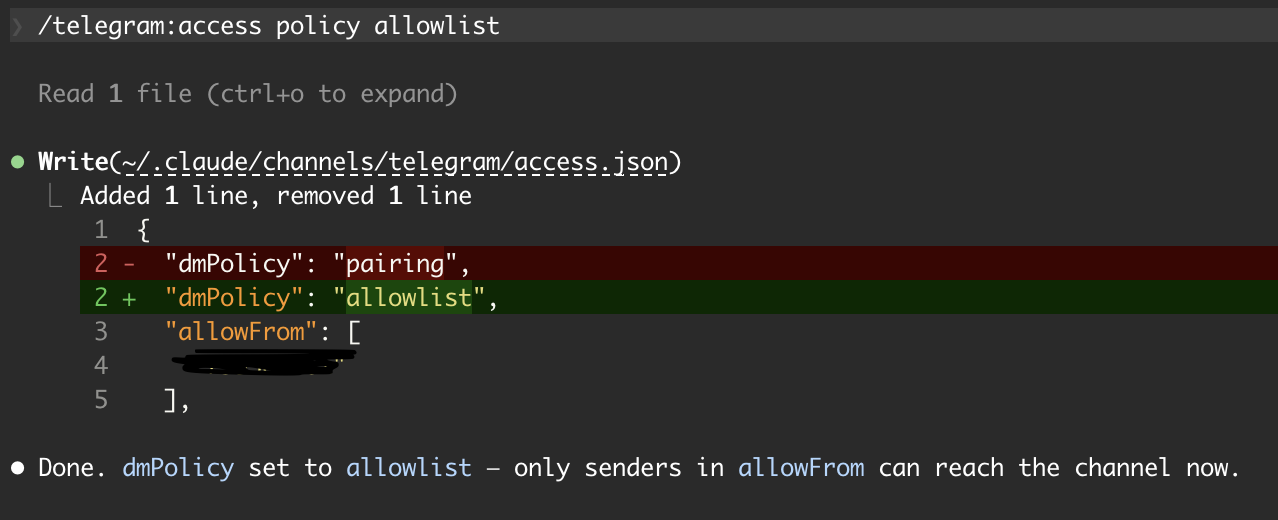
Done!!!!! Setup complete. Now what?
Here’s roughly what you can do:
Development tasks
You: Check the bug on
line 43 of views.py
Claude: [Analyzes the code,
suggests a fix]

You: Add a profile field
to User in models.py
Claude: [Edits the file,
confirms it’s done]
Lookups and summaries
You: How many open TODOs
does this project have?
You: Summarize the last
5 git commits
Progress notifications
For long-running tasks (build, test, deploy),
have Claude ping you when it’s done so you don’t have to keep staring at the terminal.
Sending images and attachments
- Images: send them in Telegram and Claude can analyze them
- Files: long-press → “Send as File” to send the original (uncompressed)
- Received images are saved automatically to ~/.claude/channels/telegram/inbox/
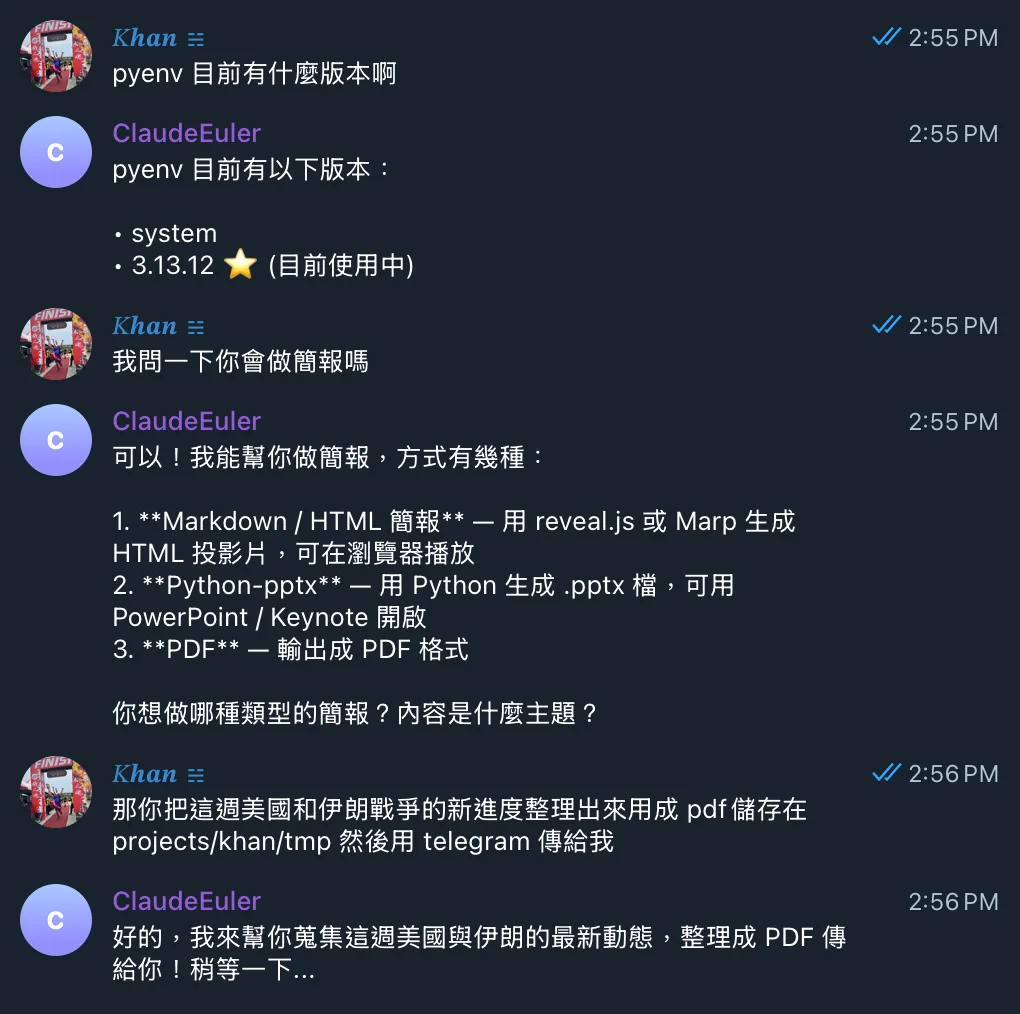
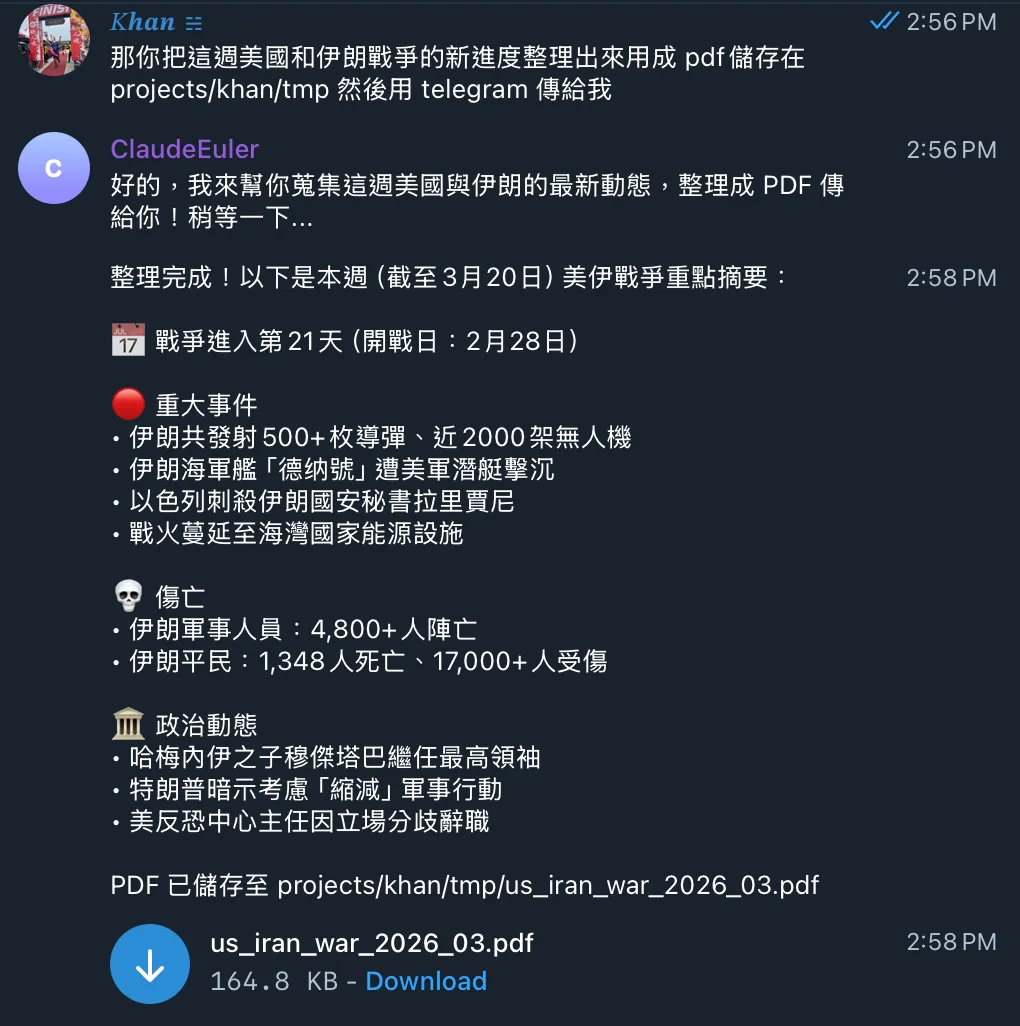
That’s it. Now you can work while hiking, surfing or doing a triathlon. Congrats, everyone.
Things to know
This setup has a few limitations you should know about:
How it differs from OpenClaw
If you’ve heard of OpenClaw, the two do similar things in concept, but there are some differences: