LINE How-To Scenarios | Why Does LINE Show an Add-Friend Page When You Tap a Link?
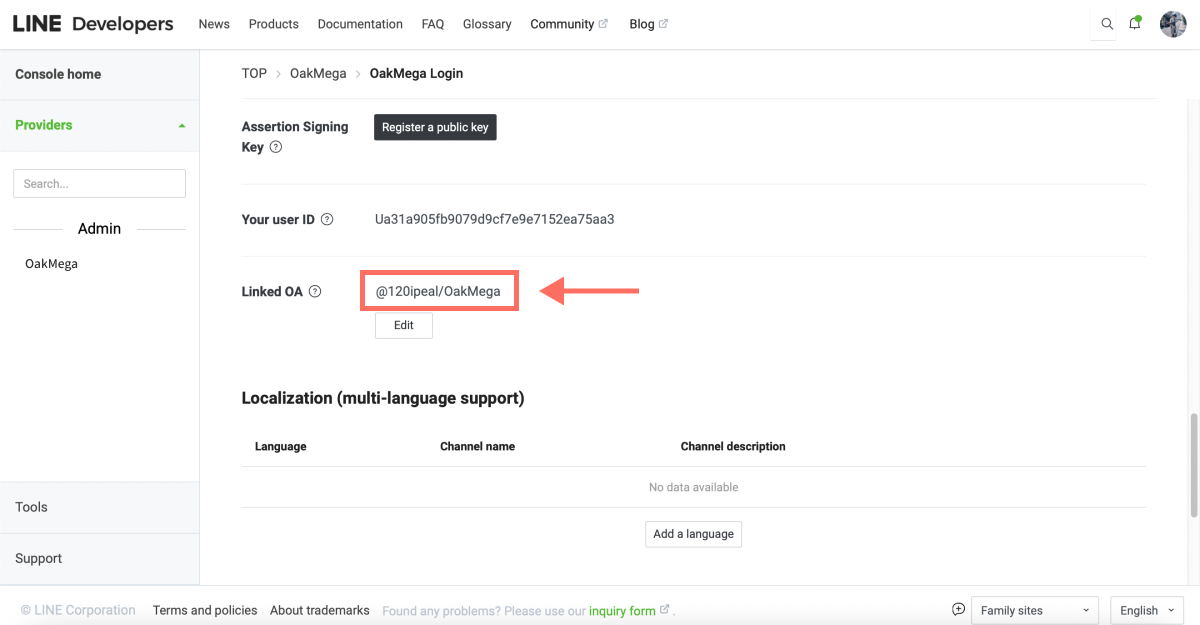
Ever tapped a brand’s link for the first time and seen LINE ask you to add its LINE Official Account as a friend first? That flow is tied to LINE Login, which we covered earlier. In LINE Developers, open the LINE Login channel under the right provider, find Linked OA, select your LINE Official Account, and you’re done.
 Khan LeeCTO
Hi, I’m Khan, CTO of OakMega! Have you ever tapped a brand’s link for the first time and seen LINE pop up a page asking you to add its LINE Official Account as a friend? Like the screenshot below, letting people become friends of your official account with a single tap on a link is pretty convenient.
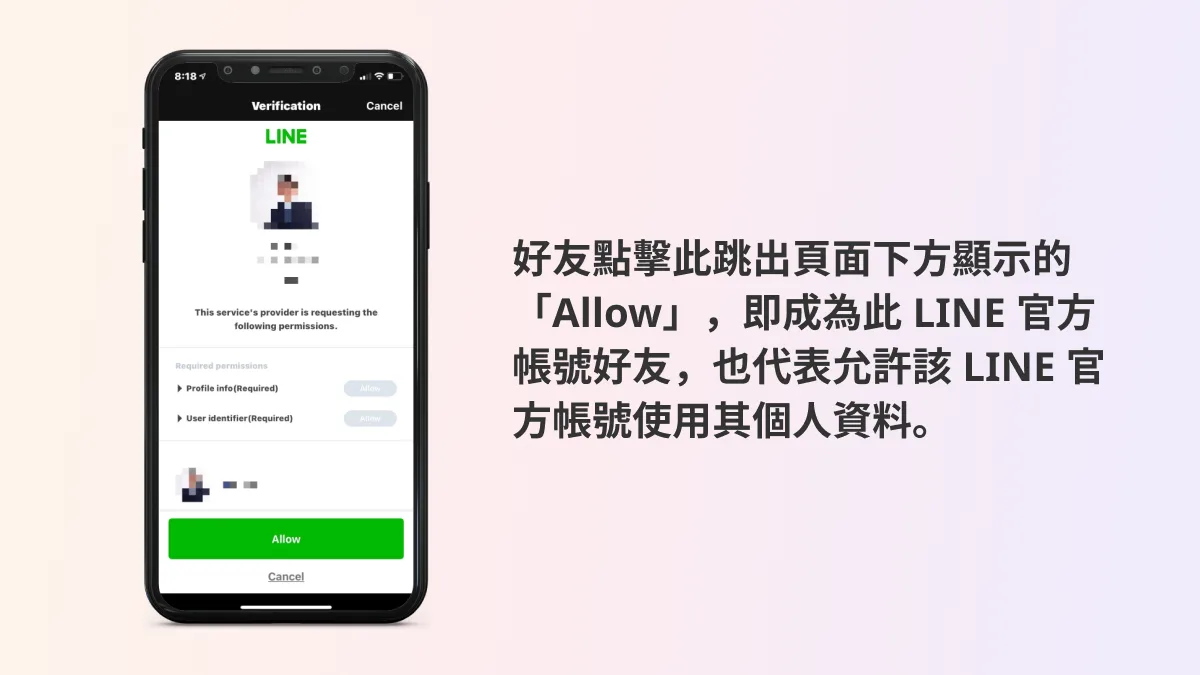
This flow is actually tied to LINE Login, which we covered earlier. To have a link prompt users to add your LINE Official Account, go to LINE Developer, open the LINE Login channel under the matching provider, find Linked OA, and select the LINE Official Account you want. That’s it. Step-by-step instructions are below.
How to Set Up Linked OA in a LINE Login Channel
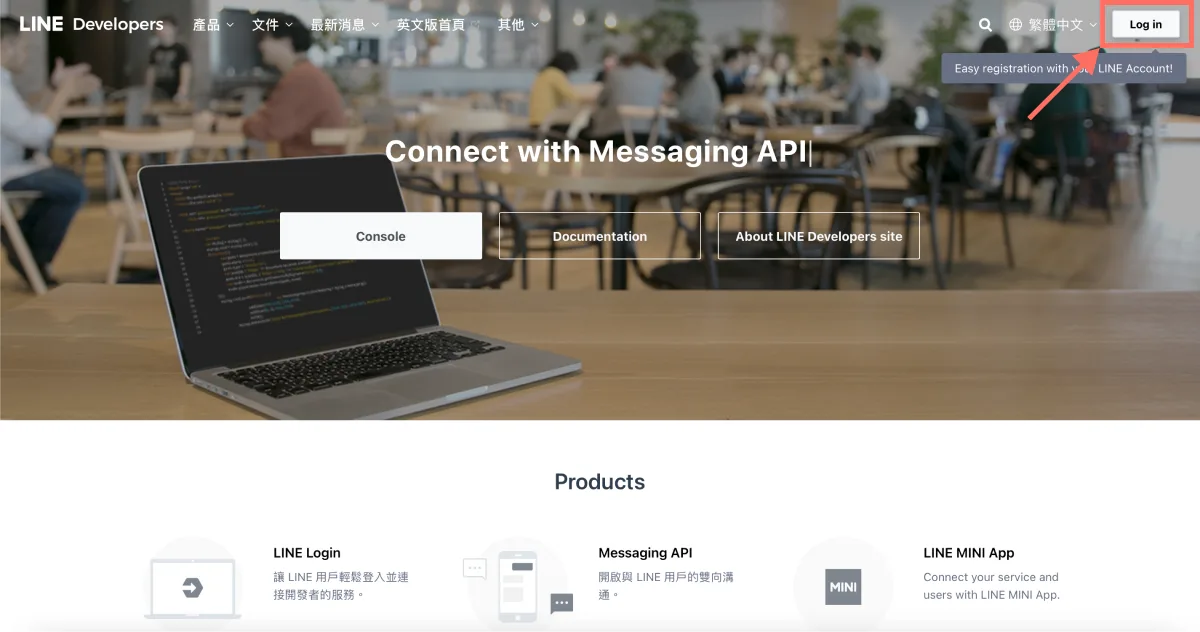
- On the LINE Developers site, click “Log in” in the top-right corner and sign in to the LINE Developers console with your LINE Business ID.
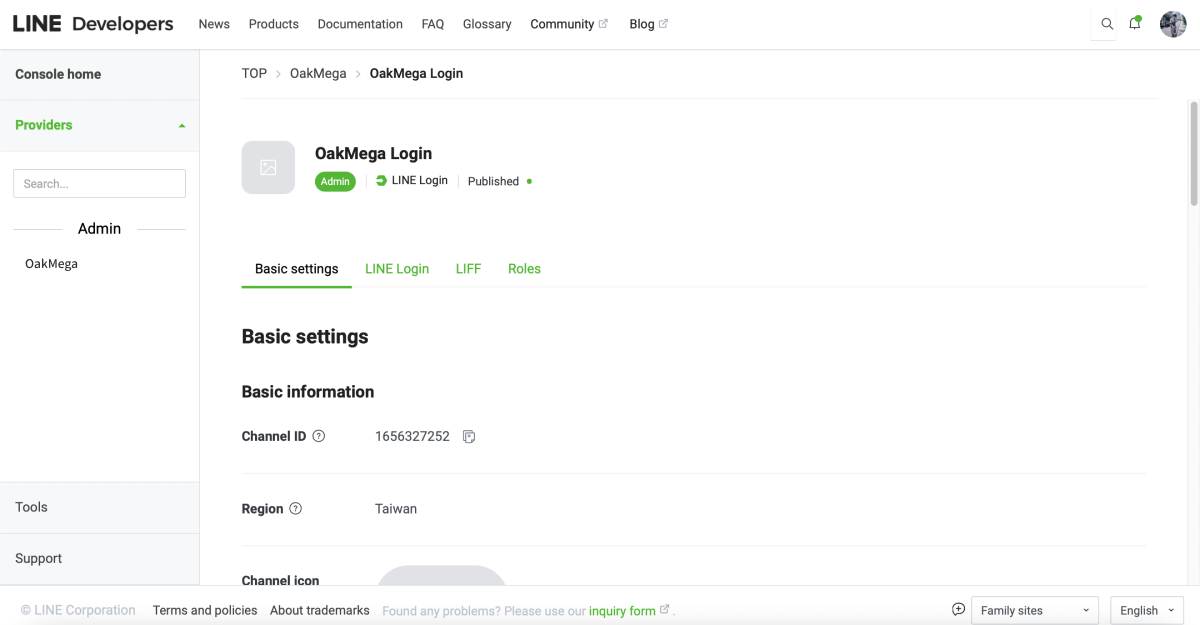
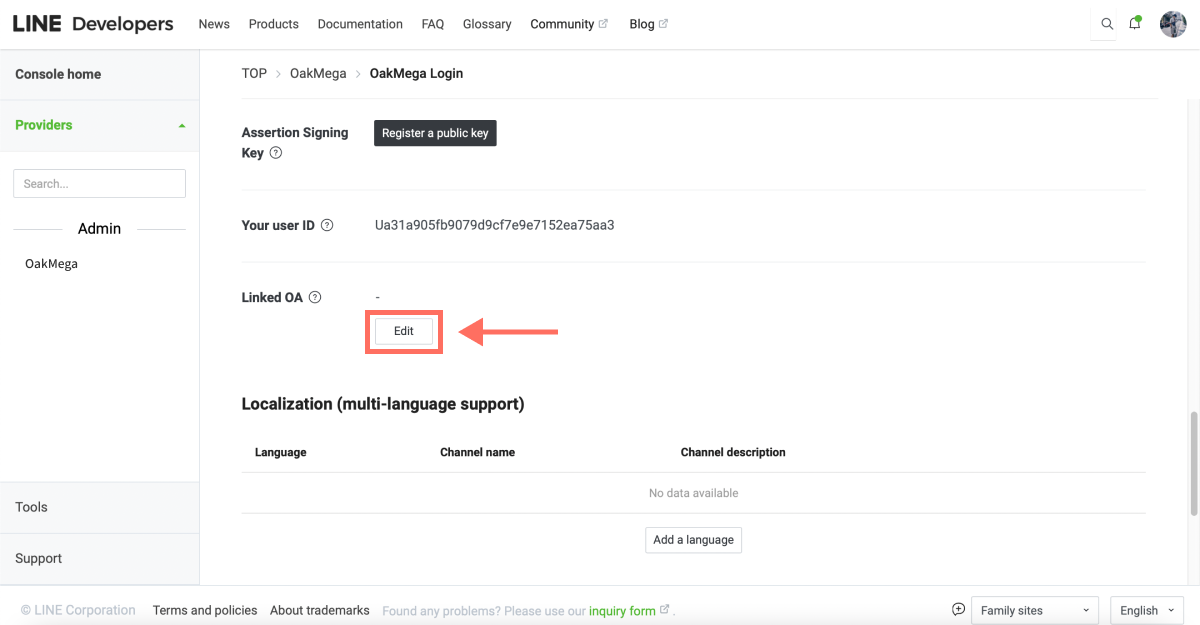
- In LINE Developers, open the LINE Login channel under the matching provider, go to “Basic settings,” scroll down to the Linked OA field, and click “Edit.”
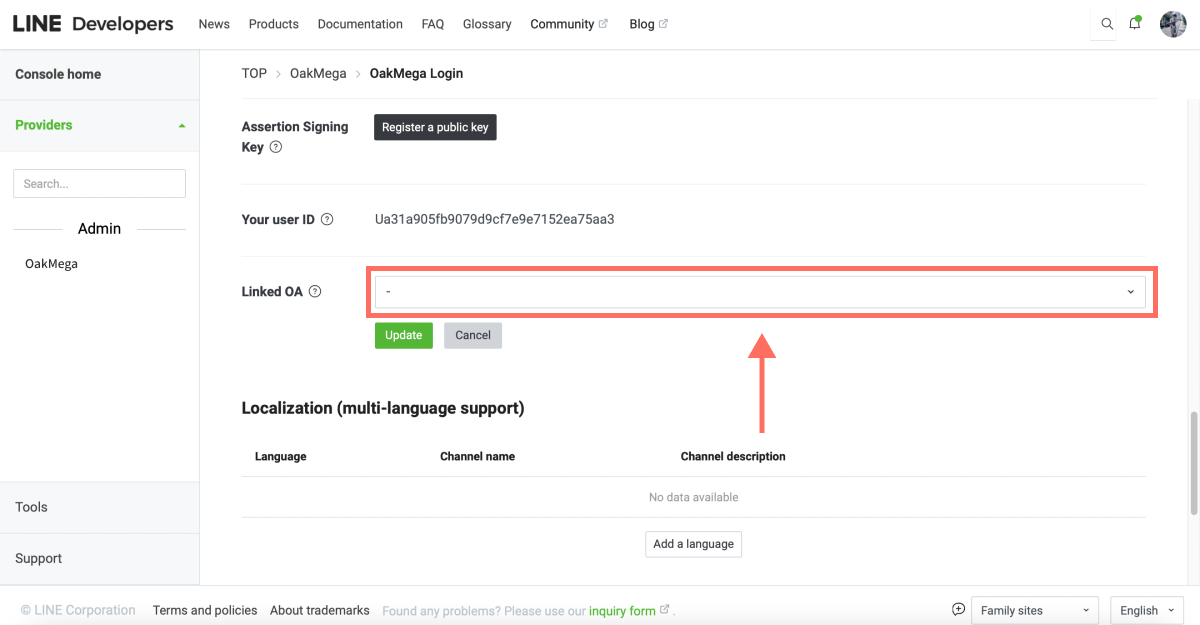
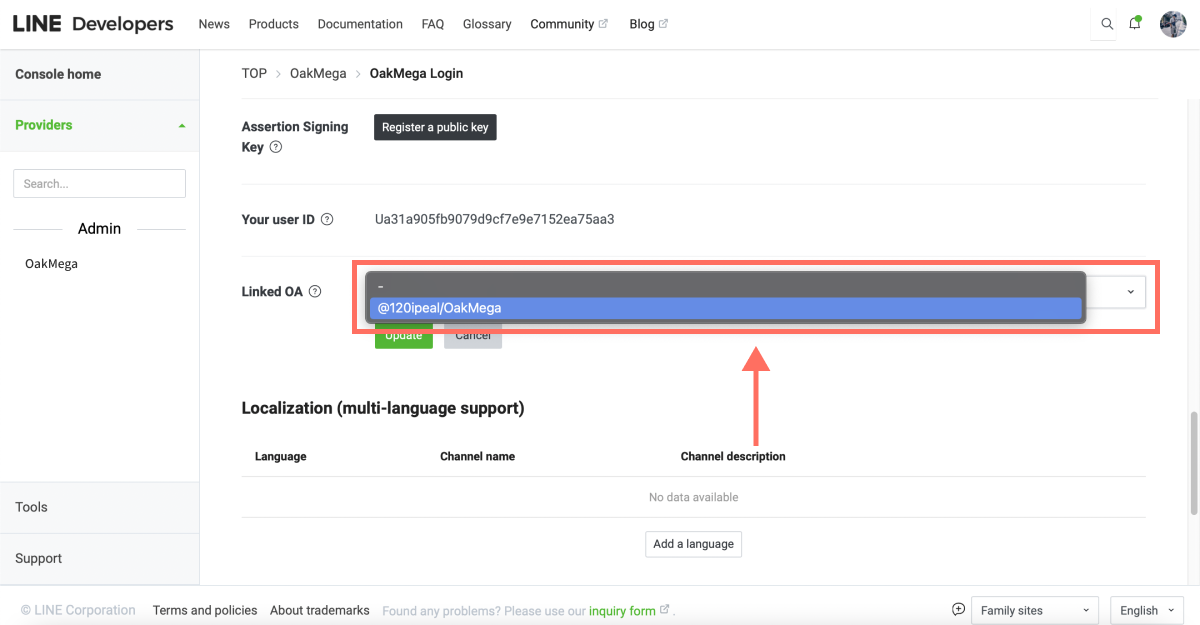
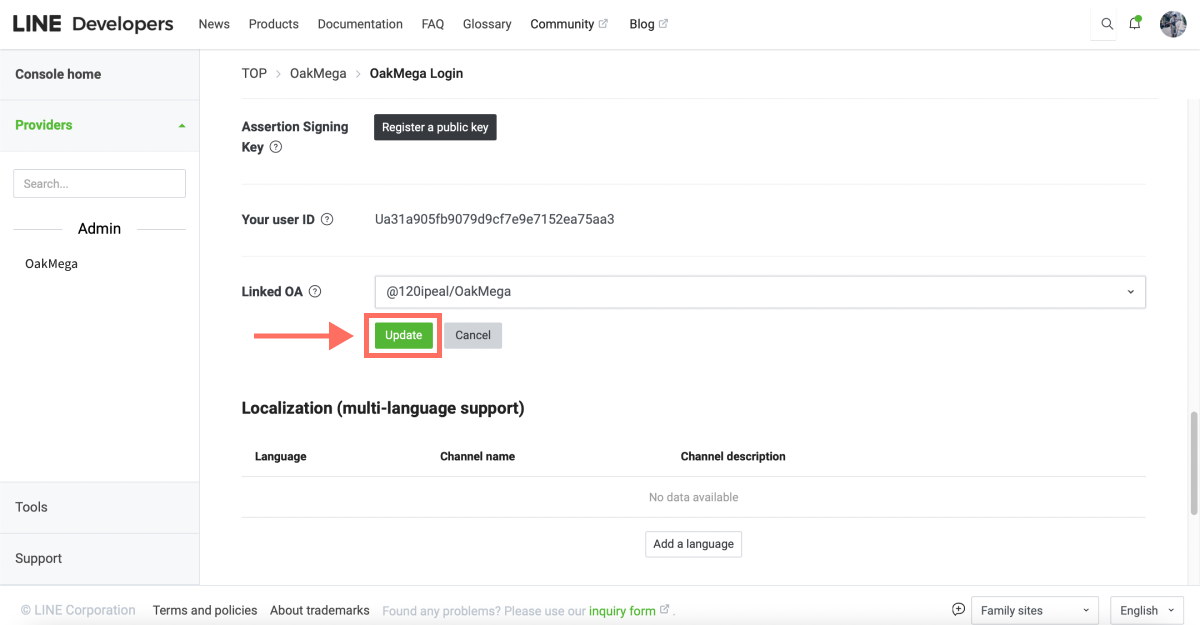
- Open the Linked OA drop-down, select the LINE Official Account you want to link, and click “Update” to save.
- Once it’s set up, when users tap your link, LINE first shows a prompt asking whether they’d like to add your LINE Official Account as a friend.
LIFF Apps Can Also Prompt Users to Add You as a Friend
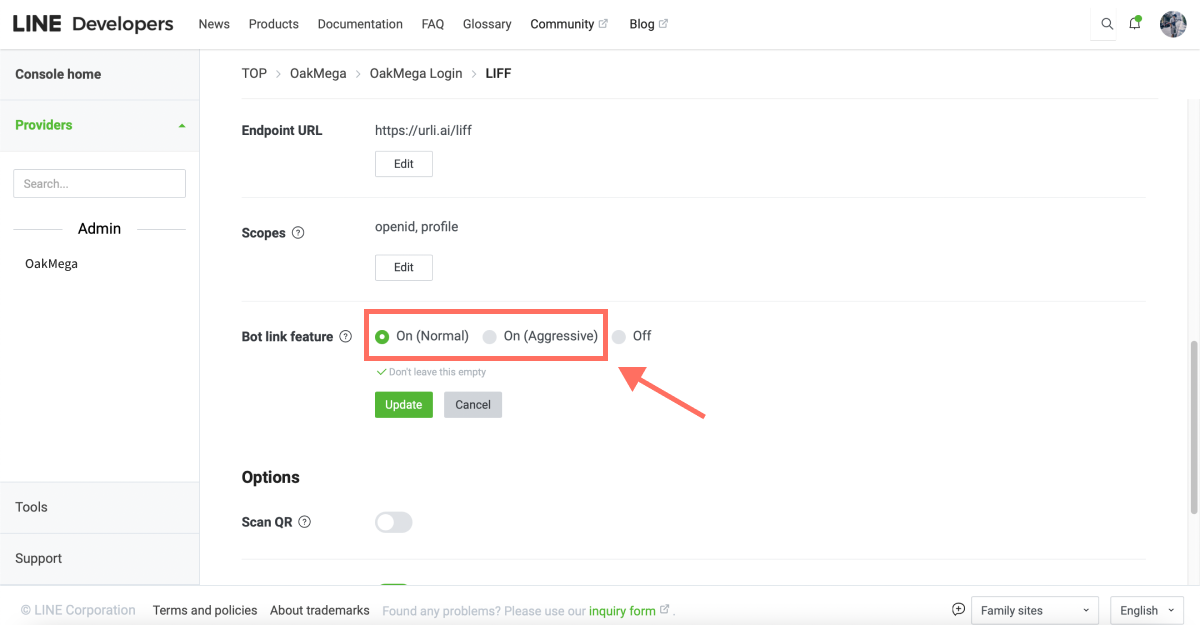
Besides setting Linked OA through LINE Login, there’s another way to ask users to add your LINE Official Account. If you remember our tutorial on creating a LIFF app, you can set the Bot link feature so users are invited to add you as a friend as soon as they open your LIFF app.
When creating a LIFF app, the Bot link feature offers three options:
- On (Normal): When users tap the link, non-friends are offered the option to add your LINE Official Account.
- On (Aggressive): When users tap the link, non-friends are pushed to add your LINE Official Account.
- Off: Tapping the link opens the web page directly, with no add-friend page.
Choose either “On (Normal)” or “On (Aggressive)” and users will go through the add-friend flow when they open your LIFF app. We recommend sticking with “On (Normal).” Users today are far more privacy-conscious, and forcing them to do something tends to backfire.
Want to learn more about running your LINE presence? How can you measure link performance? How do you find out which friends tapped a link and are interested in its content? Head over to the OakMega LINE Official Account for more LINE marketing tips, or follow our “OakMega LINE Marketing Playbook,” which walks you through building a brand LINE Official Account from scratch.