LINE Basics: How to Set Up a Greeting Message for New Friends
You've just opened your LINE Official Account and want your friend count to grow fast. That's where a greeting message comes in: with limited space and a variety of formats, a good one makes a strong first impression and gets new friends interacting with your LINE Official Account right away.
 Howard HuangMarketing Specialist
You've just opened your LINE Official Account and want your friend count to grow fast. That's where a greeting message comes in. With limited space and a variety of formats, a good greeting message delivers your brand's information and services, makes a strong first impression, and gets new friends interacting with your LINE Official Account right away.
Below, we walk you step by step through setting up a greeting message in the LINE Official Account Manager, so every new friend gets a warm welcome!
How to set up a greeting message in LINE Official Account Manager
Sign in with your LINE Business ID to open the LINE Official Account Manager, then follow the steps below to set up your greeting message:
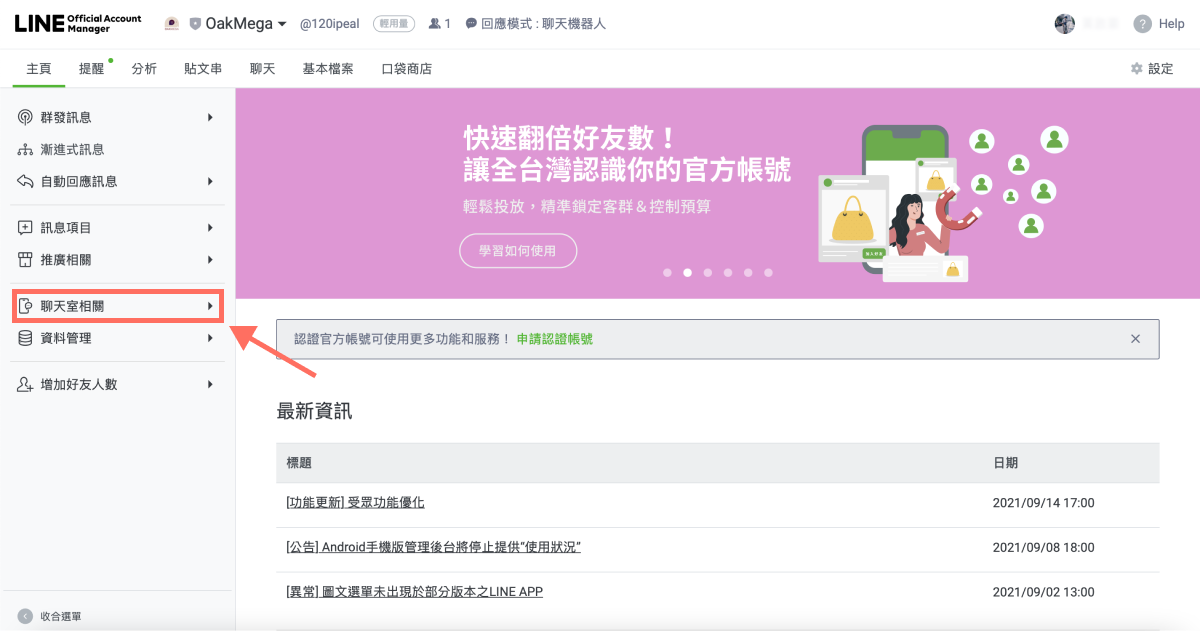
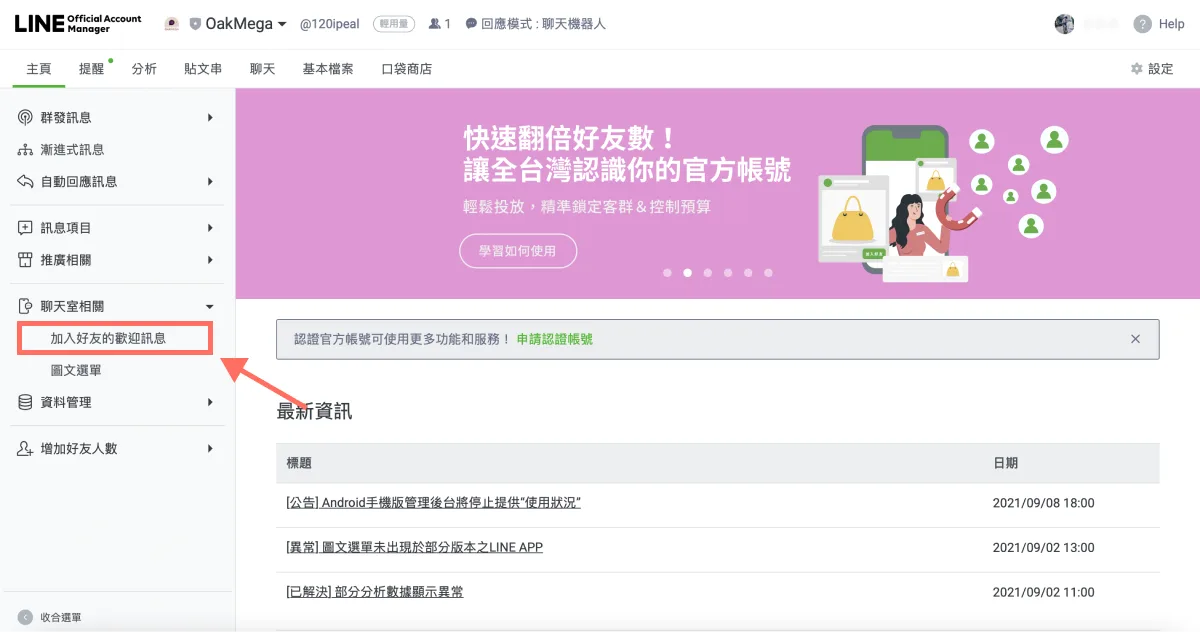
Step 1: Open the “Greeting message” settings page
In the left-hand menu, expand “Chat-related” and click “Greeting message.”
Step 2: Edit your greeting message
Before you start editing, get to know the greeting message page. From left to right, it has three sections:
- Left: Menu
The main menu of the LINE Official Account Manager, where you can change settings and access every feature.
- Center: Editor
Where you write and edit the greeting message.
- Right: Preview of what friends see in the LINE app
A live preview of your greeting message.
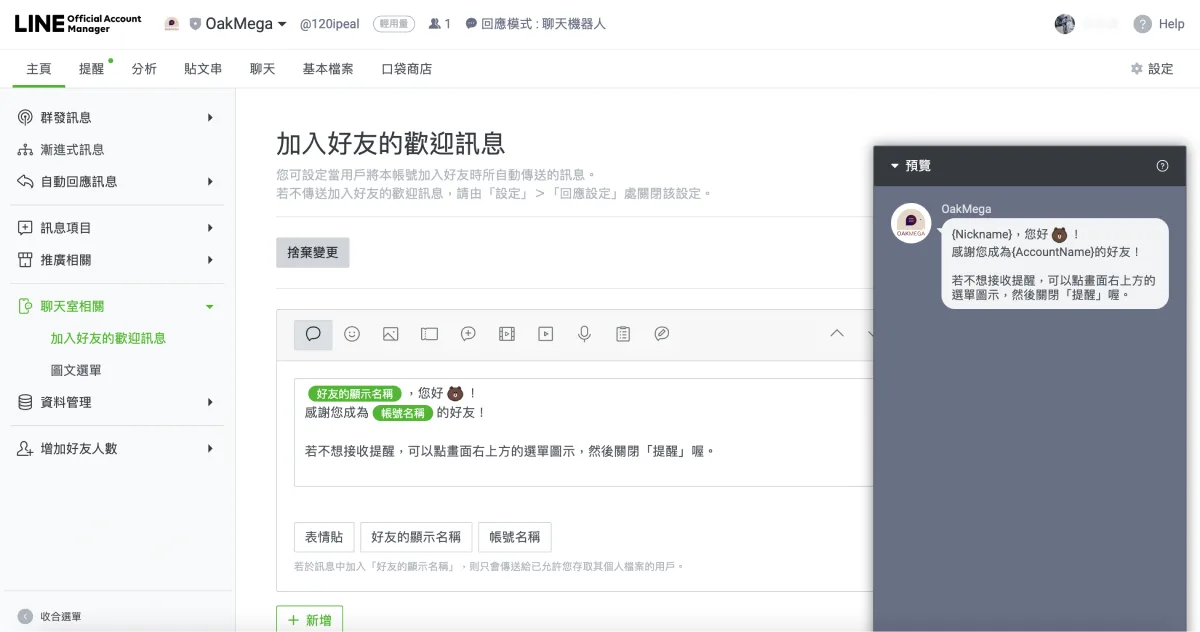
A good greeting message has a clear purpose and confirms that the user has successfully added your LINE Official Account as a friend. Beyond plain text, the editor offers three more features to enrich your message:
- Emoji: Add emoji to the message to make the text livelier and more natural.
- Friend's display name: Make the message feel like a personal, one-on-one chat.
- Account name: Show the account name that friends see in the app inside the message itself, reinforcing their first impression of your brand.
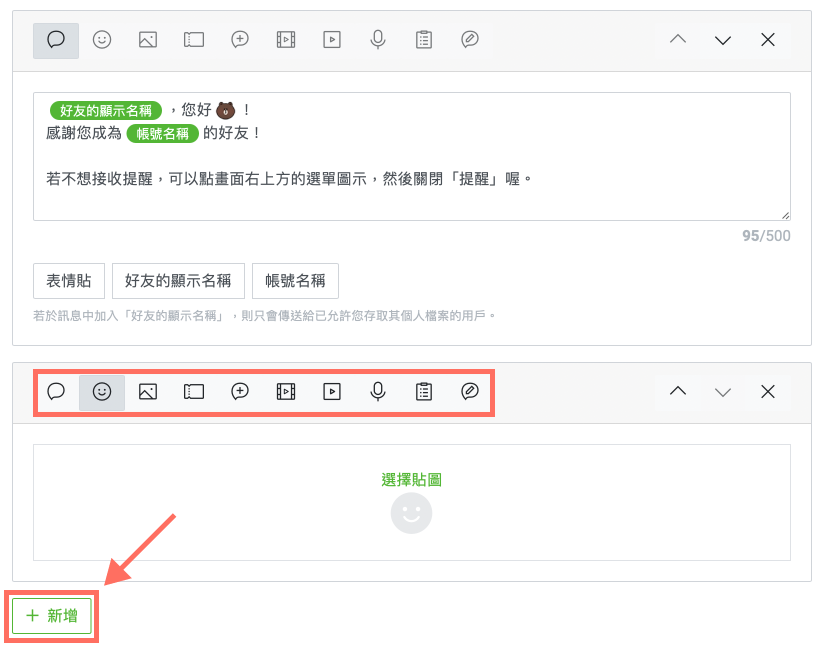
A single text message can be up to 500 characters, but given how people read on their phones and the limited screen space, the best experience is a message friends can read without scrolling (roughly 100 characters).
(Note: If you add the “Friend's display name” to your message, only friends who allow you to access their profile information will receive the greeting message. In other words, if a friend declines to share their information when they first open your official account, they won't receive a greeting message containing their name.)
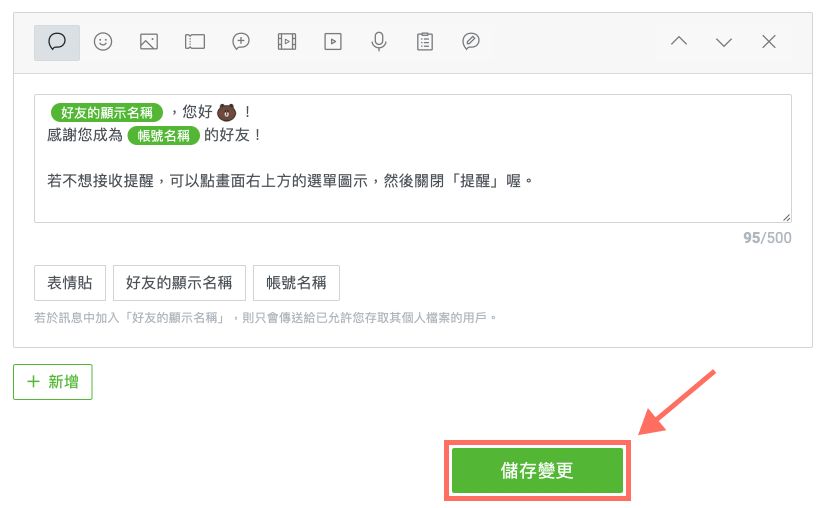
A single greeting can contain up to five messages (in the same or different formats). Once you're done, click “Save changes,” and every new friend will receive the latest greeting message. If you'd rather not send new friends any greeting at all, go to “Settings” > “Response settings” and select “Disabled.”
A good greeting message is a big first step in running your LINE account: it's your first interaction with a new friend. Pair it with keyword settings and auto-replies, and friends who message your LINE Official Account will quickly get the right response, bringing you even closer. We'll cover these topics in upcoming tutorials.
Want to learn more about running a LINE account? Wondering how keyword auto-replies can keep new friends engaging with you after the greeting message? Visit the OakMega LINE Official Account for more LINE tips, or follow our “OakMega LINE Playbook,” a from-scratch guide to building your brand's LINE Official Account.