LINE Marketing Basics | How to Check Messages Sent in LINE Official Account Manager
Every LINE Official Account eventually sends messages to its friends — so how do you check this month's message usage? With so many menus in LINE Official Account Manager, where do you click to see how many messages you've sent? This beginner's guide to LINE marketing shows you.
 Howard HuangMarketing Specialist
Every LINE Official Account eventually needs to send messages to its friends. So how do you check this month's message usage? LINE Official Account Manager has a lot of menus — where exactly do you click to see how many messages you've sent?
Don't worry. Follow the steps below to track your sent message count in the LINE Official Account Manager web version or the mobile app!
How to check your message count in LINE Official Account Manager
You can check how many messages you've sent this month in either the web or mobile version of LINE Official Account Manager. First, sign in to the management screen with your “LINE Business ID”:
LINE Official Account Manager: web version
- After signing in, select the LINE Official Account you want to check from the account list.
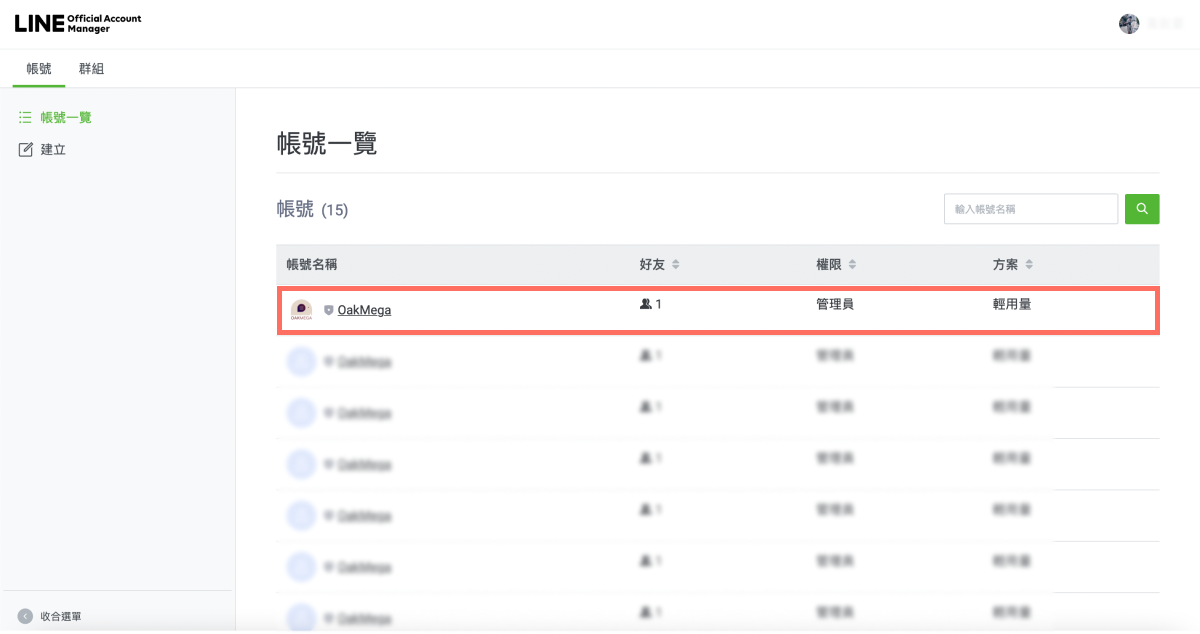
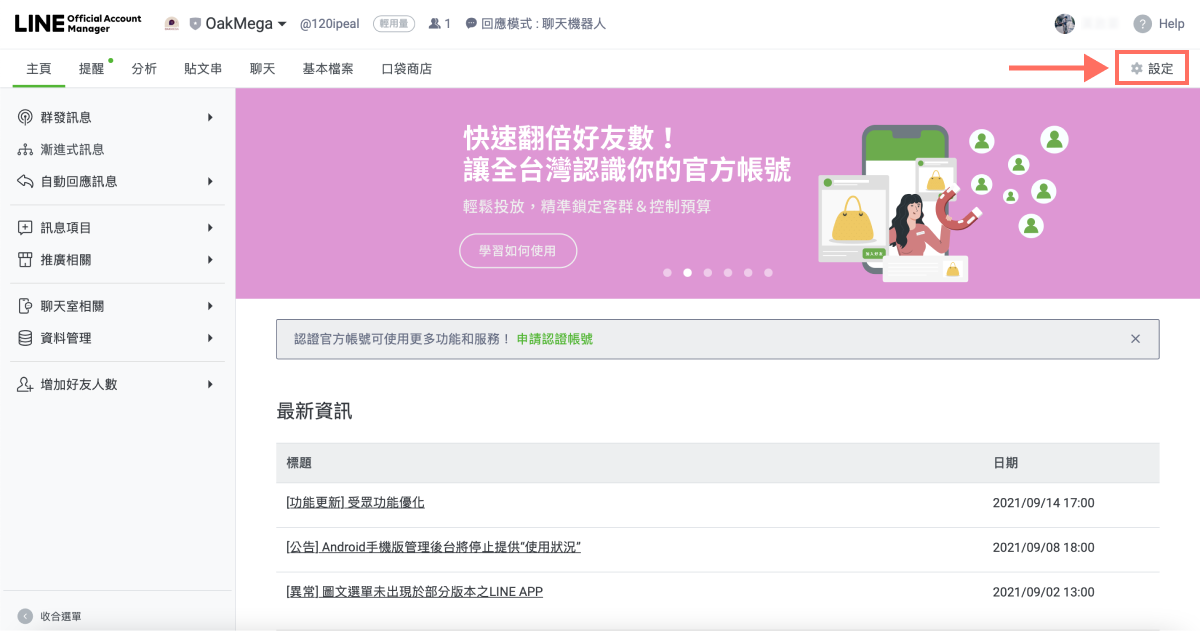
- On the LINE Official Account management page, click “Settings” in the top-right corner.
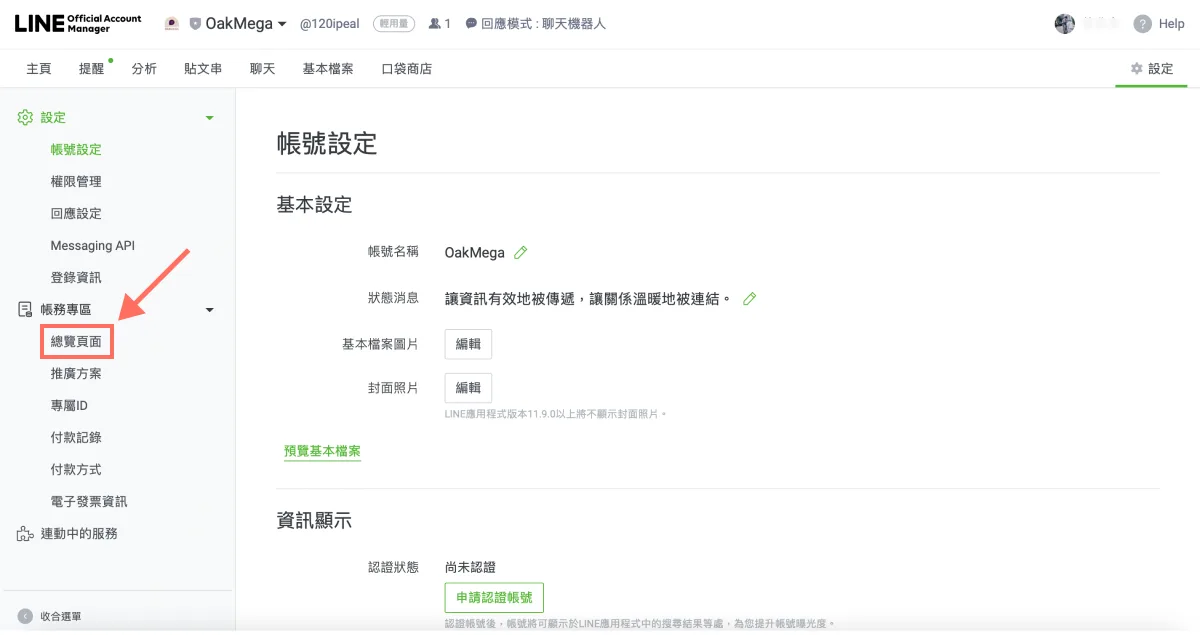
- On the settings page, find and click “Billing” > “Overview” in the left sidebar.
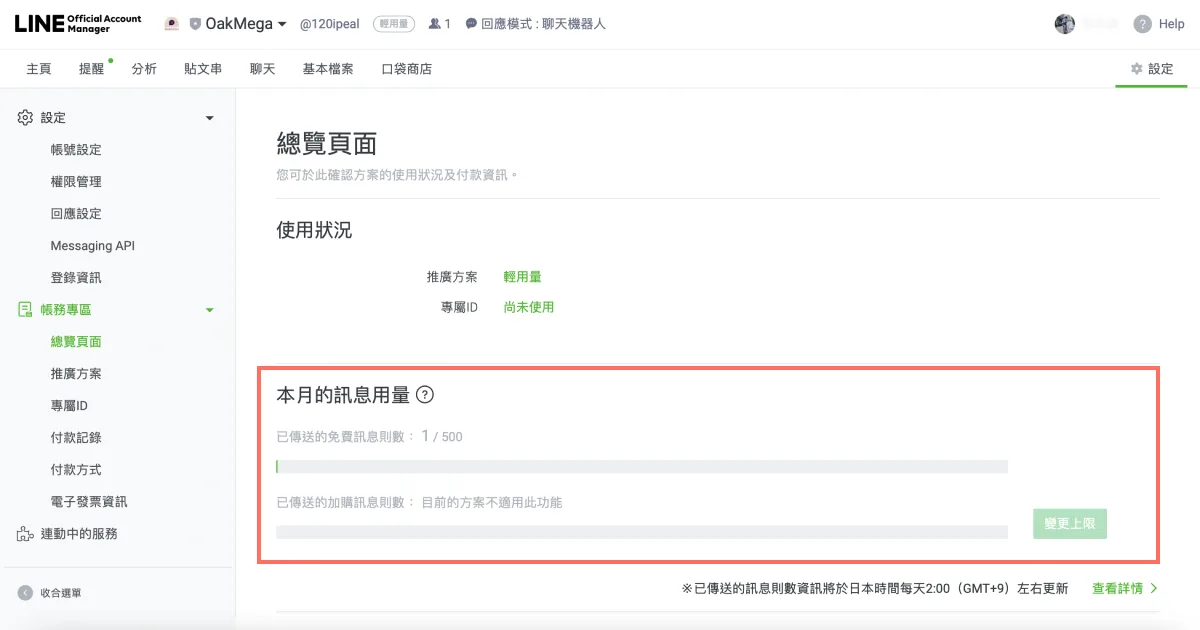
- On the Overview page, look under “Message usage this month” to see the number of “Free messages sent” this month. You can also check your LINE Official Account's current plan and account ID under “Usage” at the top. Note that the sent message count updates daily at 2:00 a.m. Japan time — so messages you send today won't show up on the Overview page until 1:00 a.m. the next day, Taiwan time.
LINE Official Account Manager: mobile app
If you've installed the mobile app, you can check this month's remaining message count even faster (download: iOS, Android)
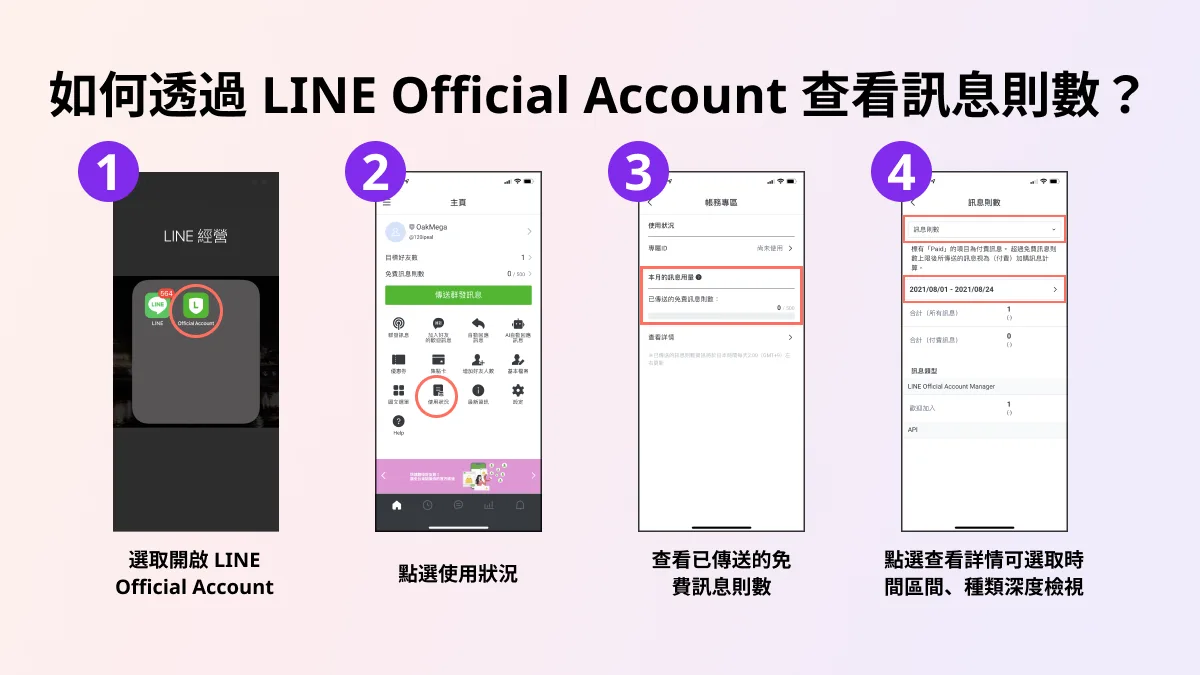
- Open the “LINE Official Account” app.
- Tap “Usage.”
- Check “Free messages sent” under “Message usage this month.”
- Tap “View details” to drill down by time period and message type.
Why track how many messages your official account has sent?
A brand's new LINE Official Account usually starts on the Light plan — the free plan. It includes 500 free messages a month, but you can't buy additional messages. As your friend count grows, staying on the Light plan makes it easy to run out of free messages mid-broadcast and end up unable to send (when you don't have enough messages left, only a random subset of friends receives the message). That's why brands need a clear view of how many messages they've sent each month.
Now that you know how to check your message count, if you're interested in paid plans and want to understand LINE Official Account pricing for paid plans and additional messages, start with this article on how LINE message fees are calculated:
How Are LINE Official Account Messaging Fees Calculated?When LINE upgraded LINE@ to the new LINE Official Account (LINE 2.0) in 2019, it overhauled both account tiers and message pricing. The main goal was to lower the barrier for brands on LINE: by opening up more features for free, brands gain more flexibility and are encouraged to grow on the platform, expanding the LINE ecosystem. But more choice in accounts and usage plans also means brands need a clearer grasp of where they stand to find the plan that fits best.https://oakmega.com/blog/line-official-account-new-charging-rules
Want more LINE marketing tips? What happens after you use up the 500 messages on the free plan? Pricing for additional messages on paid plans looks complicated — how is it calculated? Head over to the OakMega LINE Official Account for more LINE marketing content, or follow our “OakMega LINE Marketing Toolkit” for step-by-step guides to building your brand's LINE Official Account from scratch.