Advanced LINE Guide | How to Create a LIFF App in LINE Developers
Now that your LINE Official Account has a LINE Login channel, let's look at one of its most important features: the LIFF app, which is unique to LINE. We walk through adding a LIFF app via a LINE Login channel in LINE Developers and outline a few common use cases.
 Khan LeeCTO

With LINE Login set up for your LINE Official Account, it's time to explore one of its key features: the LIFF app. We'll show you how to add one and where it fits in. Since many people still aren't sure what a LIFF app actually is, let's start with a quick introduction.
What Is a LIFF App?
Here's how LINE Developers defines a LIFF app: LINE Front-end Framework (LIFF) is a platform for web apps provided by LINE. The web apps running on this platform are called LIFF apps.
In a nutshell:
A LIFF app is a web app that runs on a platform called LINE Front-end Framework (LIFF).
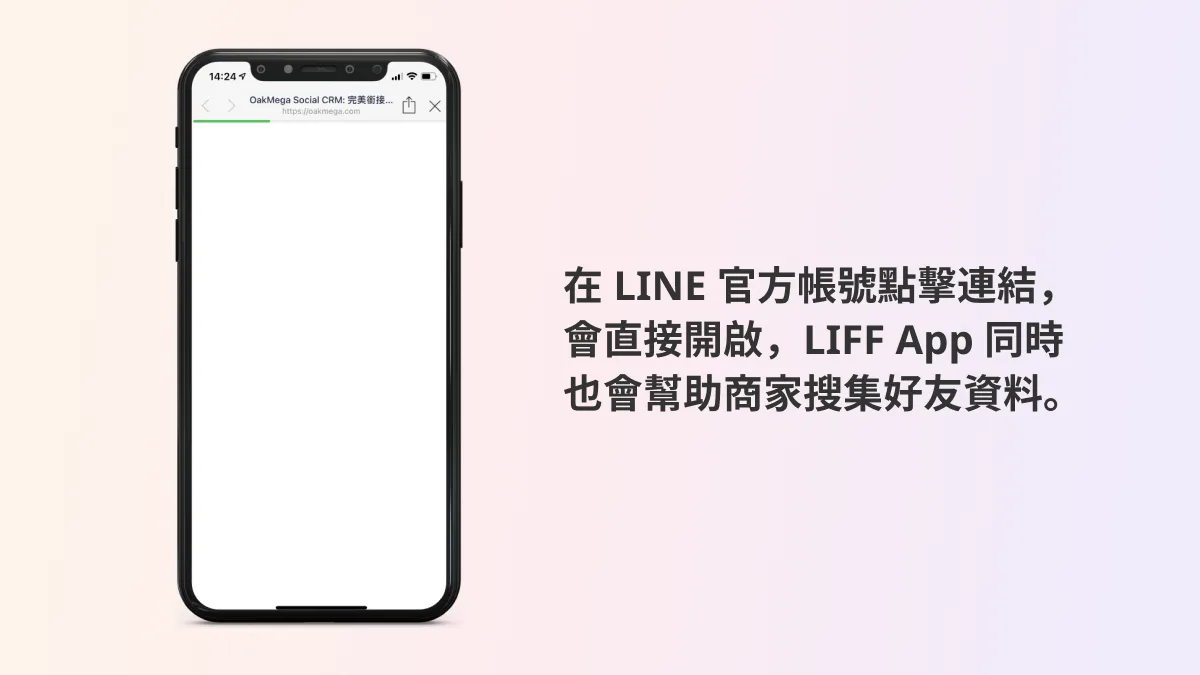
To simplify even further, think of a LIFF app as LINE's built-in browser. When friends interact through this in-app browser, the LIFF app helps businesses obtain their LINE information, such as their user ID (only with the friend's consent, of course).
How to Create a LIFF App
Now that you know what a LIFF app is, how do you add one? You create LIFF apps in LINE Developers, not in the LINE Official Account Manager. Many people mix up these two platforms, so here's a simple rule of thumb: go to LINE Developers for anything technical, and use LINE Official Account Manager for engaging friends and running your account.
Because LIFF apps sit under LINE Login, you'll need a LINE Login channel first. If you don't have one yet, start with this guide:
How to Create a LINE Login Channel in LINE DevelopersHas your LINE Official Account reached the point where you need LINE Login? Before we get into the setup, here's a quick look at what LINE Login is and when to use it.https://oakmega.com/blog/create-line-login-from-line-developers
Now let's add a LIFF app!
Step 1: Log In and Open Your LINE Login Channel
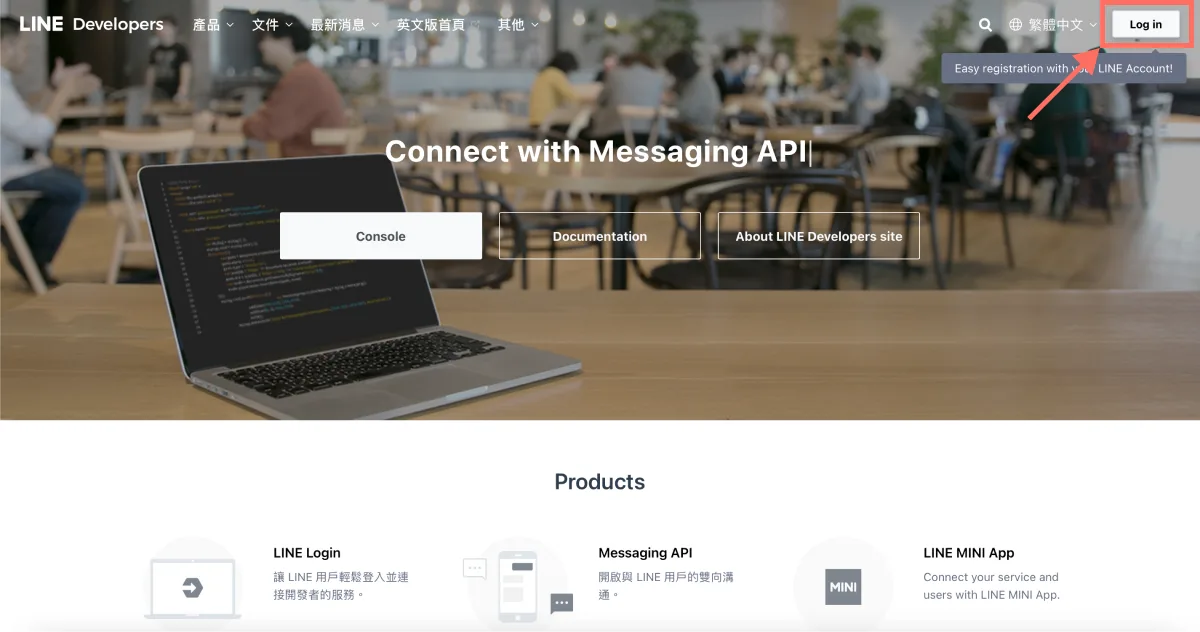
- On the LINE Developers site, click “Log in” in the top-right corner and sign in to the LINE Developers console with your LINE Business ID.
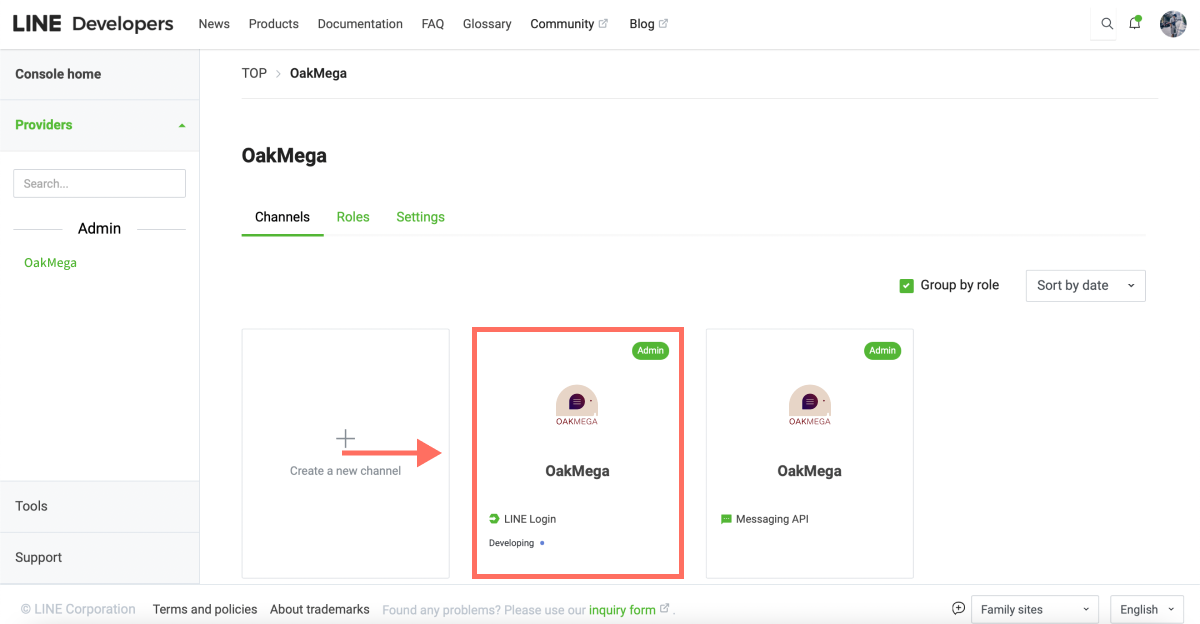
- In the console, open the relevant Provider, then find and click the LINE Login channel you want to add a LIFF app to.
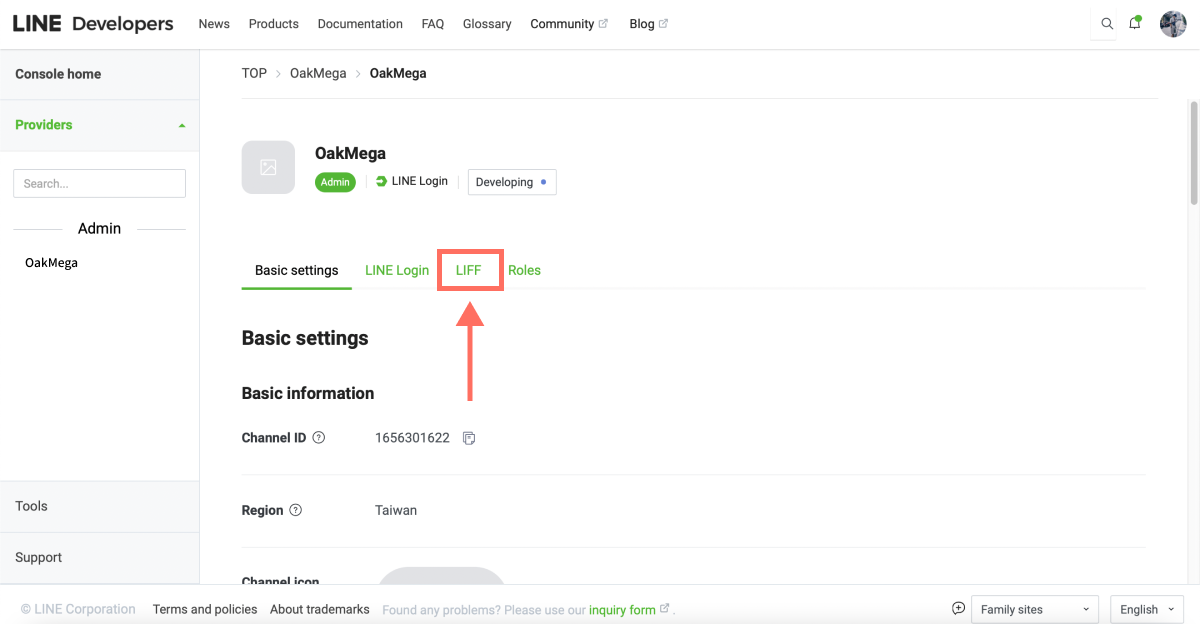
- Inside the LINE Login channel, click the “LIFF” tab in the top menu.
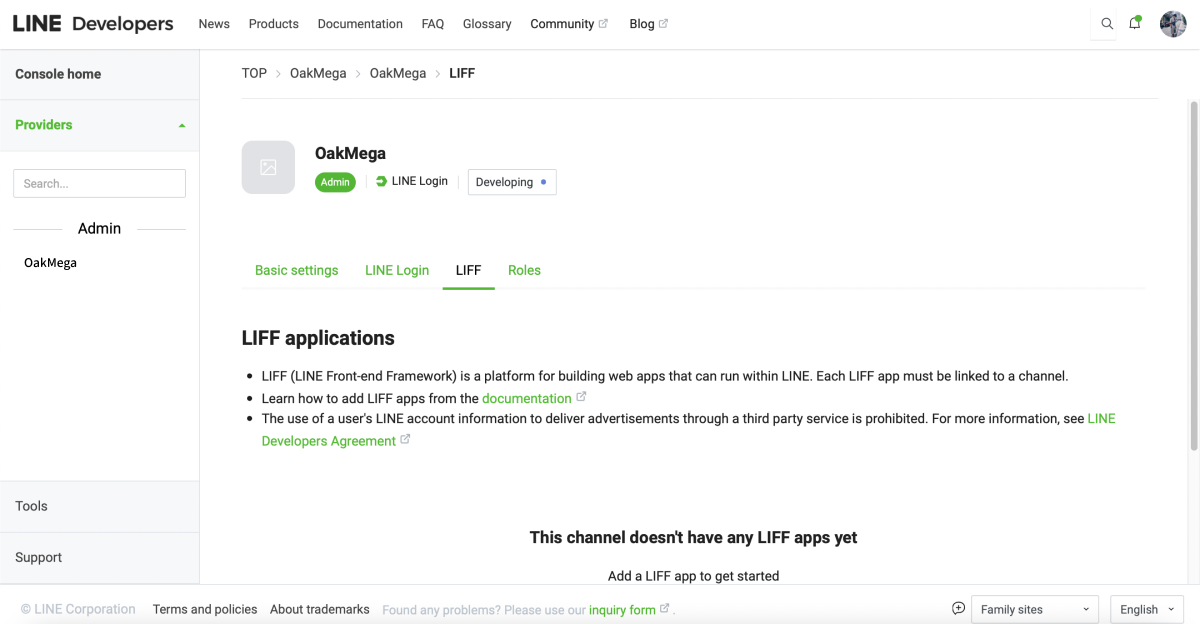
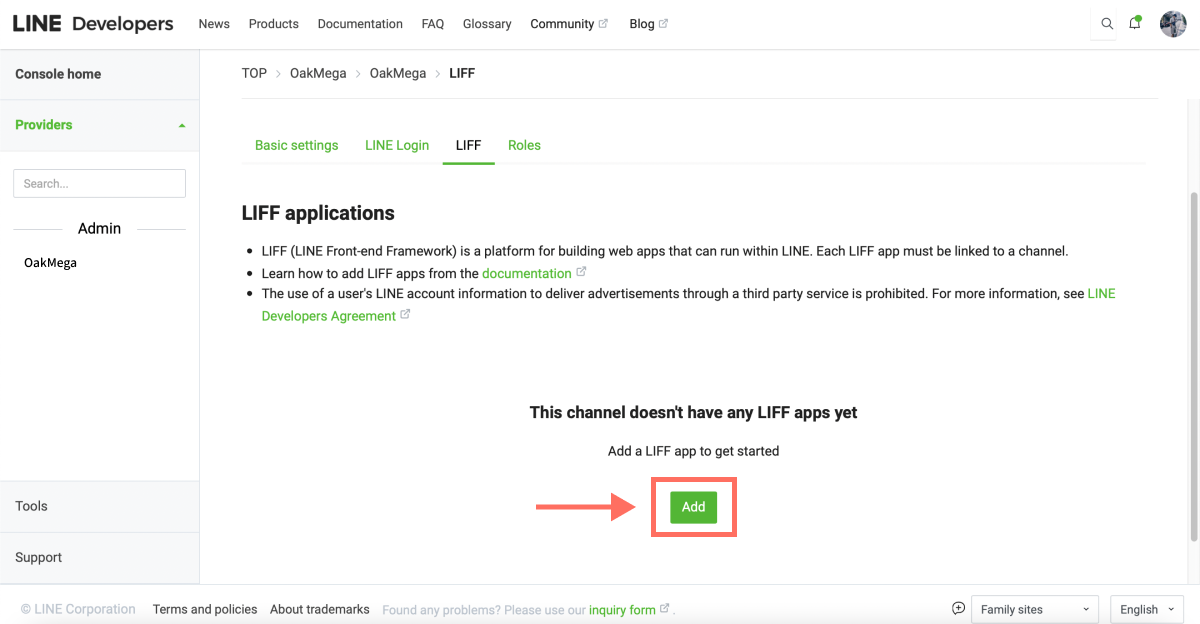
- On the LIFF tab, scroll down and click “Add” to start creating a LIFF app.
Step 2: Enter the Details
-
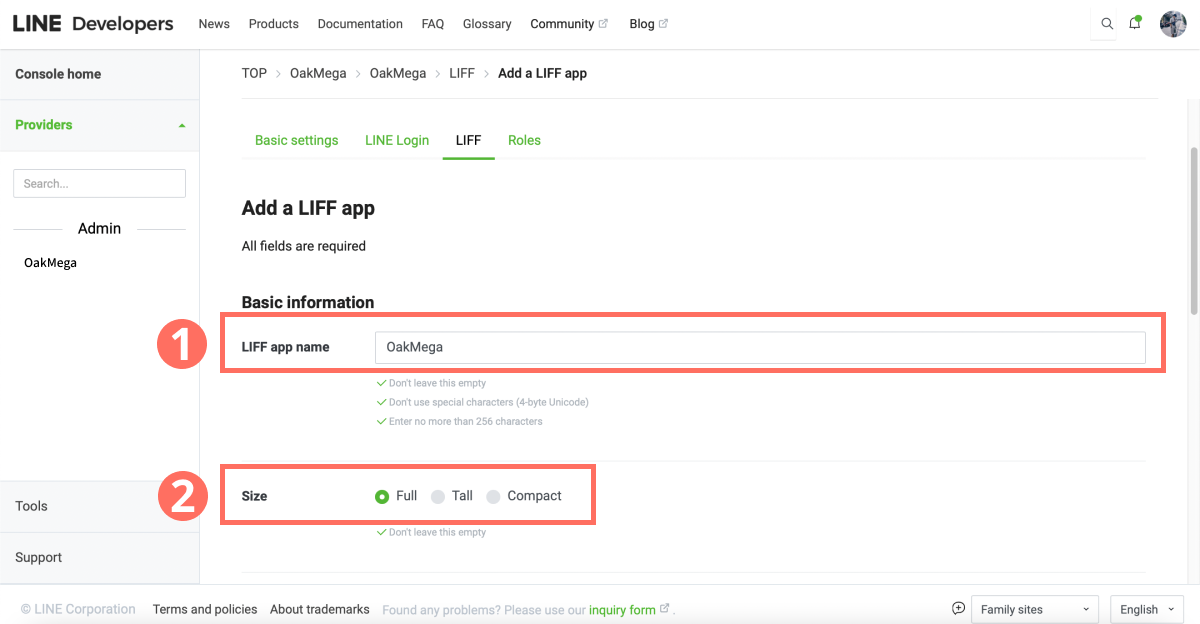
A new LIFF app requires some Basic information. Fill in the fields as prompted:
-
LIFF app name: Shown only in the LINE Developers console; LINE friends won't see it when they open the LIFF app. Enter your brand name.
-
Size: How large the LIFF app appears when opened in LINE. Select “Full” to display it full-screen (Tall covers 70% of the screen, and Compact covers 50%).
-
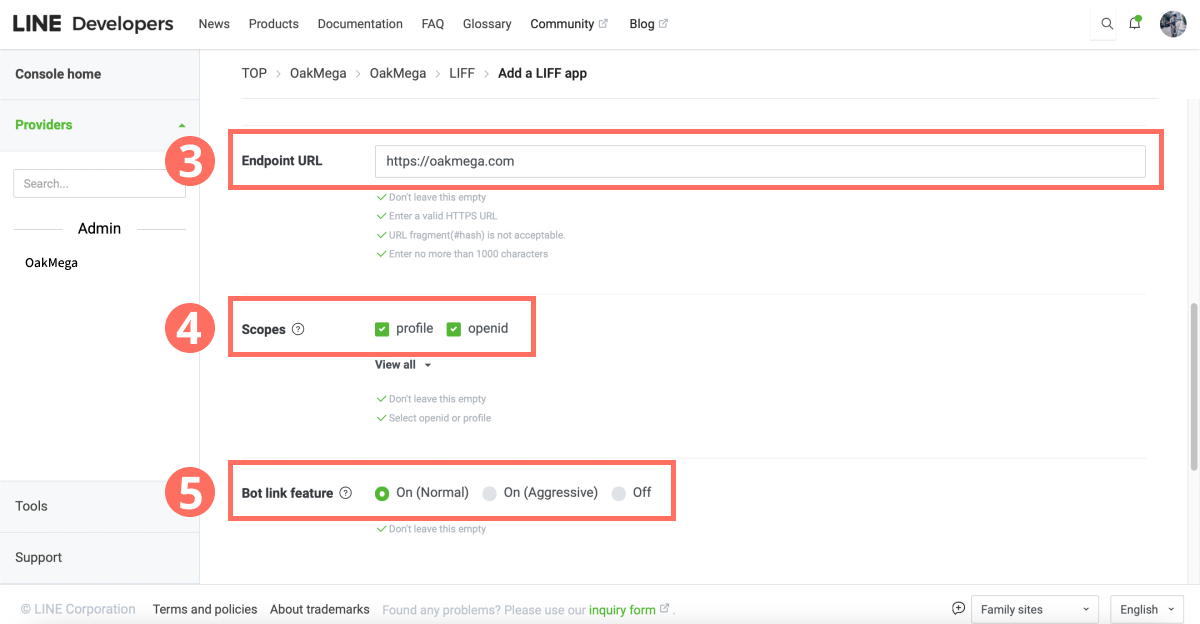
Continue with the Basic information:
-
Endpoint URL: The page friends land on when they open the LIFF app. Enter your brand's official website or any URL you like.
-
Scopes: The information you want to collect in the LIFF app. Check both “profile” and “openid.”
-
Bot link feature: Whether to link the friend's data to your LINE Official Account when they open the LIFF app. Select “On (Normal).”
-
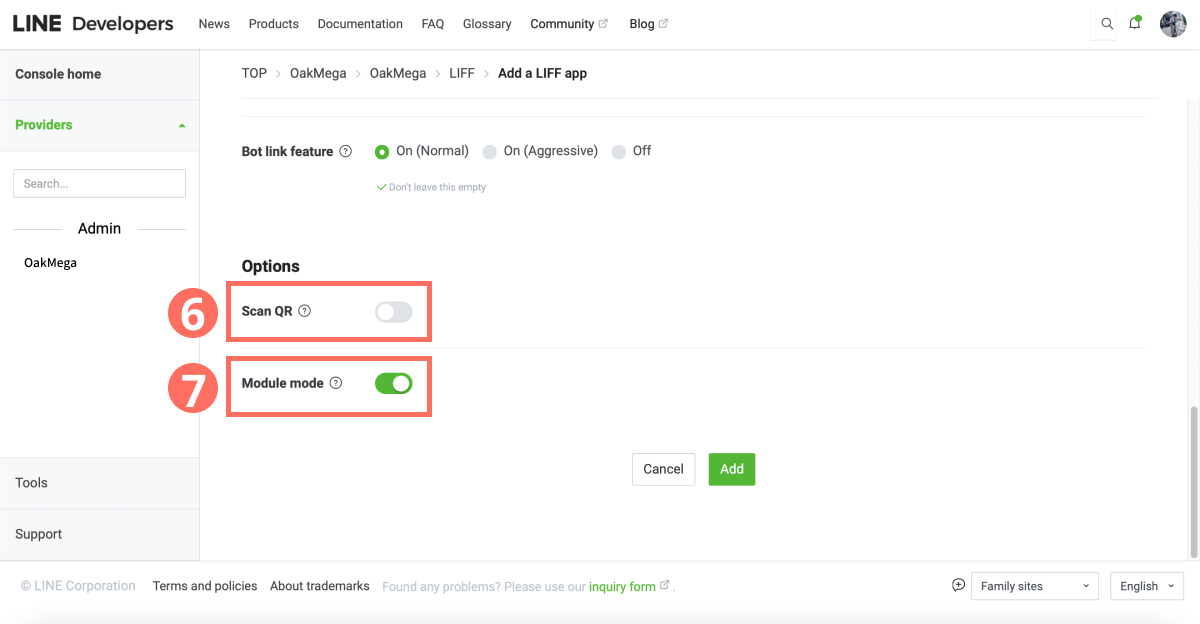
Next, fill in the Options:
-
Scan QR: Leave unchecked.
-
Module Mode: Turn it on (this option appears only when Size is set to “Tall” or “Compact”).
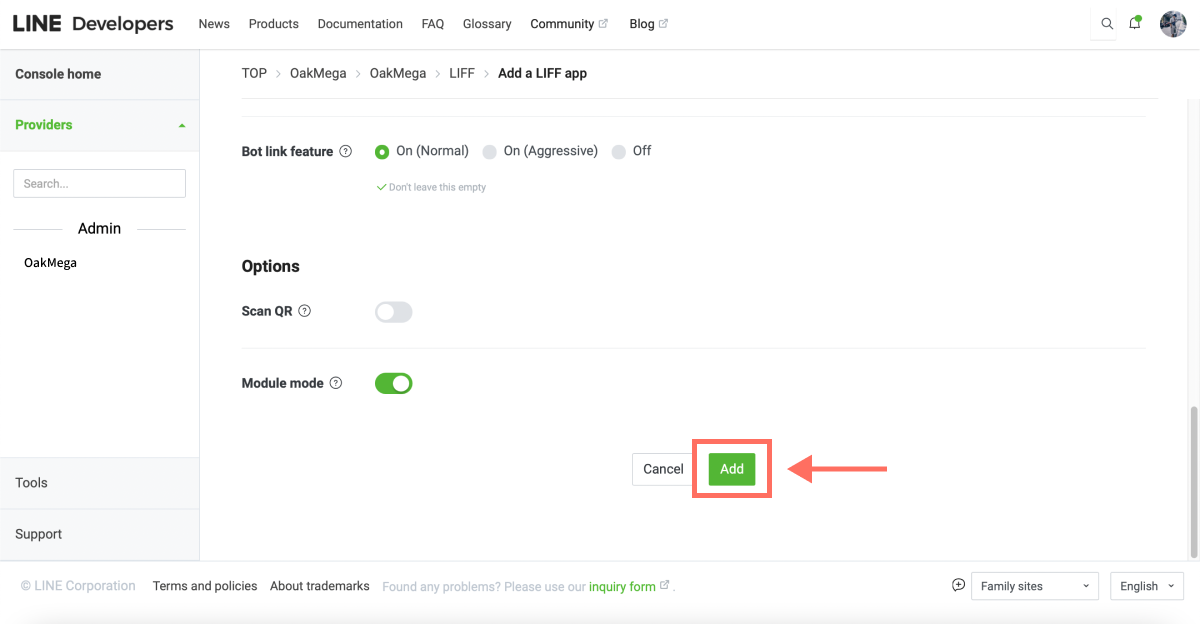
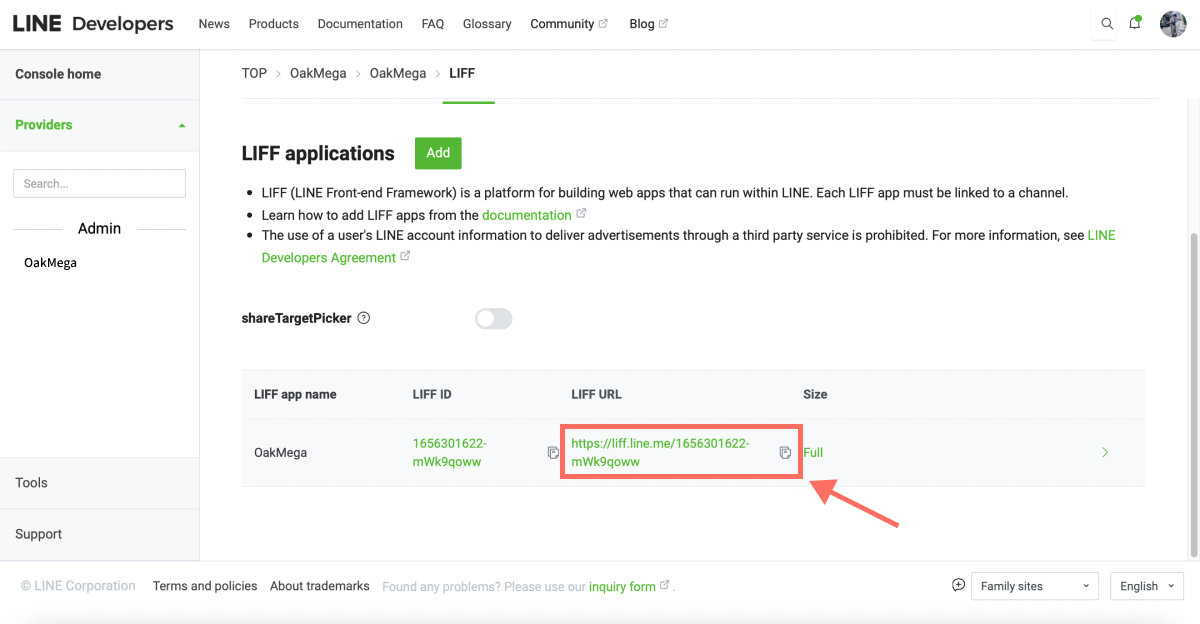
- When you're done, click “Add,” and your first LIFF app is ready!
- Copy the LIFF URL, paste it into a LINE chat, then open the link on your phone to see your LIFF app in action!
LIFF App FAQs
Here are a few questions people often run into after creating their first LIFF app:
Q1: Once the LIFF app is set up, is it actually collecting user data in the browser?
Just like LINE Login, you'll need an engineer to update your web pages before the data collected through the LIFF app can flow into your own servers. We'll publish a detailed guide for engineers soon, so stay tuned to the “OakMega LINE Marketing Playbook”!
Q2: Why can other LINE Official Accounts collect email addresses through their LIFF apps?
They've configured extra settings for LINE Login, which lets them check “email” under Scopes in the LIFF app and collect friends' email addresses as well.
Q3: I still don't quite get what the Bot link feature does.
We'll cover the Bot link feature in a dedicated article soon, so stay tuned to the “OakMega LINE Marketing Playbook”!
Want more tips on running your LINE account? Wondering how to make your LIFF app display in a smaller layout? Visit the OakMega LINE Official Account to learn more, or follow the “OakMega LINE Marketing Playbook” for step-by-step guides to building your brand's LINE Official Account from the ground up.