Advanced LINE Guide: How to Shrink the View of Web Pages Opened in a LIFF App
Last time we showed how to add a LIFF app under LINE Login in LINE Developers, and the next question was: can you adjust the size of the browser view a LIFF app opens? Relax. In the LIFF tab of LINE Login in the LINE Developers console, you can choose from three view sizes: Full (100%), Tall (70%) and Compact (50%).
 Howard HuangMarketing Specialist

Last time we showed how to add a LIFF app under LINE Login in LINE Developers, and the next question was: can you adjust the size of the browser view a LIFF app opens? Relax. You can do it in the LIFF tab of LINE Login in the LINE Developers console!
Three view sizes for web pages opened from a LIFF app
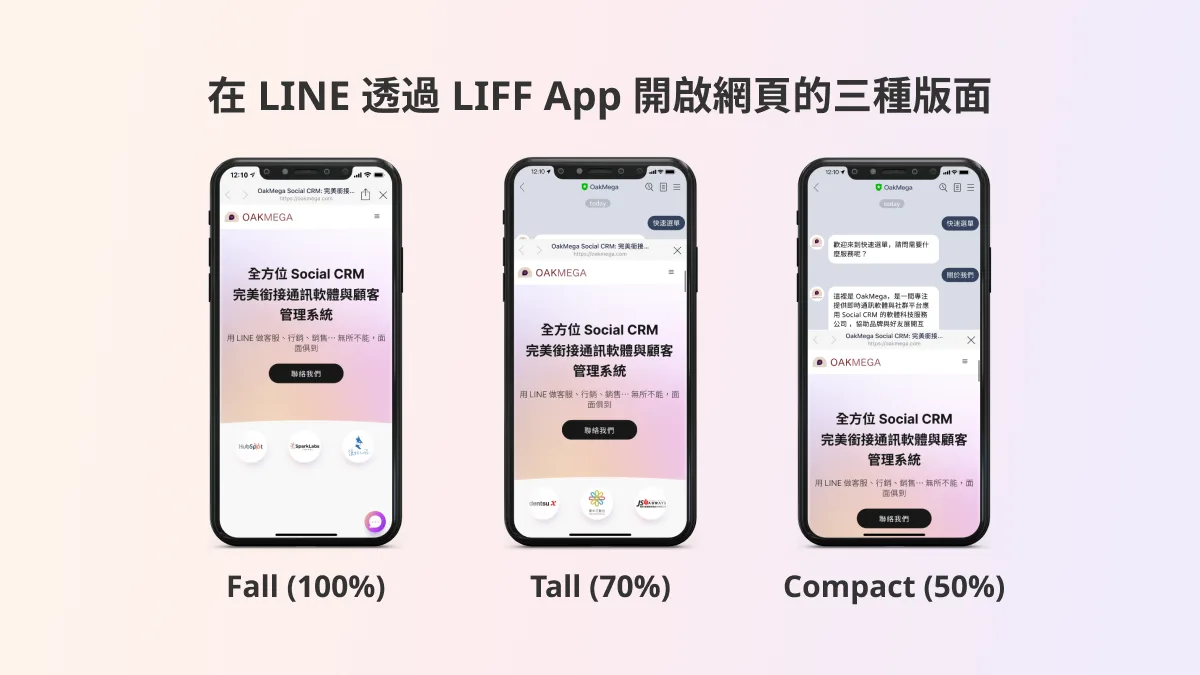
Before walking through the settings, let's look at the three view sizes. From largest to smallest screen coverage:
- Full: fills the entire screen.
- Tall: covers 70% of the screen.
- Compact: covers 50% of the screen.
How to change your LIFF app settings
Step 1: Log in to LINE Login
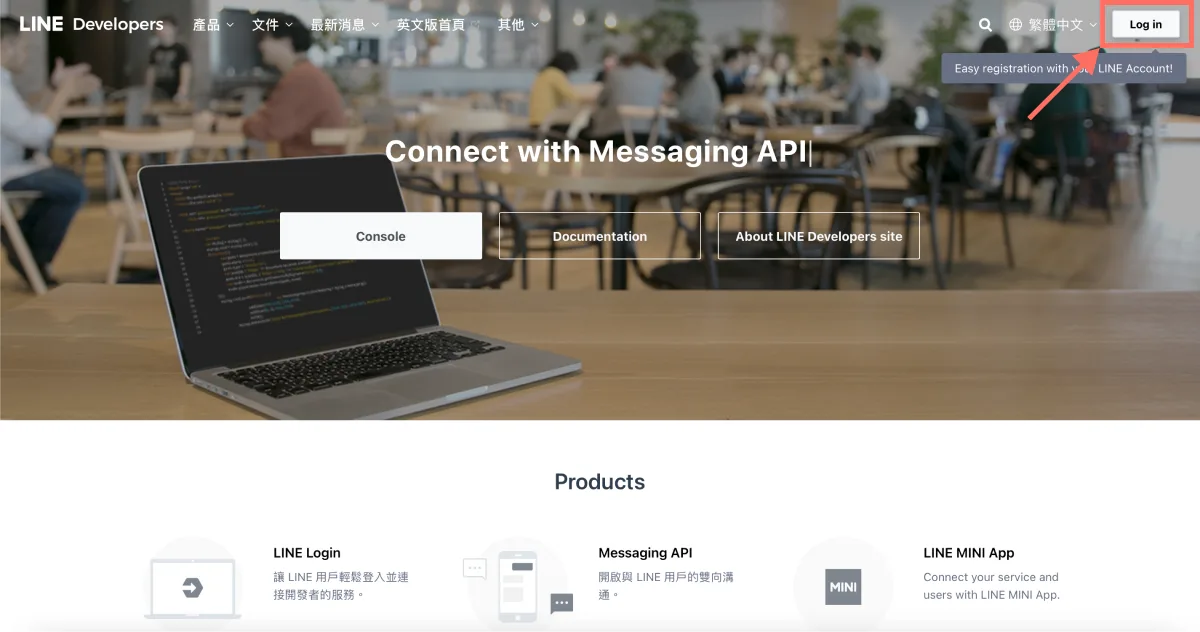
- On the LINE Developers page, click “Log in” in the top-right corner and sign in to the LINE Developers console with your LINE Business ID.
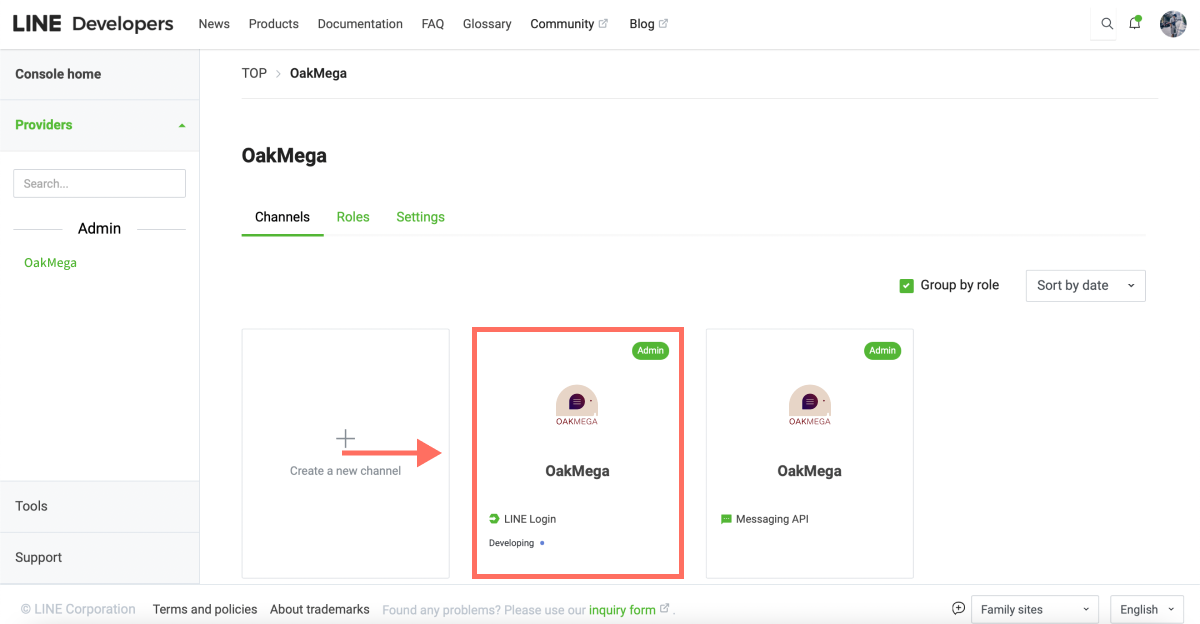
- Once in LINE Developers, open the relevant Provider, then find and click the LINE Login channel whose LIFF app you want to adjust.
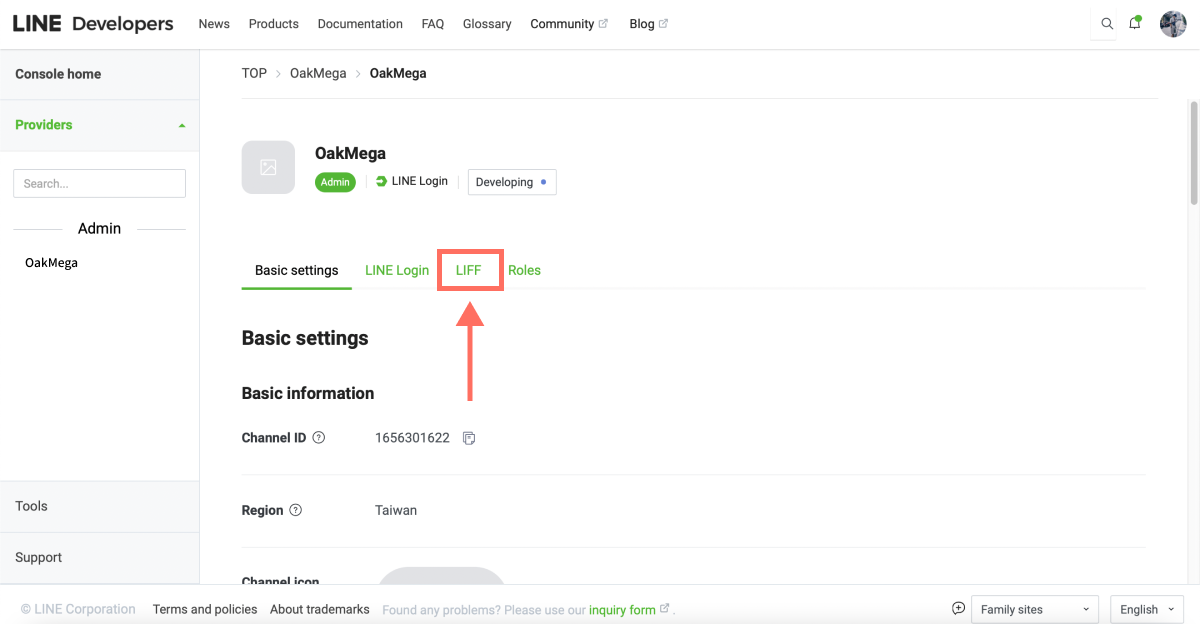
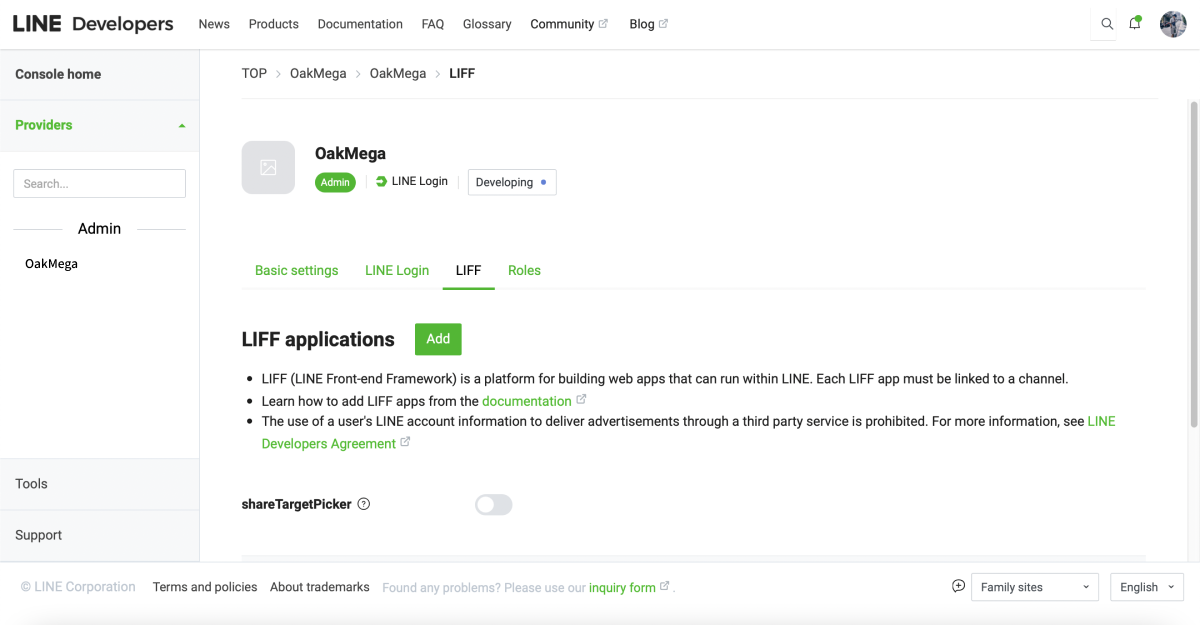
- Inside the LINE Login channel, find the “LIFF” tab in the top bar and click it.
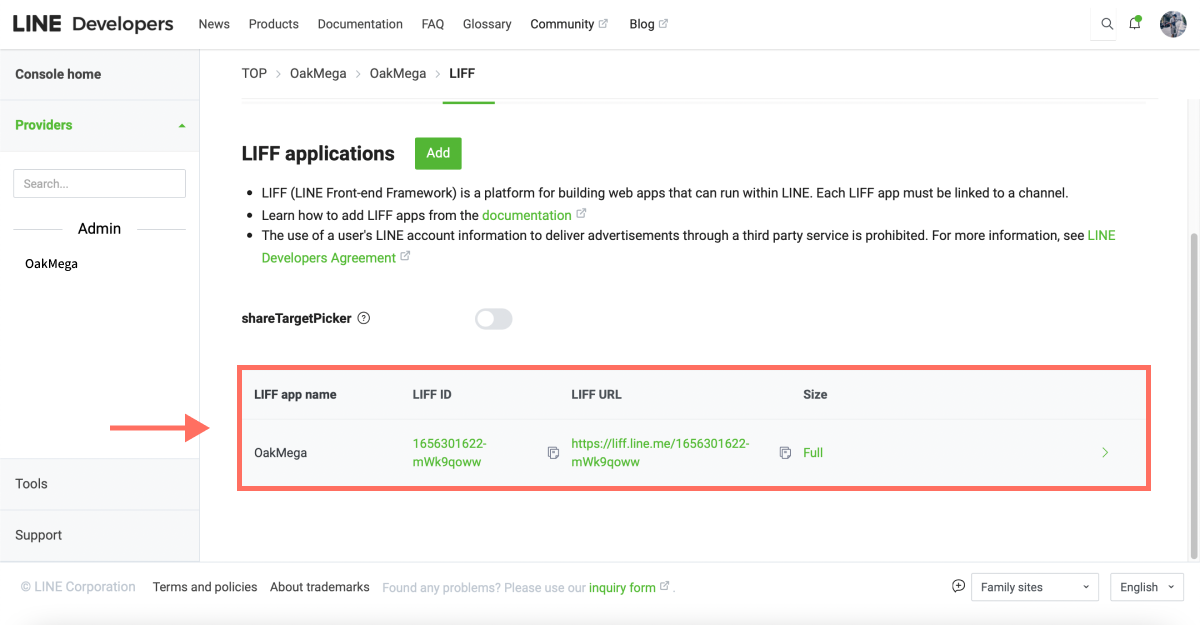
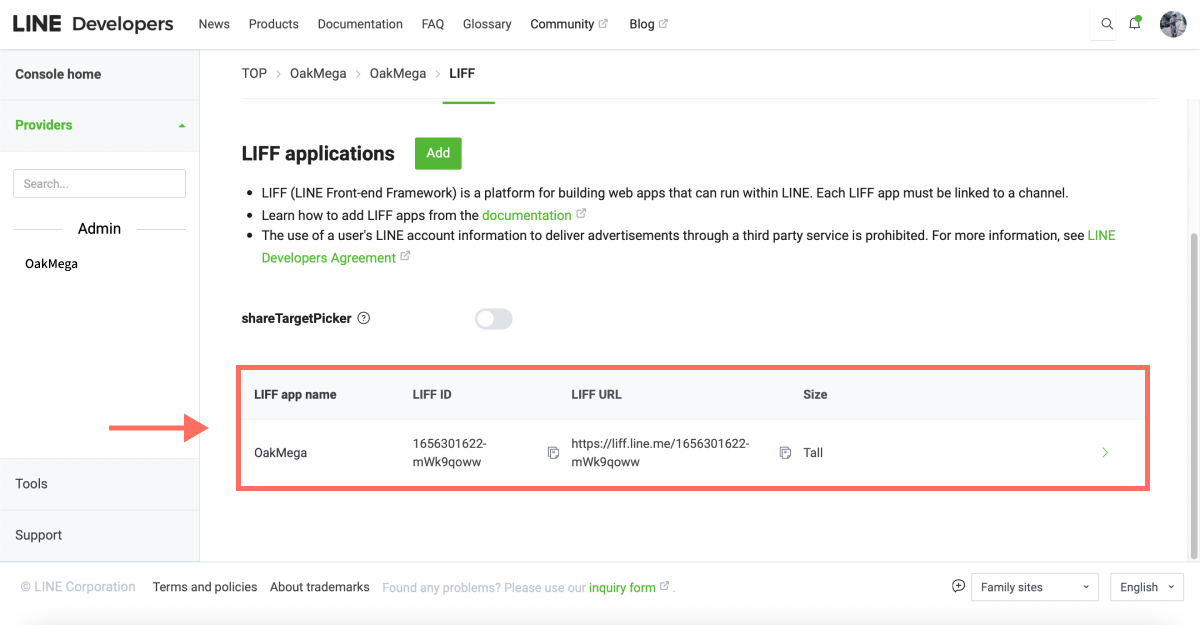
- In the LIFF tab, scroll down to see the LIFF apps you have added and their current view size (Size). Click the LIFF app you want to resize.
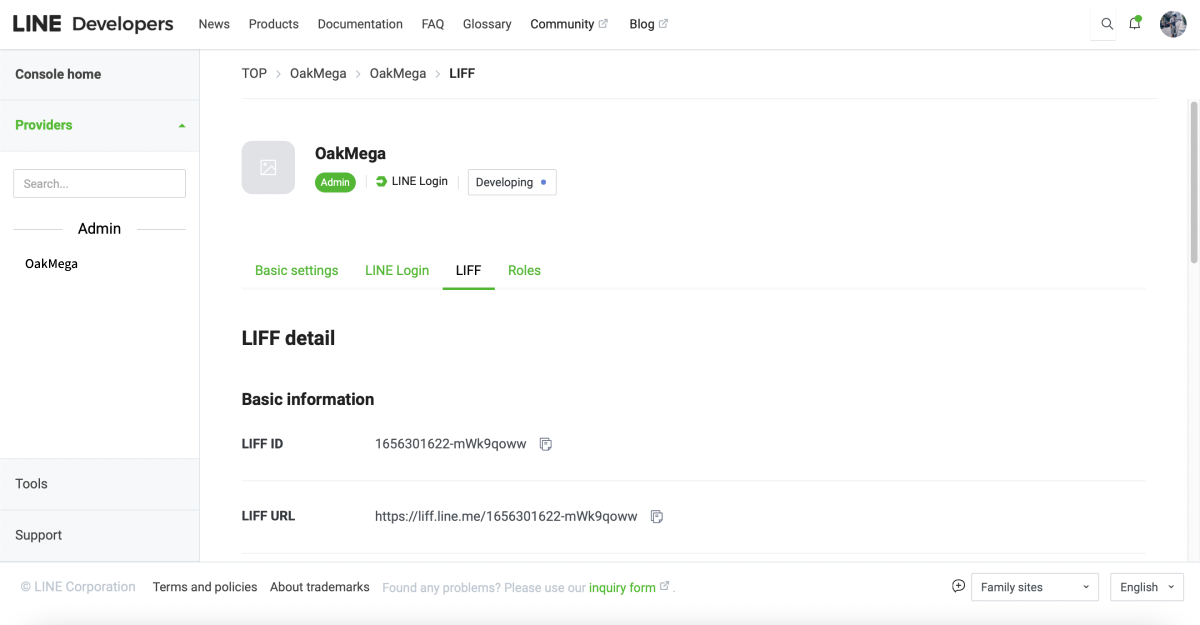
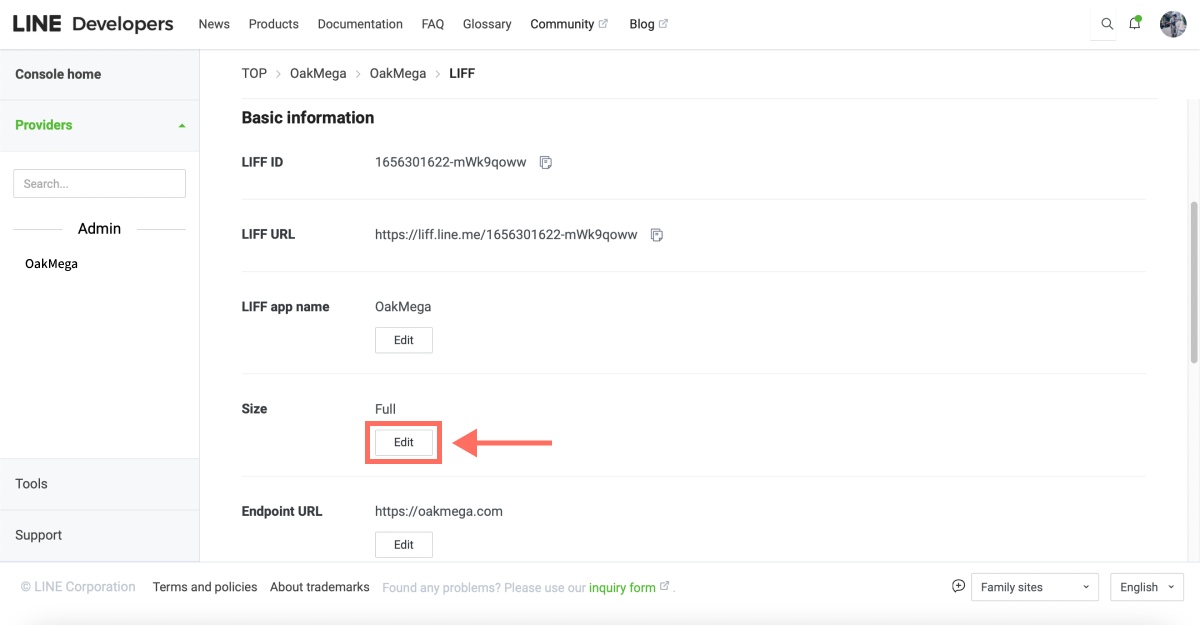
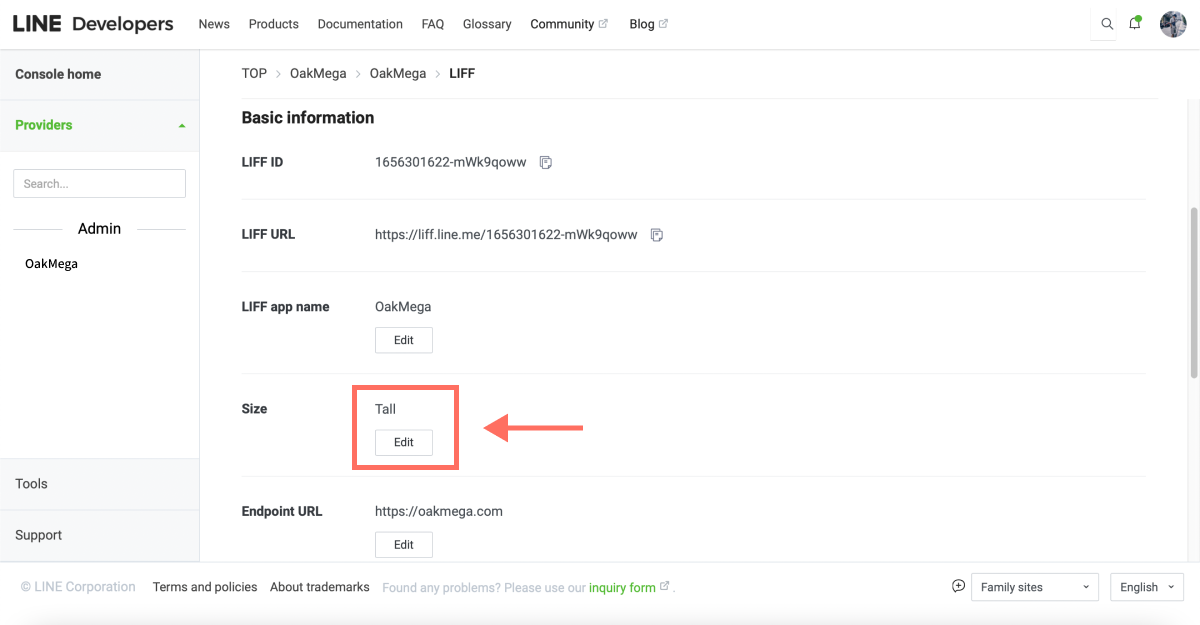
- Inside the LIFF app, scroll down to the Size option and click “Edit.”
- Three options appear: Full, Tall and Compact. Select the size you want and click “Update” to save your changes.
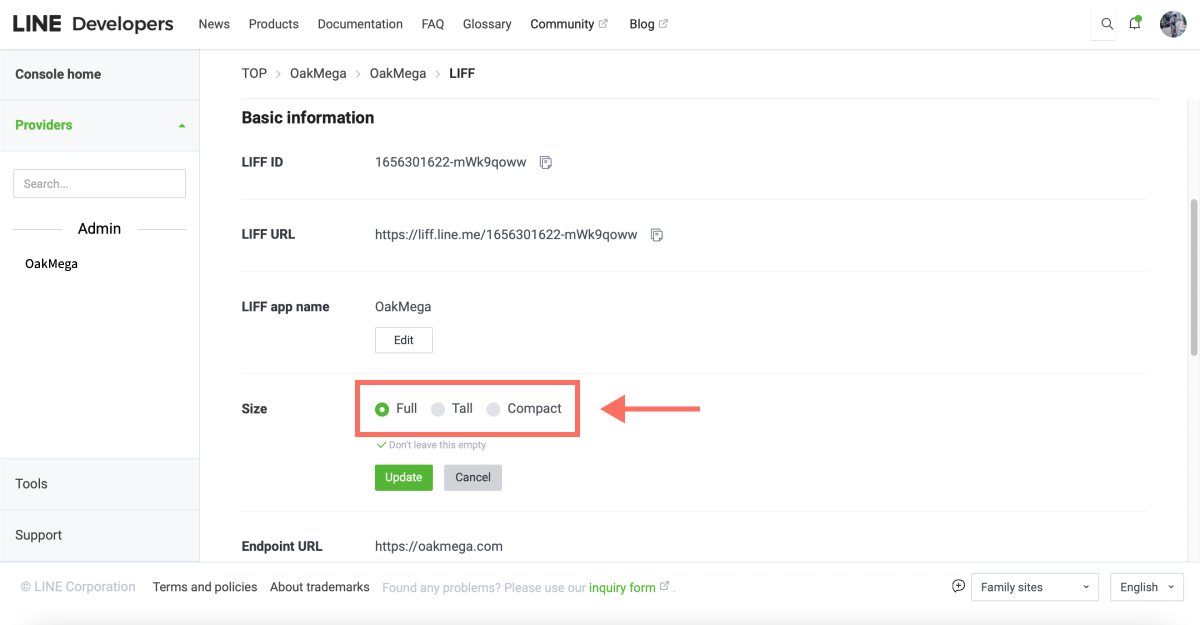
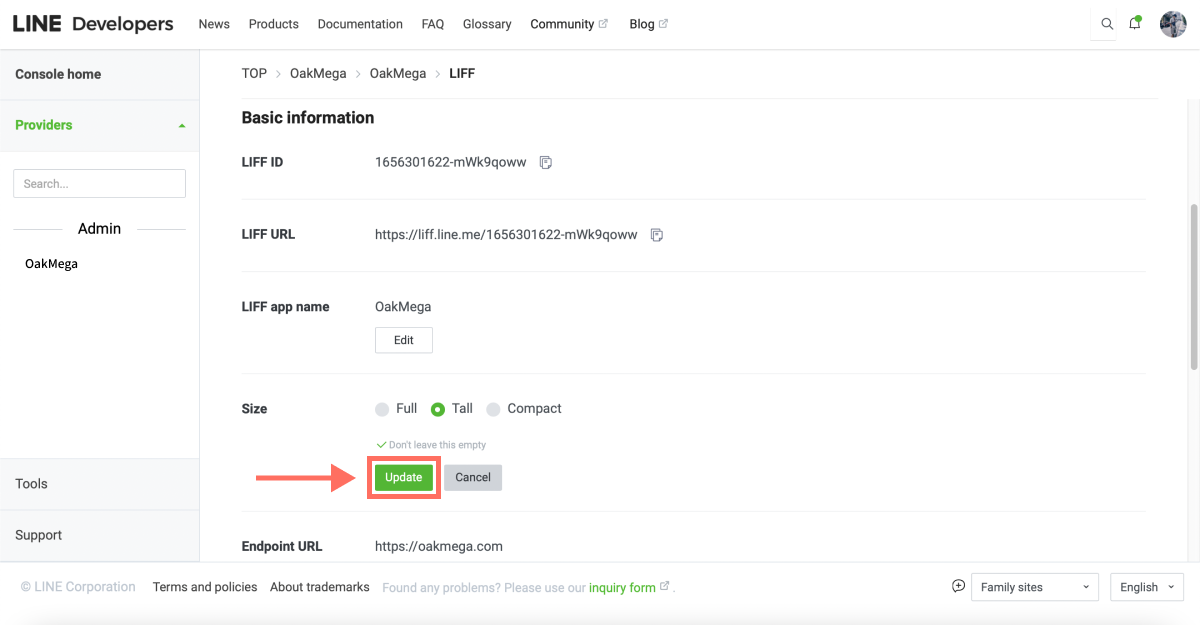
- After saving, the page shows the updated result. Go back one page and you'll see the LIFF app's Size has changed as well.
Why adjust the view size?
Once you change the view size, a LIFF web page that a friend opens from a link in your LINE Official Account no longer takes over the full screen. Sometimes brands don't want friends to leave the LINE Official Account just because they opened a LIFF page, or they want the LIFF page content to interact with the LINE Official Account chat window. Adjusting the view size lowers the chance that users leave the LINE Official Account altogether.
Want more tips on running LINE? What else can LINE Developers do for your LINE Official Account? Head over to the OakMega LINE Official Account for more LINE marketing content, or follow our “OakMega LINE Playbook” for step-by-step tutorials on building your brand's LINE Official Account from the ground up.