LINE How-To Guide | Create Your Own Digital Business Card on LINE with a Template!
Once your LINE Official Account is connected to OakMega Social CRM, growing your friend count isn't the only thing on the table. OakMega can also build you a custom LINE digital business card that people can forward and share instantly on LINE. Here's how to set one up fast.
 ILING WuProduct Marketing Manager

Once you've connected your LINE Official Account to OakMega Social CRM, you're probably thinking about how to grow fast and turn users into LINE friends. But OakMega can also build you a custom LINE digital business card that people can forward and share instantly on LINE, grabbing attention in seconds. So how do you create your own LINE digital business card quickly?
Step 1: Add a template in Chatbot
In the left navigation bar, find and click the fourth button, “LINE Chatbot.”
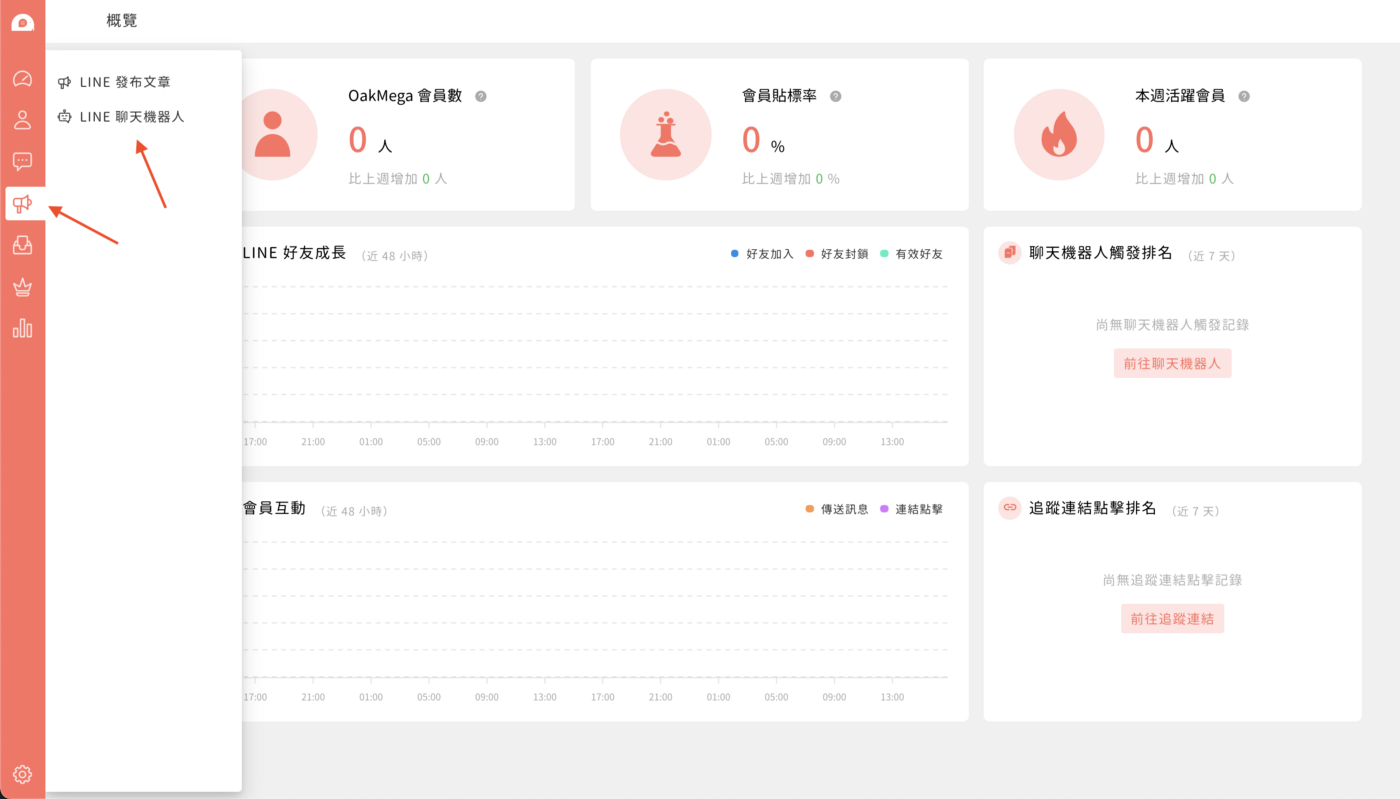
In LINE Chatbot, open the folder dropdown in the top-left corner and select “Welcome message” > “Default folder.”
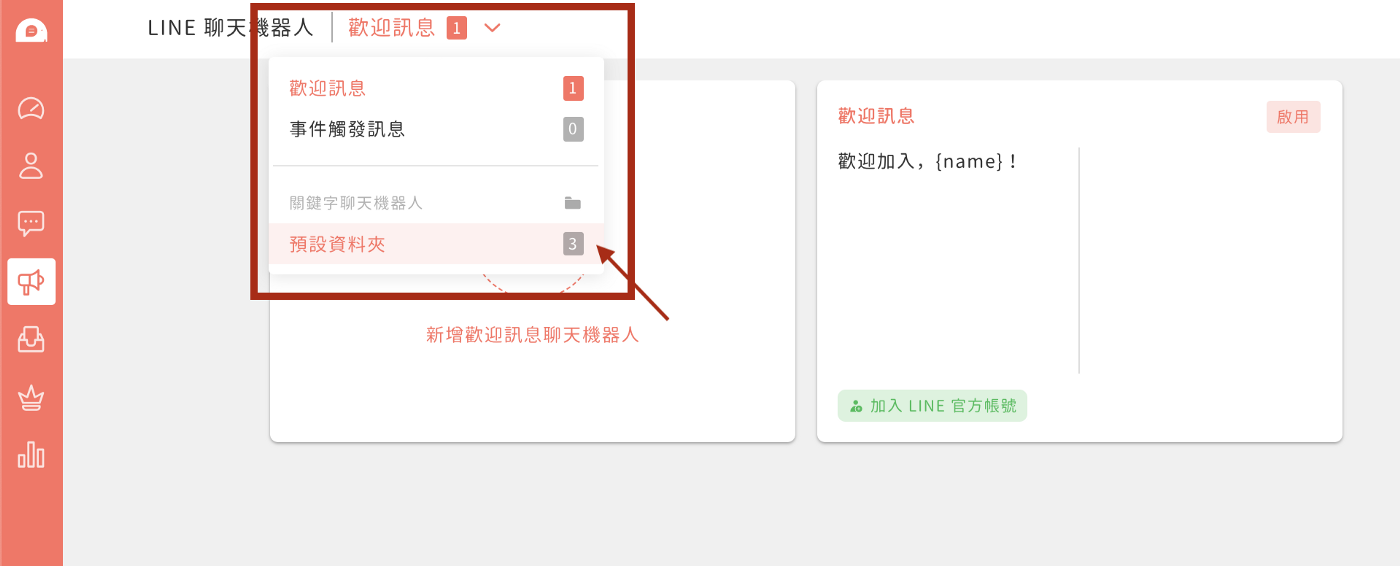
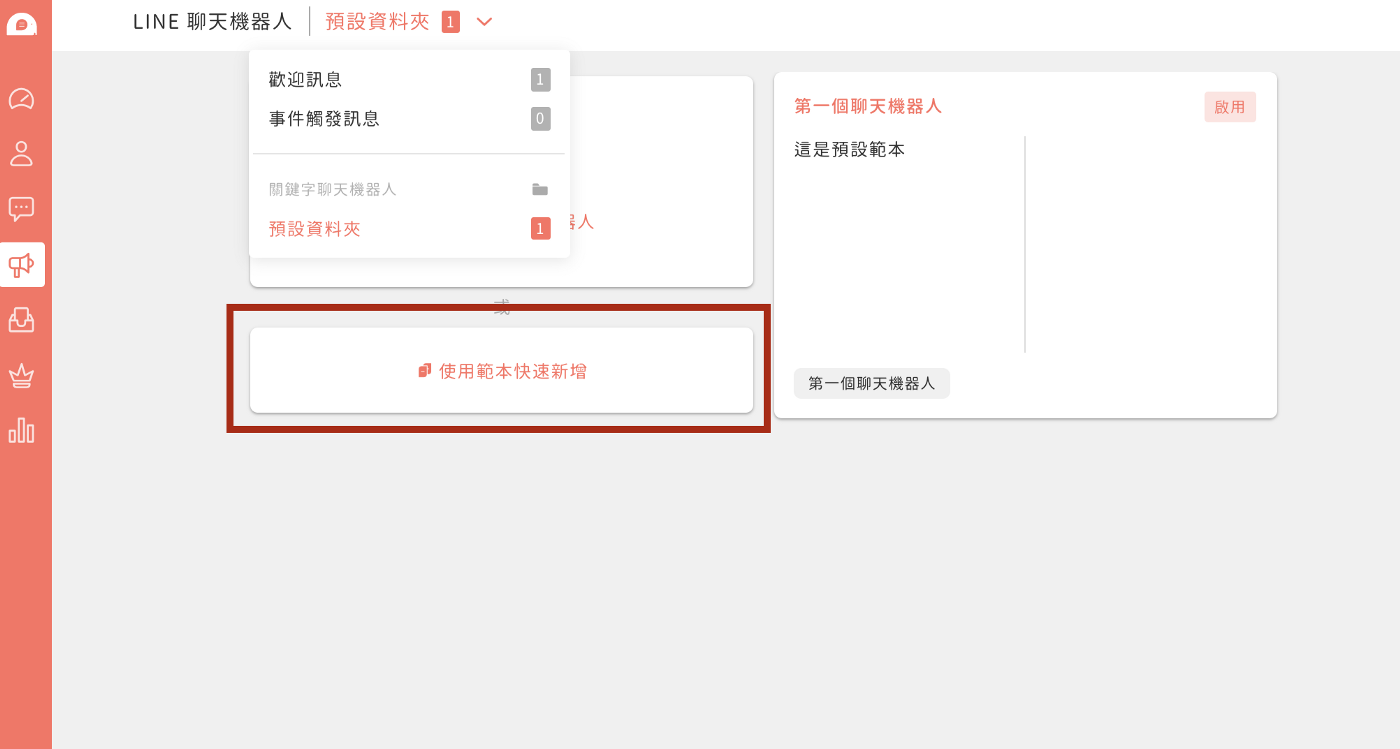
Click “Quick add from template” to open the templates and create a digital business card.
Step 2: Choose a business card template
Pick the business card template you want and click it to open the editor. Creating a LINE digital business card requires the Share module to be activated; follow the Share module activation guide to turn it on.
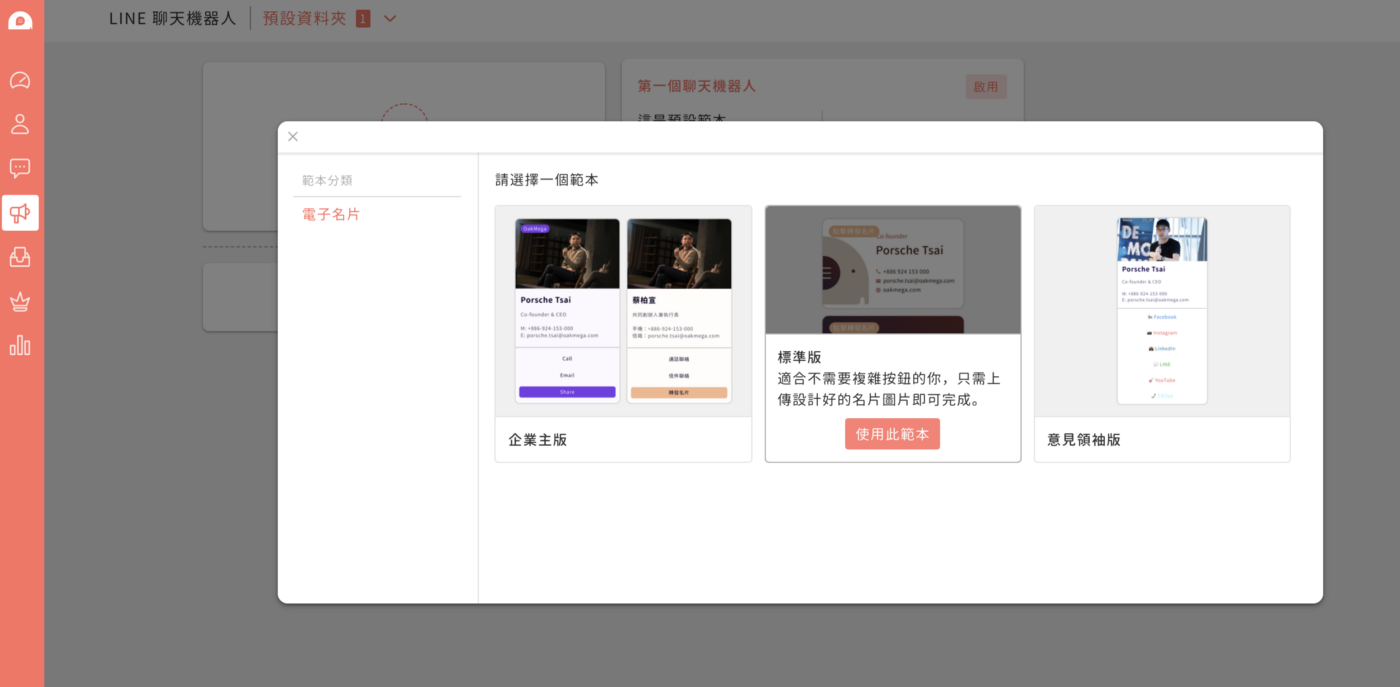
Step 3: Edit your business card
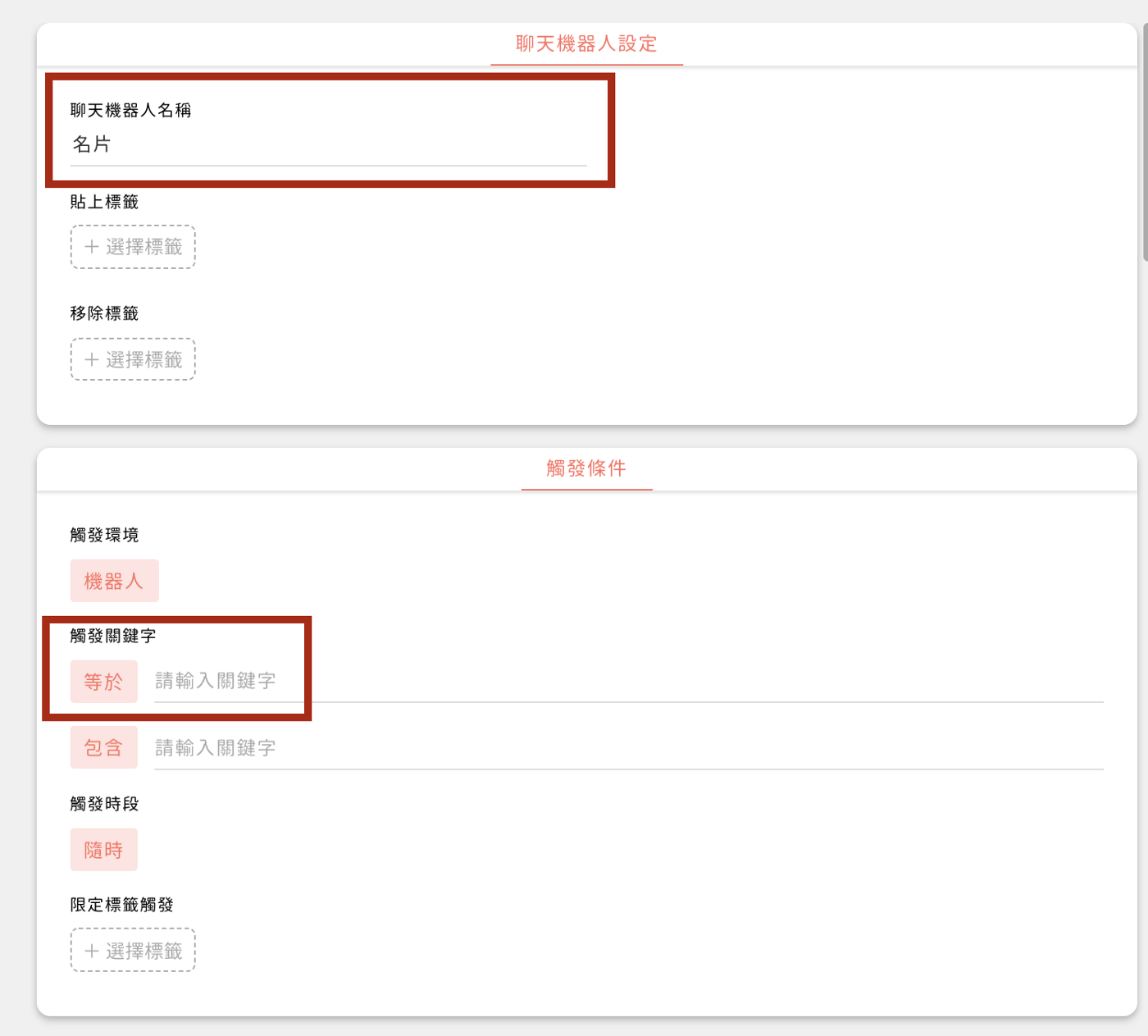
First, set the chatbot name and trigger keyword. Once that's done, anyone can type the keyword in your LINE Official Account to get the business card right away.
The template comes pre-styled. You can change the images and button links, and add more buttons. Button count and colors can all be customized to your liking.
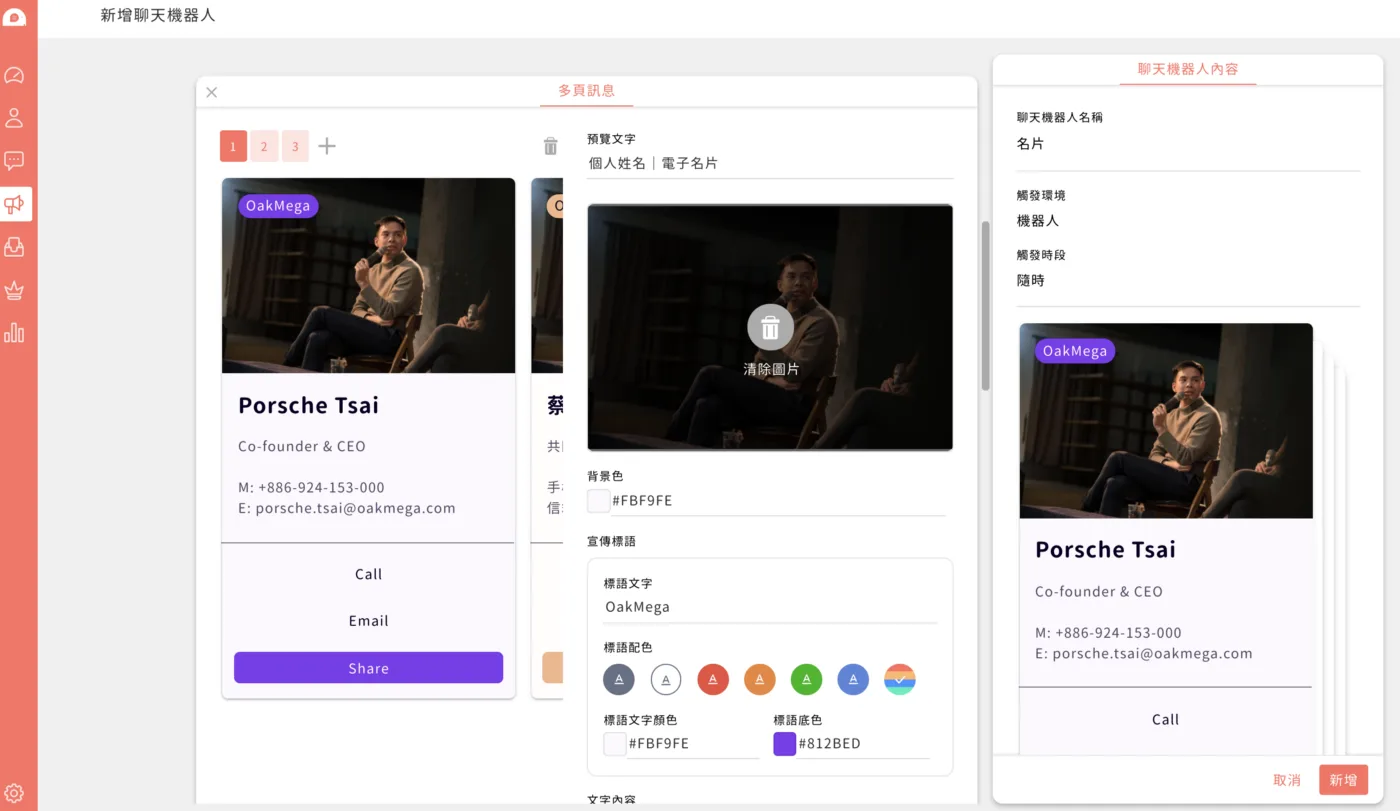
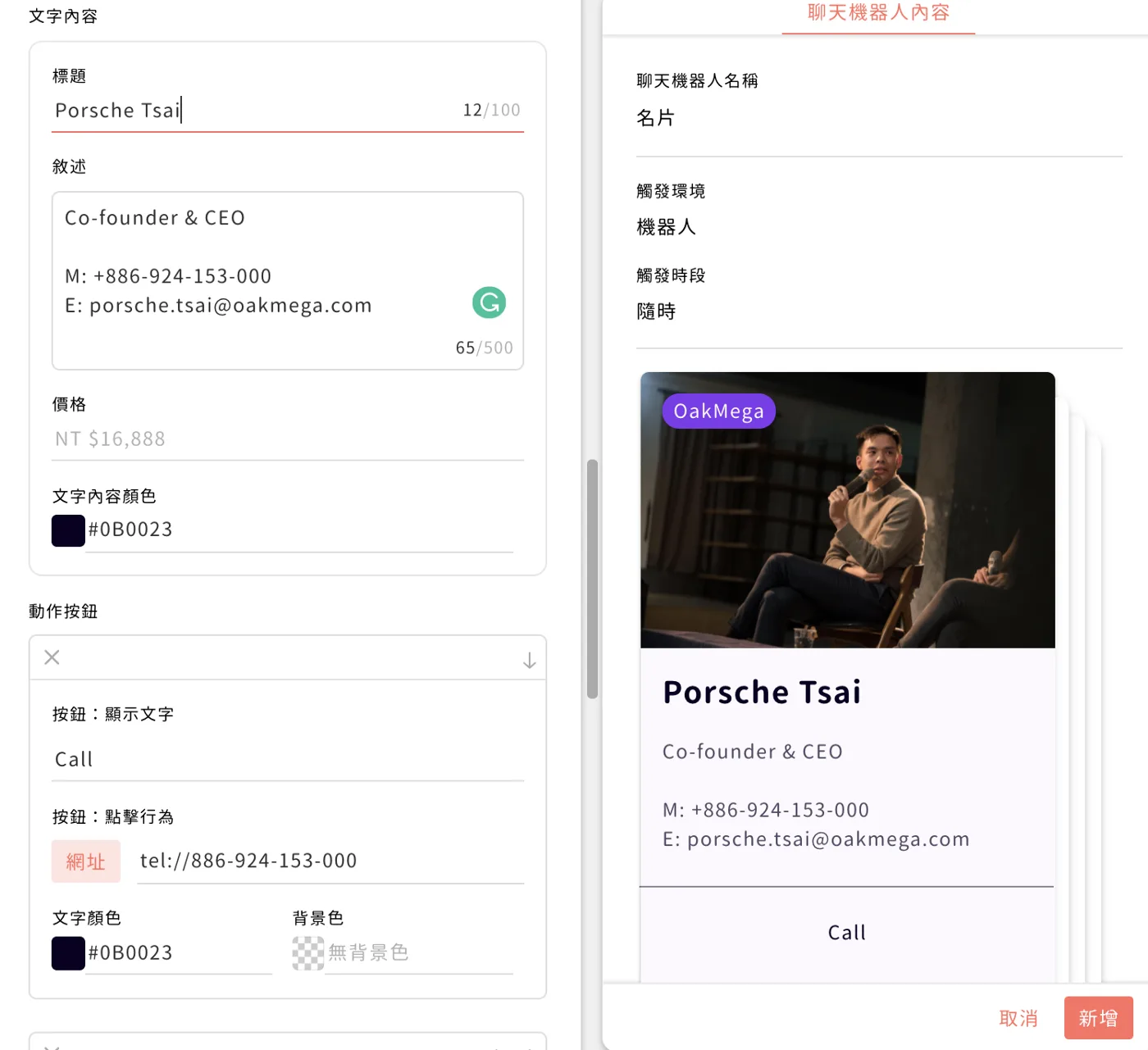
Step 4: Set up the share link
The share button needs some extra setup. First, once your business card content is done, click “Add” in the bottom-right corner to finish creating the chatbot.
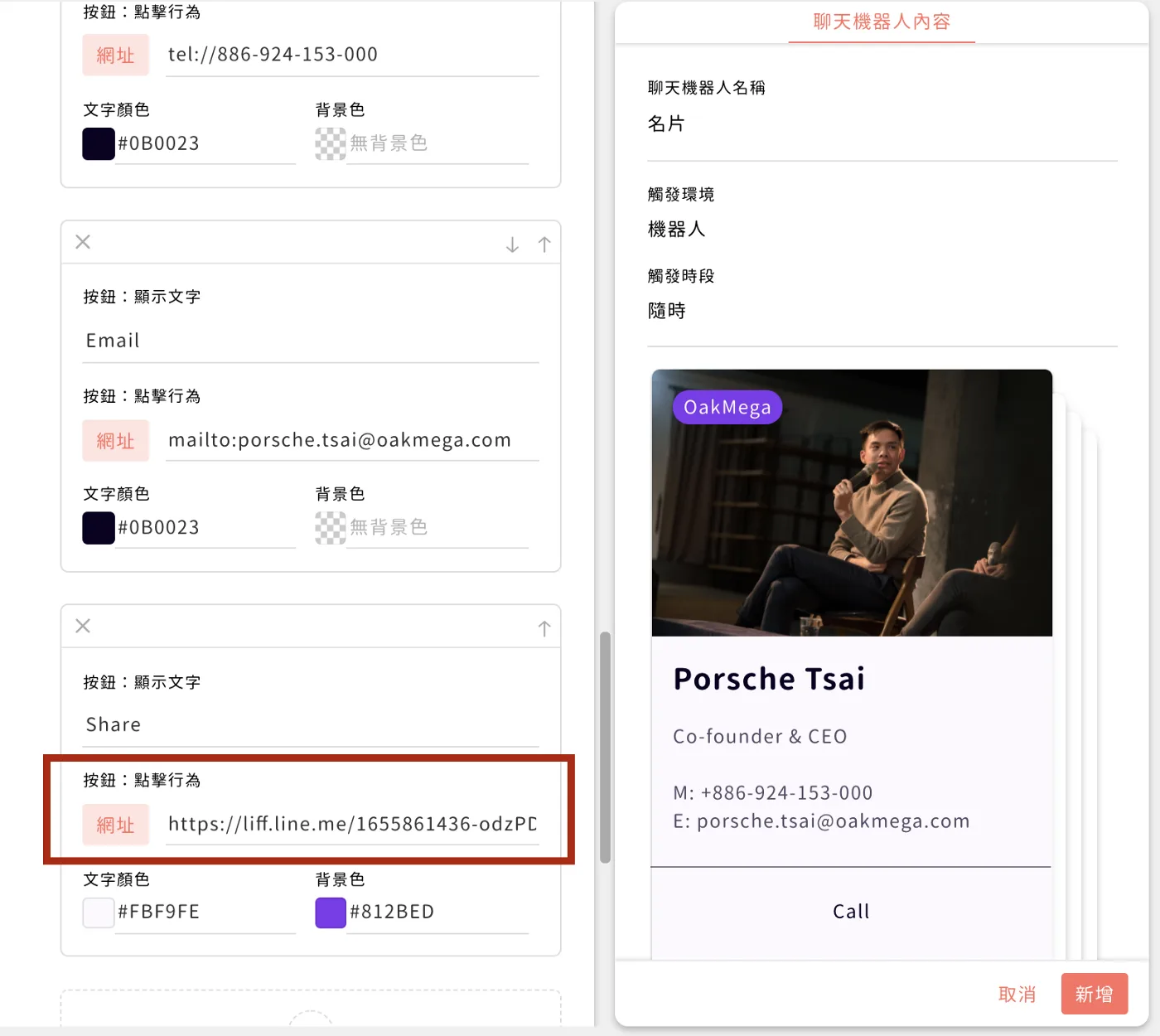
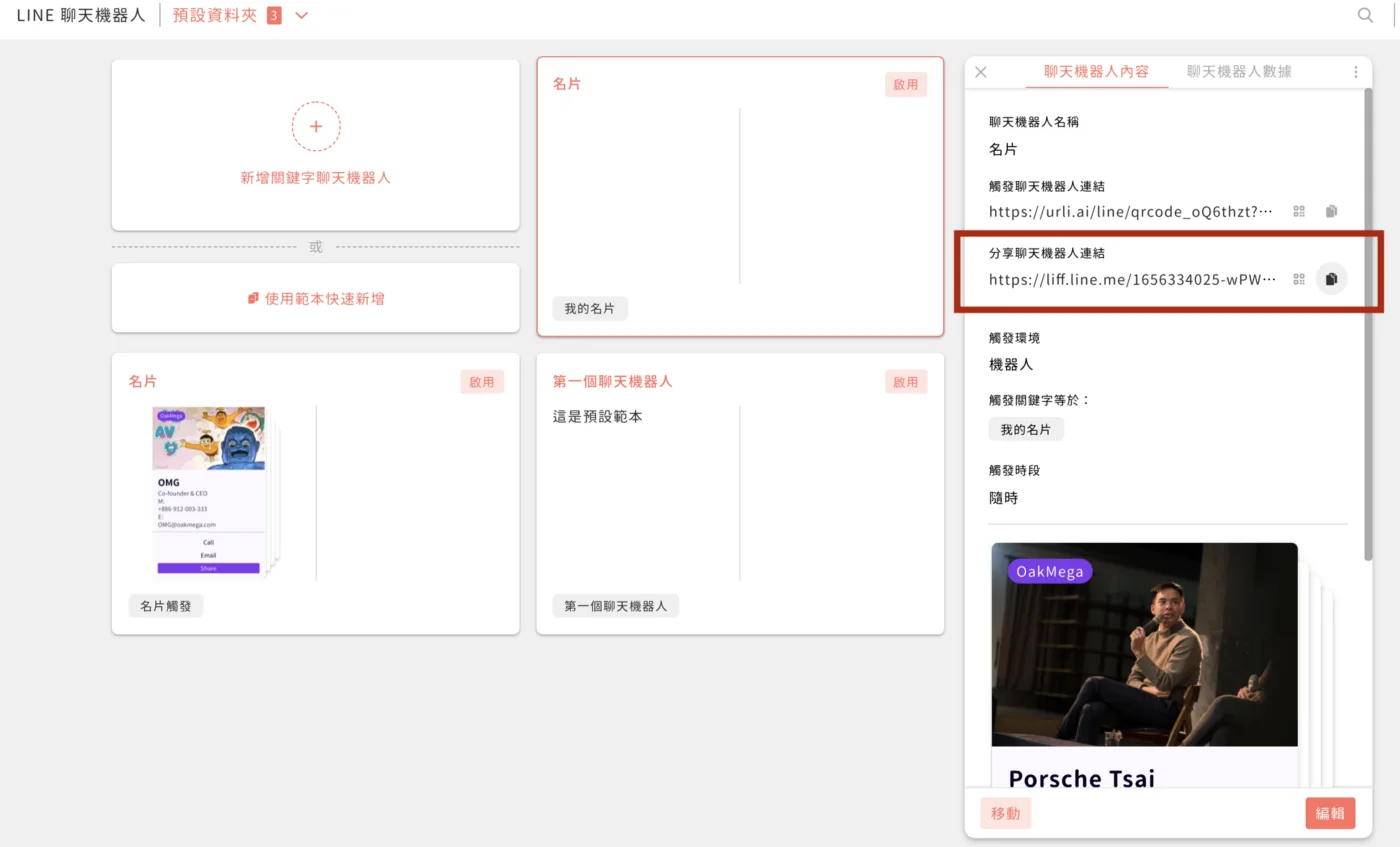
After saving, you'll see a “Share chatbot link” field on the right. Click the copy button next to it.
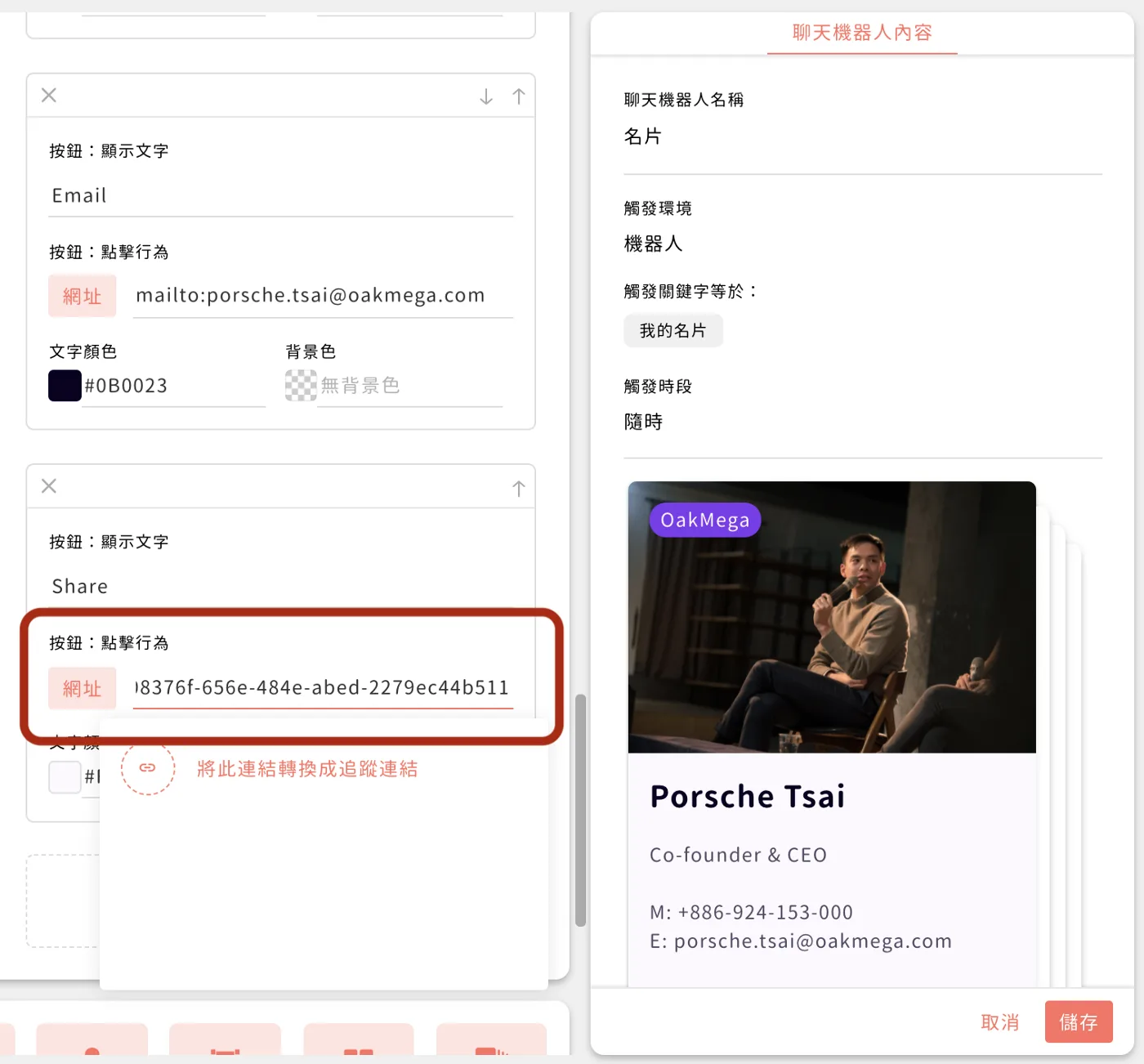
Finally, paste the “Share chatbot link” you just copied into the bottom button and save. Your digital business card is all set! (If you have three cards, remember to replace the share link on the bottom button of every card.)
Want more tips on running LINE? Curious what else digital business cards can do? Visit the OakMega LINE Official Account for more LINE know-how, or follow our “OakMega LINE Playbook” for step-by-step guides to building your brand's LINE Official Account from scratch.