LINE Management Advanced | How Do I Edit the Registration Info of My LINE Official Account?
Skipped the registration info when you opened your LINE Official Account? Here's how to go back and edit it, and change what you set up when creating the account, in LINE Official Account Manager. The web-based LINE Official Account Manager lets you update your LINE registration info anytime.
 Howard HuangMarketing Specialist

Need to edit your registration info in LINE Official Account Manager and change what you entered when you opened the account? No worries: the web-based LINE Official Account Manager lets you update your LINE registration info anytime.
How do I edit registration info in LINE Official Account Manager?
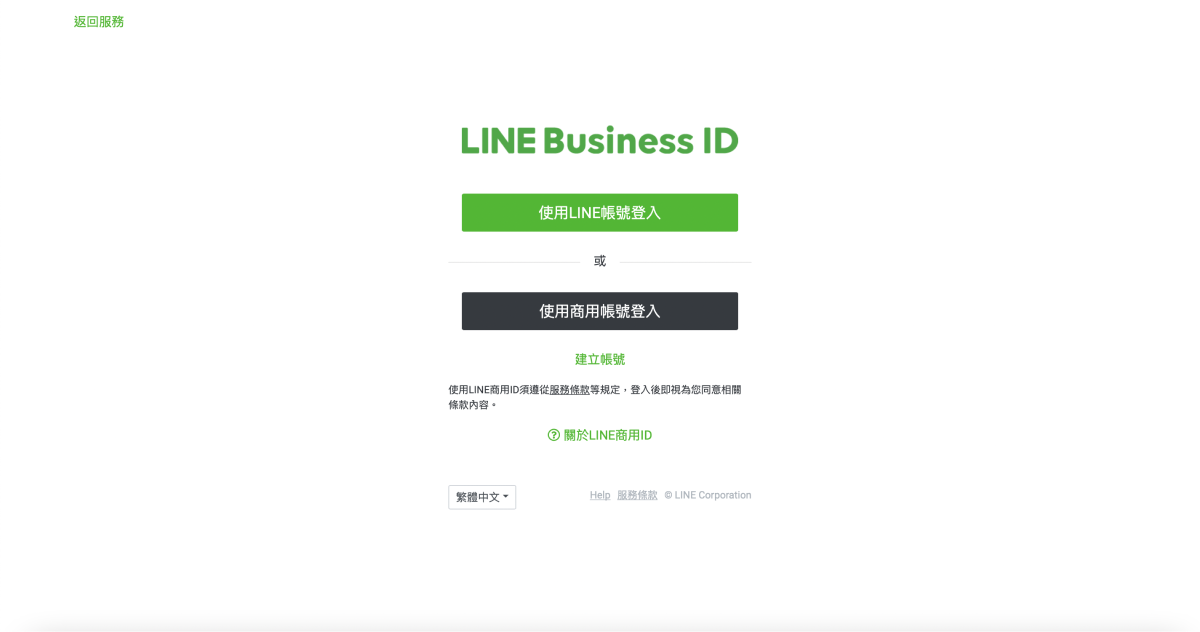
- First, sign in with your “LINE Business ID”.
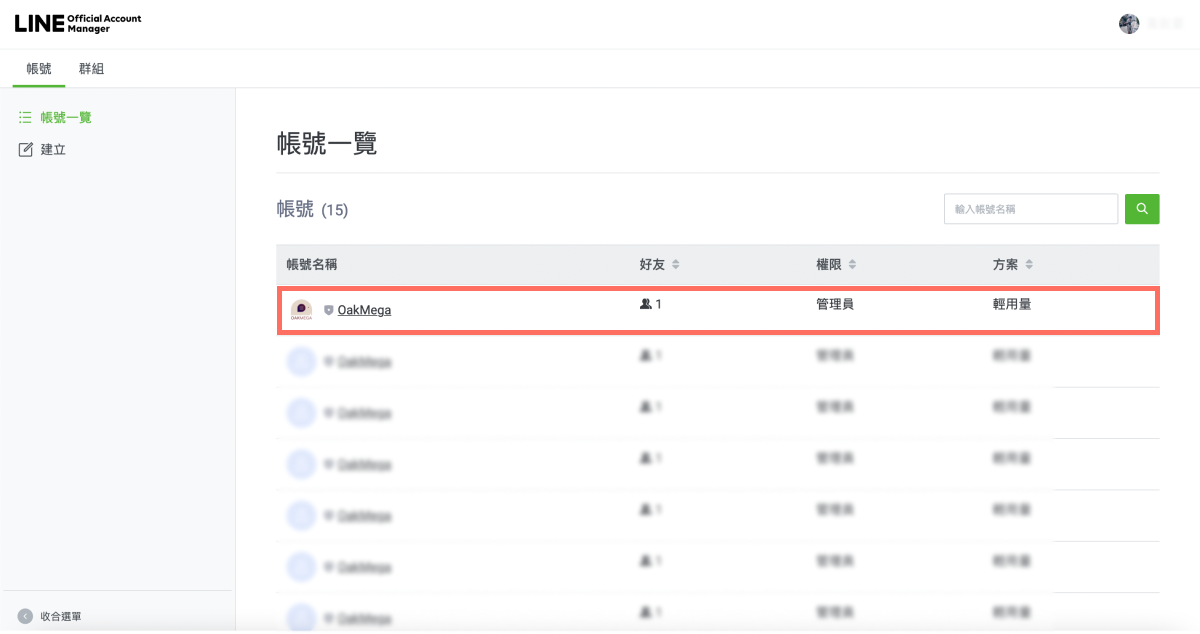
- After signing in to LINE Official Account Manager, choose the LINE Official Account whose registration info you want to edit from the account list.
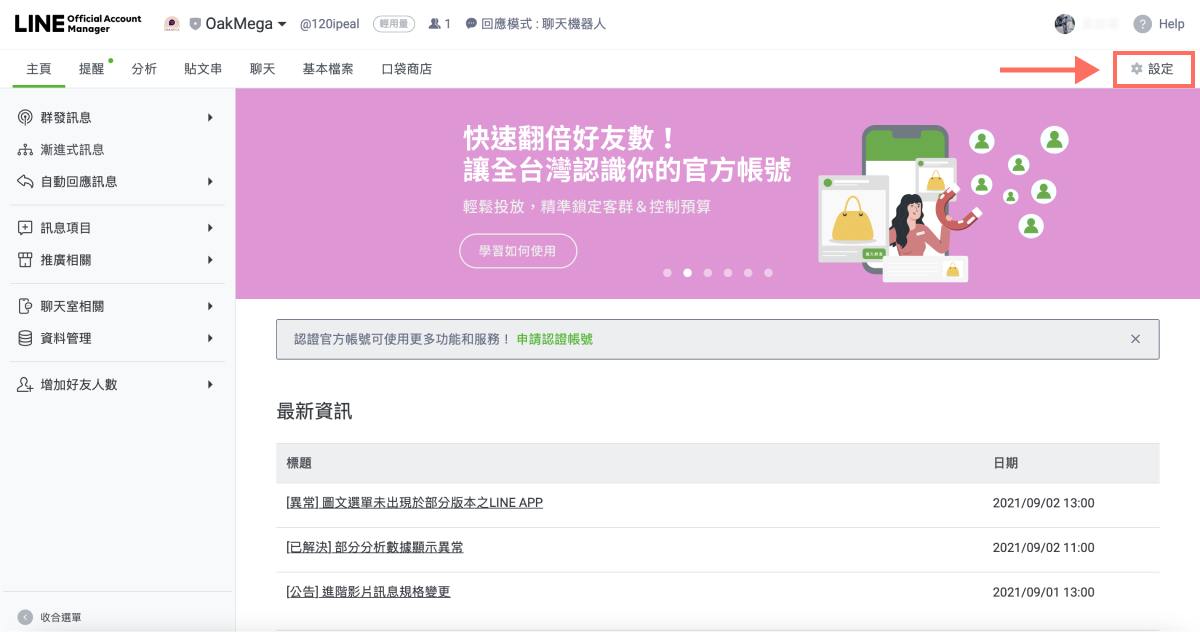
- Click Settings in the top-right corner.
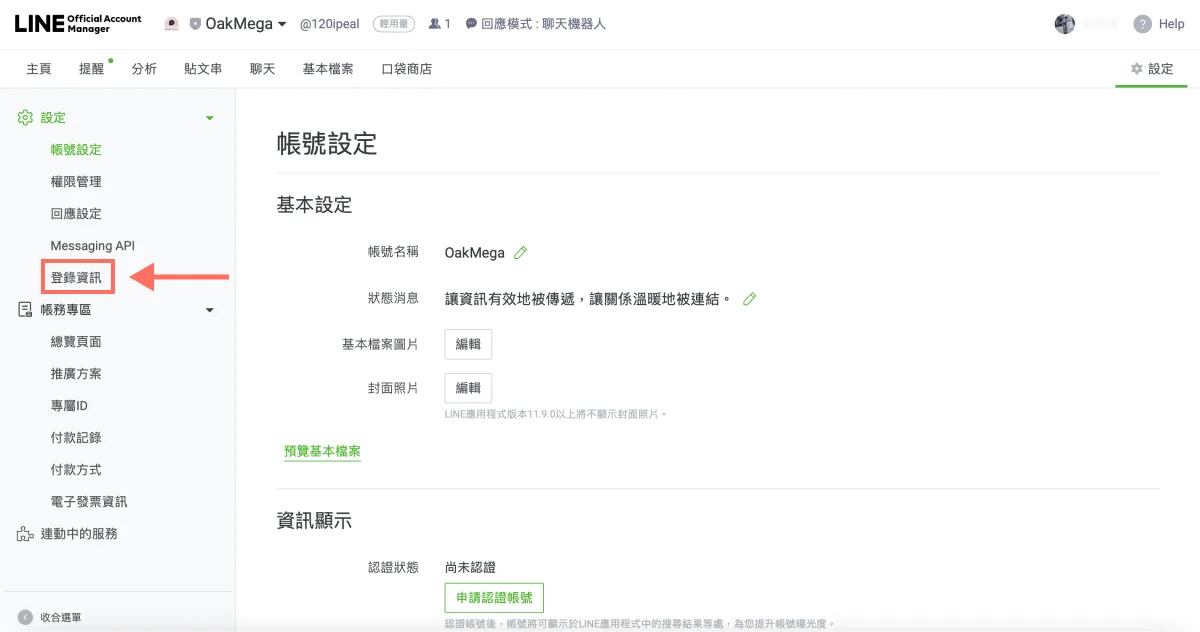
- Settings opens on Account settings by default. In the left sidebar, click Registration information.
- On the Registration information page, click Edit on the right to update these three sections:
- Company information
- Administrator information
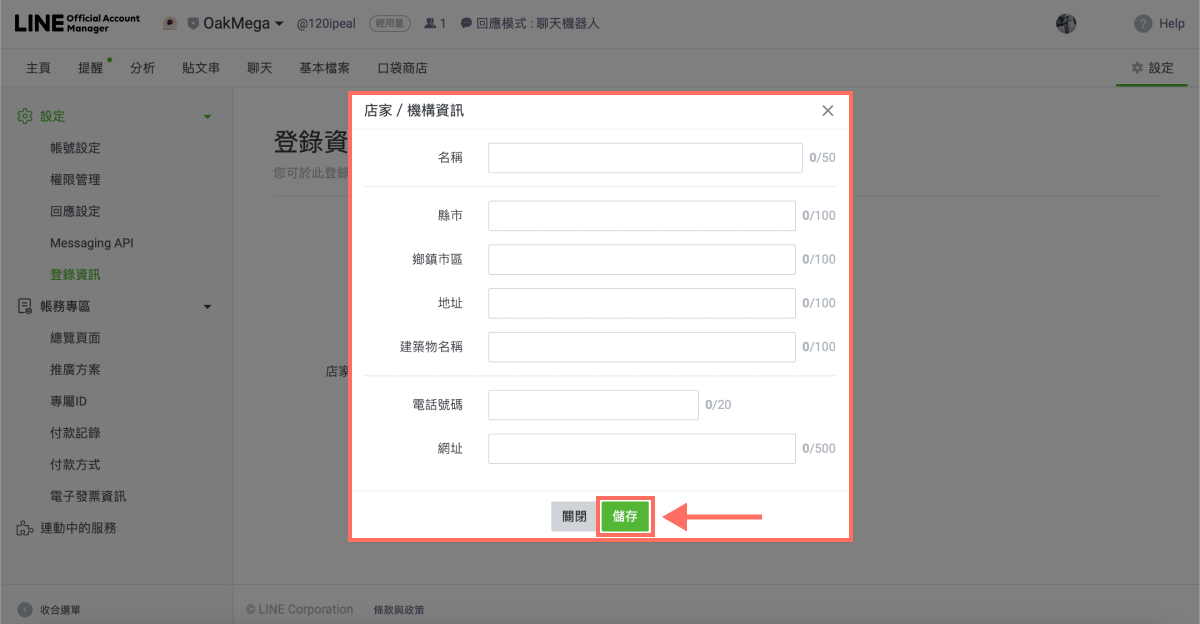
- Store / organization information
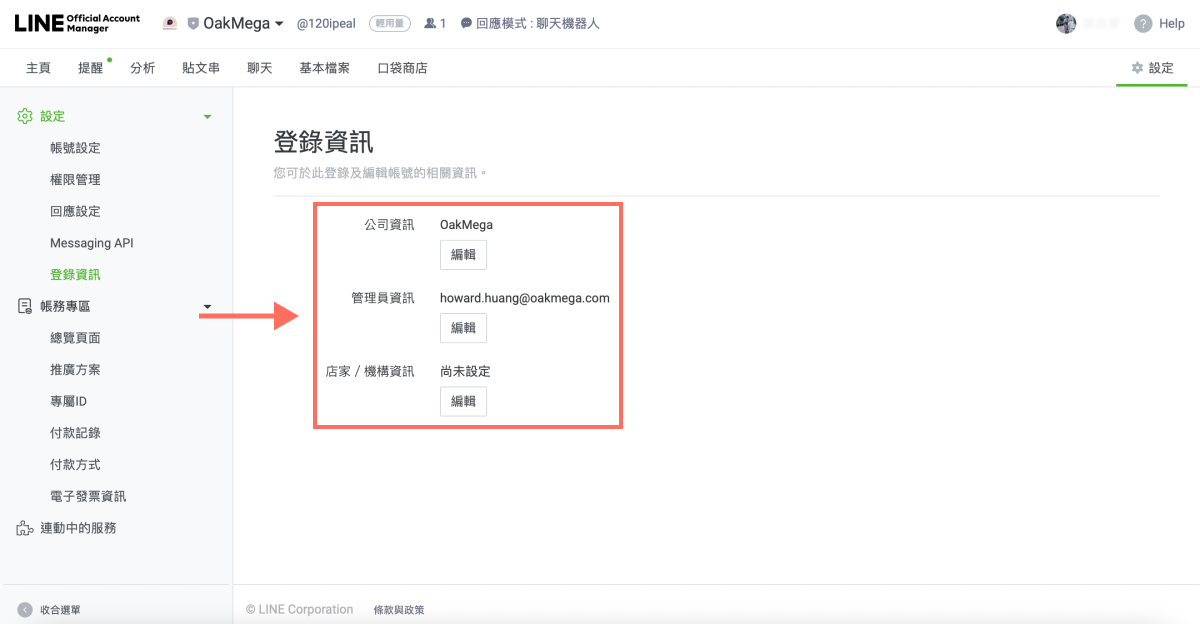
- Company information: Enter the company name, address, phone number and company website, then click Save.
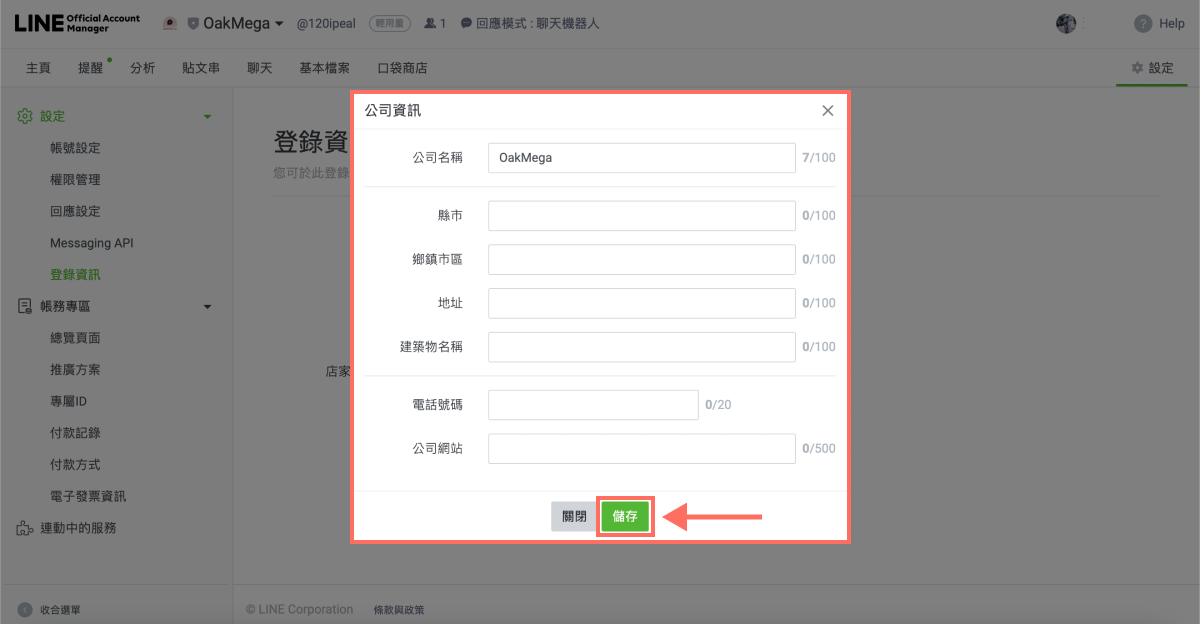
- Administrator information: Enter the administrator's name, department, phone number and email address (required), then click Save.
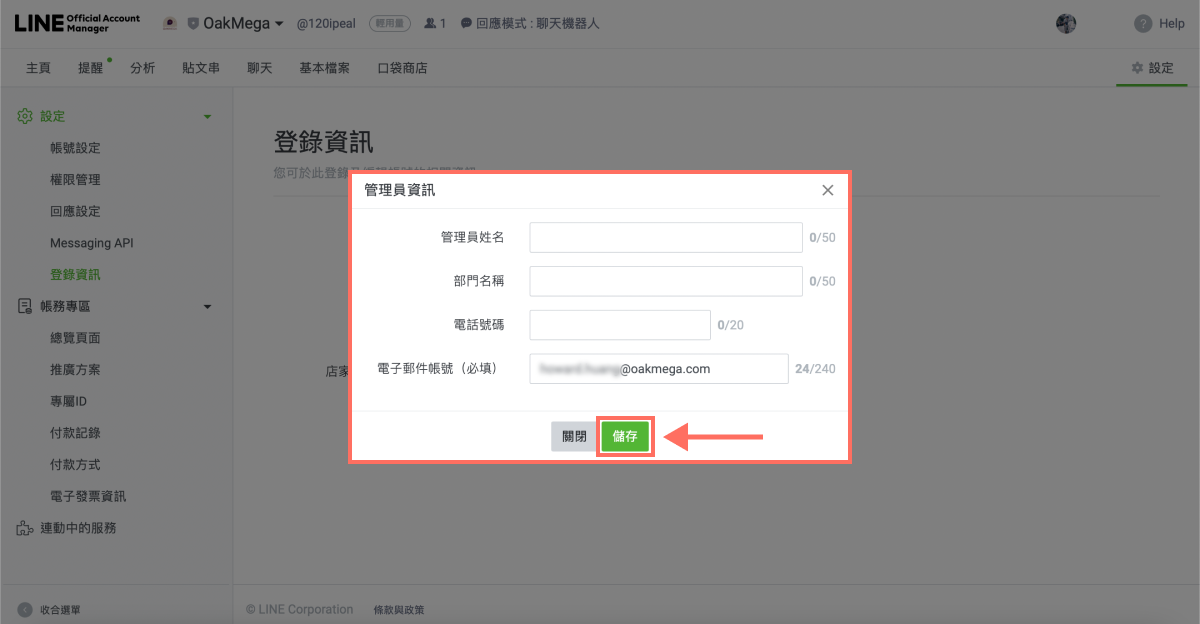
- Store / organization information: If your brand has a physical store or organization, enter its name, address, phone number and URL, then click Save.
Now that you know how to update your registration info, want more tips on running LINE? If you've bought a paid plan, do you need to update the billing section too? Visit the OakMega LINE Official Account for more LINE marketing content, or follow our “OakMega LINE Marketing Toolkit” for step-by-step guides to building your brand's LINE Official Account from scratch.