Advanced LINE Guide | How to Delete a LINE Official Account
LINE Official Account Manager is packed with features, and many people aren't sure how to manage user permissions in its settings, or what to do when they want to delete an account. This guide walks you through the permission settings in LINE Official Account Manager and shows you how to delete an active LINE Official Account.
 ILING WuProduct Marketing Manager

LINE Official Account Manager is packed with features, and many people aren't sure how to manage user permissions in its settings. And what if you want to delete an account? This guide walks you through the permission settings in LINE Official Account Manager and shows you how to delete an active LINE Official Account.
How Do You Delete a LINE Official Account in LINE Official Account Manager?
Step 1: Open LINE Official Account Manager
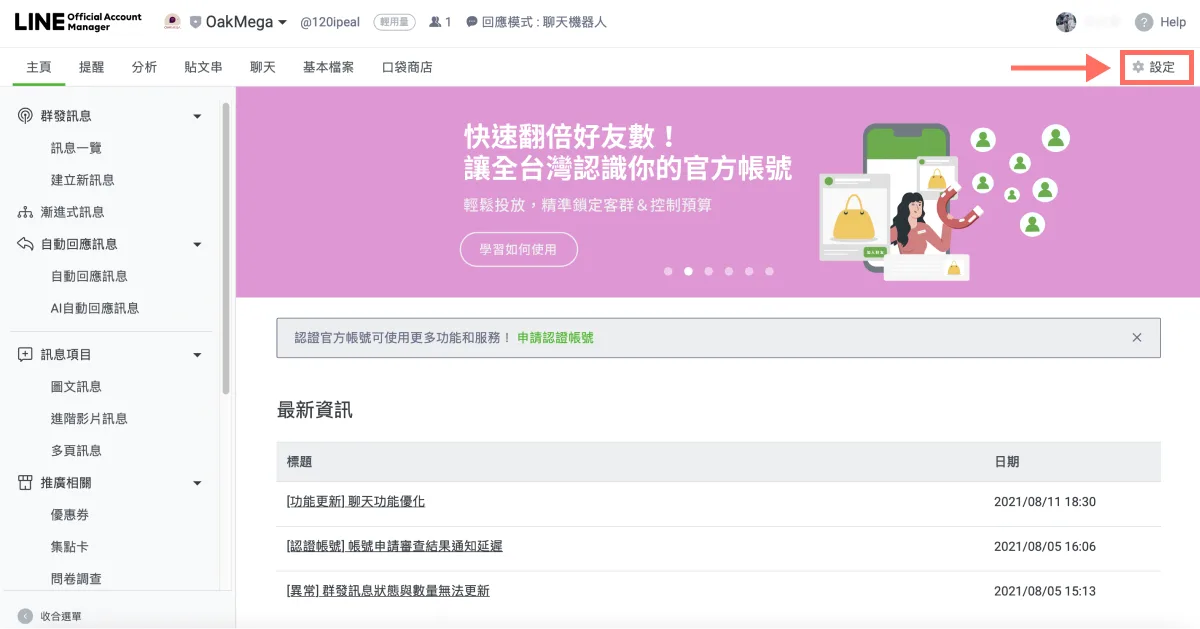
In LINE Official Account Manager, click “Settings” in the top-right corner.
Step 2: Delete the Account from Account Settings
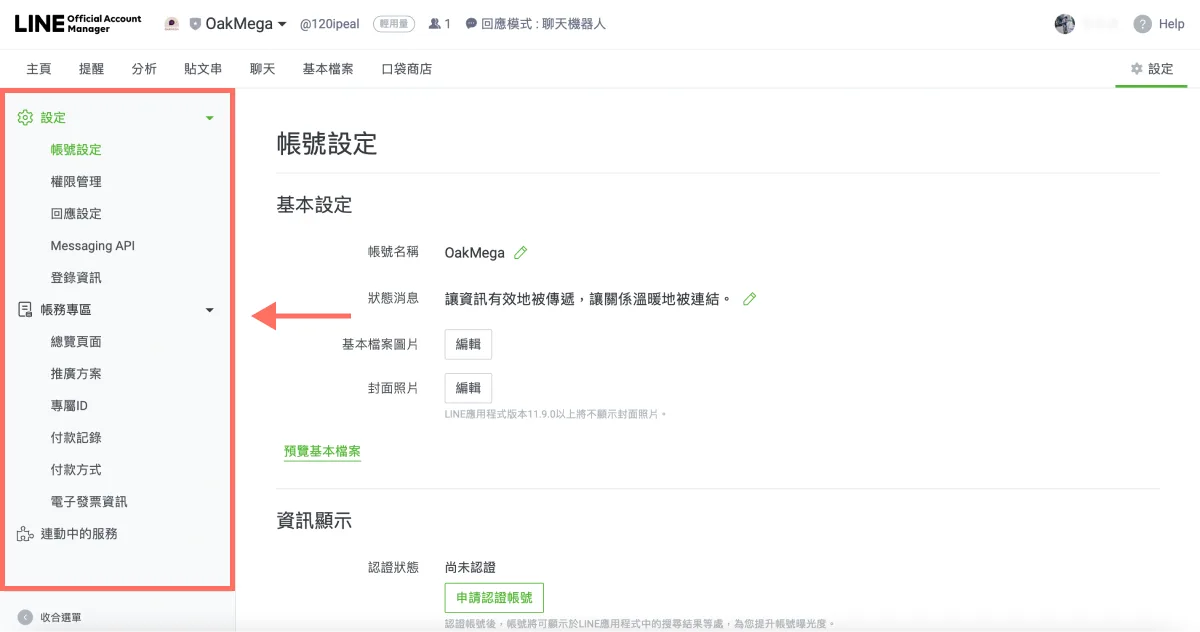
Settings opens on the “Account settings” page by default. From the left sidebar, you can configure all kinds of settings, such as basic account settings, billing details, and payment history.
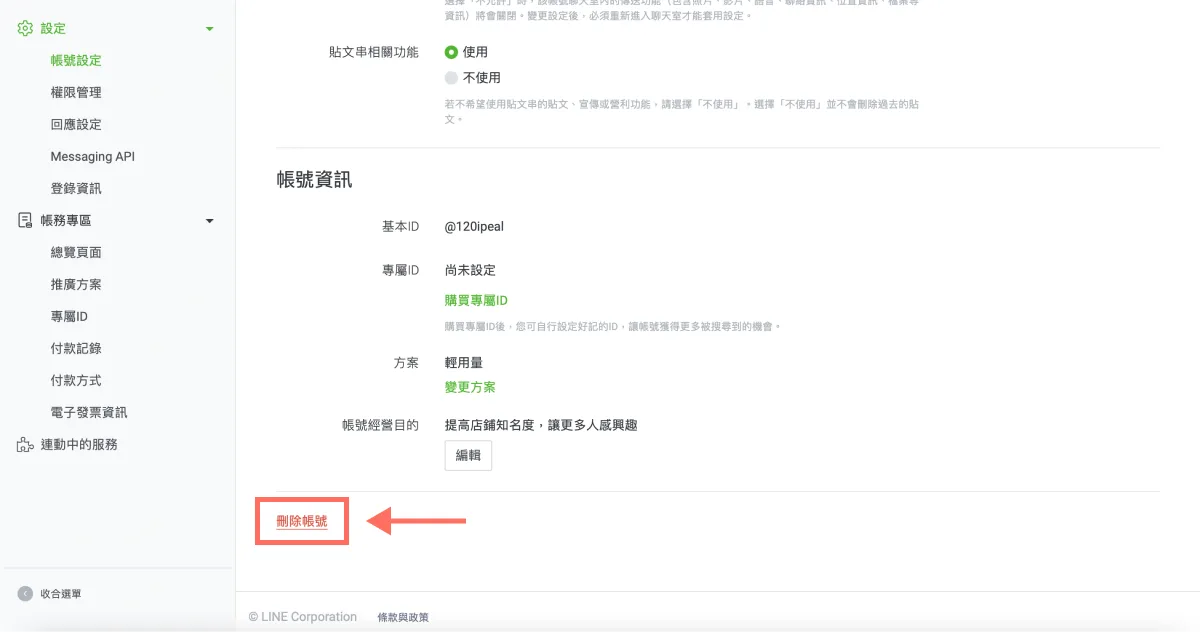
Deleting a LINE Official Account is essentially a last resort, but if you really don't want to keep the account, go ahead. Scroll down the “Account settings” page and click “Delete account.” Keep in mind that once the account is deleted, all of its data is gone for good, and none of its friends can be transferred.
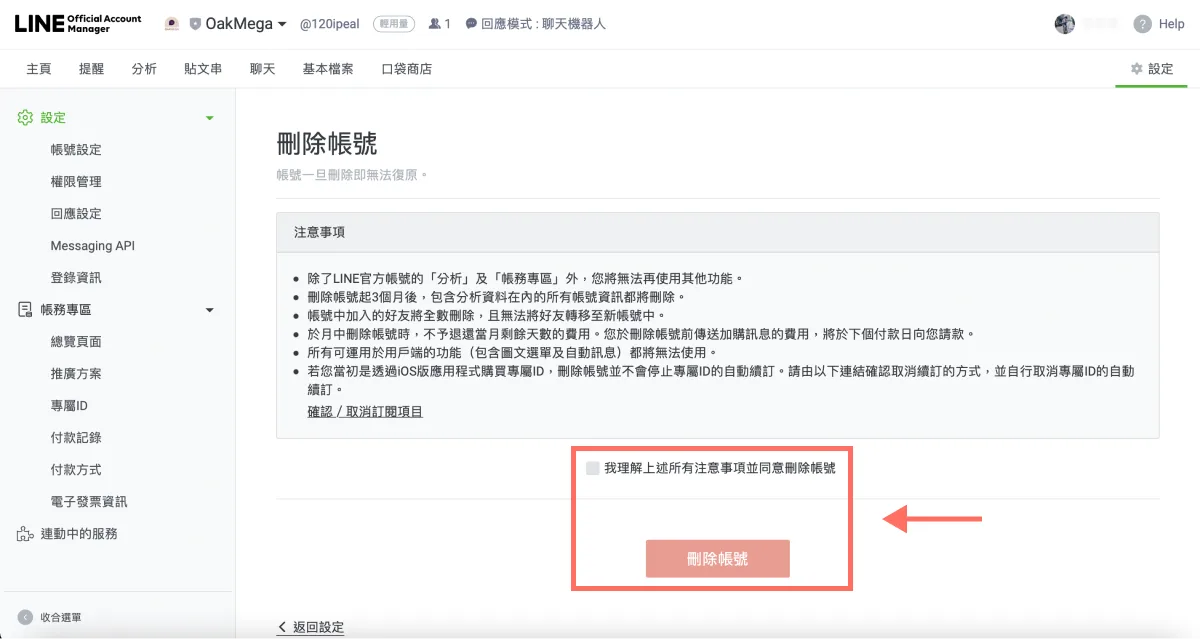
Read the notes, check the box to confirm you agree to delete the account, then click “Delete account” again to delete your active LINE Official Account.
Want more tips on running your LINE account? What's the next step after opening a LINE Official Account? How do you update your brand information in the management console? Visit the OakMega LINE Official Account to learn more, or follow the “OakMega LINE Marketing Playbook” for step-by-step guides to building your brand's LINE Official Account from the ground up.