LINE Management Scenarios | Why Can't My LINE Official Account Reply to Friends One-on-One?
Chatbots let your LINE Official Account answer friends' questions fast, but some situations call for a real person. So why can't you reply to a friend's message one-on-one? Even in an era of instant messaging, human support stays essential because it can be personalized. Here's how to turn on one-on-one replies.
 ILING WuProduct Marketing Manager

Chatbots let your LINE Official Account answer friends' questions fast. But when a special case comes up and a staff member needs to reply one-on-one, why can't you respond to the message? Even in an era built on instant messaging, human support still matters because it can be personalized. So how do you turn on one-on-one replies?
How do I reply to friends one-on-one?
Step 1: Open Settings in LINE Official Account Manager
After signing in to LINE Official Account Manager, click Settings in the top-right corner.

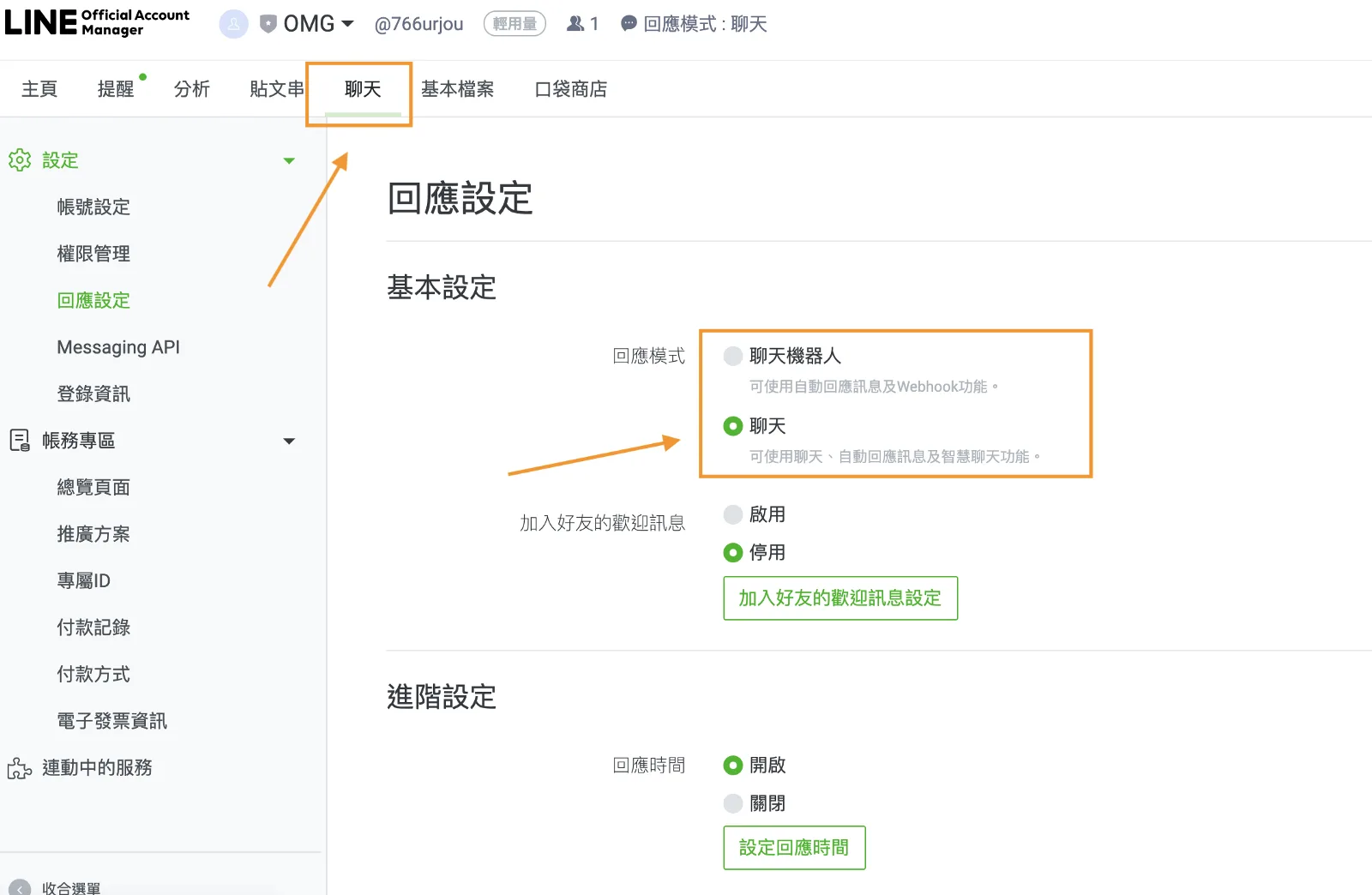
Settings opens on Account settings by default. In the left sidebar, click Response settings.

Step 2: Change the response mode in Response settings
Under Basic settings at the top of the Response settings page, you'll see that a LINE Official Account has two response modes:
- Chatbot
- Chat
Switch the response mode to Chat, and you can talk with friends one-on-one.
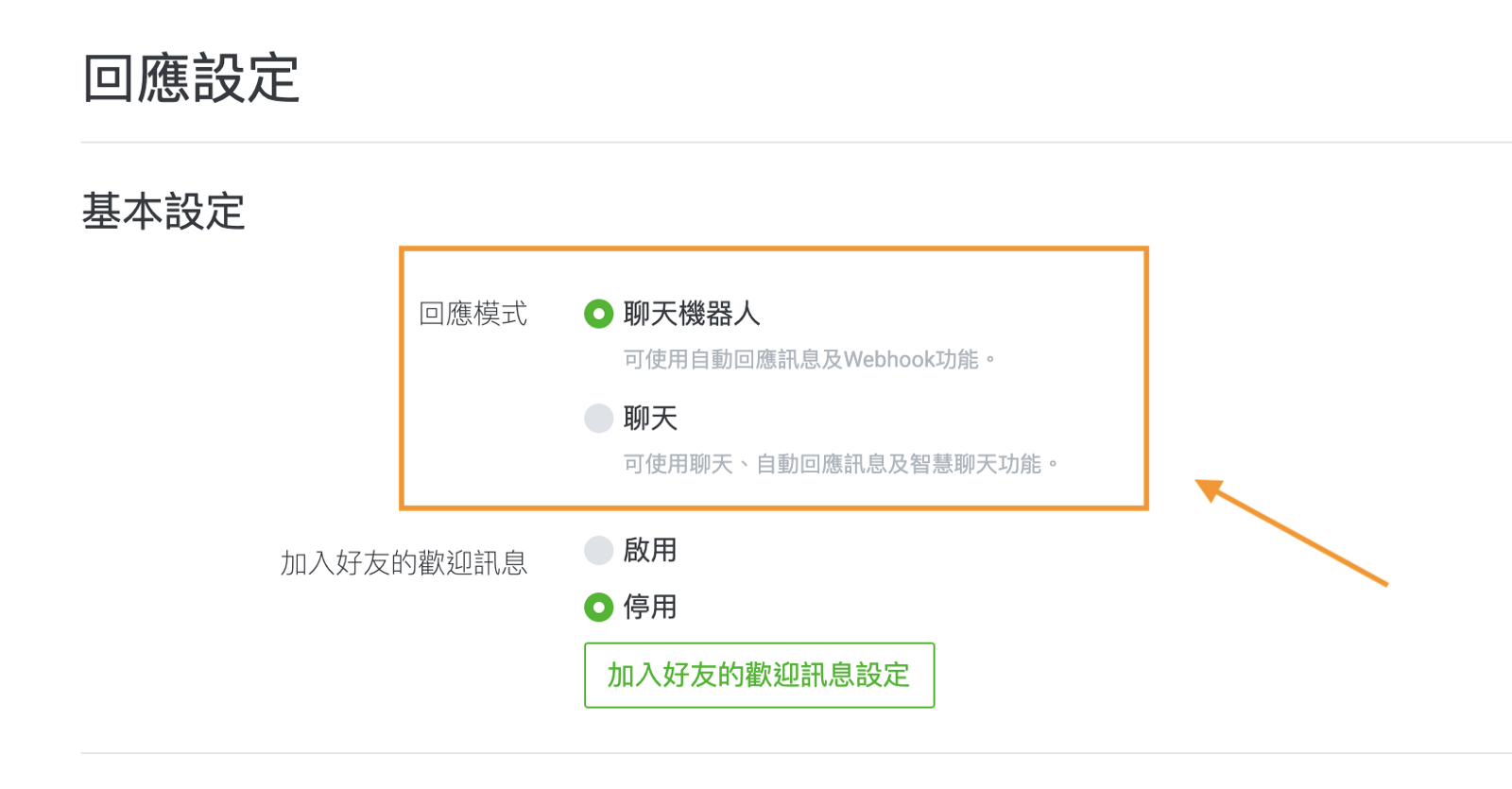
When you switch, a confirmation prompt appears. Click Change to switch to Chat mode right away.

Step 3: Chat one-on-one with friends on the Chat page
Once the response mode is set to Chat, click Chat in the top menu bar to open your friends' chat window. Select the conversation with the friend you want to talk to, and start chatting one-on-one.

Want more tips on running LINE? Wondering what comes after opening your LINE Official Account, or how to update your brand information in the admin console? Visit the OakMega LINE Official Account for more LINE marketing content, or follow our “OakMega LINE Marketing Toolkit” for step-by-step guides to building your brand's LINE Official Account from scratch.