LINE How-To | How to Auto-Reply to Friends' Messages on LINE
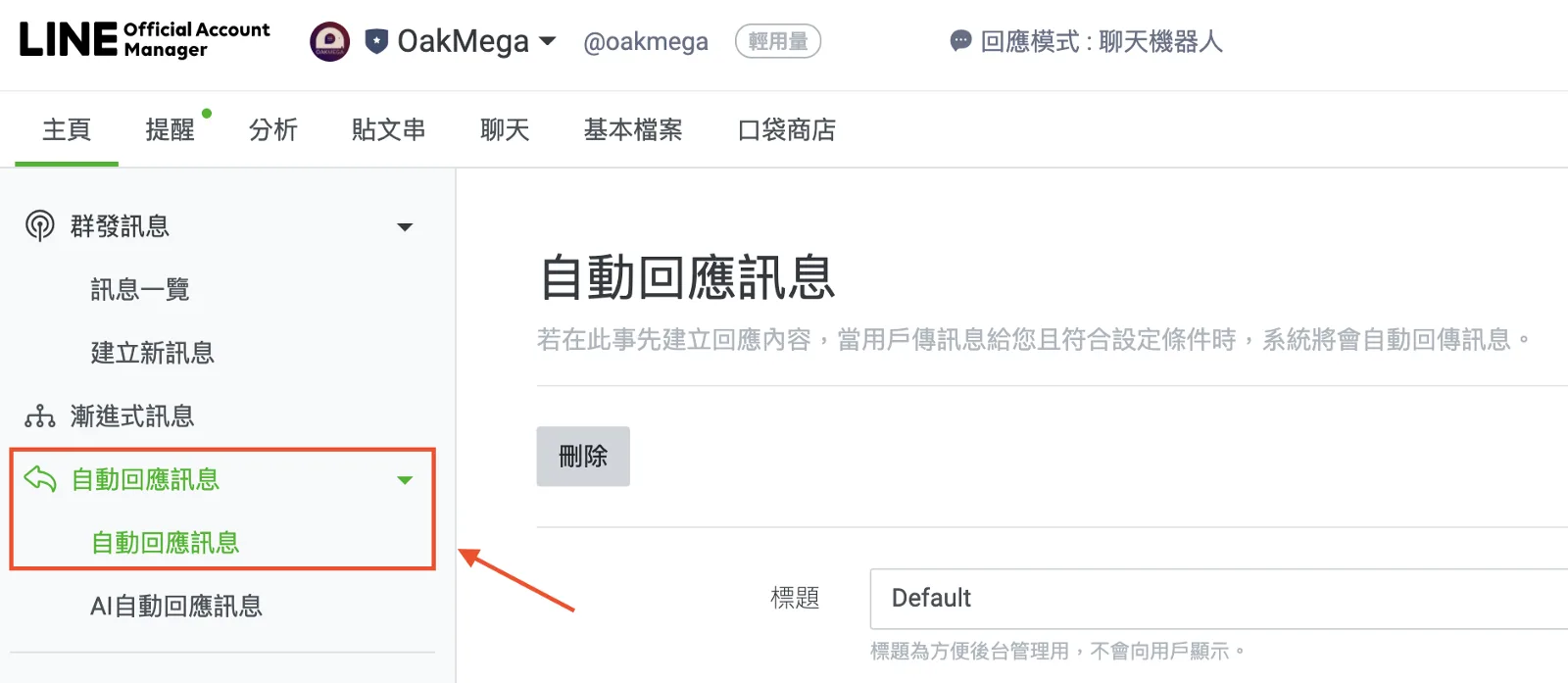
Is live chat eating up too much of your team's time? Do the same questions keep coming in? Keyword-based auto-replies let you answer friends' questions instantly. Here's how to set up auto-replies: first, open LINE Official Account Manager, then find and click "Auto-response messages" in the left-hand menu to get started.
 ILING WuProduct Marketing Manager

Is live chat eating up too much of your team's time? Do the same questions keep coming in again and again? Keyword-based auto-replies let you answer friends' questions the moment they ask.
Today we'll show you how to set up auto-replies in LINE Official Account Manager (LINE OA).
How to set up auto-replies to friends' messages
Step 1: Open LINE Official Account Manager
First, go to LINE Official Account Manager. In the left-hand menu, find and click "Auto-response messages" to get started.
Step 2: Configure the basic settings
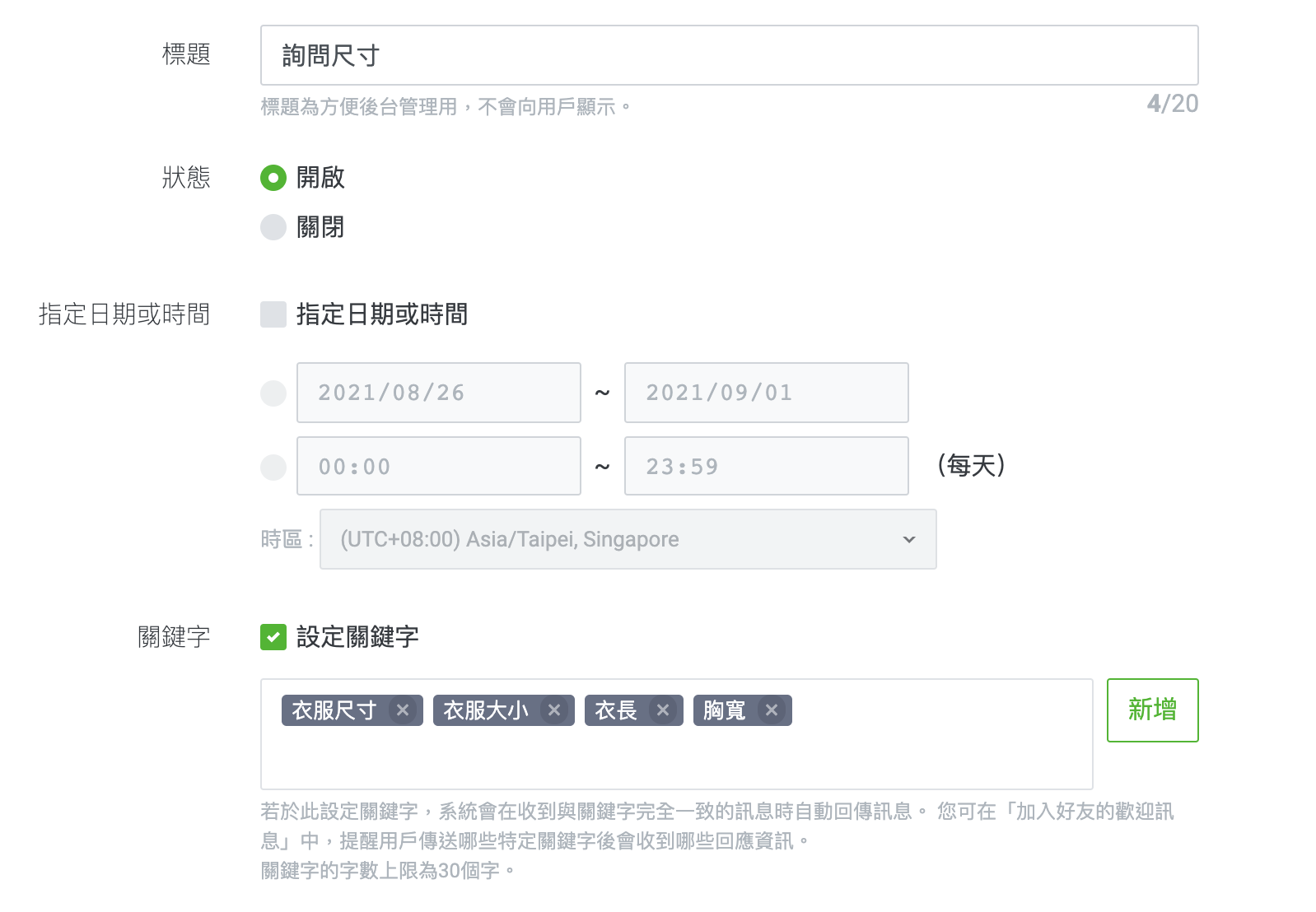
Start by giving the auto-reply a title, so you can keep track of which reply answers which question.
- Status: turn it on.
- Date or time: choose specific times for this auto-reply to run. If you don't set any, it can be triggered at any time.
- Keywords: when a user types a matching keyword, the relevant message is sent automatically.
Step 3: Set up the reply content
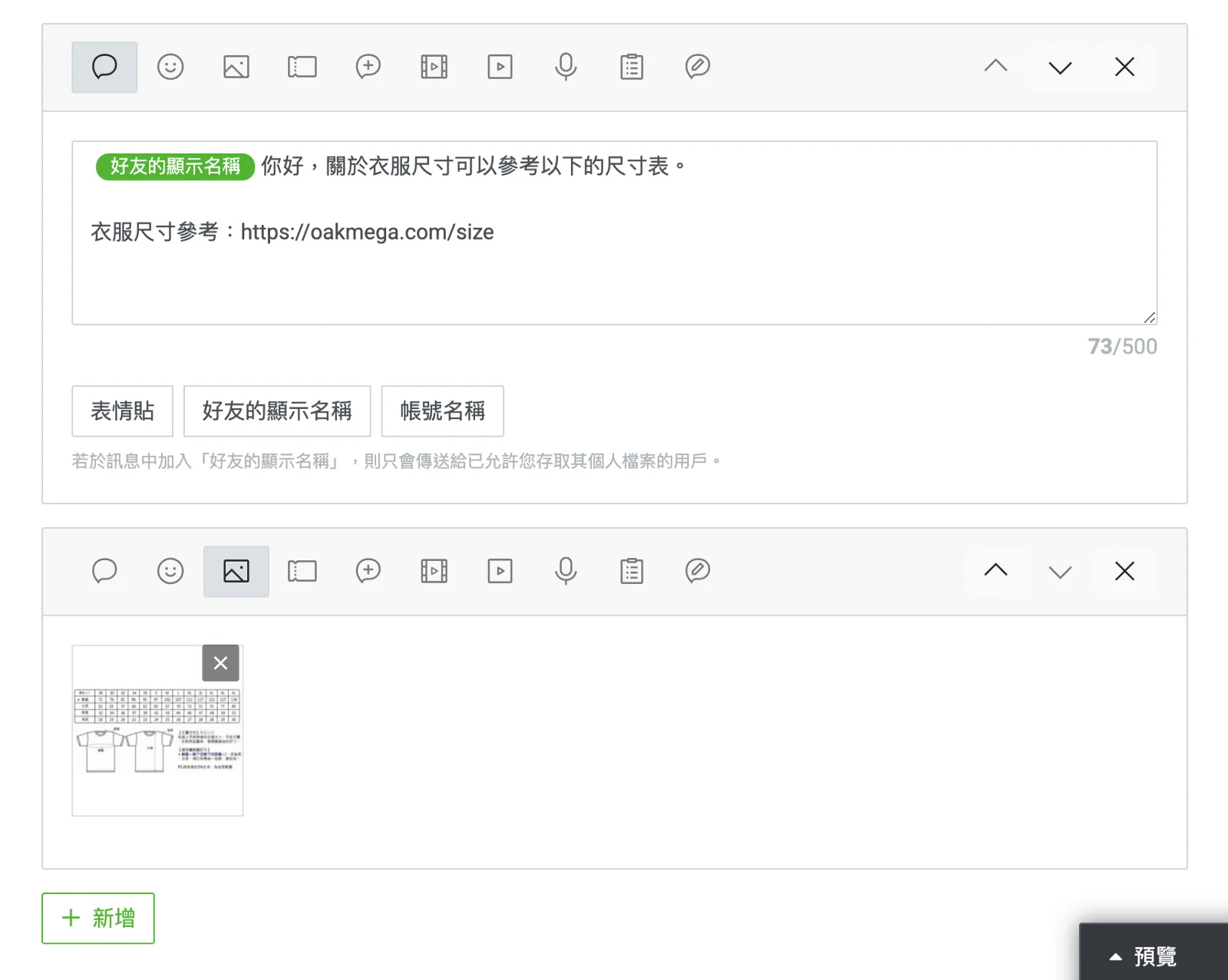
With the basics in place, set up the content of the auto-reply. Each reply can contain up to 5 messages. Click "+ Add" in the lower left of the screen to add more.
LINE tip: Try inserting the friend's display name in your reply for a more personal touch.
Step 4: Preview your messages
Once your reply content is ready, preview it on the right side of the screen. It looks exactly the way friends will see it.
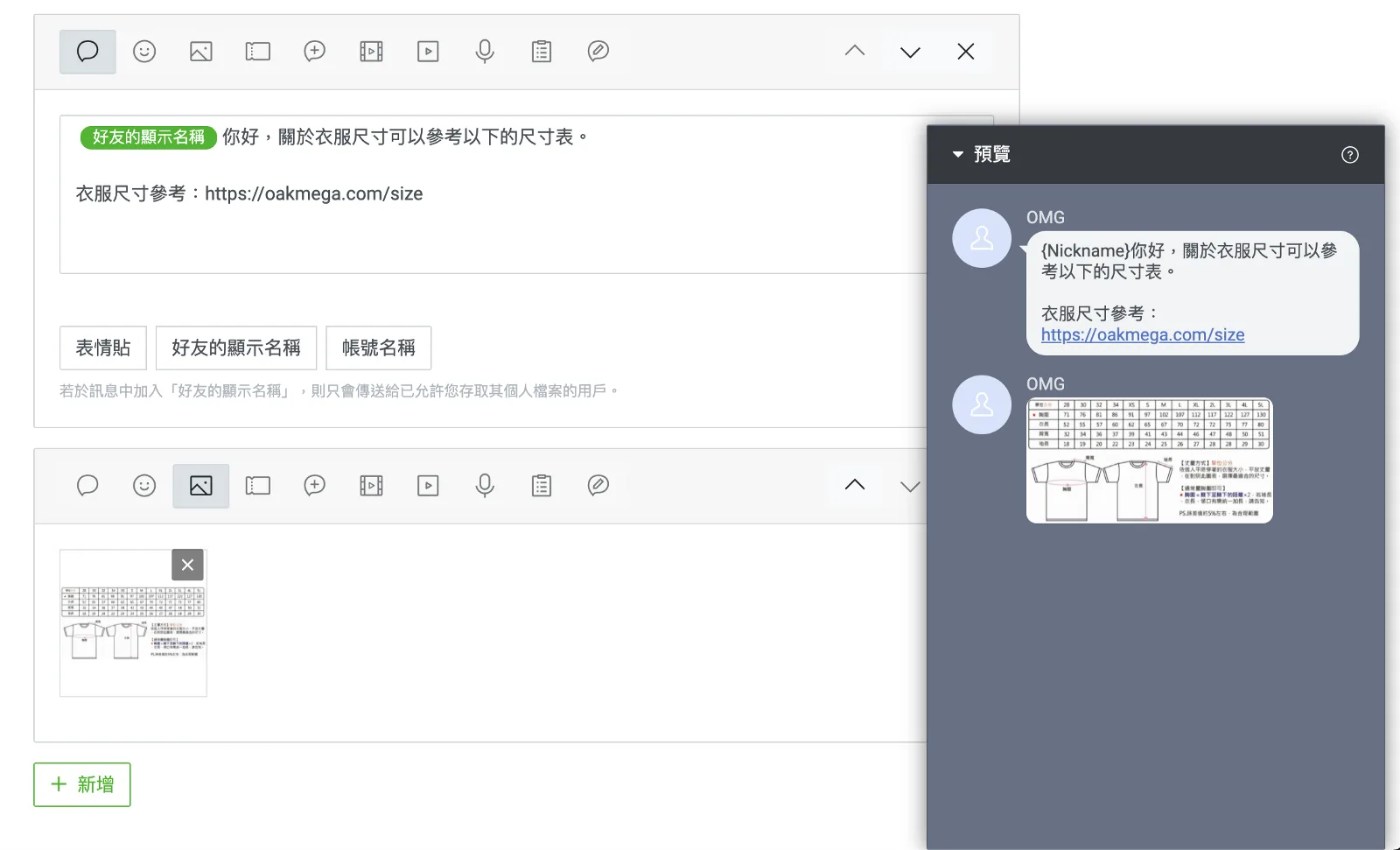
Click "Save changes" when you're done, and your auto-reply is all set!
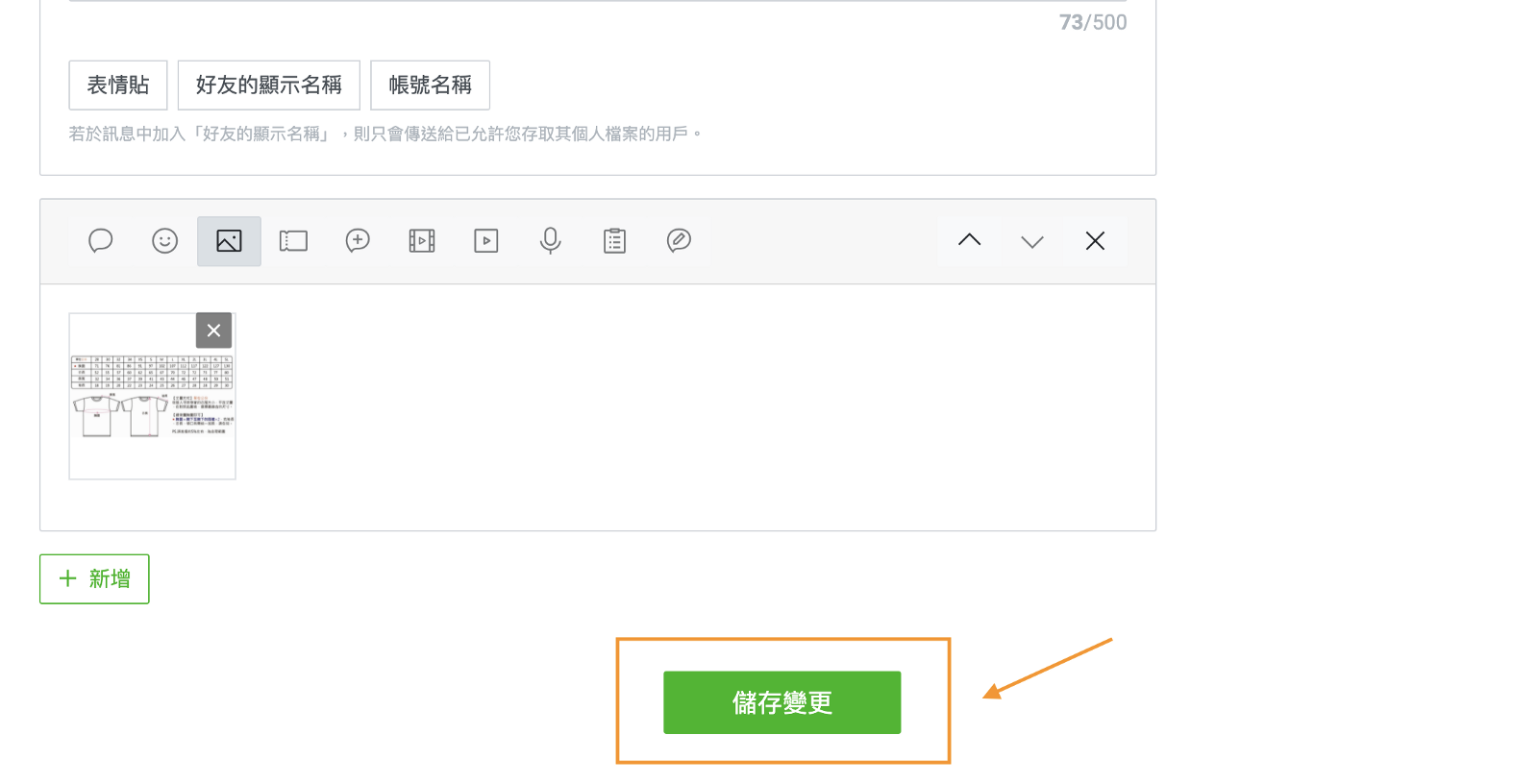
Now you know how to set up auto-replies to friends' messages on your LINE Official Account.
Want more tips on running LINE? What comes after opening a LINE Official Account? How do you update your brand information in the management screen? Visit the OakMega LINE Official Account for more LINE marketing content, or follow our "OakMega LINE Marketing Toolkit" for step-by-step guides to building your brand's LINE Official Account from the ground up.