LINE How-To | How to Send Your Brand's Message to All LINE Friends at Once
Sending messages is the most essential feature to learn when running a LINE Official Account, and the most basic one, too. Here's a quick guide to sending a message to all your friends through LINE Official Account Manager.
 ILING WuProduct Marketing Manager
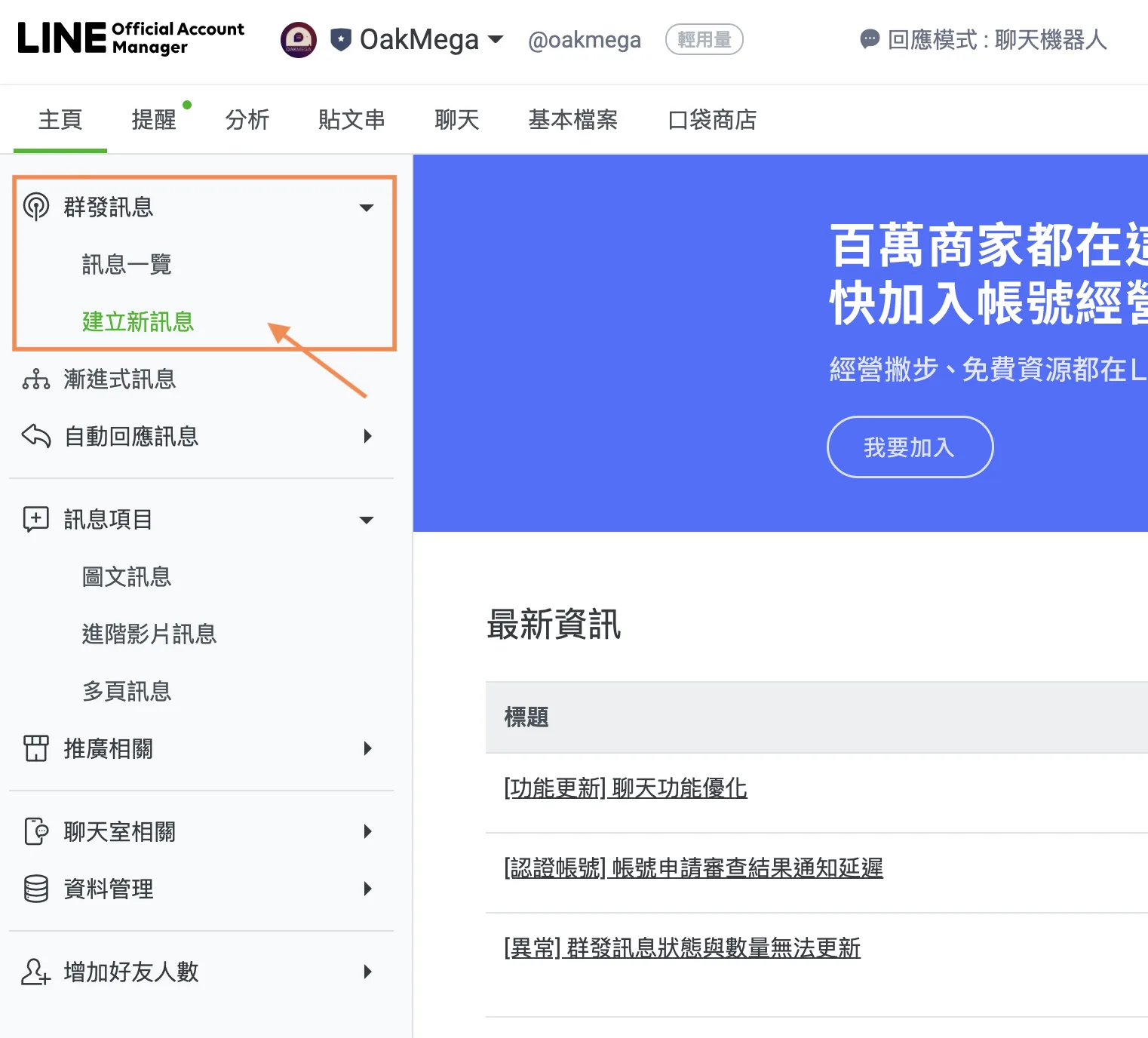
Sending messages is the most essential feature to learn when running a LINE Official Account, and the most basic one, too. Here's a quick guide to sending a message to all your friends through LINE Official Account Manager. To create a new message, open the LINE Official Account Manager dashboard. The left-hand menu has plenty of features to explore, but for now, select "Broadcast messages" > "Create new."
Posting is the most important skill to learn on a LINE Official Account. Here's a quick guide to sending a message to all your friends through LINE Official Account Manager. To create a new message, open the LINE OA dashboard. The left-hand menu has plenty of options to explore, but for now, select "Broadcast messages" > "Create new."
How to send a broadcast message to all your LINE friends
Step 1: Create a new message
On the LINE Official Account Manager home page, the left-hand menu has plenty of options to explore.
For now, select "Broadcast messages" > "Create new."
Step 2: Open the "Create new" page
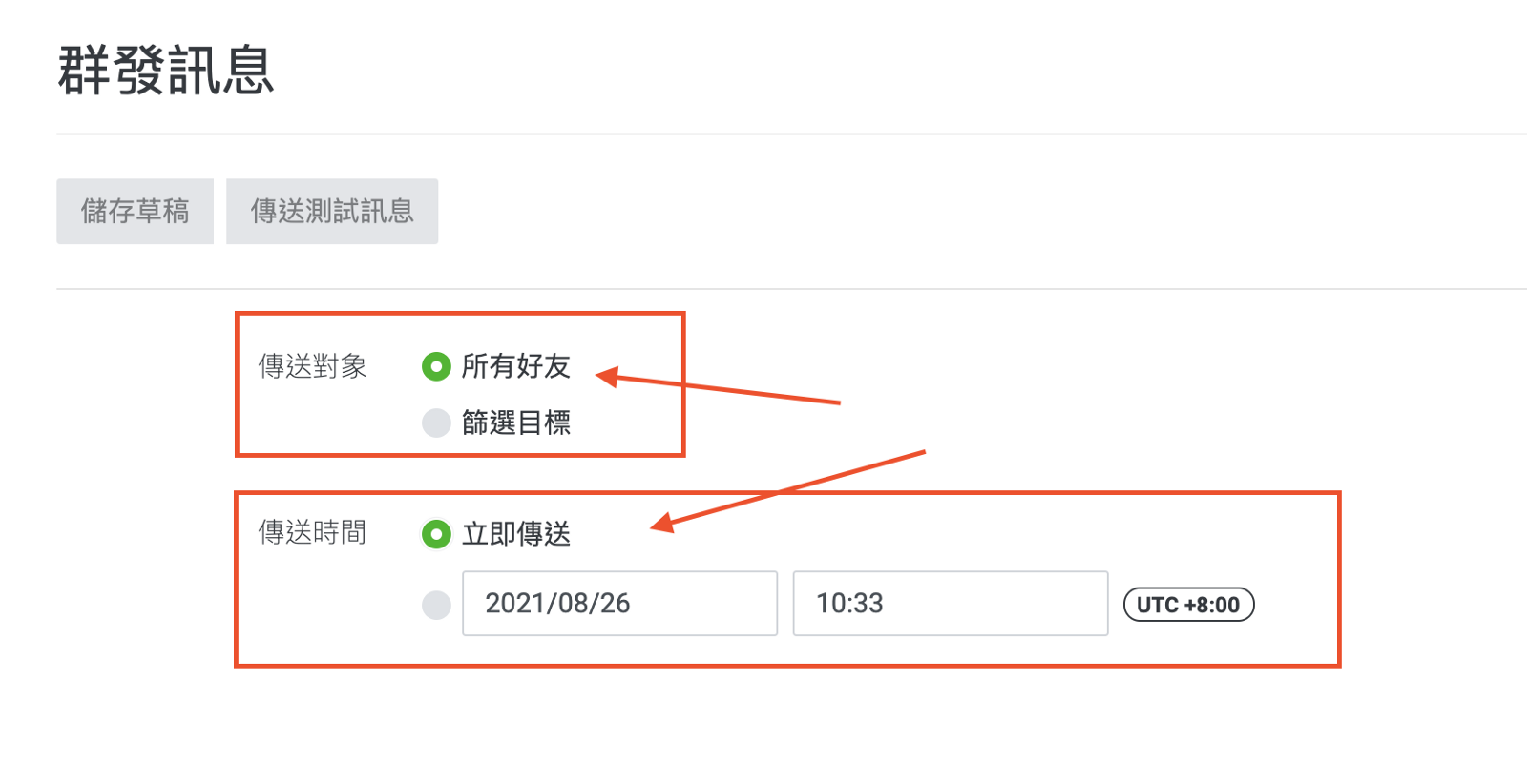
First, set the recipients to All friends. For delivery time, choose to send now or schedule a time.
Under advanced settings, you can choose whether to also post this message to your Timeline.
Set a message limit: you can cap how many messages go out. For example, if you set it to 100, the system automatically picks 100 friends to receive the message.
Create an A/B test: this feature is available only once you have 5,000 friends.

Step 3: Edit your broadcast content
Pick the message format you want and build your content. Each broadcast can contain up to three message bubbles. Click "+ Add" at the bottom to add more.
Coupons, rich messages, rich videos, surveys, and card-based messages have to be created in advance before you can select them in a broadcast.
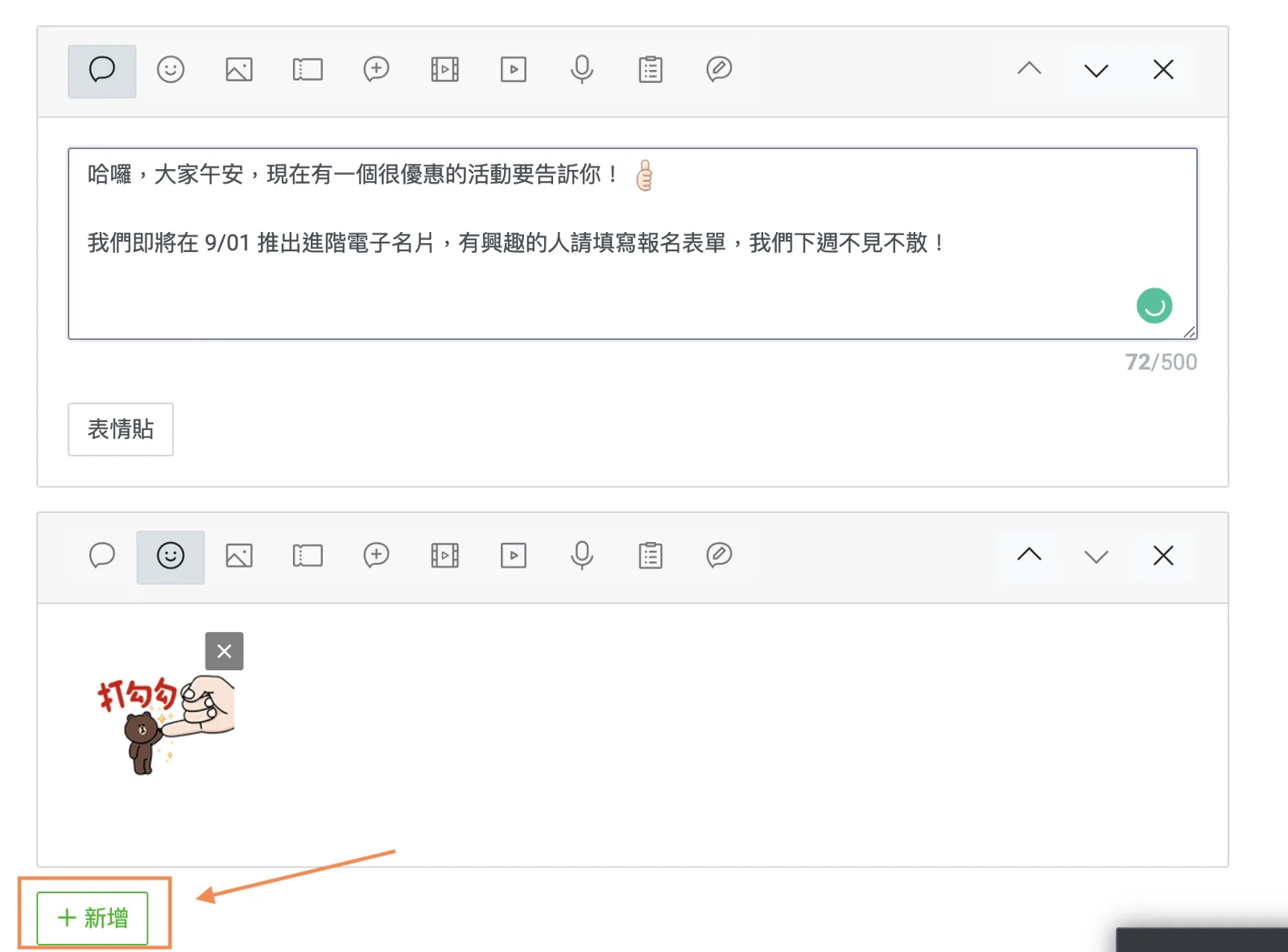
You can quickly preview how the message will look in the lower left.
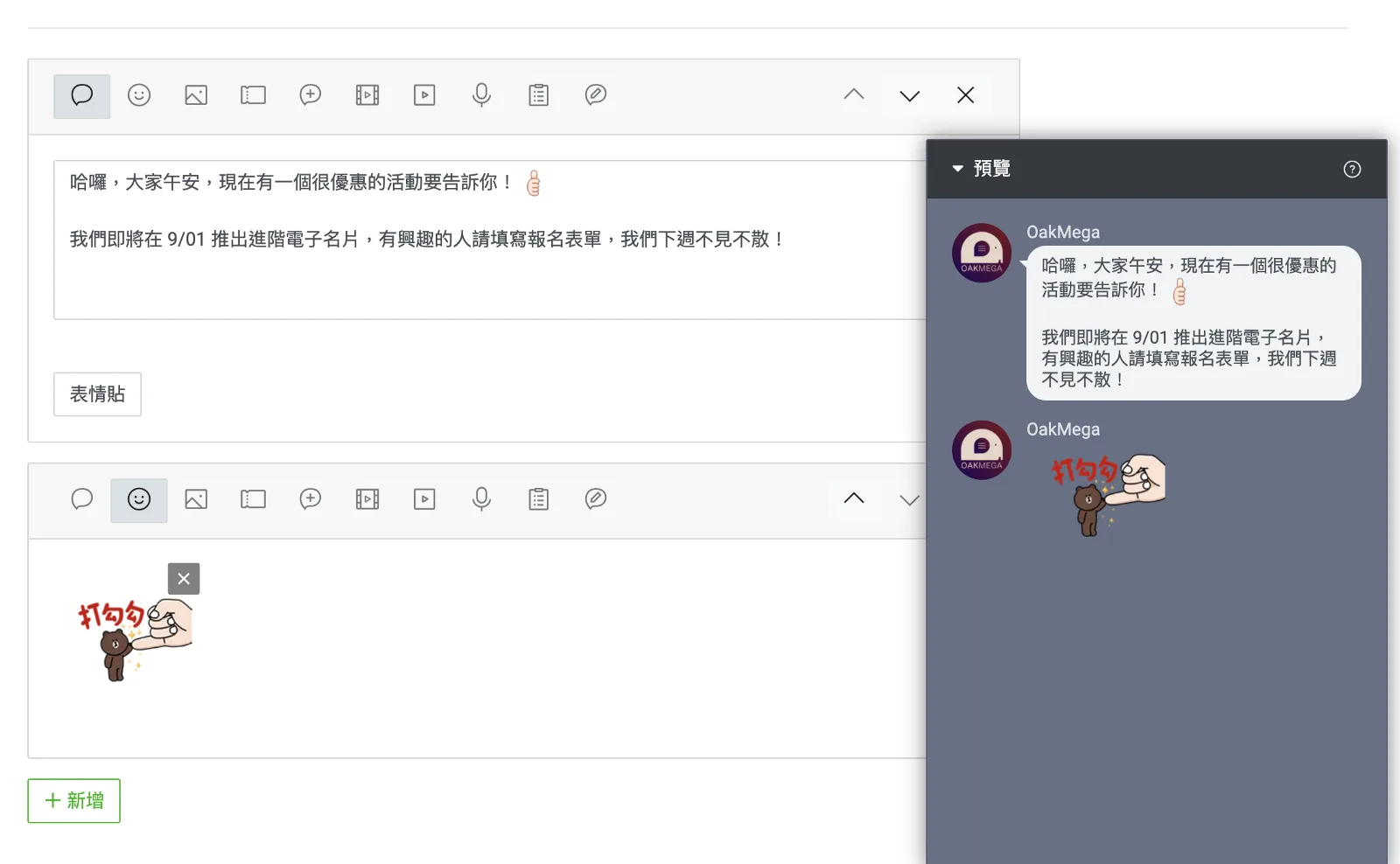
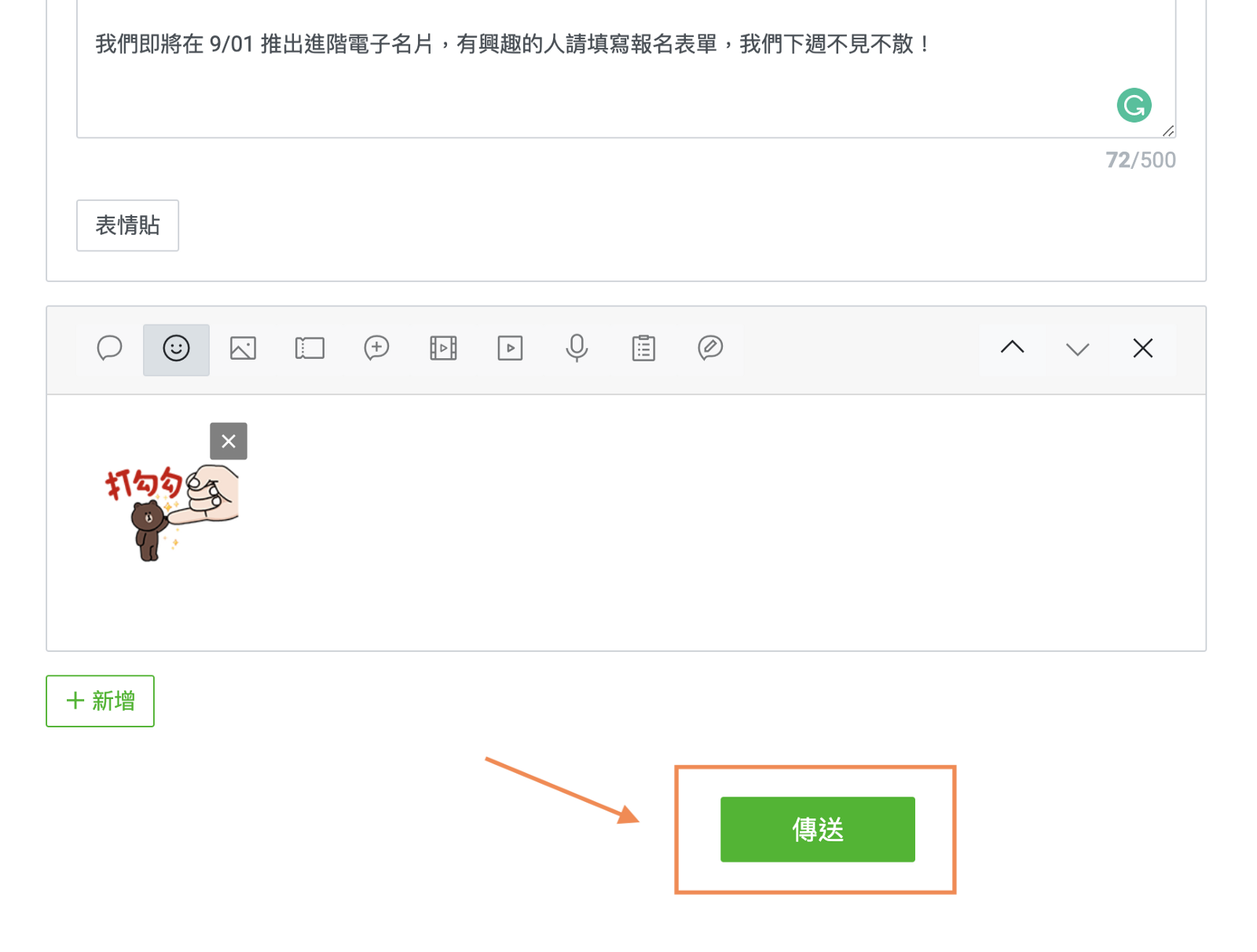
Once everything checks out, click Send to publish your message.
Want more tips on running LINE? What comes after opening a LINE Official Account? How do you update your brand information in the management screen? Visit the OakMega LINE Official Account for more LINE marketing content, or follow our "OakMega LINE Marketing Toolkit" for step-by-step guides to building your brand's LINE Official Account from the ground up.