LINE Management Advanced | How to Set Up Your LINE Official Account Basics (Part 2)
With the basics done, your LINE Official Account now has a brand profile photo and a status message to share with friends. What's next for fine-tuning your profile page so friends get to know your brand better? Use the web-based LINE Official Account Manager to build out a complete profile for your brand.
 Howard HuangMarketing Specialist

With the basics done, your LINE Official Account now has a brand profile photo and a status message to share with friends. So how do you fine-tune your profile page so friends get to know your brand better? Don't worry: follow the steps below to build a more complete profile in the web-based LINE Official Account Manager.
How do I set up the basics in LINE Official Account Manager?
In the web version of LINE Official Account Manager, you can set up a more complete profile, such as changing the buttons and colors it displays:
Steps in the web version of LINE Official Account Manager
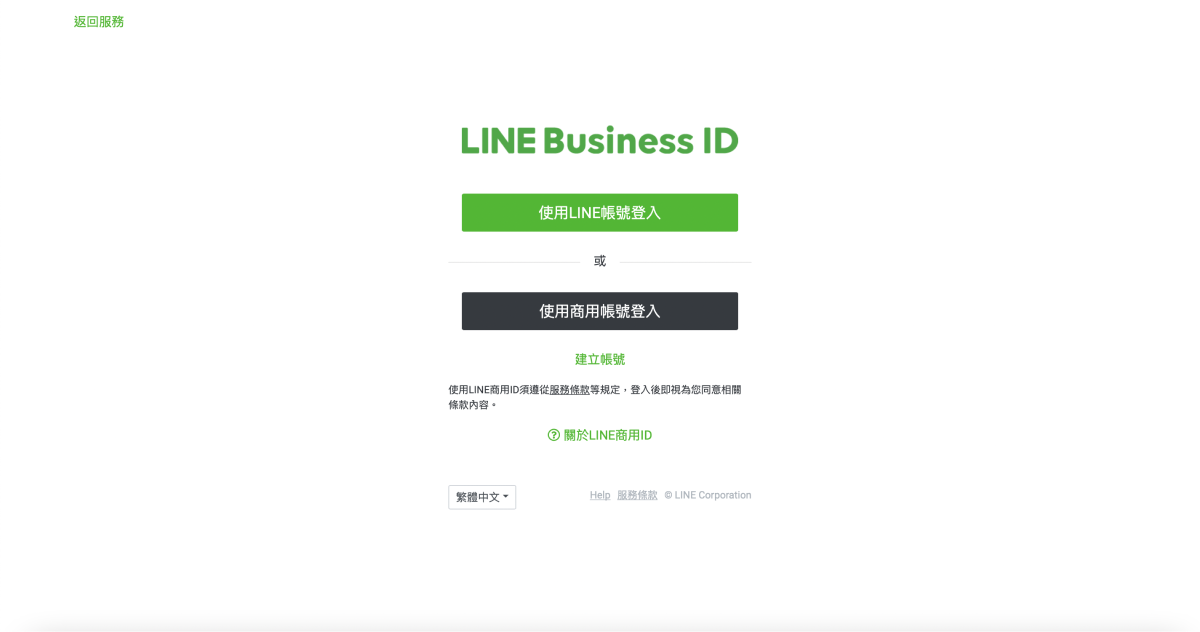
- First, sign in with your “LINE Business ID”.
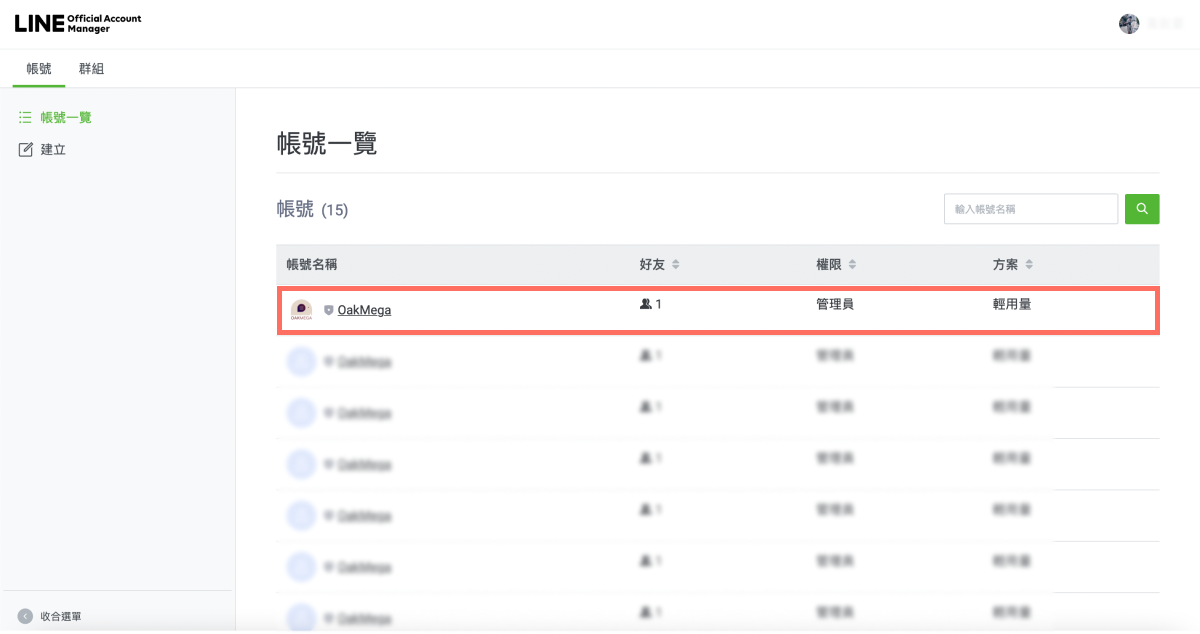
- After signing in, choose the LINE Official Account whose profile you want to set up from the account list.
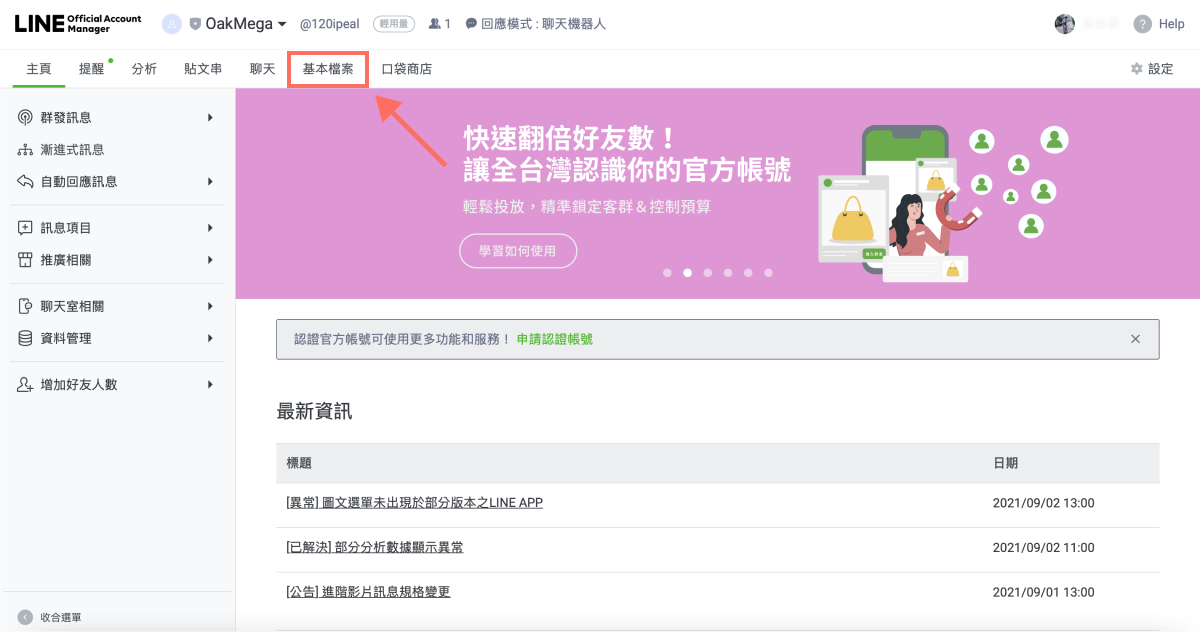
- Click Profile in the top-left corner. Your browser opens a new page with the profile page settings.
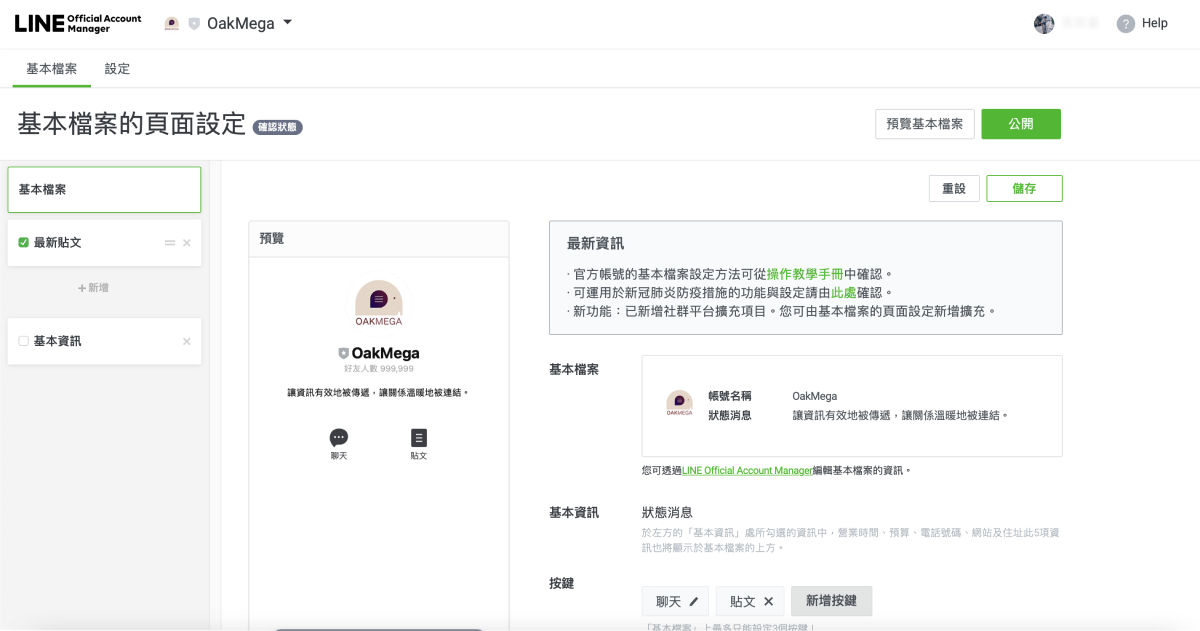
- Profile page settings give you more advanced options for customizing what friends see.
Click Add button to choose the buttons your profile shows to friends. You can add up to 3 buttons.
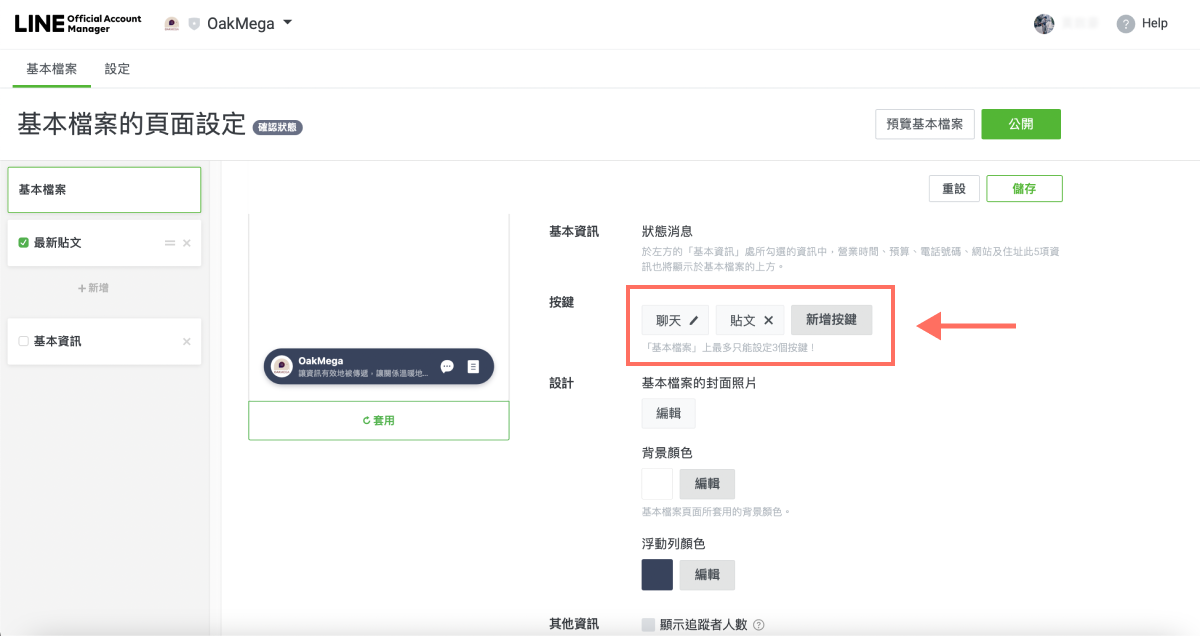
The Chat button is required. You can add others from this list:
- Posts
- Follow posts
- Call
- Coupons
- Reward card
- Location
- Products and services
- Reservations
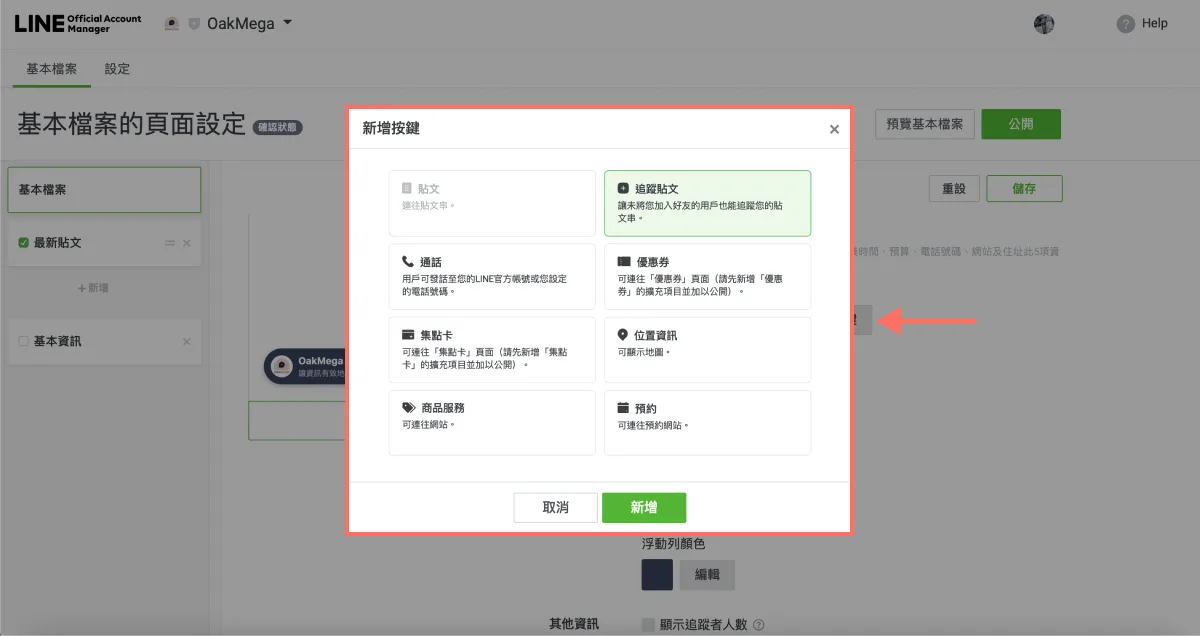
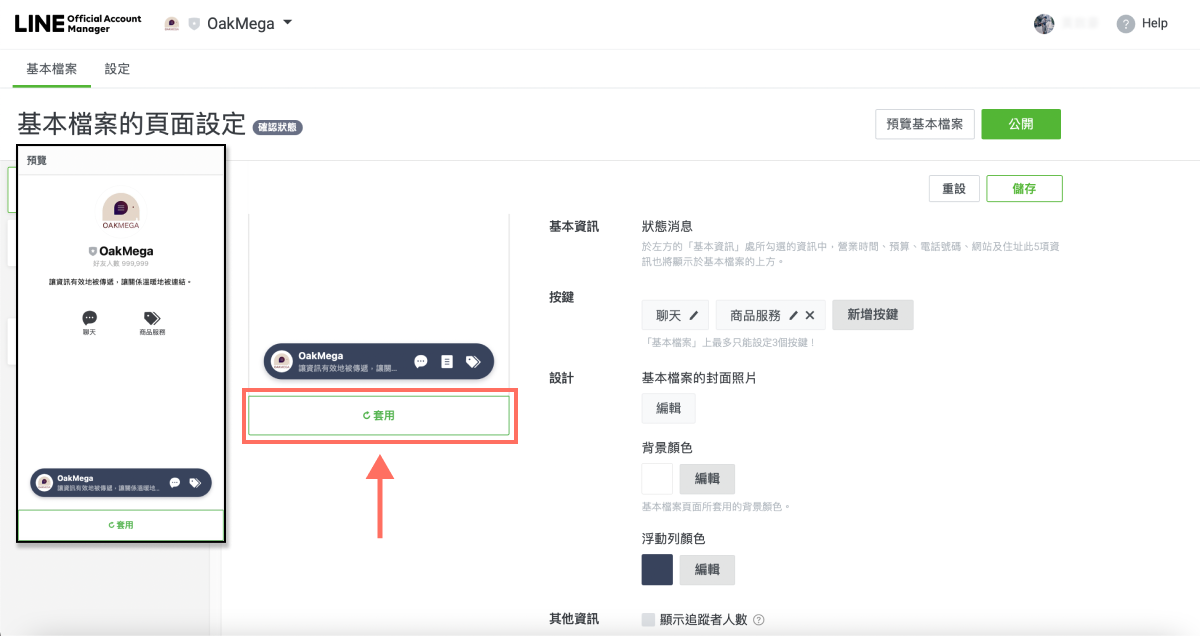
Click Add to finish adding the button, then click Apply to preview your profile.
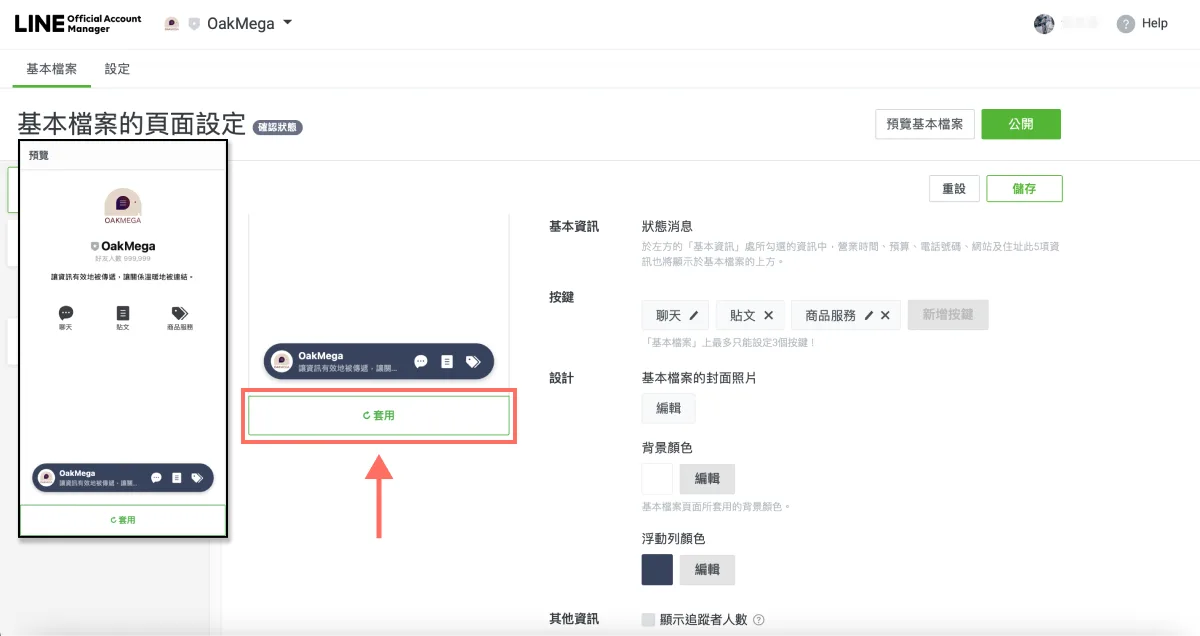
- Click the X icon to change which buttons are displayed.
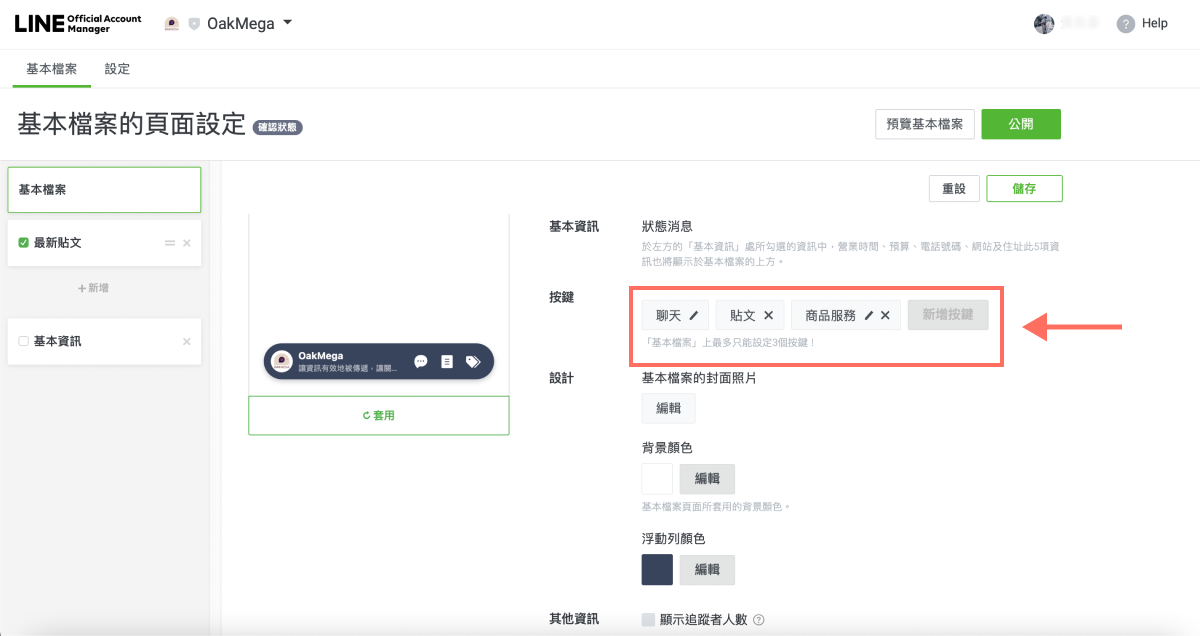
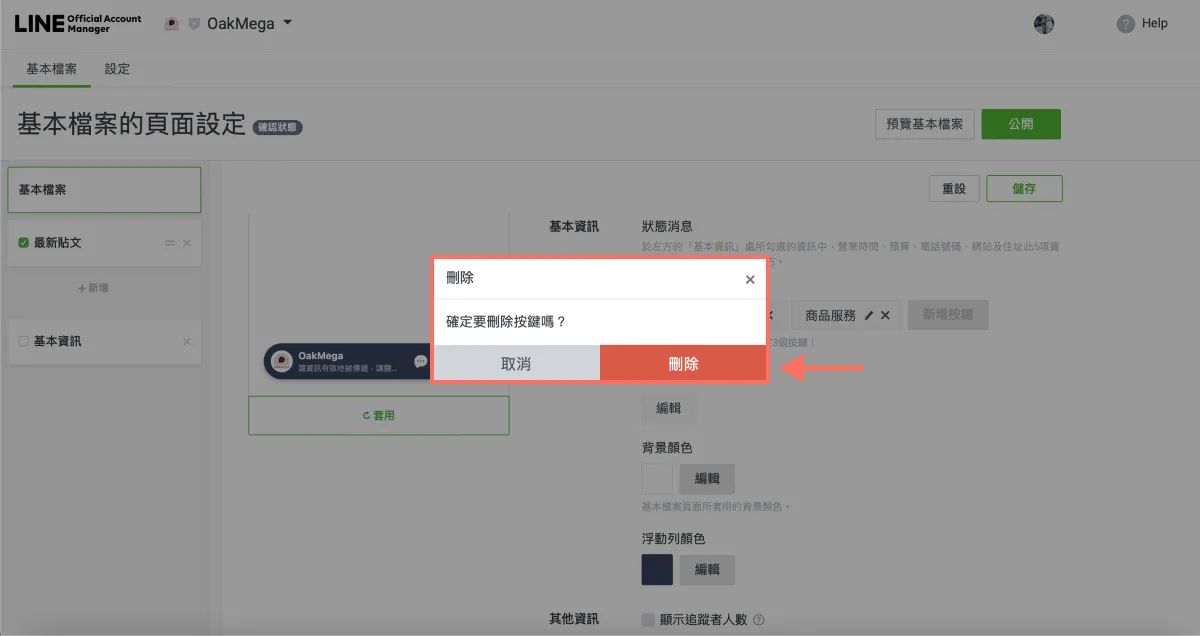
Click Delete to remove buttons you don't want on your profile.
Click Apply to preview your profile without the removed button.
- Besides buttons, you can also change your profile's colors or show the follower count next to the friend count.
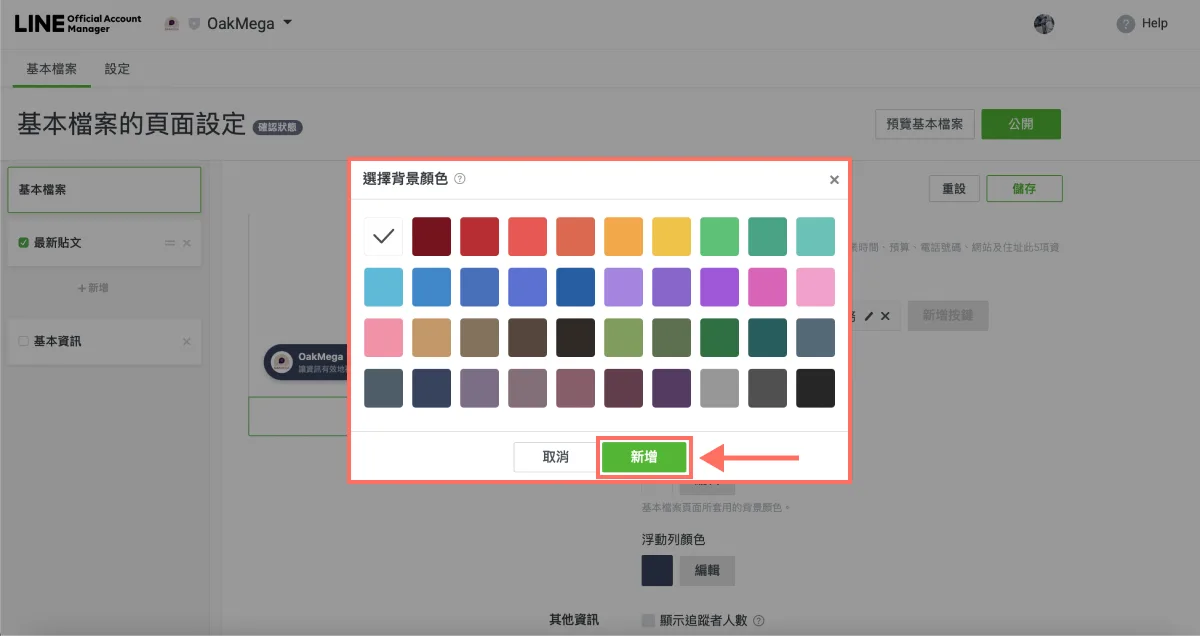
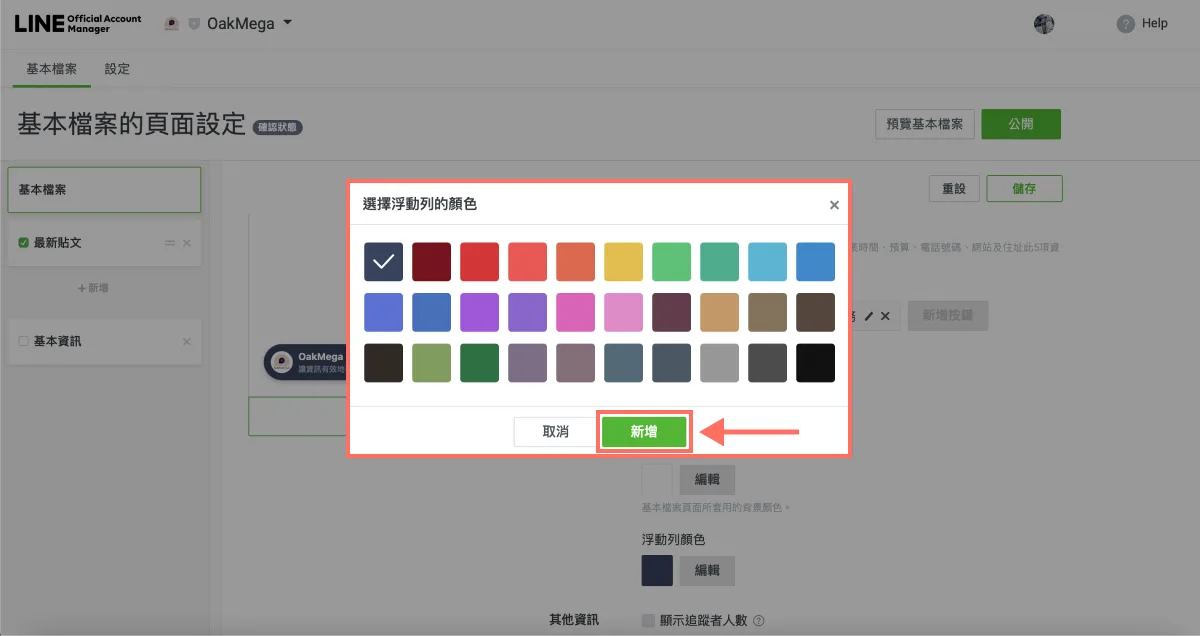
Click Edit to change the background color and the floating bar color.
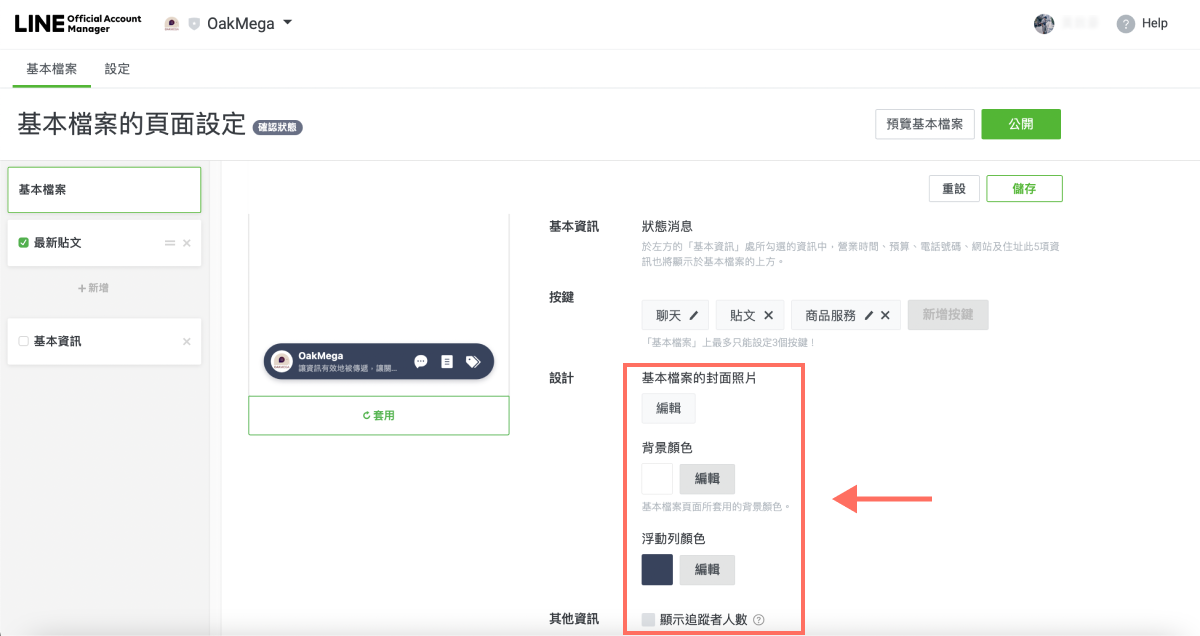
After picking a background color, click Add to finish the color setting.
After picking a floating bar color, click Add to finish the color setting.
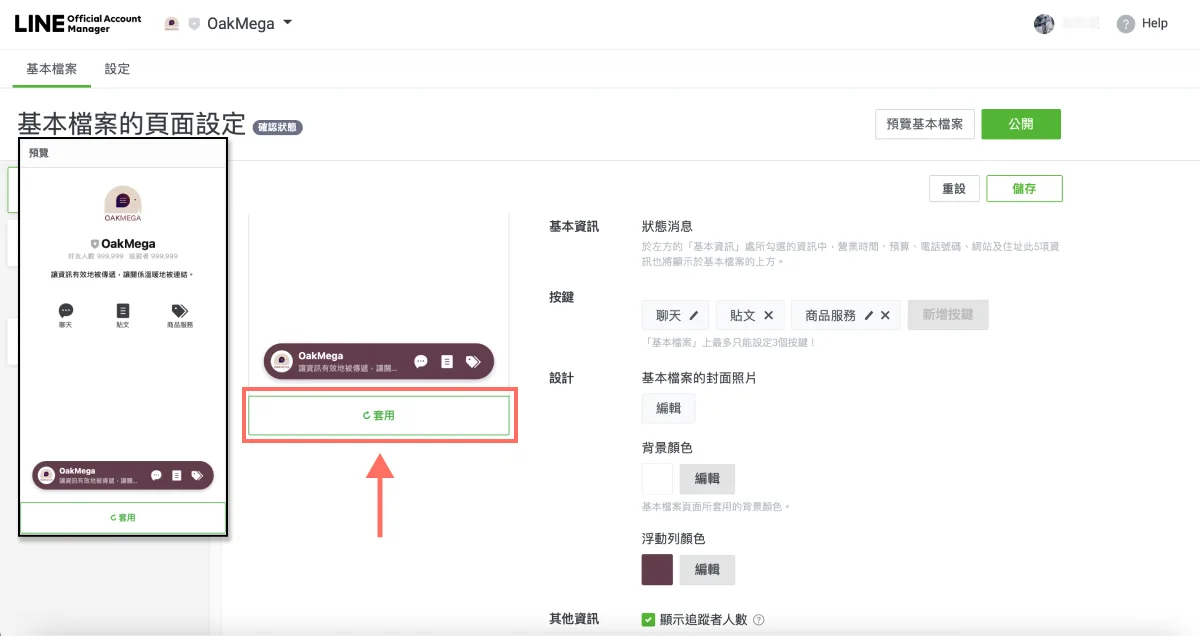
Click Apply to preview your profile with the new colors. If you've checked Show follower count, the preview also shows the follower count next to the friend count.
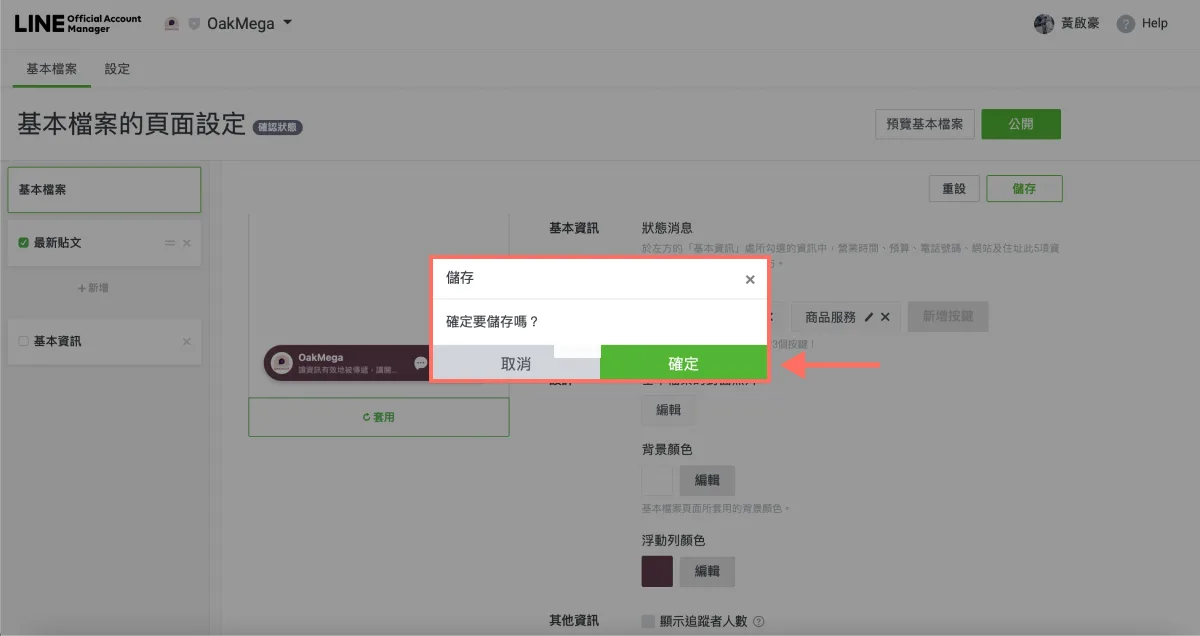
- When you've finished all profile page settings, click OK to save.
Click Preview profile to double-check what you've saved.
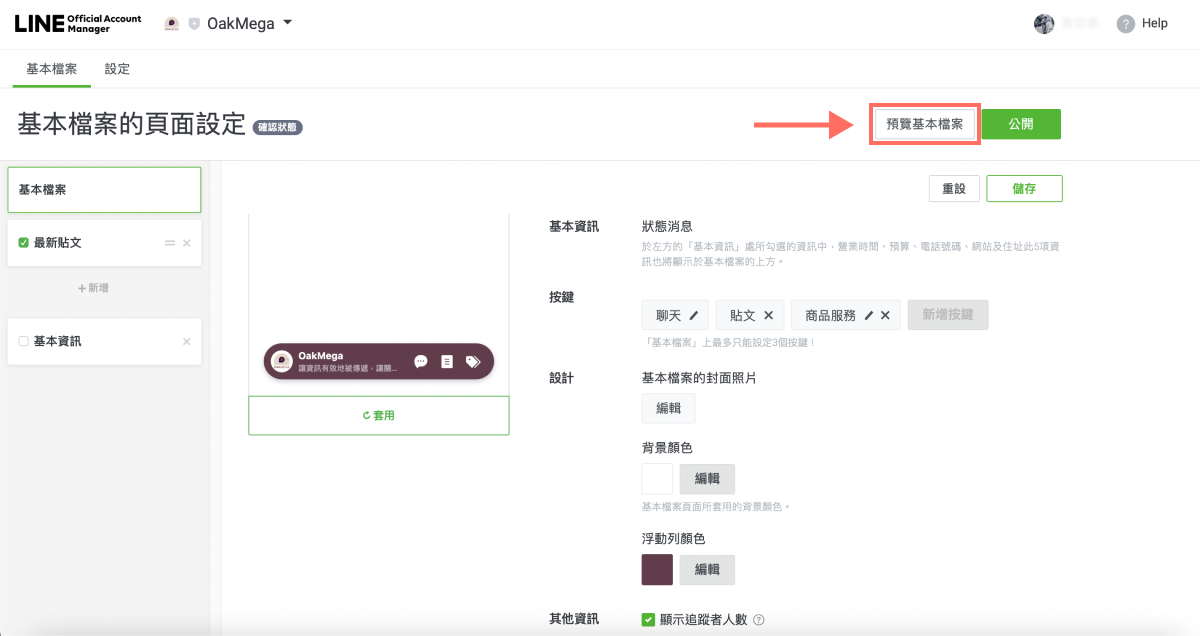
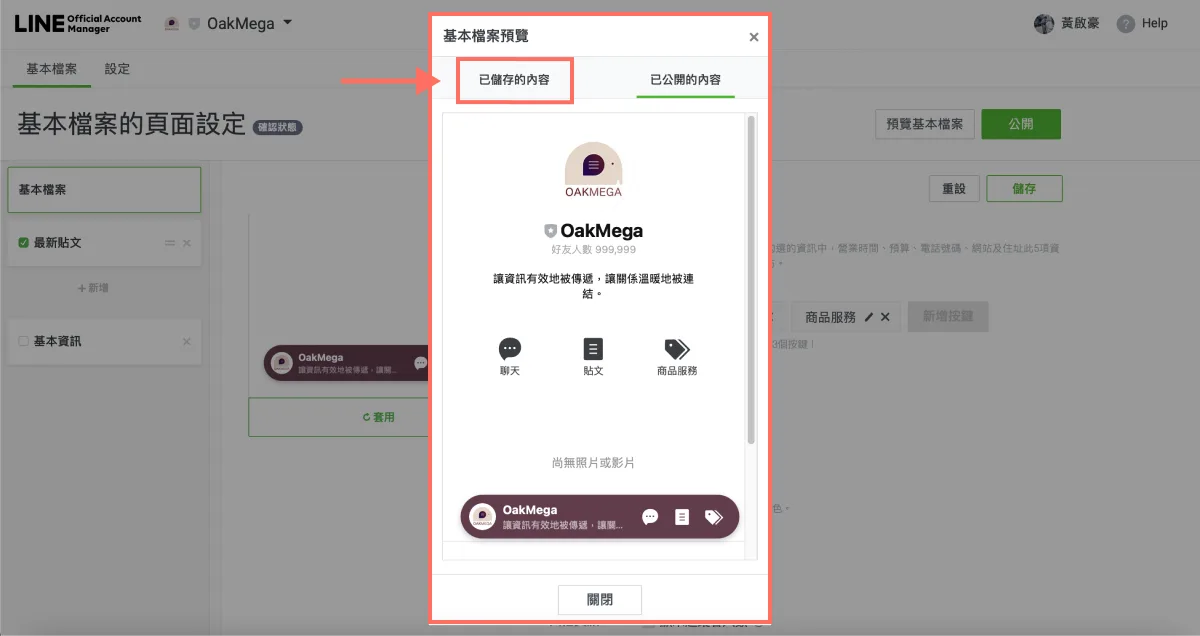
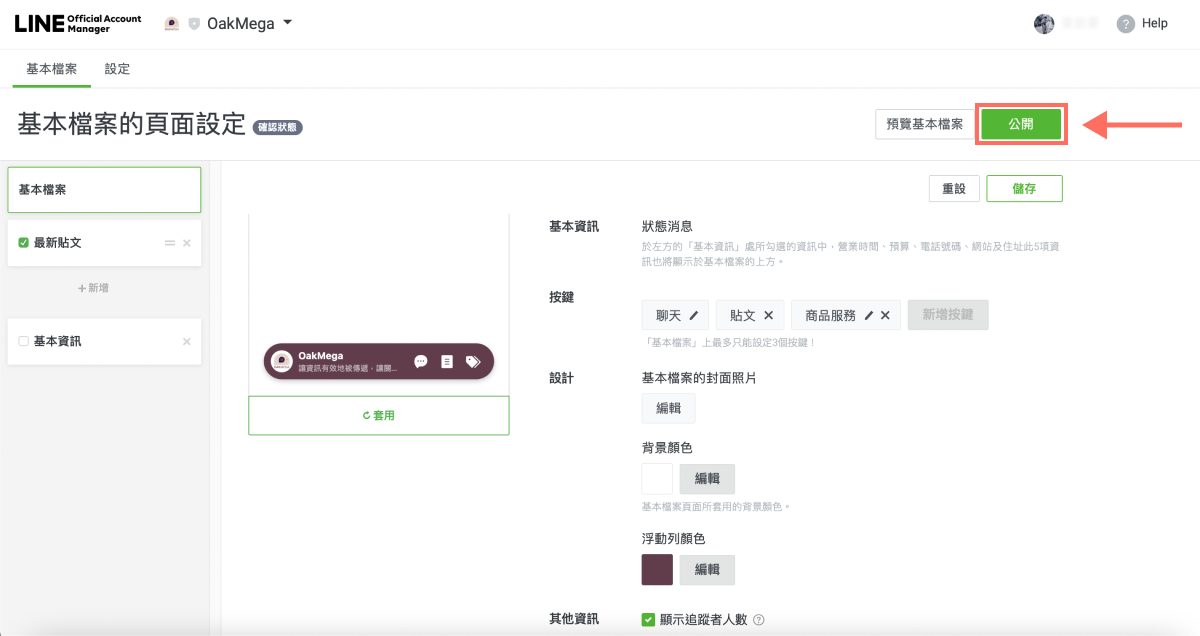
- After previewing your profile and confirming the saved content, click Publish. Friends who visit your official account will then see your brand's latest profile.
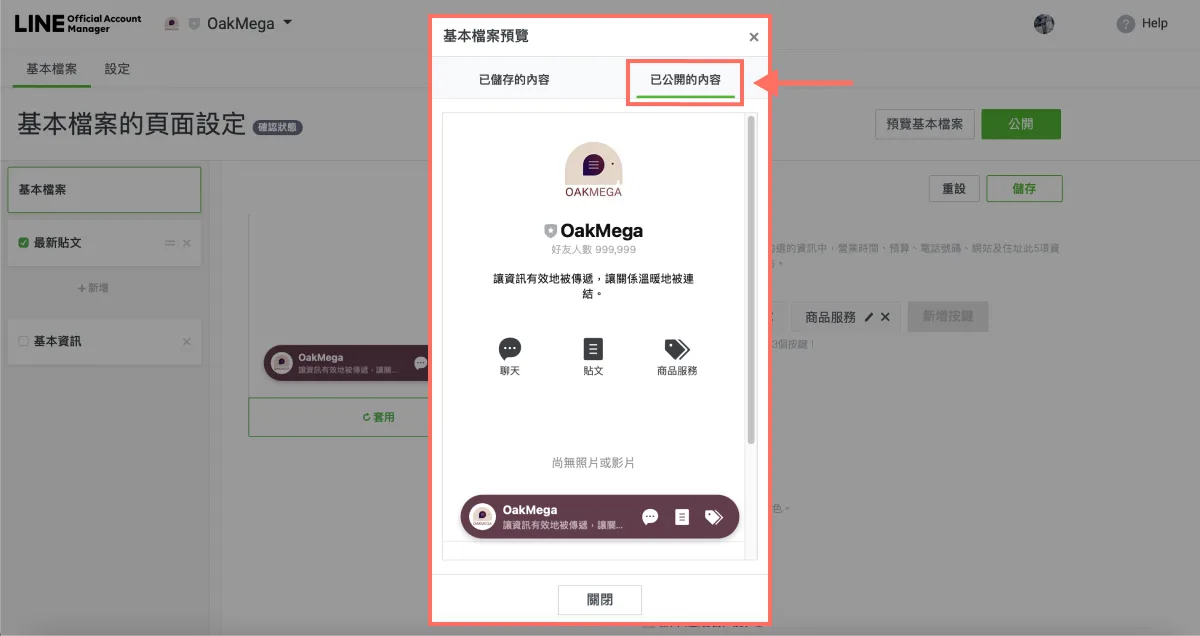
Click Published content to view what's live.
With these eight steps, you can build out a more complete profile page for your LINE Official Account. Want more tips on running LINE? Can you add other content to your profile? Is there a limit on how many items you can add on the left side of the screen? Visit the OakMega LINE Official Account for more LINE marketing content, or follow our “OakMega LINE Marketing Toolkit” for step-by-step guides to building your brand's LINE Official Account from scratch.