Advanced LINE Marketing | How to Check New Friend Data for Your LINE Official Account
How can you check new friend data in LINE Official Account Manager to see how your official account is growing? Don't worry! Follow the steps below to check new friend additions in real time in the LINE Official Account Manager web version or mobile app!
 Howard HuangMarketing Specialist

How can you check new friend data in LINE Official Account Manager to see how your official account is growing? Don't worry. Follow the steps below to check new friend additions in real time in the LINE Official Account Manager web dashboard or the mobile app!
How do you check new friend data in LINE Official Account Manager?
You can track new friend growth in either the web version or the mobile version of LINE Official Account Manager:
LINE Official Account Manager (web): step by step
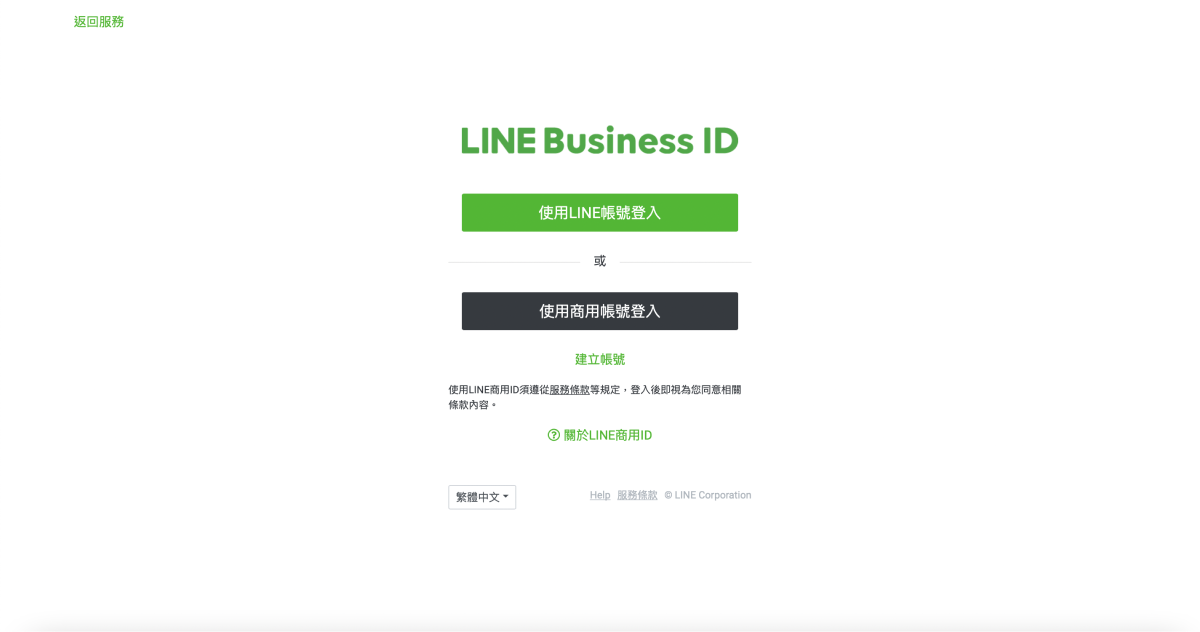
- First, log in with your "LINE Business ID."
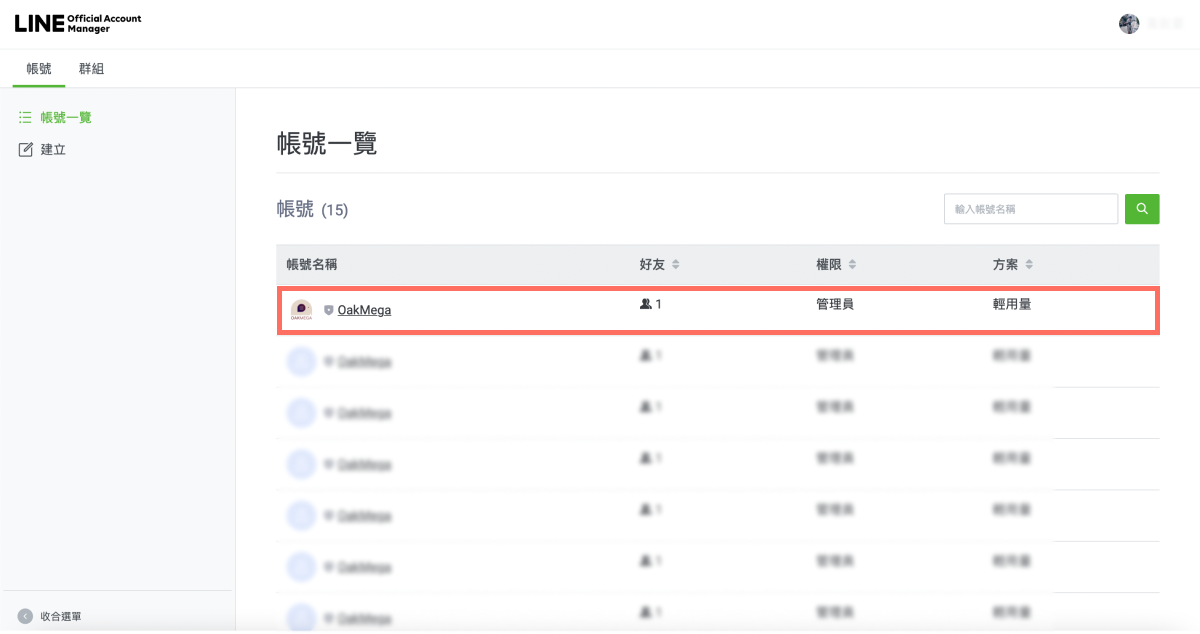
- Once you're logged in, select the LINE Official Account you want to check from the account list.
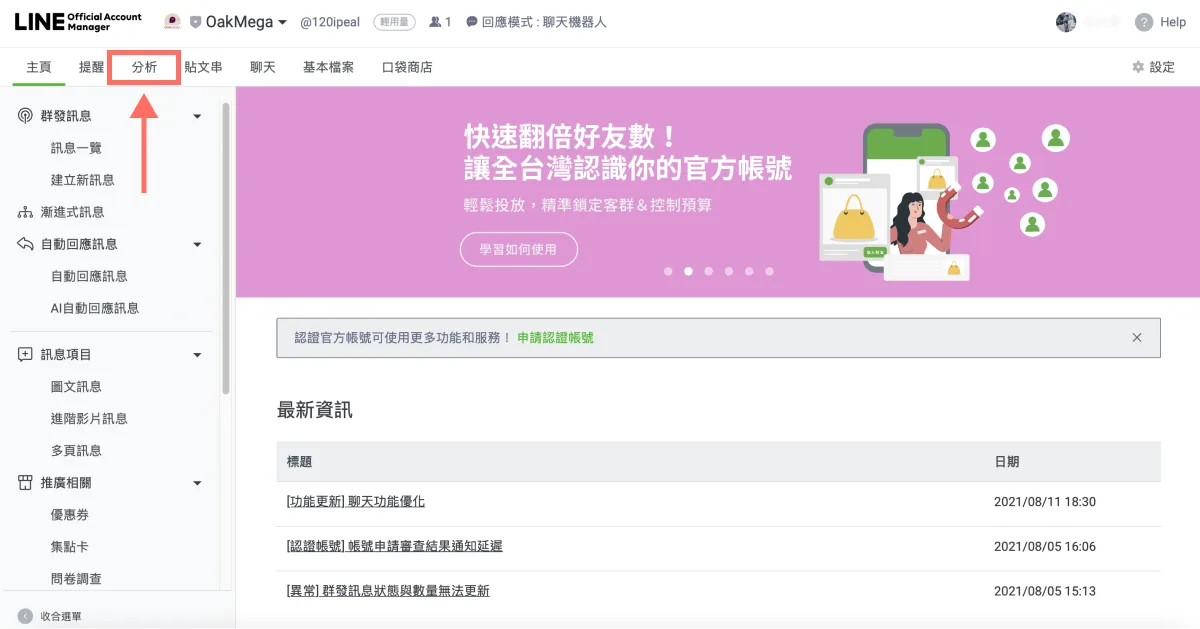
- On the LINE Official Account management page, click "Analytics" in the top-left area.
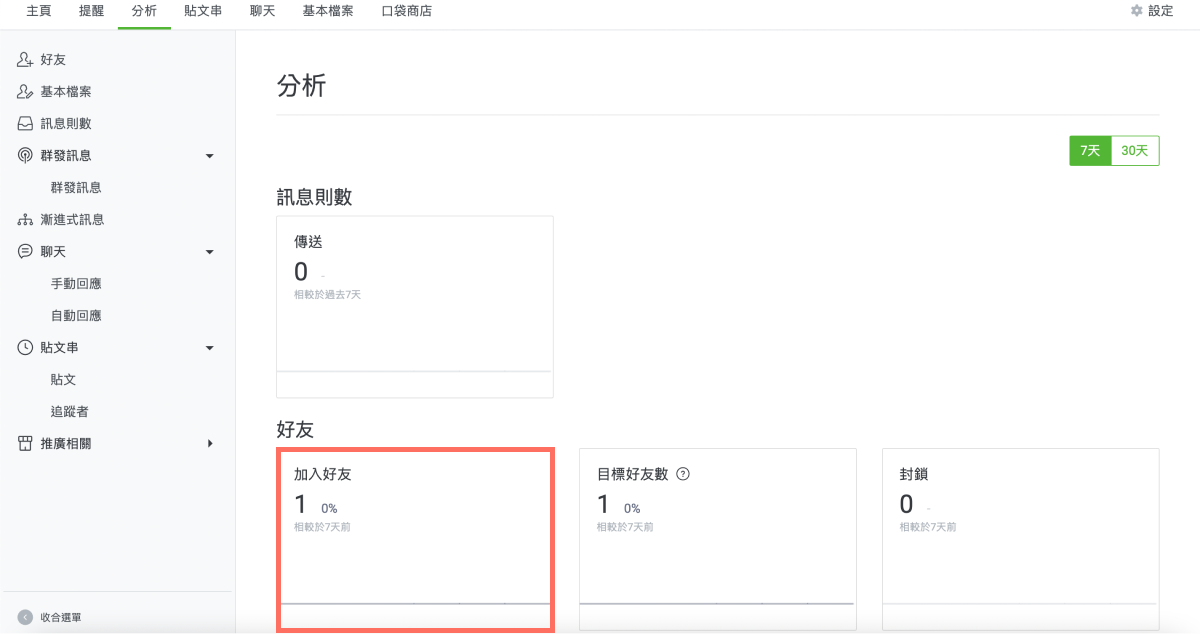
- The default "Analytics" view shows friend additions compared with 7 days earlier.
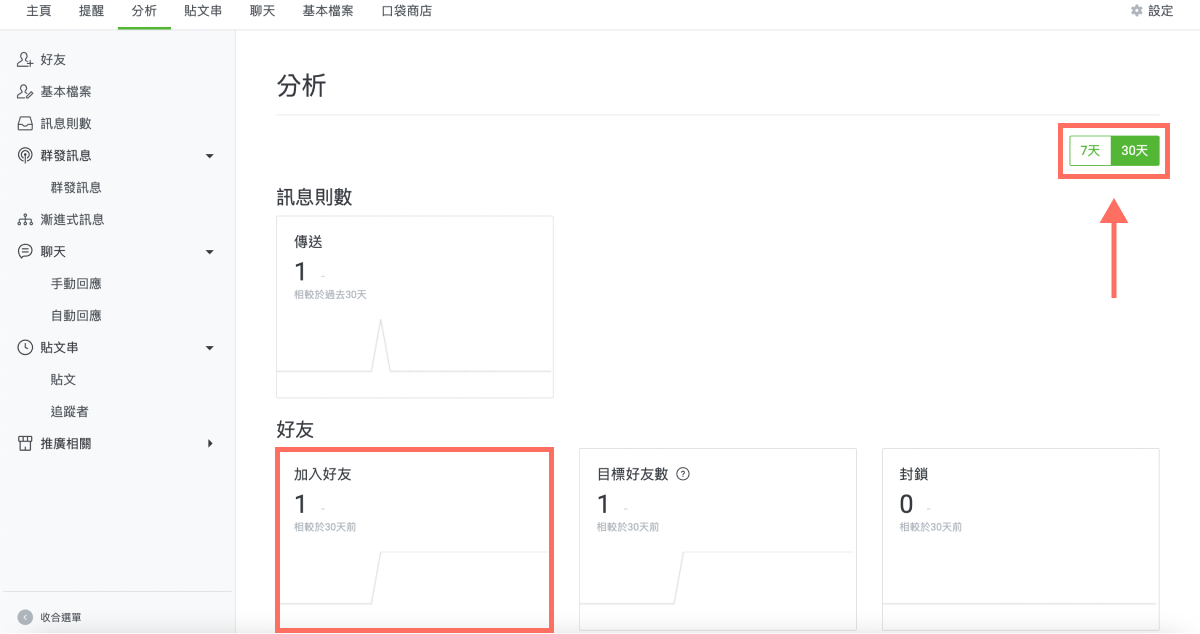
- You can also click the "7 days / 30 days" icon on the right to compare with 30 days earlier instead.
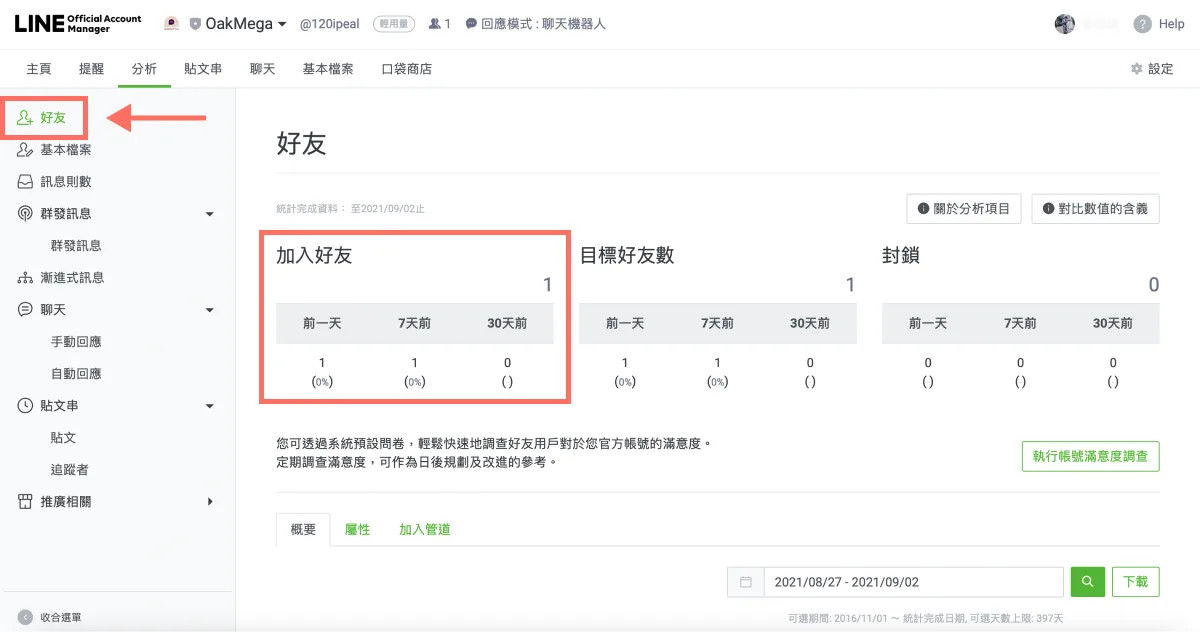
- Click "Friends" on the left side of the analytics menu to compare new friend counts with the "previous day," "7 days ago," and "30 days ago" side by side.
LINE Official Account Manager (mobile app): step by step
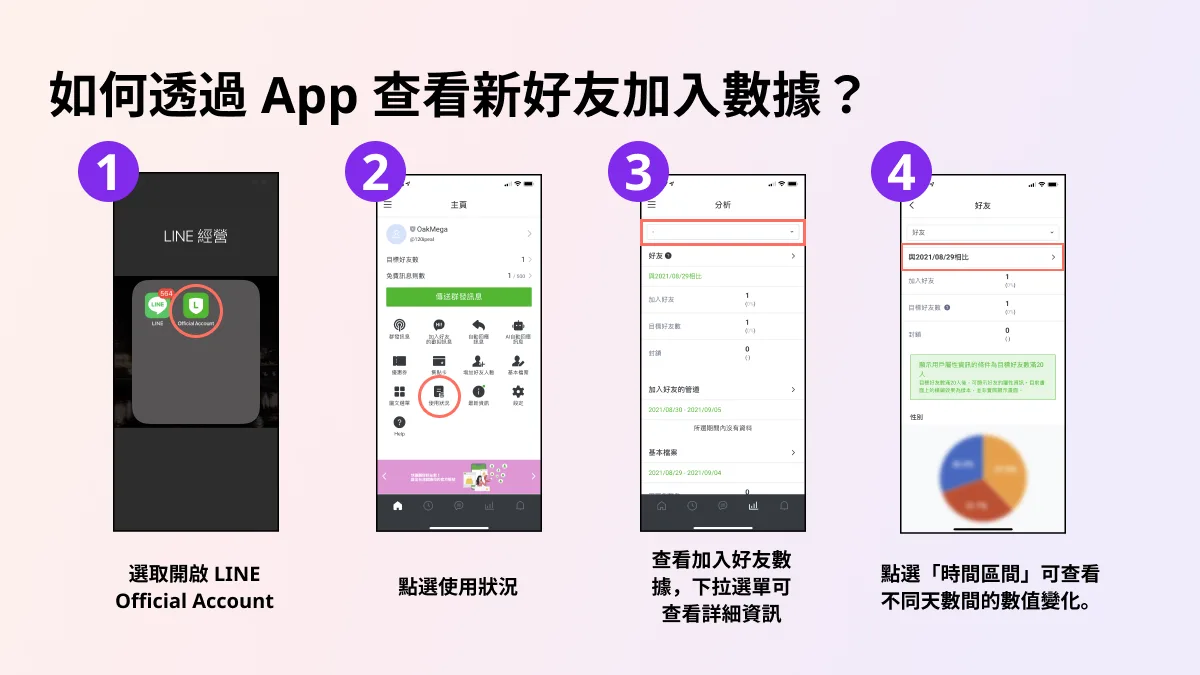
- Open the "LINE Official Account" app.
- Tap "Usage."
- Review your friend data; use the drop-down menu for more details.
- Tap different time ranges to see friend additions compared with the "previous day," "7 days ago," "30 days ago," or a custom range.
Now that you know how to check new friend data, if you want a planned approach to growing your official account's friend count, start with this article: "3 Ways to Turn Users into LINE Official Account Friends."
Want more LINE marketing tips? What should you do once you've used up the 500 free messages on the "Light" plan? Visit the OakMega LINE Official Account for more LINE marketing content, or follow our "OakMega LINE Marketing Toolkit," which walks you through building a brand LINE Official Account from scratch.