Advanced LINE Marketing | How to Check Your LINE Official Account Plan
How do you check which plan your LINE Official Account is on in LINE Official Account Manager? What do the different plans include? Can you stay on the free plan forever? With so many fields in the dashboard, where do you click to see your plan?
 Howard HuangMarketing Specialist

How do you check which plan your LINE Official Account is on in LINE Official Account Manager? With so many fields in the dashboard, where do you click to see your plan?
Don't worry. Follow the steps below to check your current plan in the LINE Official Account Manager web version or the mobile app!
How to check your plan in LINE Official Account Manager
You can check your current plan in either the web version or the mobile version of LINE Official Account Manager:
LINE Official Account Manager (web): step by step
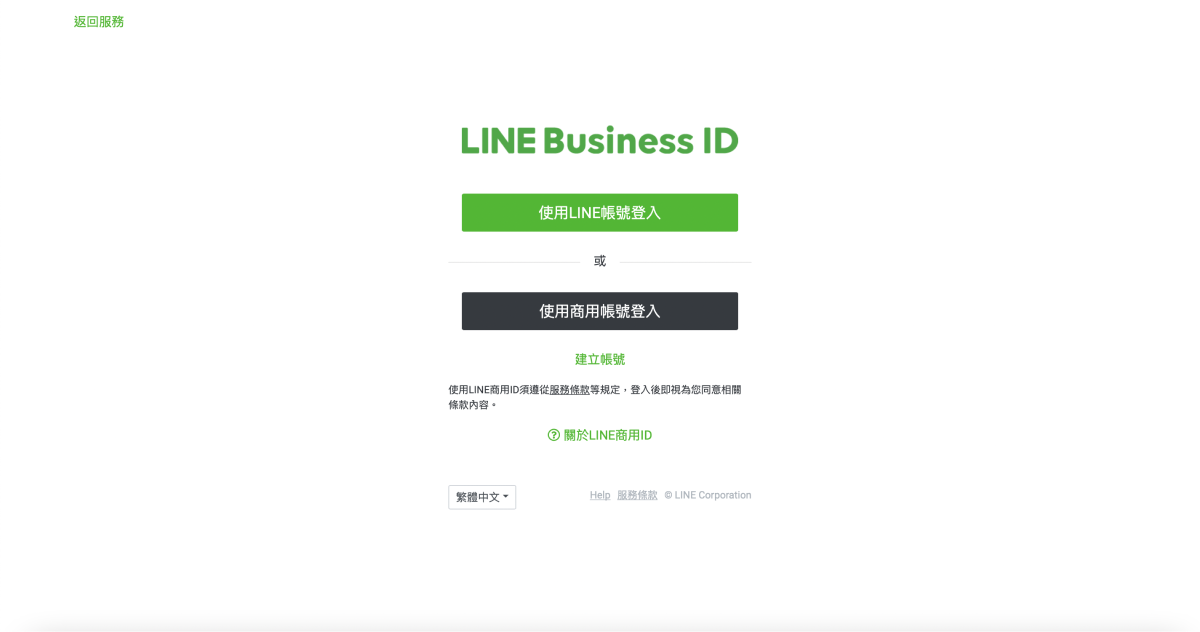
- First, log in with your "LINE Business ID."
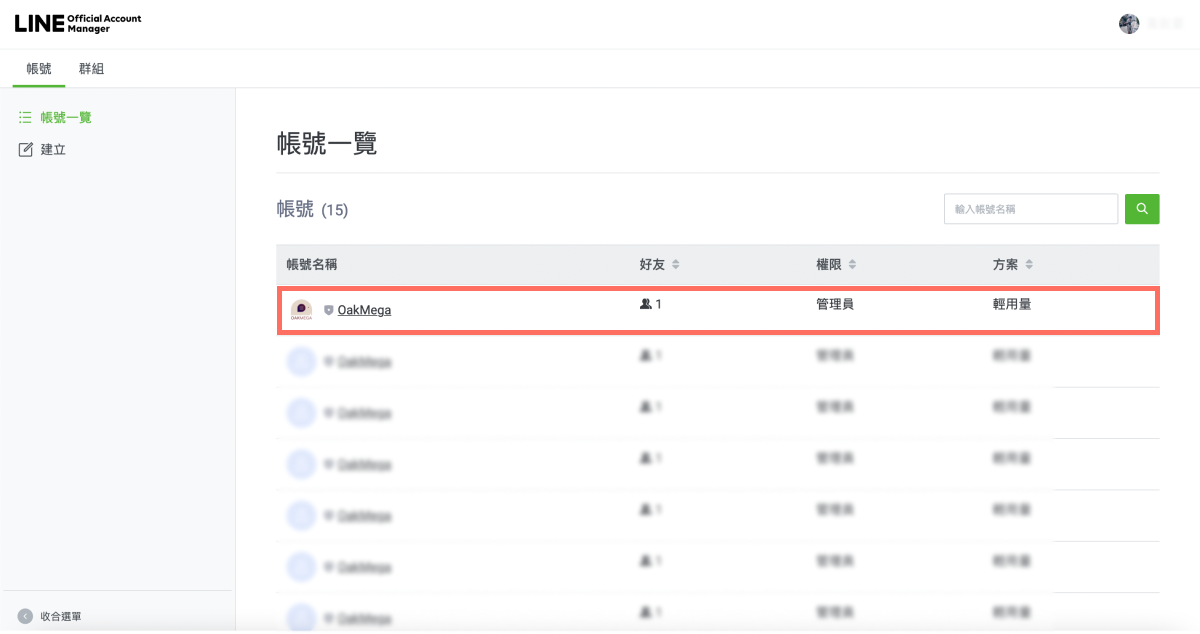
- Once you're in, select the LINE Official Account you want to check from the account list.
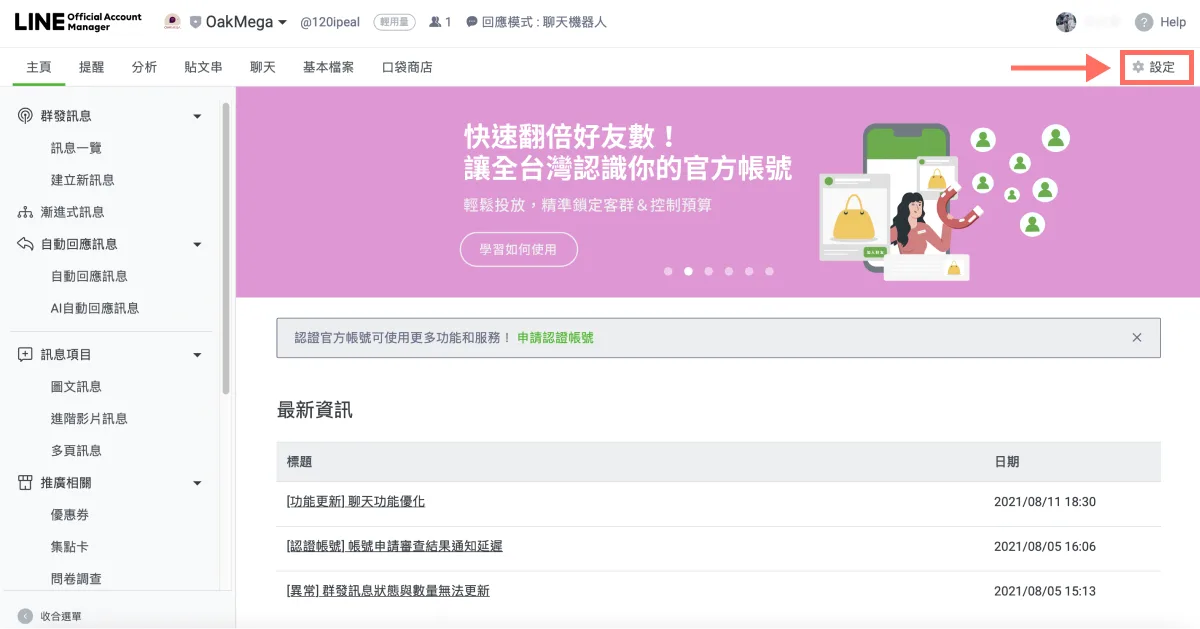
- On the LINE Official Account management page, click "Settings" in the top-right corner.
- The settings page opens to the "Billing" section by default.
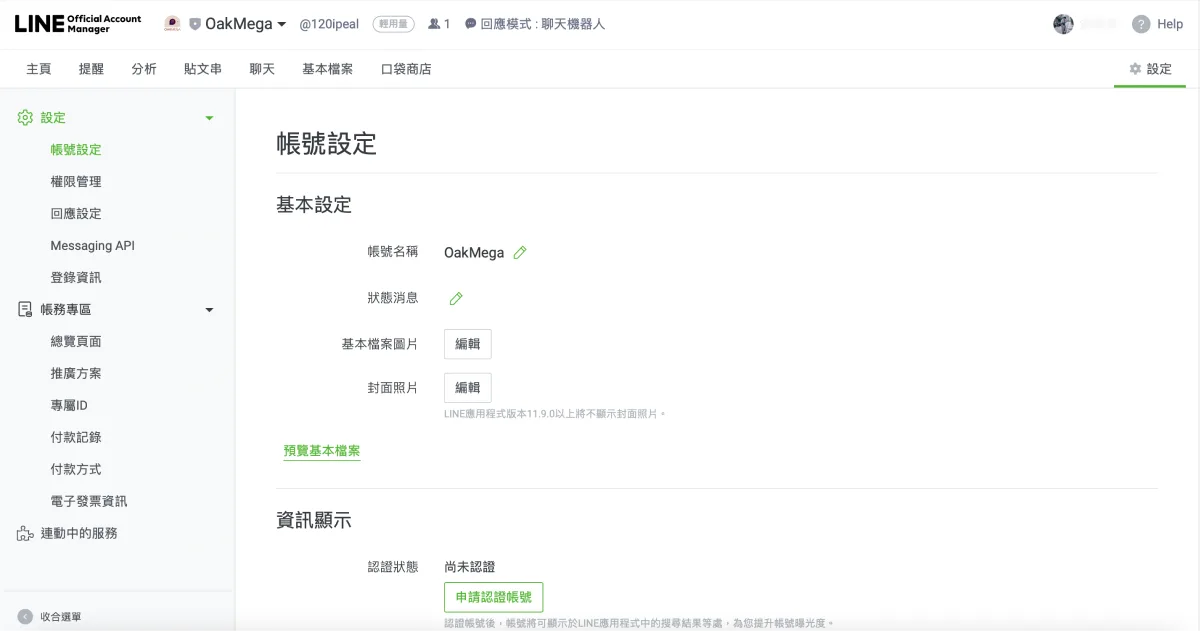
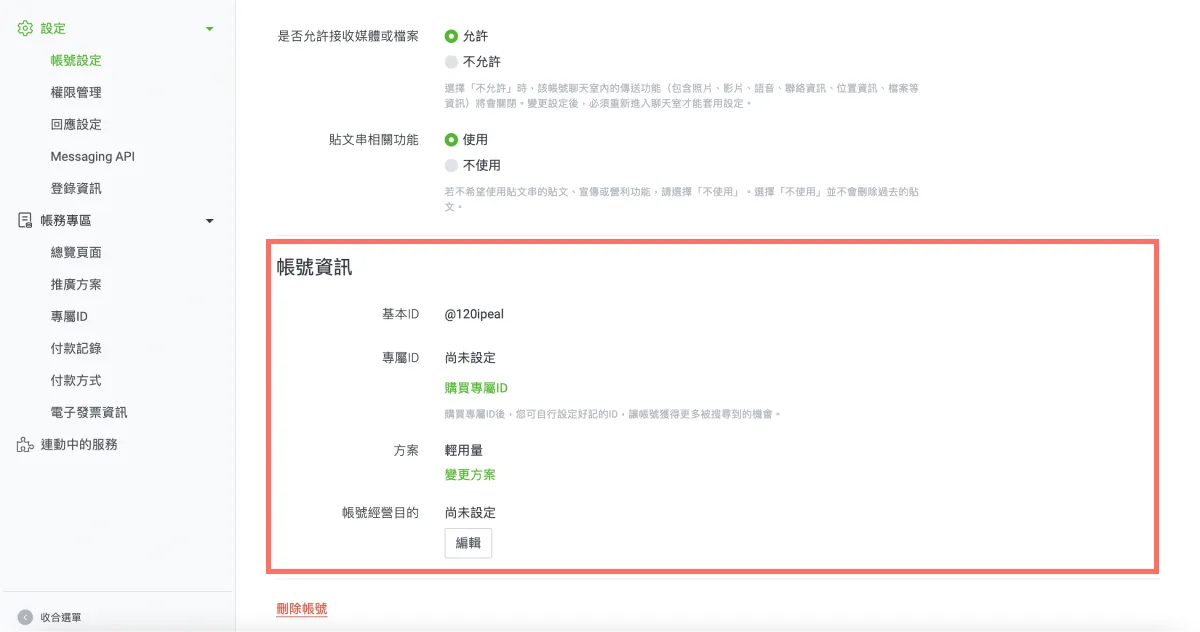
- Scroll down in the "Billing" section to find "Account information." It shows your account details, including your basic ID, premium ID, plan, and account purpose. The plan field shows the plan you're currently on. Click "Change plan" to register a payment method and upgrade your current plan.
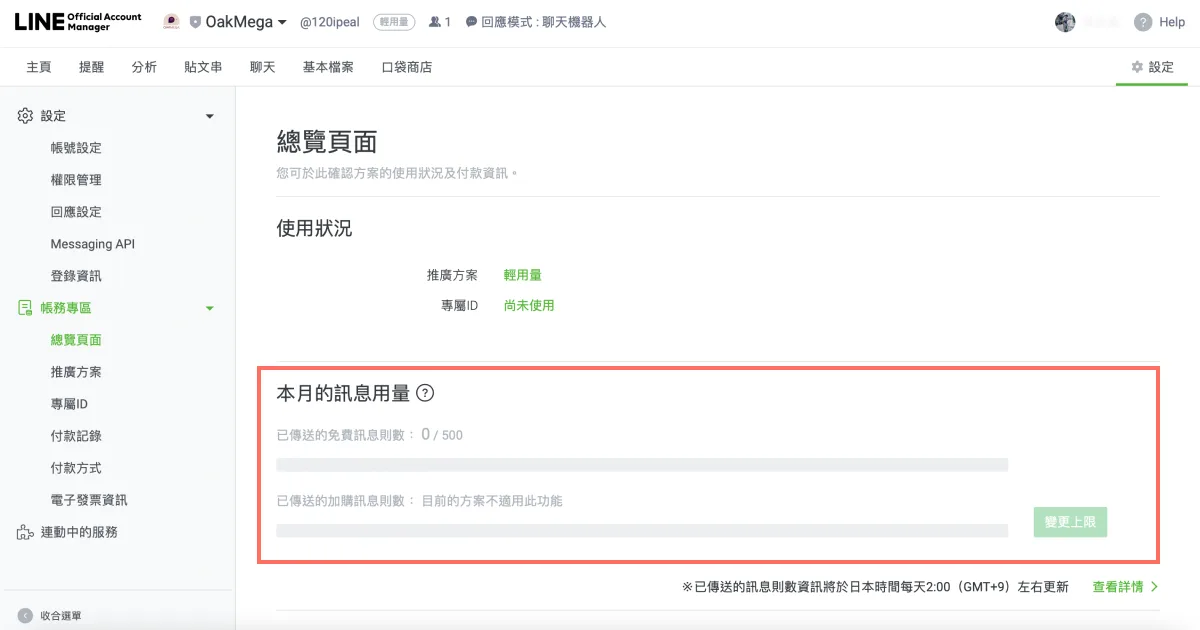
LINE Official Account Manager (mobile app): step by step
(For now, you can only check your plan and purchase message upgrades in the Android app. These settings aren't available in the iOS app yet.)
- Open the "LINE Official Account" app.
- Tap "Usage."
- Under "Usage," the "Plan" field shows the plan you're currently on.
- Tap "Register payment method" to add a payment method and upgrade your plan.
Now that you know how to check your current plan, if you're interested in verified official accounts and want to learn how the gray, blue, and green badges affect how you run your account, start with this article: "What Is a LINE Verified Official Account?"
Want more LINE marketing tips? What should you do once you've used up the 500 free messages on the "Light" plan? Visit the OakMega LINE Official Account for more LINE marketing content, or follow our "OakMega LINE Marketing Toolkit," which walks you through building a brand LINE Official Account from scratch.