LINE Advanced Guide | How to Adjust Your LINE Official Account's Response Settings
What do the Chat and Chatbot response modes at the top of the LINE Official Account Manager mean, and what are the limits of each? You can switch response modes anytime in the LINE Official Account Manager web console or the mobile app!
 Howard HuangMarketing Specialist
What do the Chat and Chatbot response modes shown at the top of the LINE Official Account Manager actually mean? And what are the limits of each mode? Don't worry: you can switch response modes anytime in the LINE Official Account Manager web console or the mobile app!
What Are Response Settings?
First, a quick look at how the two response modes differ and when to use each.
1. Chat mode
In Chat mode, businesses can chat one-on-one with LINE friends directly, and can set up keyword-based auto-response messages to reply to friends automatically outside business hours. Chat mode is also the one most businesses choose.
2. Chatbot mode
In Chatbot mode, businesses can't chat one-on-one with friends directly. Instead, they usually build out a full set of auto-response messages so the LINE Official Account works as a chatbot, automatically answering friends' frequently asked questions. Alternatively, with an engineer's help you can connect the Messaging API. That way you keep the chatbot setup while still chatting one-on-one with friends and replying individually to less common messages.
How to Change the Response Mode
Steps in the LINE Official Account Manager (web)
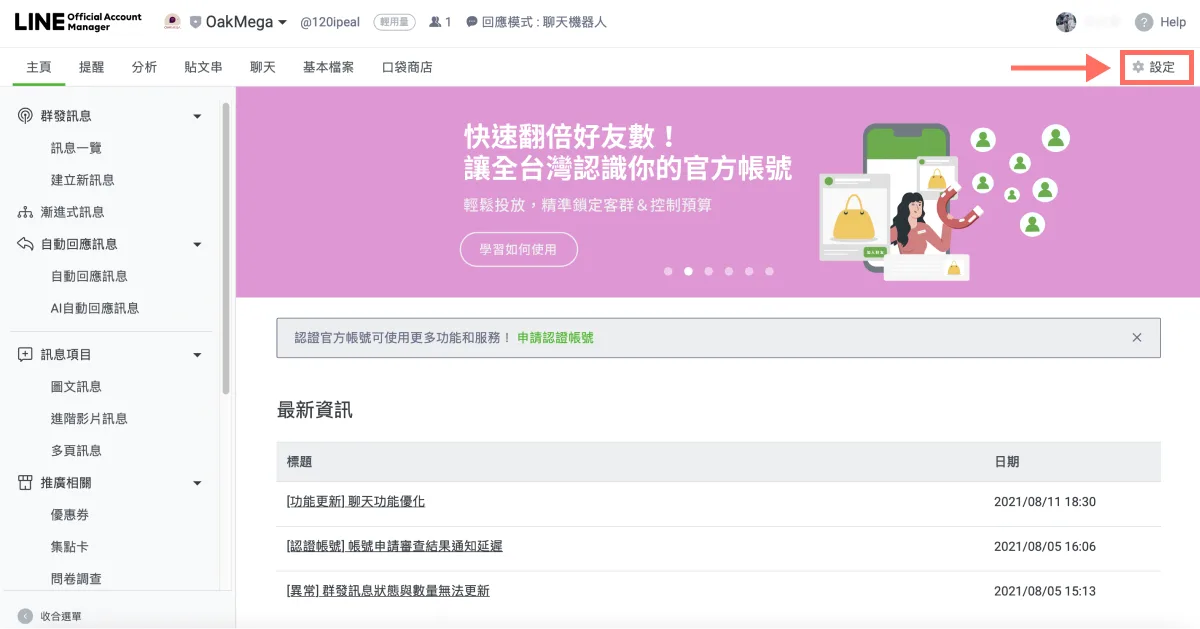
- After logging in to LINE Official Account Manager, click “Settings” in the top-right corner.
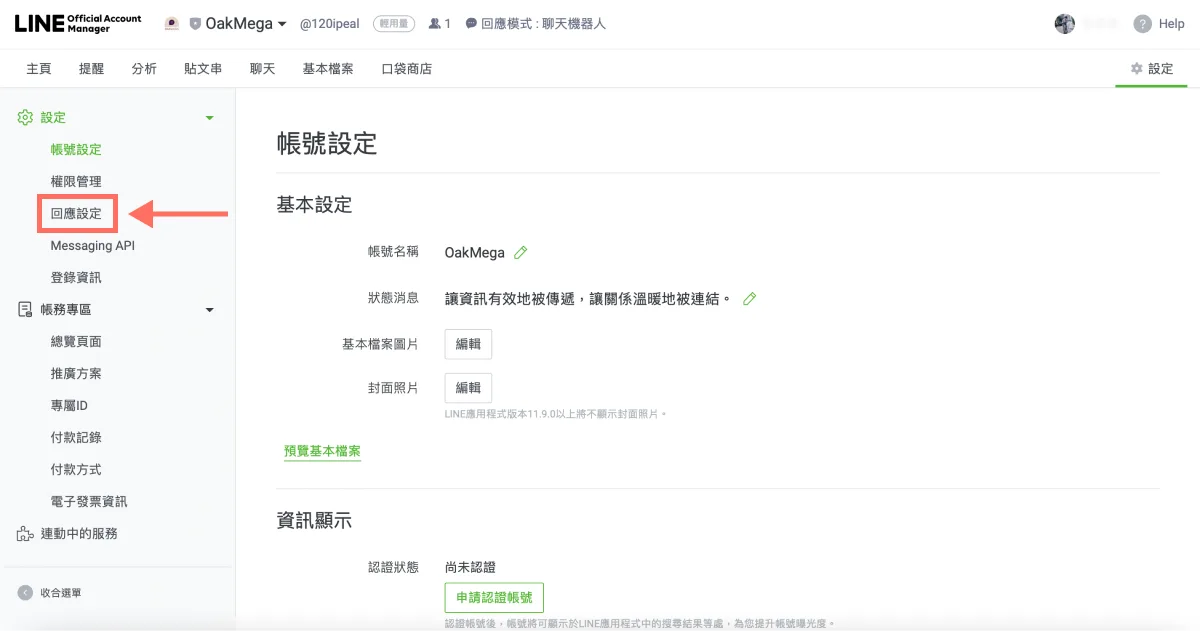
- The Settings page opens on Account settings by default. In the left sidebar, click “Response settings.”
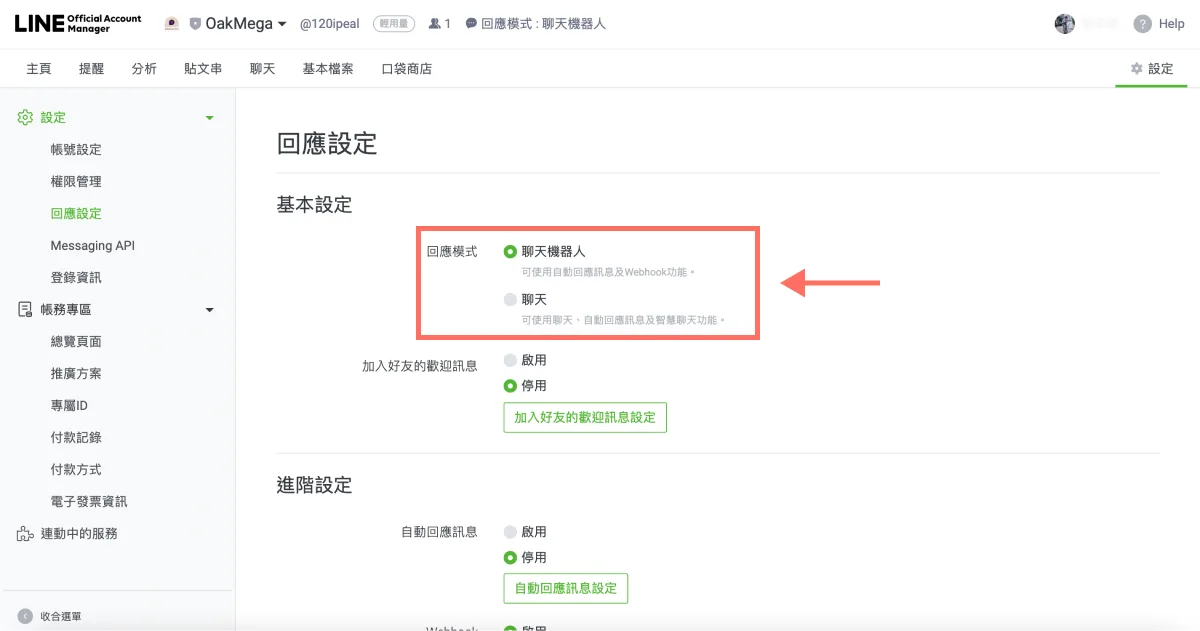
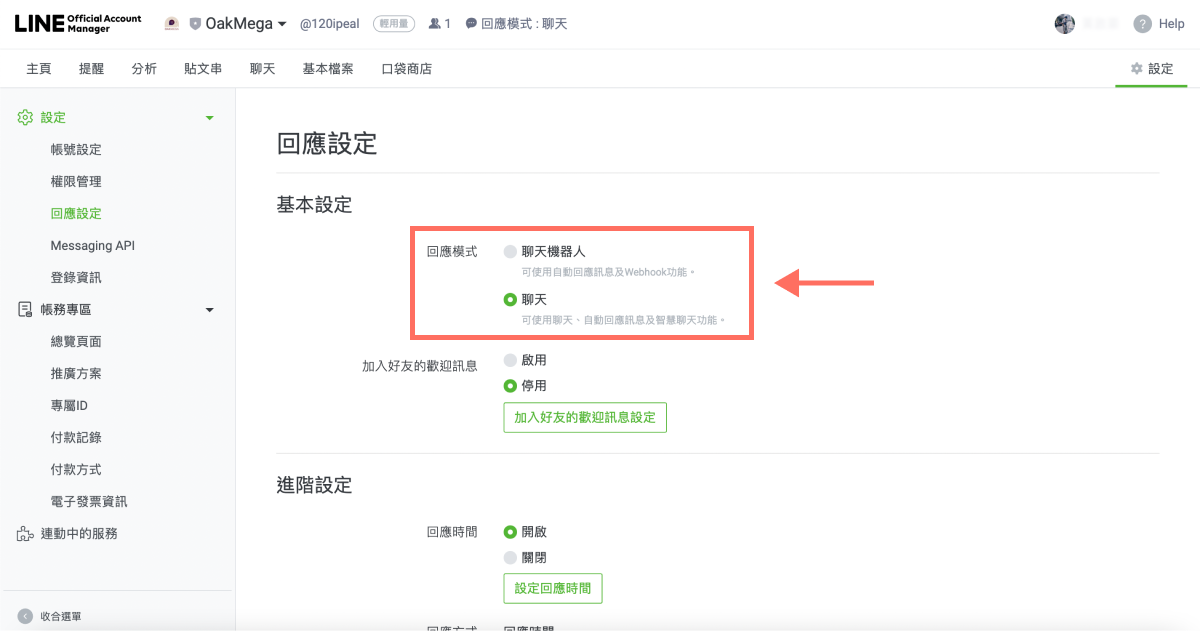
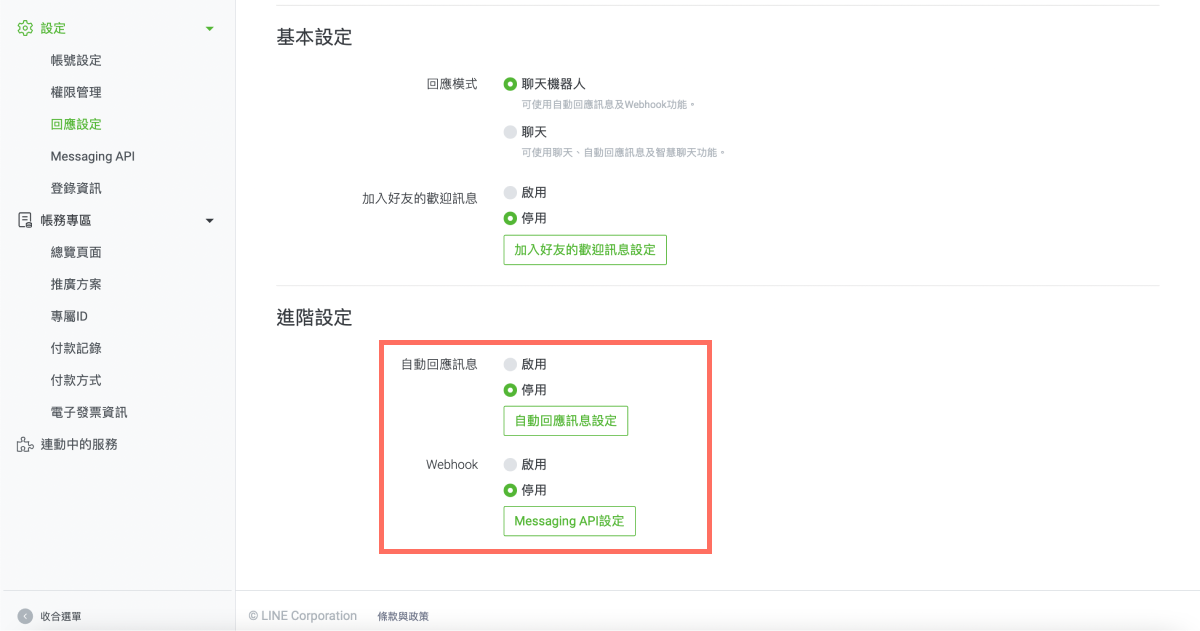
- On the Response settings page, you can switch between the “Chatbot” and “Chat” response modes.
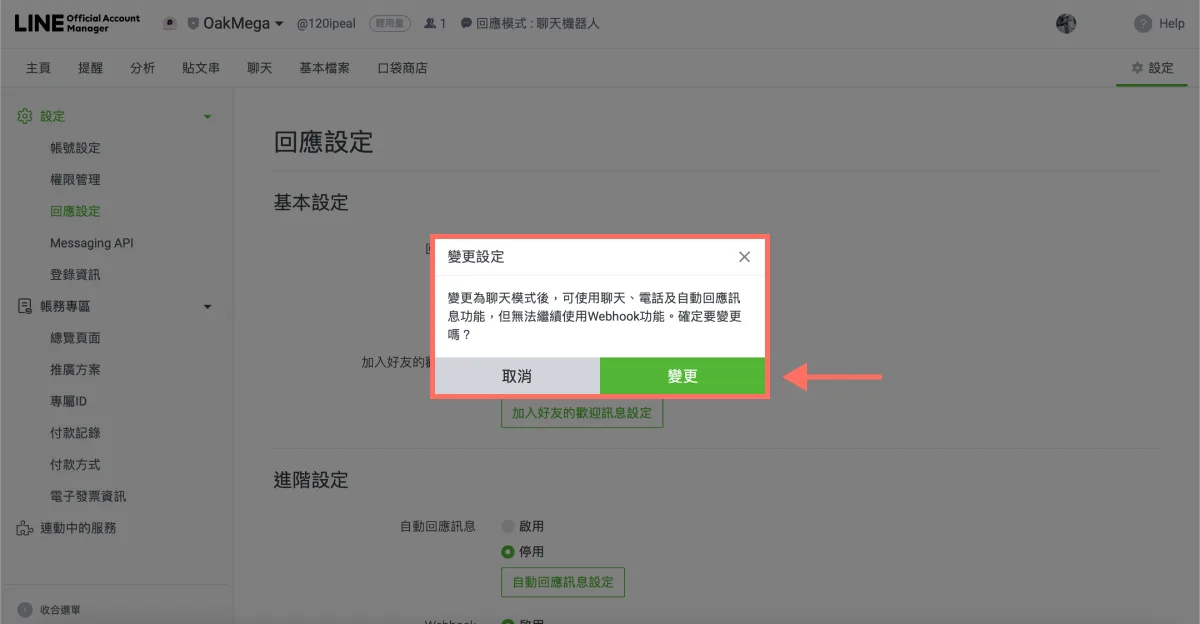
- After you select the mode you want, the system shows a confirmation notice. In Chat mode:
- Available: Chat, calls, auto-response messages.
- Not available: Webhooks.
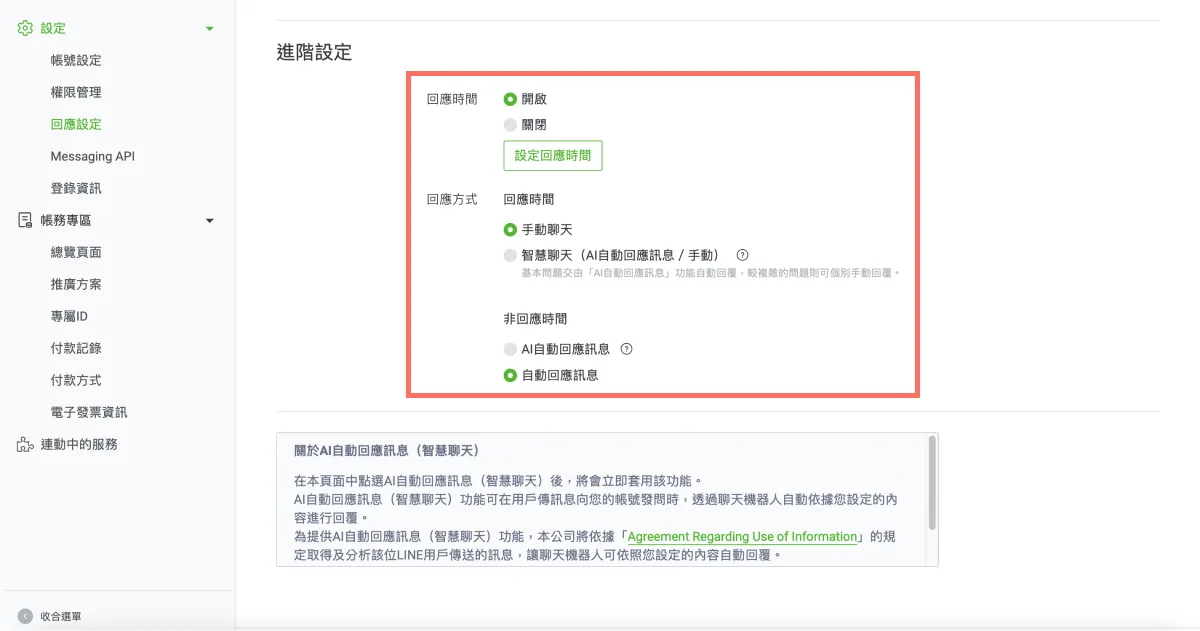
Once you've switched the response mode to “Chat,” scroll down to adjust the advanced settings.
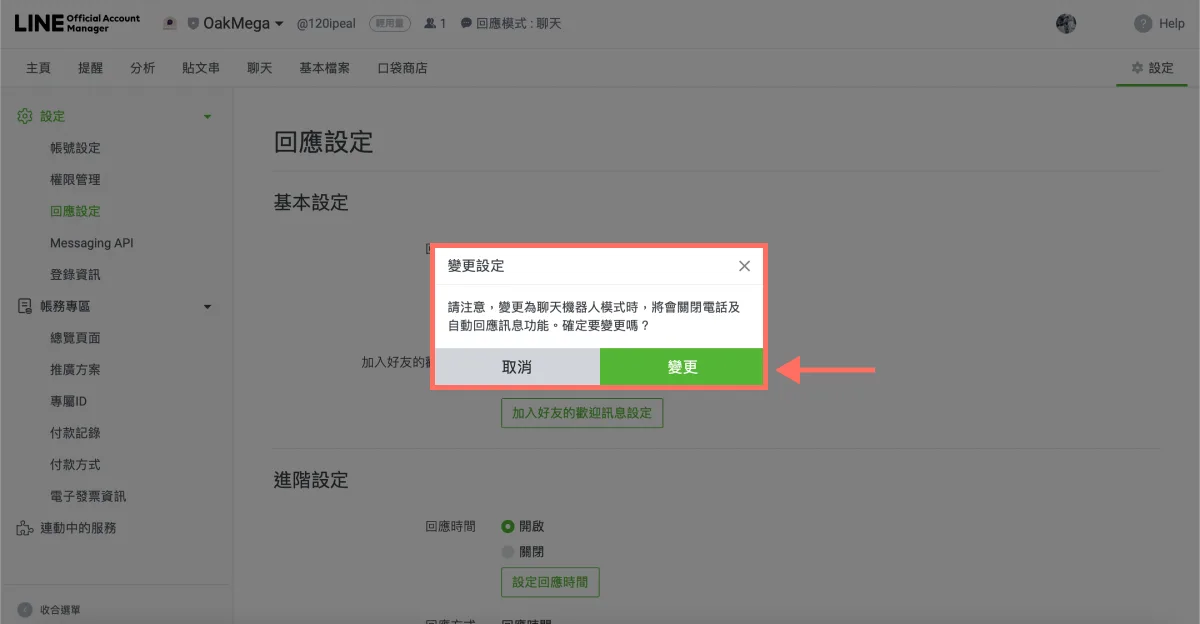
- After you select the mode you want, the system shows a confirmation notice. In Chatbot mode:
- Available: Webhooks.
- Not available: Calls, auto-response messages.
Once you've switched the response mode to “Chatbot,” scroll down to adjust the advanced settings.
Steps in the LINE Official Account Manager mobile app
If you have the mobile app installed, you can change your response settings even faster (download: iOS, Android):
- Open the “LINE Official Account” app.
- Tap “Settings.”
- Tap “Auto-response,” then tap “Response mode” under Basic settings.
- Depending on your needs, set the response mode to “Chatbot” or “Chat.”
Want more tips on running LINE? Chose Chatbot mode and wondering how to connect the Messaging API next? Visit the OakMega LINE Official Account for more LINE know-how, or follow our “OakMega LINE Playbook” for step-by-step guides to building your brand's LINE Official Account from scratch.