LINE Basics | How to Create a Provider on LINE Developers
Want to build a chatbot for your LINE Official Account that messages friends automatically? First, you need to create a Provider on LINE Developers. Only then can you create a Messaging API channel and add chatbot features to your LINE Official Account. So how do you create a Provider on LINE Developers?
 Howard HuangMarketing Specialist
Want to build a chatbot for your LINE Official Account that messages friends automatically? First, you need to create a Provider on LINE Developers. Only then can you create a Messaging API channel and add chatbot features to your LINE Official Account.
Don't worry. With the steps and key terms below, you can create a Provider on LINE Developers in minutes.
How to create a Provider on LINE Developers
Before we start, here's a quick look at what LINE Developers and a Provider are:
- LINE Developers: the technical console for your LINE Official Account. It's where you configure the development resources tied to your account, such as automated message delivery settings or the credentials needed when new friends join. It differs from LINE Official Account Manager, which you use to manage the messages you exchange with friends directly.
- Provider: the individual or company offering the service, such as your own name or your company's name.
Four steps to create a Provider on LINE Developers
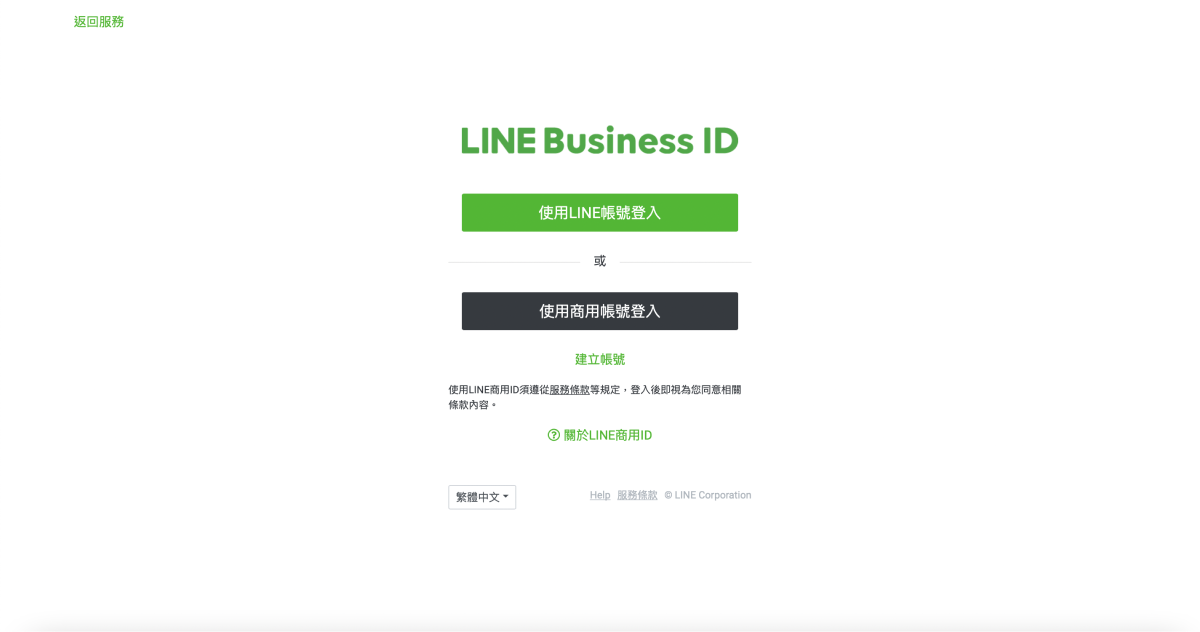
- First, log in to LINE Developers with your LINE Business ID.
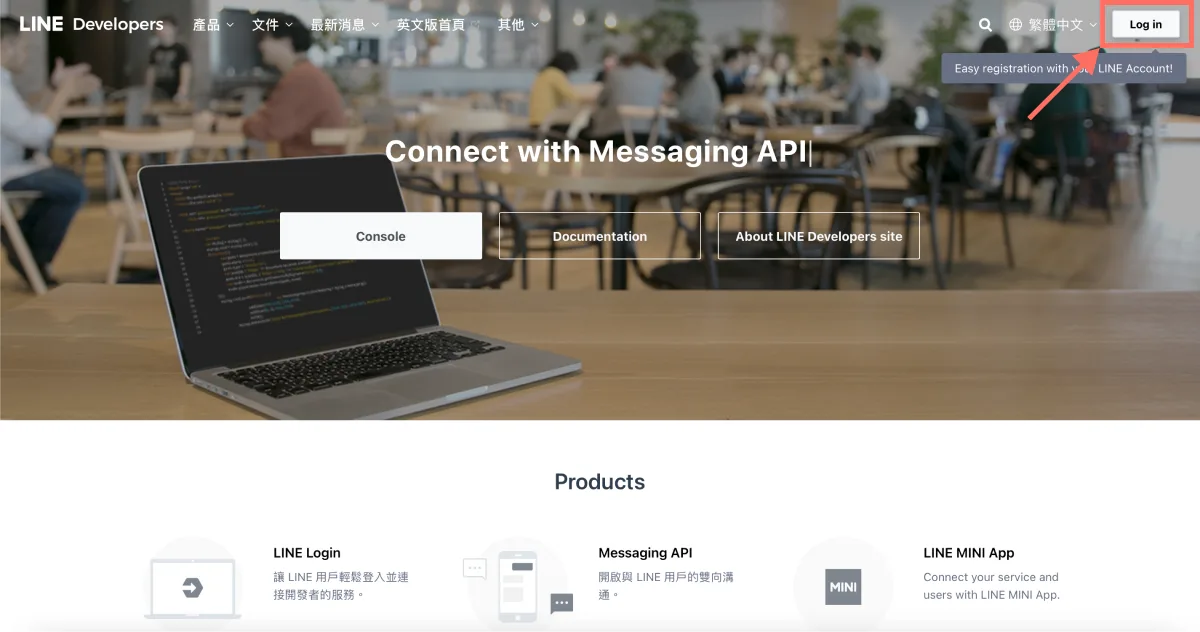
- Sign in to LINE Developers with your LINE Business ID.
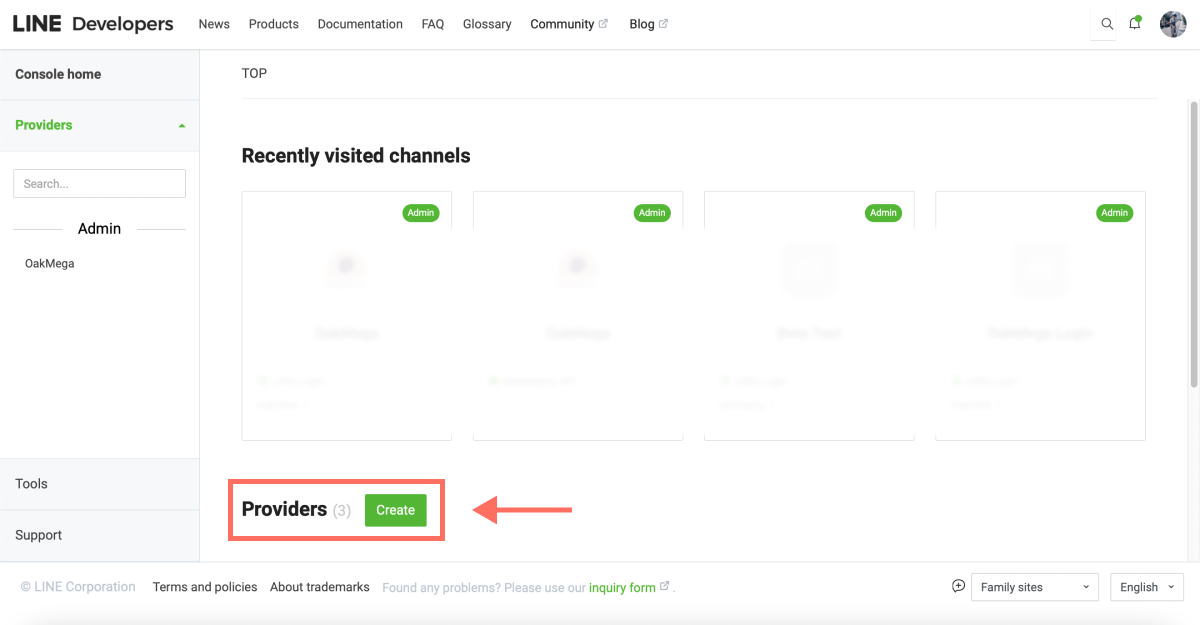
- Once you're in LINE Developers, if you've created Providers before, you'll see your recent activity under "Recently visited channels."
- Click "Create" at the bottom of the screen to start a new Provider.
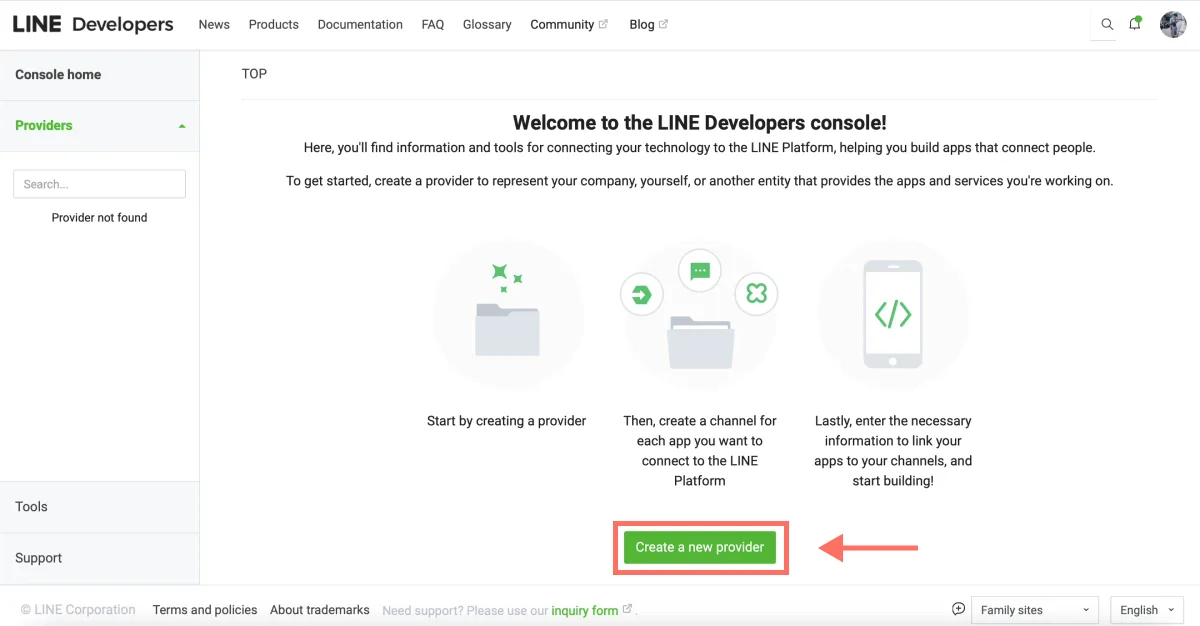
- If you haven't created any Providers yet, you'll see the first-time welcome screen. Click "Create a new provider" to set up your first one.
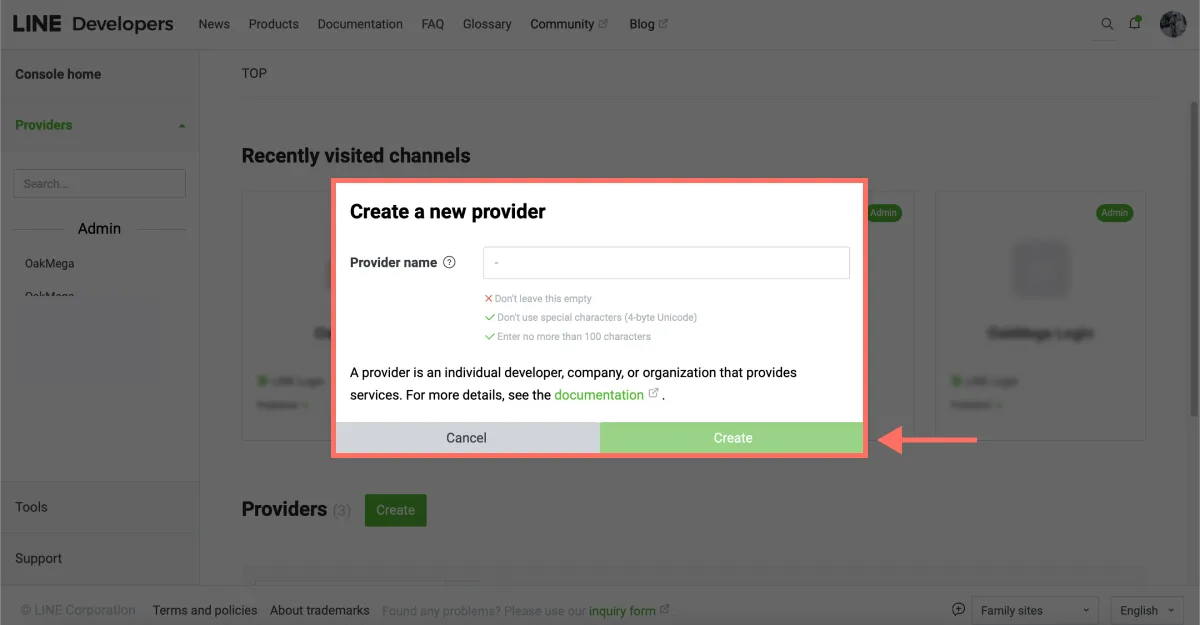
- Enter a Provider name: the individual or company offering the service, such as your own name or your company's name (up to 100 characters).
When you're done, click "Create."
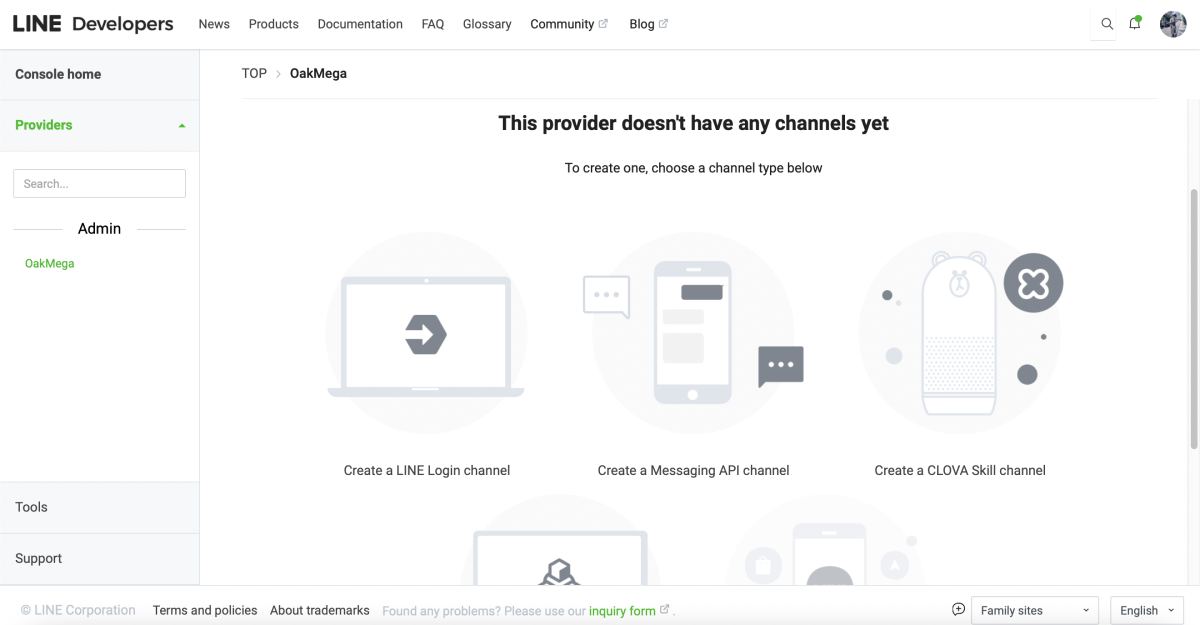
- When the page redirects, your Provider is ready. You can now create channels for it, such as a "Messaging API" channel, so your LINE Official Account can send messages automatically.
Now that you know how to create a Provider on LINE Developers, the next step is setting up the Messaging API so your LINE Official Account can run a chatbot. To learn what the Messaging API is and what it can do, start with this article: "Build a Custom LINE Official Account for Your Brand with the Messaging API."
Want more tips on running LINE? What is a Provider, and how does LINE Developers differ from LINE Official Account Manager? Visit the OakMega LINE Official Account for more LINE marketing content, or follow our "OakMega LINE Marketing Toolkit" for step-by-step guides to building your brand's LINE Official Account from the ground up.