Build a Branded LINE Official Account with the Messaging API
More and more brands are setting up official accounts on social platforms, mainly to connect more directly with their friends through social interaction. With the Messaging API from LINE Developers, brands can connect a chatbot to their LINE Official Account and engage friends in richer one-on-one conversations. Even the low-volume LINE OA plan can connect to the Messaging API through LINE Developers.
 Howard HuangMarketing Specialist
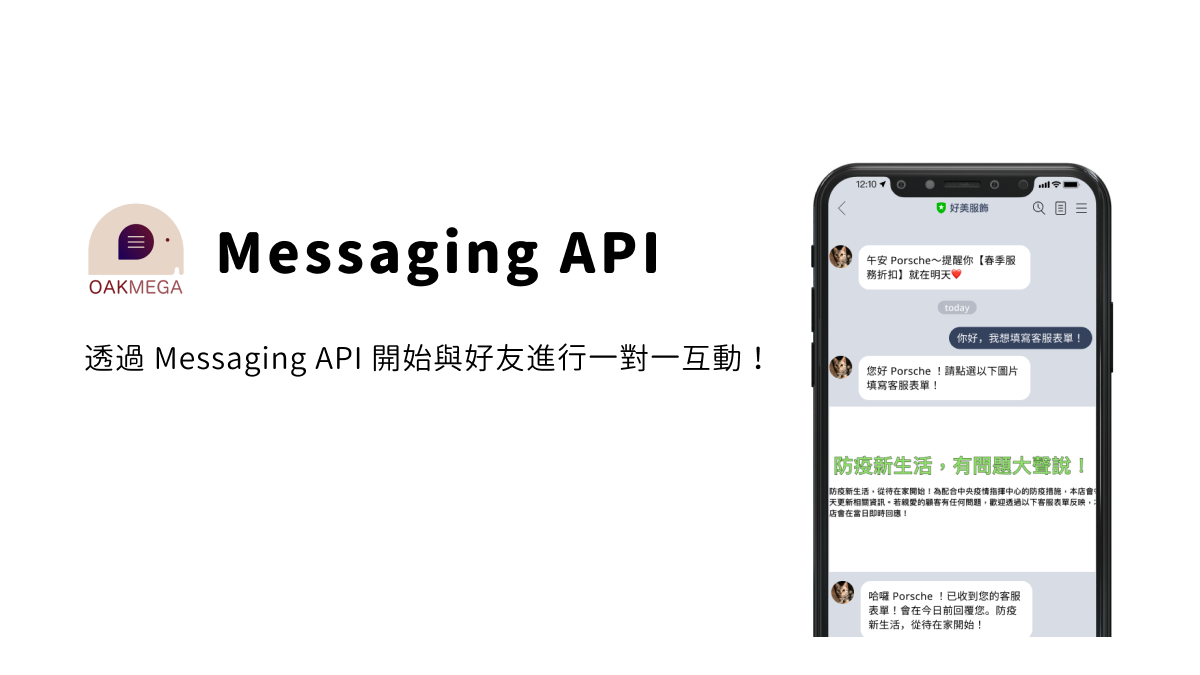
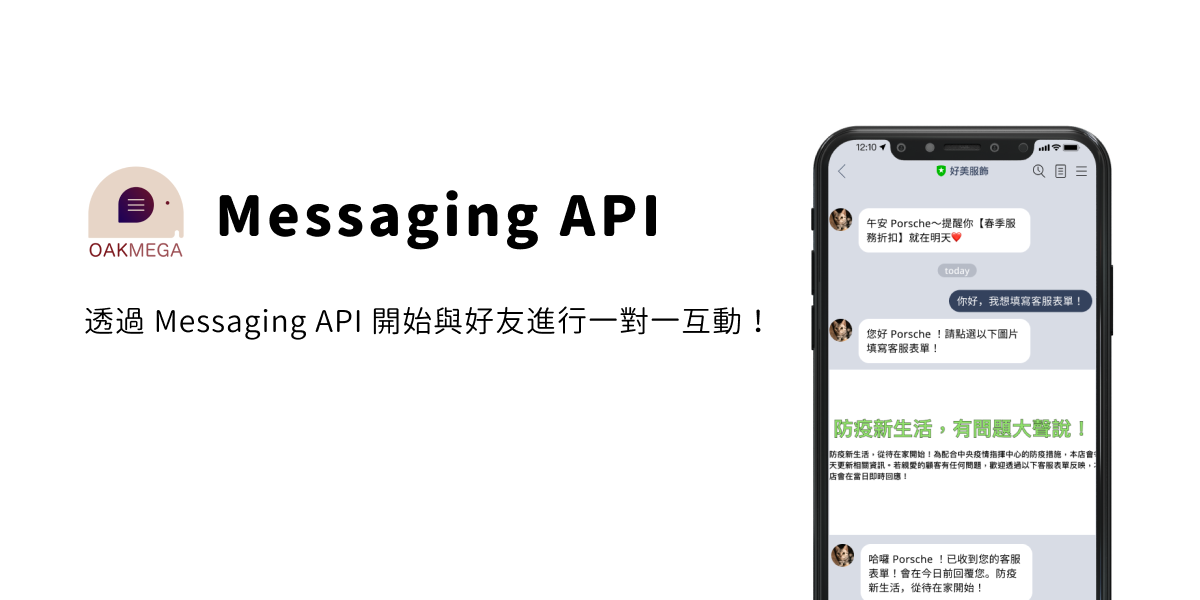
More and more brands are setting up official accounts on social platforms, and the goal is almost always the same: use the interactive nature of social media to connect more directly with their friends. With the Messaging API from LINE Developers, brands can connect a chatbot to their LINE Official Account and engage friends in richer one-on-one conversations.
Even the low-volume LINE OA plan can connect to the Messaging API through LINE Developers.

What Is the LINE Messaging API, and How Can It Help Your Brand?
API stands for Application Program Interface. It acts as a bridge that lets systems talk to each other. The Messaging API carries messages in both directions between a brand and its friends, making one-on-one interaction possible.
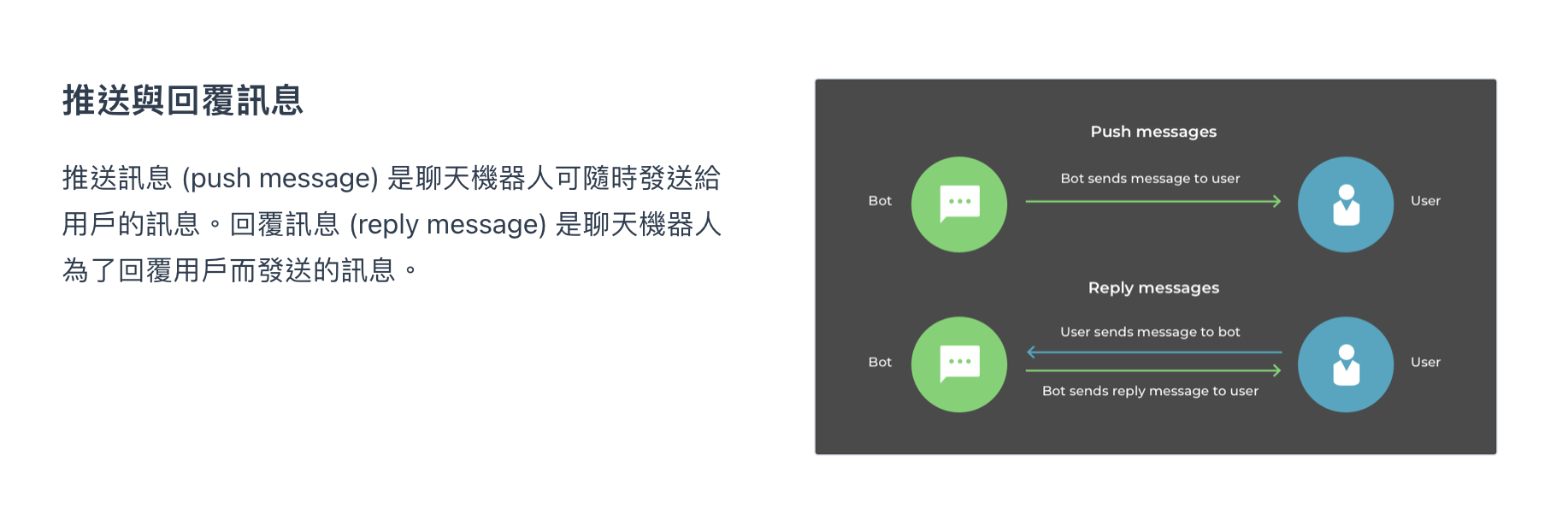
The Messaging API supports many message types. Here are the two most common:
- Push messages: messages a chatbot can send to users at any time.
- Reply messages: messages a chatbot sends in response to a user.
How Do You Set Up the API?
Brands can have an in-house team build on the API to fit their own needs. If time or budget is tight, they can find a suitable official LINE plug-in on LINE Marketplace, or work with a third-party API software vendor and follow its integration process to complete the setup.
How to Enable the Messaging API on LINE OA
- Log in to LINE Official Account Manager.
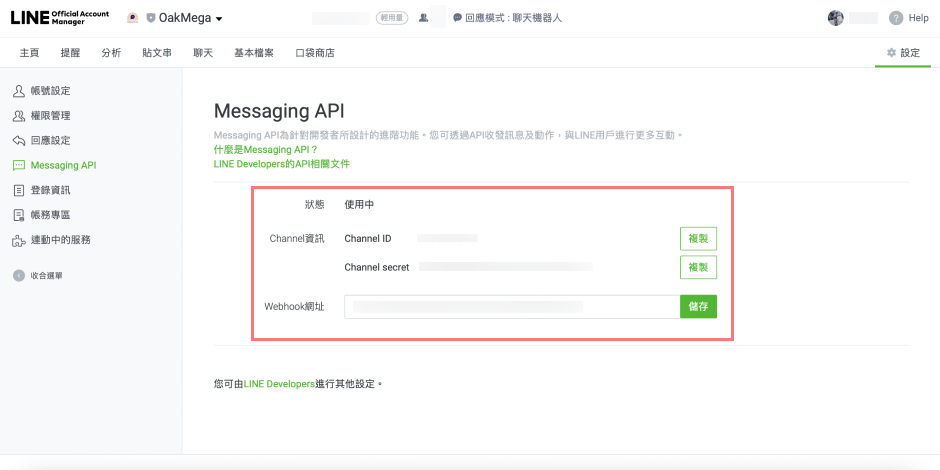
- Go to "Settings," open Messaging API, and click "Enable Messaging API."
- Select the LINE OA you want to connect.
- Once enabled, you'll find your Messaging API details on the page, including the Channel ID and Channel secret.
After the Messaging API is enabled, the channel details appear on the page.
Connect OakMega SCRM as Your Third-Party API Service
A third-party provider can build much more on top of LINE's API. You keep your LINE OA's built-in coupons and reward cards, and you also get OakMega's modules: keyword-triggered auto-tagging, segmented messaging, rich menus, lucky draws, forms, and more, giving you more varied and fun ways to engage your friends.

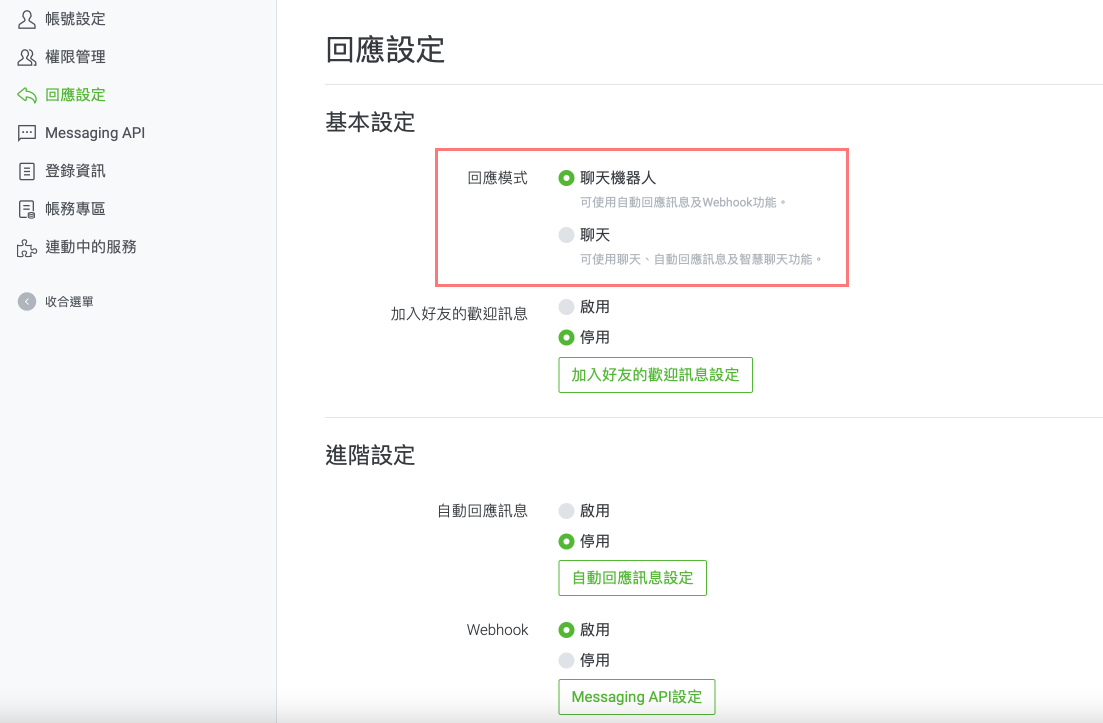
One more thing to note: when "Bot" mode is on, your account is using the Messaging API's automated responses. To reply to friends individually, you first need to switch the response mode to "Chat." Brands can switch freely between the two modes under "Response settings" in LINE Official Account Manager.
Start Talking One-on-One with Your Friends via the Messaging API
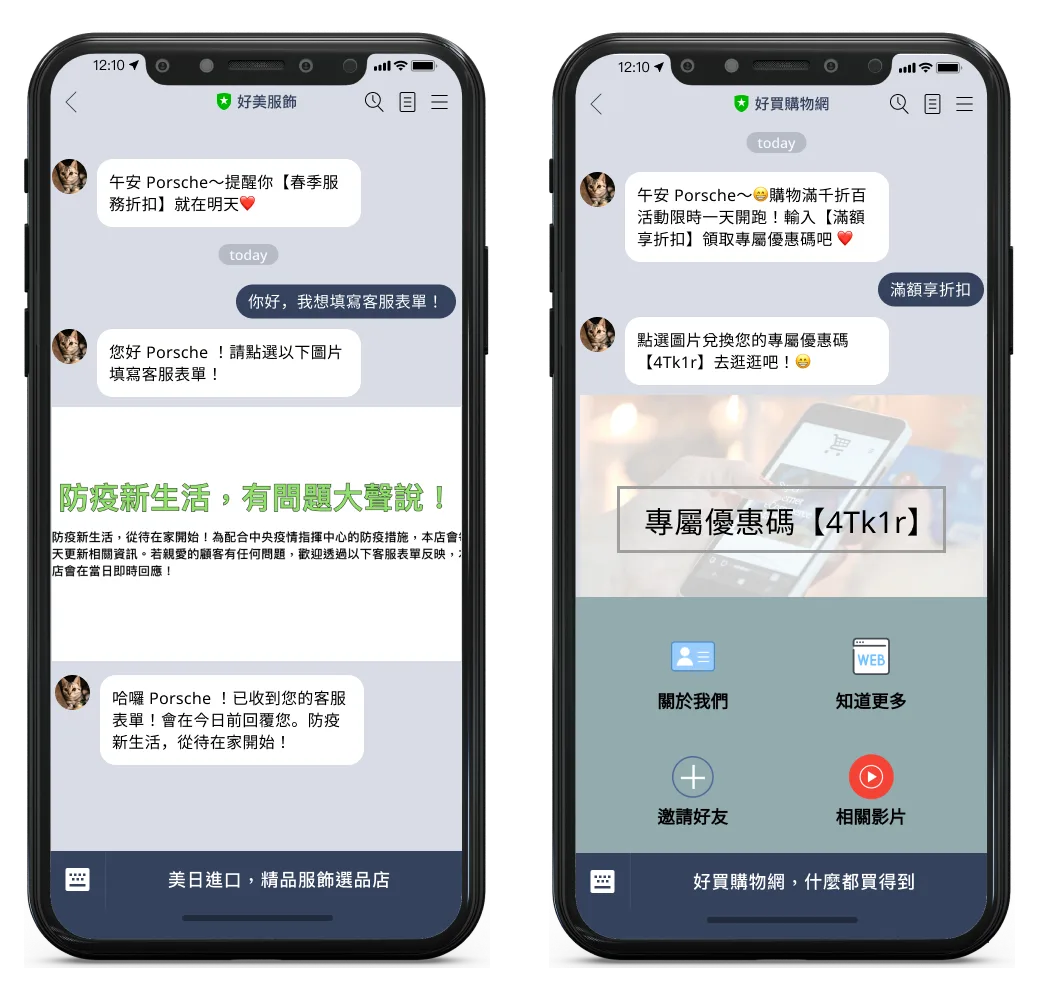
Once the Messaging API is connected, open your LINE Official Account dashboard, create a welcome message for new friends and keyword replies, and set up a rich menu. It strengthens brand recognition, makes LINE more fun, and gets you chatting one-on-one with your friends.
📣 OakMega
The Social CRM built for marketers: https://oakmega.com/
👏 Your applause keeps me going. Press and hold to clap again and again!
Website / Facebook / Instagram