How Can a LINE Official Account Send Automated Messages with the Messaging API?
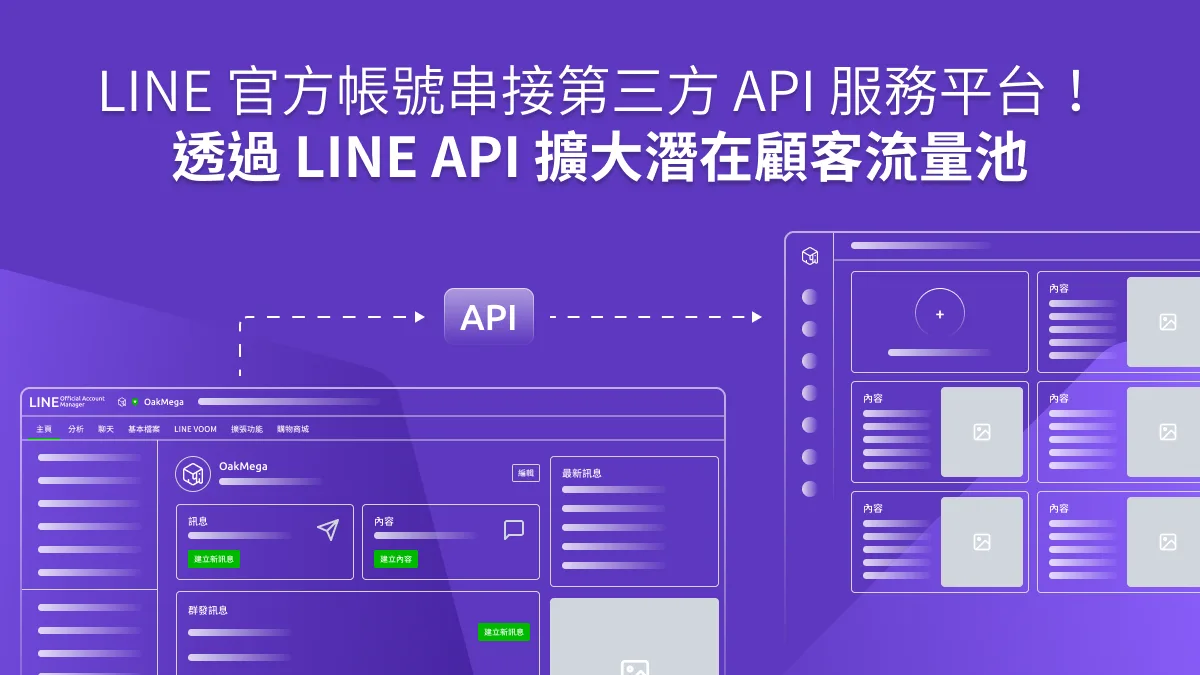
Do you often run into trouble handling customer messages on your LINE Official Account? Prepared messages rarely cover every question from LINE friends, and replying precisely means opening one-on-one chats, which takes time and effort and keeps you glued to the inbox. Connecting the Messaging API through the LINE API lets you catch every message and send automated responses.
 Howard HuangMarketing Specialist
If you run a LINE Official Account, you have probably hit the same snags when handling customer messages. Prepared messages rarely cover every question from your LINE friends, and replying precisely means opening one-on-one chats and answering each person individually. That takes time and effort and keeps you checking the inbox. By connecting the Messaging API through the LINE API, you can catch every message and send automated responses tailored to your friends' questions.
What Is the Messaging API, and How Does It Automate Messages?
Simply put, the Messaging API is a bridge that lets systems talk to each other. With LINE Messaging API, you can build a LINE Bot chatbot on your LINE Official Account and create a customized experience for your LINE friends.
So how does a chatbot recognize what users send, reply automatically, and complete automated messaging? Three components are involved:
- LINE Platform: Passes every LINE request it receives (including friend adds, blocks, and messages sent by users) to the LINE Bot Server via webhook.
- LINE Bot Server: The developer's bot server, hosted on the client side. It receives all LINE messages from the LINE Platform and runs logic to identify what each message says.
- Messaging API: The bridge between the two systems (LINE Platform and LINE Bot Server). The Messaging API lets LINE messages travel between the LINE Platform and the LINE Bot Server.
Sound complicated? Here's a simple example:
One day, User A scans a QR code and becomes a friend of an official account. The LINE Platform receives that request and passes it to the LINE Bot Server, which runs its logic. Once the server identifies the content, it sends the account's preset welcome message back to the user through the Messaging API via the LINE Platform.
Throughout the process, the Messaging API carries messages between systems (for details, see the LINE Developers official documentation).
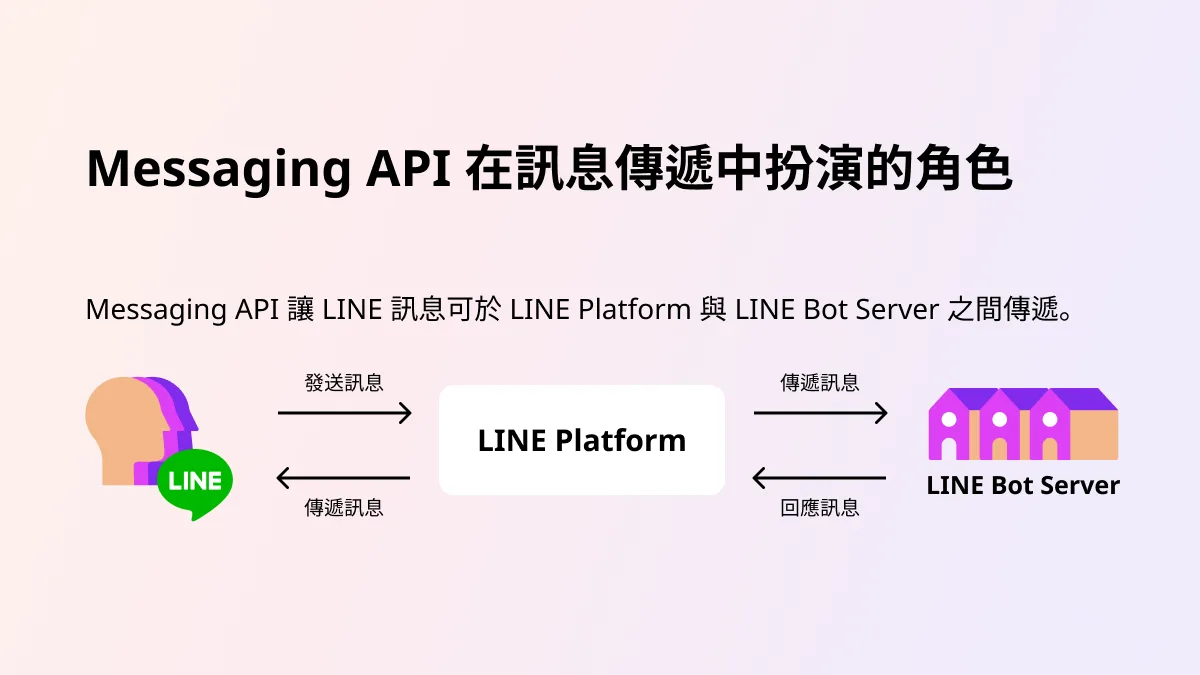 The Messaging API lets LINE messages travel between the LINE Platform and the LINE Bot Server.
The Messaging API is the key to successful automated messaging. Businesses can preset content for all kinds of questions friends might ask. When a friend actually sends a message, the Messaging API replies with the right content instantly, gradually turning the official account into a full-fledged LINE Bot chatbot. With a chatbot in place, LINE marketing and customer service staff no longer have to answer the same basic questions over and over. They can focus on cases that need complex judgment, so both people and machines do what they do best to solve friends' problems.
Common Reply Message Formats in the Messaging API
Once your official account is connected to the Messaging API, it can recognize and reply to messages from friends. The Messaging API has two main message types:
- Push Message: A message the chatbot can send to users at any time.
- Reply Message: A message the chatbot sends in response to a user.
When a friend's message triggers a response from the official account, that's a Reply Message. Common formats include (for more, see message types):
- Text message: Plain text, such as a welcome message for new friends or general text.
- Sticker message: A sticker, usually sent along with text or other content.
- Image message: A rich message, often paired with marketing campaigns so friends can tap the image to interact.
- Video message: An advanced video message, often paired with text to boost engagement.
- Audio message: A format for sending audio files to friends.
- Location message: A format for sending your business location; friends tap it to open the map.
- Imagemap message: Friends tap the image to go to a related page or trigger a text or rich message.
- Template message: Each option friends tap triggers a different command; often used for polls.
- Flex Message: A multi-page message, usually combining product info, prices, and links for friends to browse.
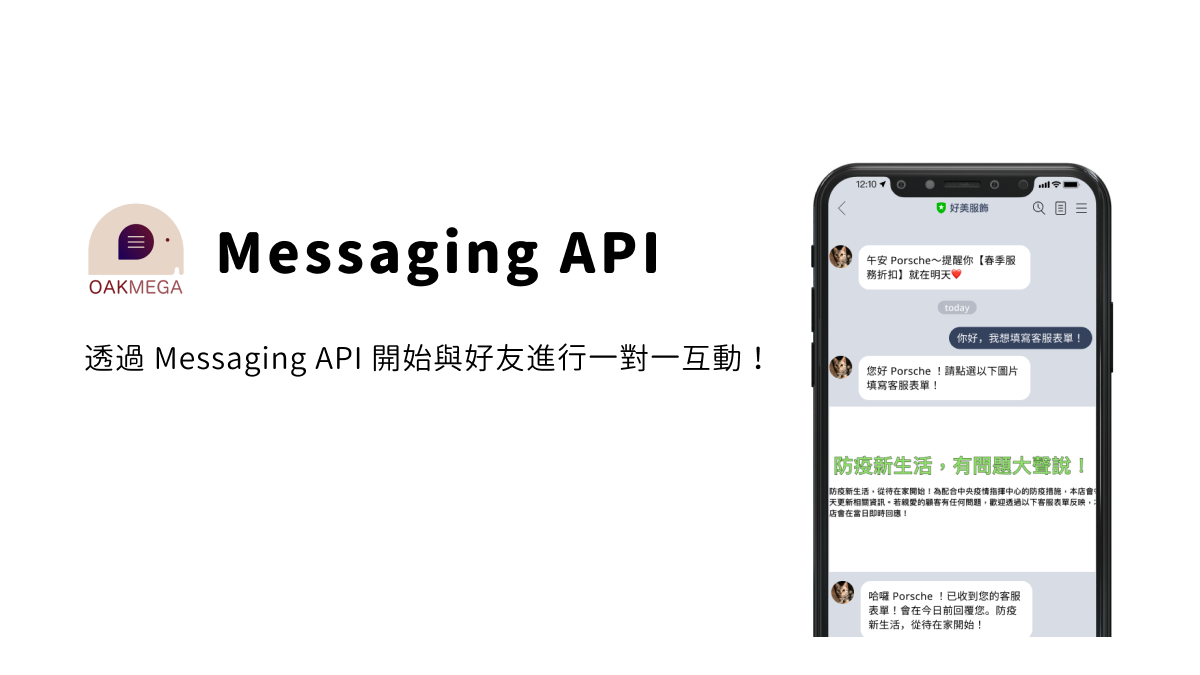
Mix Messaging API Formats to Make Your LINE Account More Engaging
When planning your LINE strategy, combine the reply formats above into different message mixes. This makes automated flows more varied and fun, so your chatbot can automate messaging while still feeling like a real conversation.
How Do I Set Up Reply Messages?
Beyond plain text and stickers, take advantage of LINE's rule that sending up to 5 reply messages at once via the Messaging API counts as just 1 message toward your quota. Try adding multiple formats, such as rich messages and location messages, to your replies.
For example, when a friend sends “business hours,” you could reply with:
- Business hours and store address
- A location message with the store address
- A rich message linking to your website
Or when a friend sends “customer service question,” you could reply with:
- A text message with a call to action (CTA)
- A rich message linking to a customer service form
- A thank-you text confirming the request was received
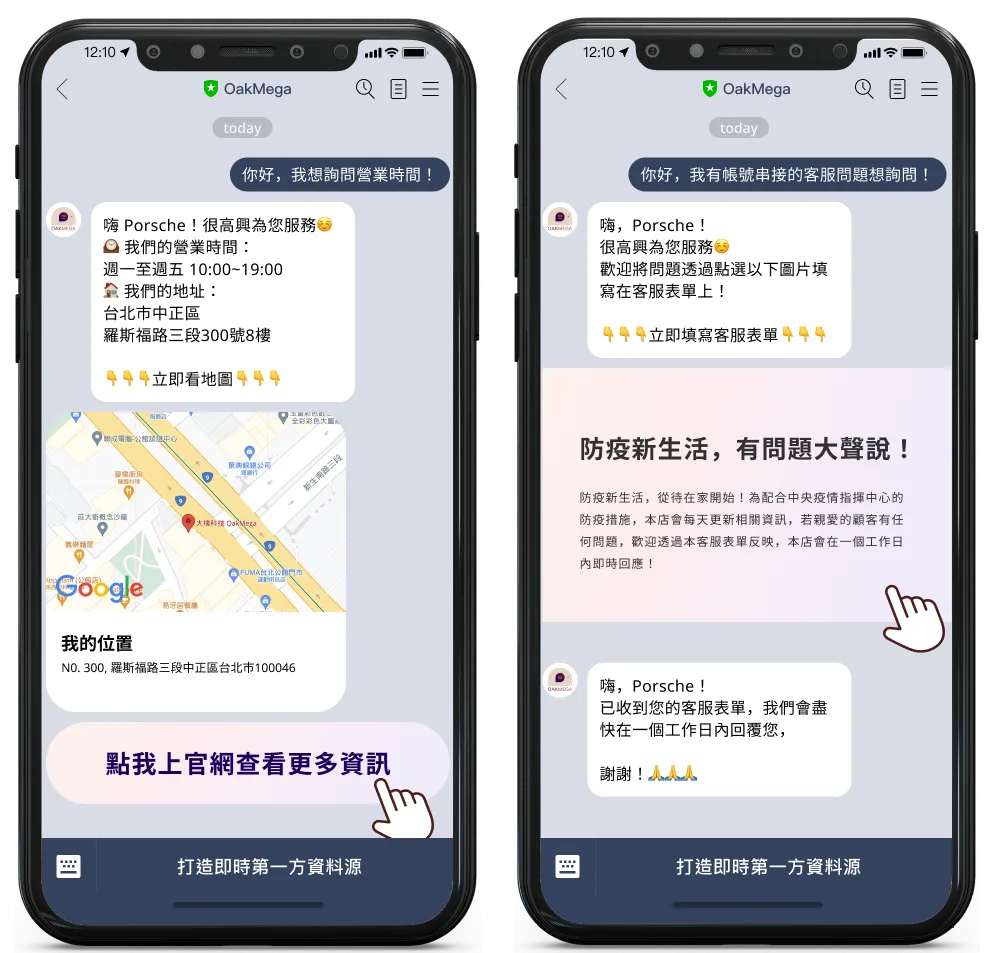 Using multiple Messaging API reply formats lets you answer friends instantly while cutting messaging costs.
Isn't that much clearer than a long block of text? Compared with push messages, it saves on messaging fees, and the different reply formats guide friends to complete actions in your LINE Official Account. Instant replies also ease the anxiety of waiting.
The Most Complete LINE Bot Chatbot Service
Want to see how automated messaging can make your LINE operations more efficient? Need more reply message formats? Compared with LINE OA, OakMega Social CRM offers more varied and complete automated messaging, plus the industry's richest set of modules. You can embed a form module directly in a reply so friends fill out a customer service form right inside LINE, with responses synced to the chatbot dashboard in real time.