How to Use Auto-Reply Messages to Speed Up Customer Service
If you run an official account, replying to customer questions quickly is key to succeeding on LINE. But business hours and customer service staffing can mean customers wait hours, or even until the next business day, to hear back. Are you wondering whether there's a better way to speed up your customer service process?
 Howard HuangMarketing Specialist
If you run an official account, replying to customer questions quickly is key to running your brand. But business hours, customer service staffing and other constraints can force businesses to delay their replies, so customers may wait several hours or even until the next business day to hear back.
Are you wondering whether there's a better way to speed up your customer service process?
Put auto-replies to work
Once you connect the Messaging API, you can use the Push and Reply APIs to build auto-reply messages. Whenever a customer sends a message containing a specific keyword, the auto-reply is triggered.
Messages sent through the Push and Reply APIs don't count toward your message fees. In other words, using this feature well lets you get the most out of the LINE 2.0 usage-based plans.
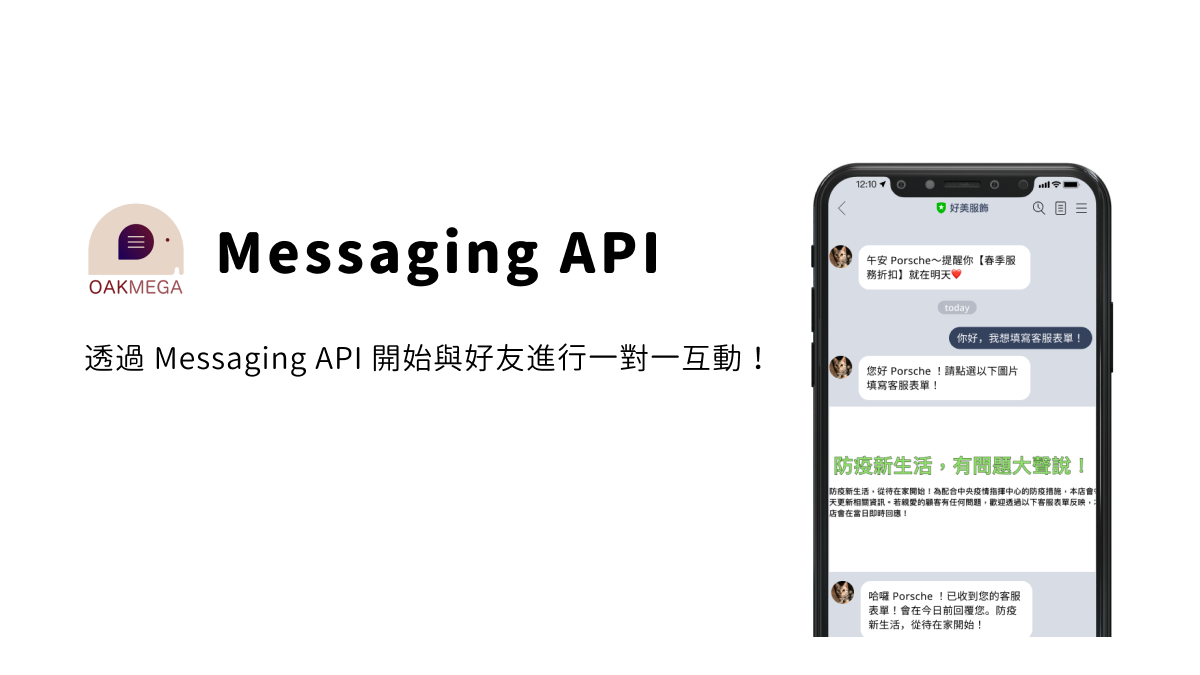
Before you set up auto-replies, list the questions customers have asked most often. Here are some common messages and questions that work across industries to get you started:
Common messages
- Welcome message: Hi, thanks for adding us as a friend! How can we help you?
- Product questions: Sorry, the size you requested is out of stock.
- Order questions: Your order has shipped. Keep an eye out for the SMS notification!
- Thank-you message: Thank you for your support. Your product/service order is complete!
- Apology message: We're sorry for the trouble. We'll take care of it as soon as possible!
Frequently asked questions
- What are your business hours?
- How can I reach a person?
- Can I find detailed product/service information on your website?
- Do your products/services come with a free return or trial period?
- I'd like to return or exchange an item. How do I do that?
Running an official account is a long game. Brands can also run their account for a while first, using the 500 free messages included each month in the low-volume plan to identify the questions customers ask most.
How to set up auto-reply messages and message templates
Once you've compiled the most common questions, you can start building auto-replies. With keyword triggers, the matching message is sent automatically whenever a friend replies with a keyword, giving them instant customer service.
How to create auto-reply messages in the LINE OA Manager
- Log in to the LINE OA Manager.
- Click “Home” > “Auto-reply messages.”
- Click “Create” to set the keywords, content and response period, and add a new auto-reply message.
- Once it's added, set its status (on/off).
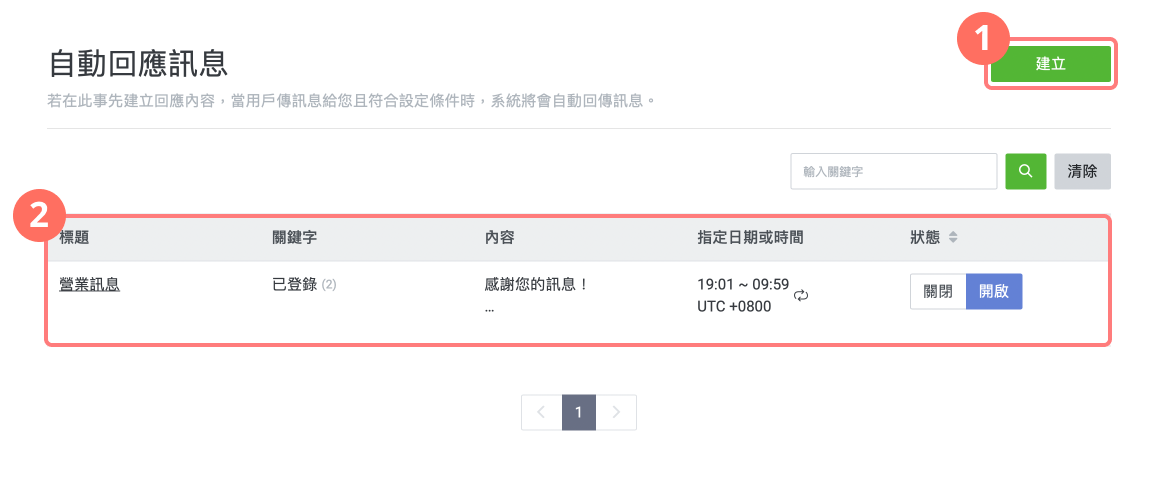
How auto-replies behave depends on your official account's response mode:
1. “Chatbot” mode: auto-replies can run around the clock, answering friends' questions automatically.
2. “Chat” mode: the system answers friends' questions automatically during the off-hours you've set.
Create auto-reply messages in the OakMega SCRM dashboard
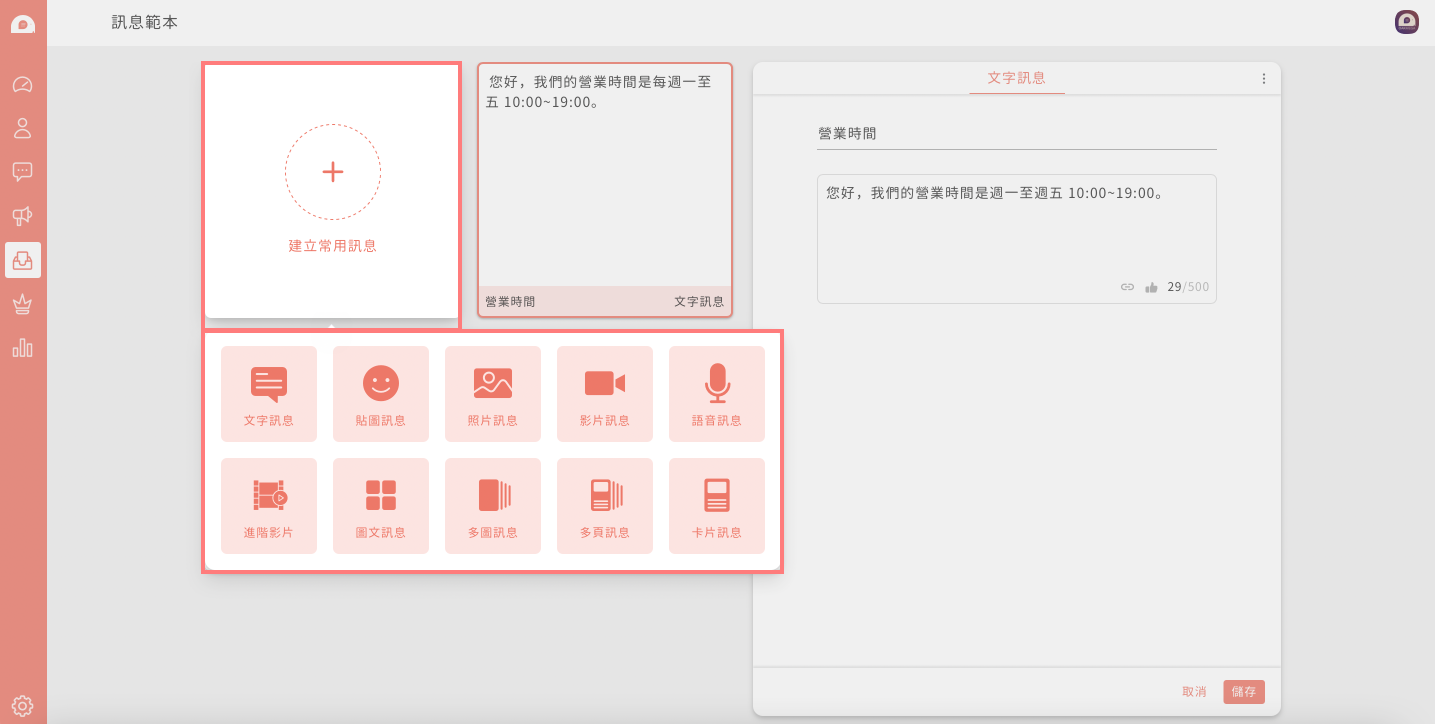
To set up standard replies for common customer questions, use OakMega SCRM's message template feature to create them first, then reference them in your keyword-triggered auto-replies.
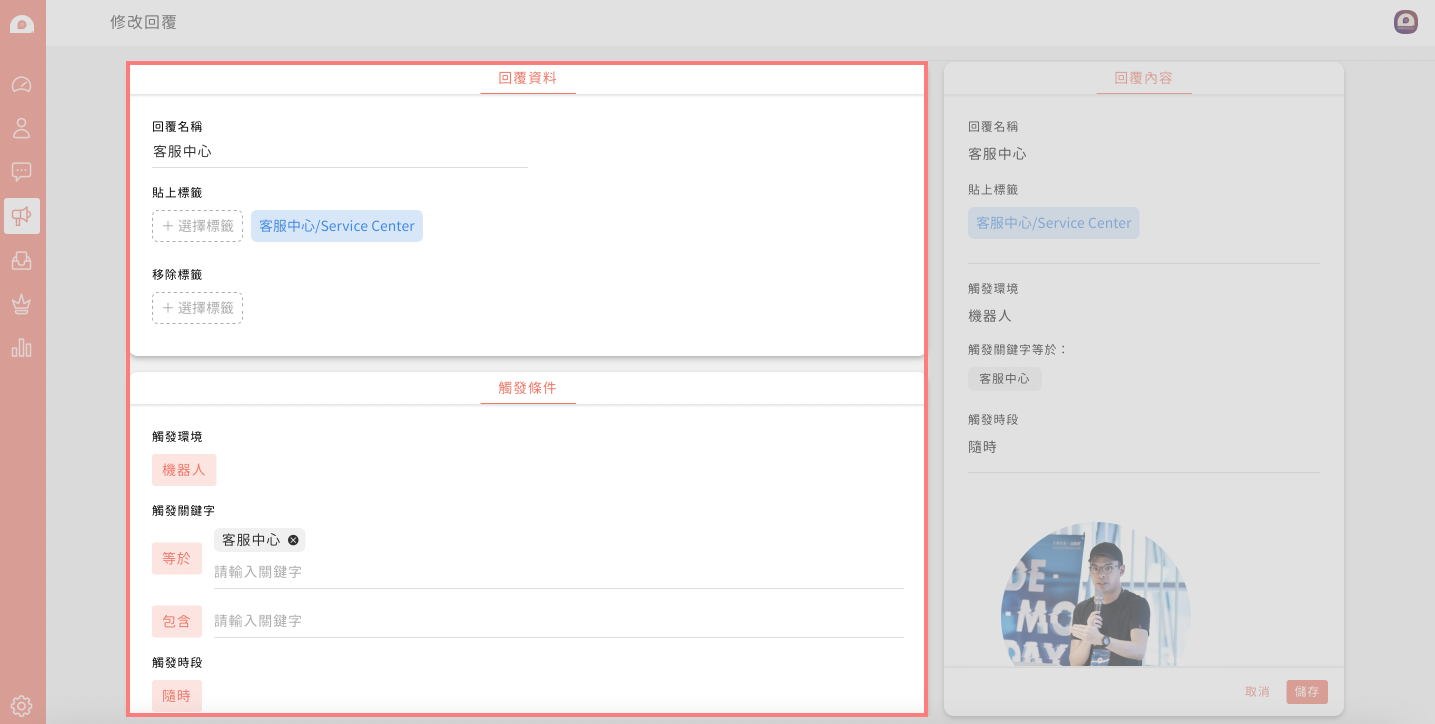
Beyond setting the keywords customers might use and the trigger time slots, OakMega auto-replies can reference your saved message templates and tag customers based on their behavior, enabling segmentation and building behavioral profiles of your friends.
Instant service that solves friends' problems
Auto-replies on your official account let you respond to friends' service requests instantly and cut down the frustration of waiting. Some issues can even be resolved at this stage, so you can allocate your customer service team where it matters most and handle support more efficiently.
If you have a large friend base or work in an industry with heavy support volume, such as e-commerce or specialized services, consider setting up a Service Center. A more systematic support dashboard with assignment and message routing lets you manage each friend's support status in finer detail and meet their needs.

📣 OakMega
The Social CRM built for marketers: https://oakmega.com/
👏 Your applause keeps me going. Press and hold to clap again and again!
Official website / Facebook page / Instagram