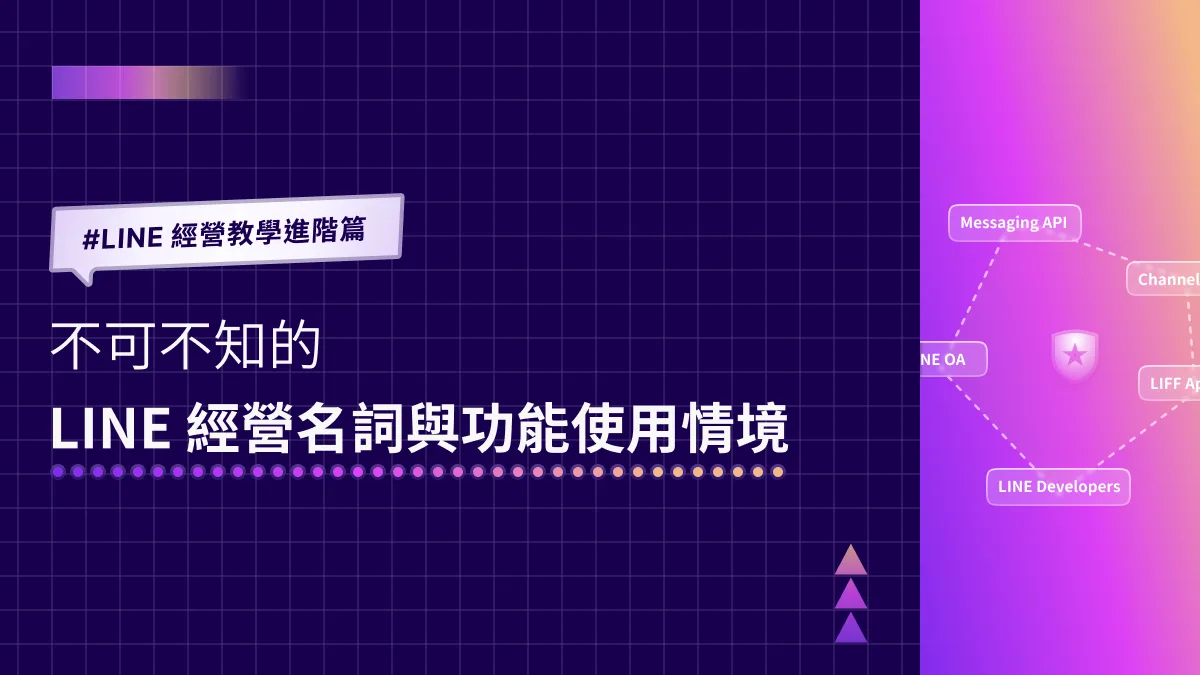
Advanced LINE Guide: Essential LINE Terms and When to Use Each Feature
Running into a flood of unfamiliar terms while managing LINE? LINE Official Account Manager, LINE Developers, LINE Login: which feature lives in which console, and when should you use each one? Don’t worry. OakMega has rounded up the essential LINE terms and use cases so you can untangle them one by one.
 Howard HuangMarketing Specialist
Running into a flood of unfamiliar terms while managing LINE? “Sign in to LINE Official Account Manager with your LINE Business ID,” “Enable the Messaging API,” “Create a LINE Login channel under your Provider in LINE Developers”...
You just want to run your LINE Official Account well and engage friends more often. Is there an easier way to tell all this apart? Don’t worry. With OakMega’s roundup of essential LINE terms, you can quickly identify each one and the use cases behind it. Let’s break them down.
LINE Official Account Manager vs. LINE Developers
If you manage LINE, you need to know the difference between two consoles: LINE Official Account Manager and LINE Developers. Can you tell them apart at a glance?
Plenty of people mix them up or ask what LINE Developers is even for. Here’s a simple rule of thumb: to engage friends directly and run your official account, go to LINE Official Account Manager. For advanced technical setup, such as creating a LINE Login channel, go to LINE Developers.
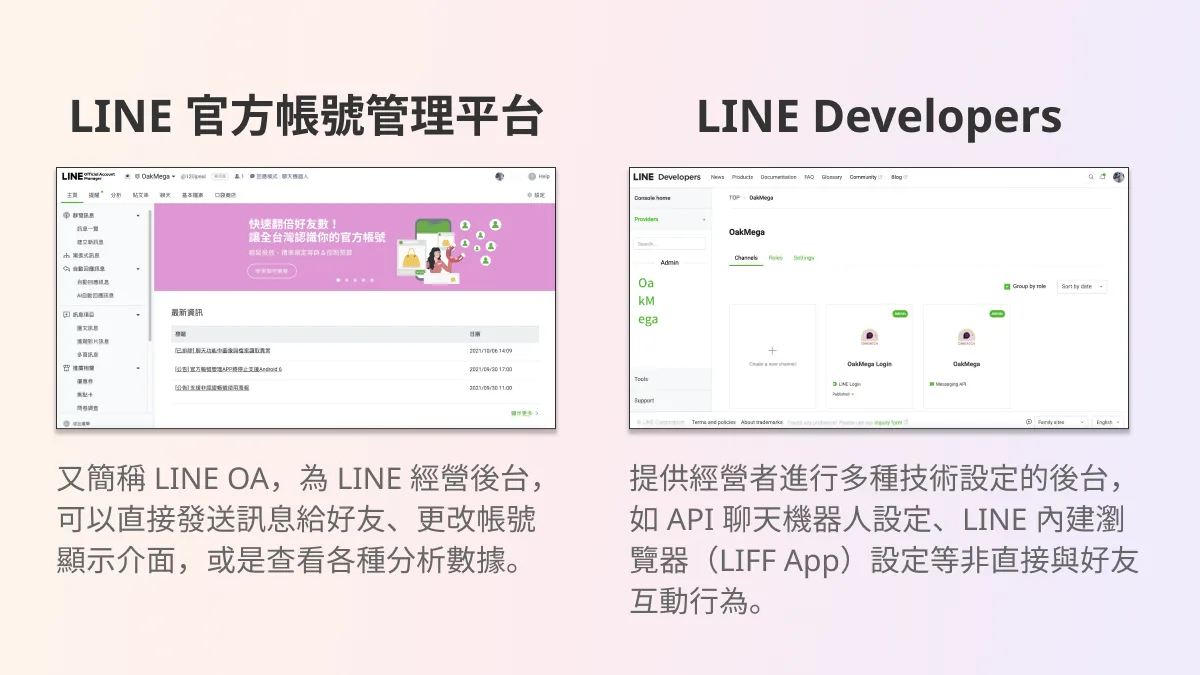
LINE Official Account Manager
LINE Official Account Manager, often shortened to LINE OA, is the console for running your LINE Official Account. Here you can send messages and engage friends directly, edit account settings, change how your account looks, and review analytics such as open rates and link click-through rates for sent messages.
LINE Developers
LINE Developers is LINE’s console for a range of technical settings that don’t involve engaging friends directly. For example, Messaging API settings let messages from friends be recognized and answered automatically, and LINE Login lets you open pages in the in-app browser.
Common terms and features in LINE Official Account Manager
Now that we’ve covered how LINE Official Account Manager and LINE Developers differ and when to use each, let’s look at the essential terms and features in LINE Official Account Manager.
1. LINE Business ID
Whether you’re creating a LINE Official Account for the first time, signing in to LINE Official Account Manager, or even signing in to LINE Developers, you always use the same login system LINE provides for brands: LINE Business ID. LINE Business ID supports two sign-in methods, and brands can choose based on their strategy:
- Personal LINE account
- Email account
So the next time the LINE Business ID screen pops up, don’t hesitate. Sign in to LINE Business ID with your personal LINE account or your email account.
2. Official account ID
When you create a LINE Official Account, LINE assigns it an ID made of random letters and numbers. If you want a custom ID that makes it easier for friends to find and remember you, such as one that includes your brand name, you first need to become a verified account (blue badge) and then pay to change it.
LINE Use Cases: Why Don’t Some Brands Have Random LINE Official Account IDs?Why do some brands have LINE Official Account IDs that include their brand name, while yours is a jumble of letters and numbers? If you want a custom ID too, where do you apply, and how much does it cost? A custom ID for your LINE Official Account strengthens brand recognition and makes it easier for friends to find you.https://oakmega.com/blog/line-oa-premium-id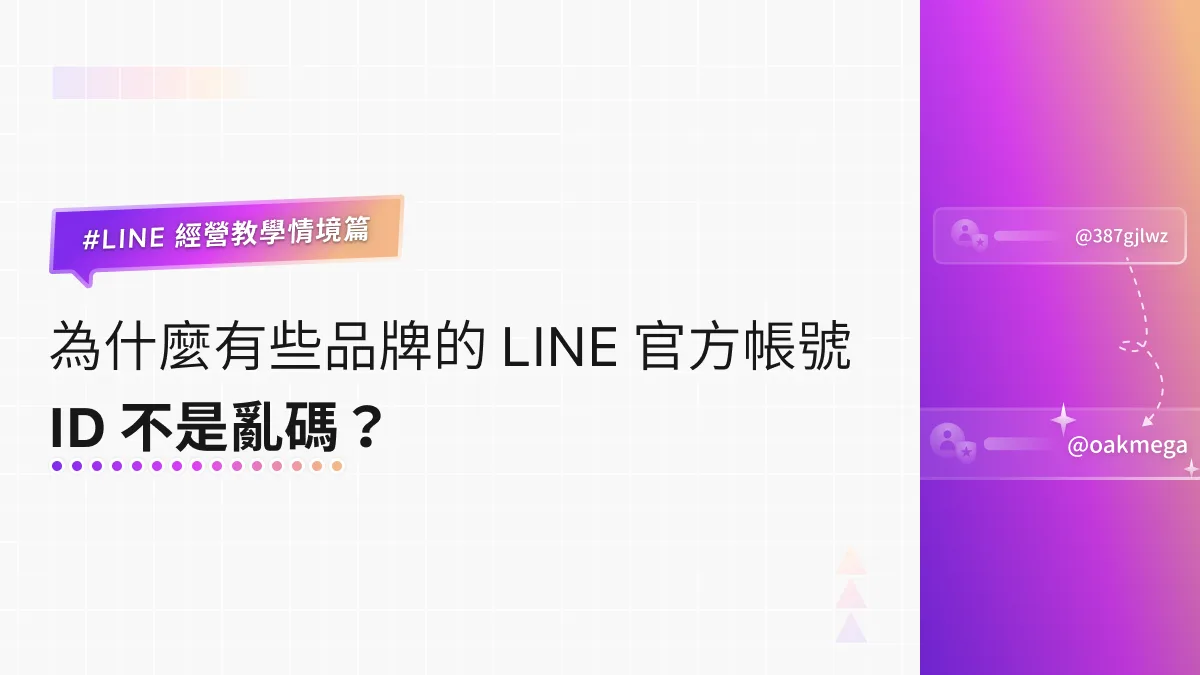
3. Verified account
Official accounts opened by stores or individuals are all classified as unverified accounts (gray badge). Verified accounts have passed LINE’s document review confirming they belong to a legitimate company, business, or organization, and display a blue badge in front of the account name. Brands that are especially active on LINE may also be invited by LINE to become a premium account (green badge).
What Is a LINE Verified Account, and Why Should You Know?During the pandemic, the government-led SMS contact-tracing system let people scan a QR code through the “Taiwan CDC” LINE Official Account and jump straight to an SMS form, and the account’s friend count soared within a single day. But fake accounts soon appeared, and people started asking: what is a LINE verified account?https://oakmega.com/blog/line-verifiede-account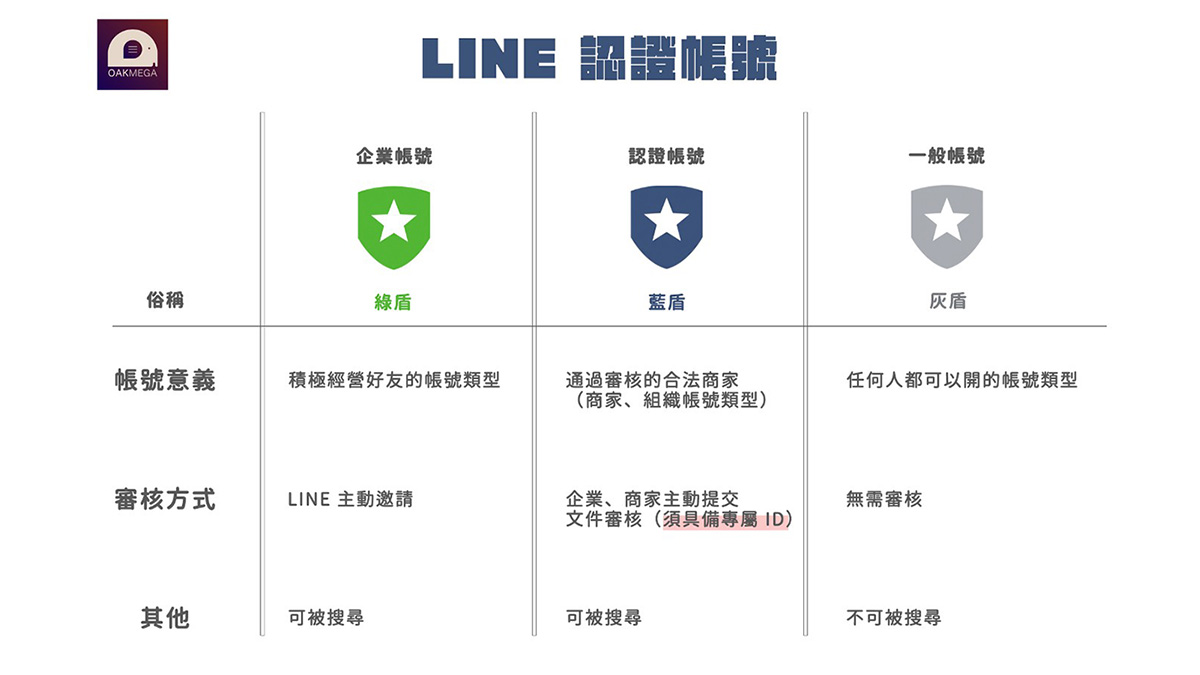
4 “Chat” and “Bot” response modes
Have you noticed the “Response mode” indicator at the top of LINE Official Account Manager, showing your account’s current response status? What’s the difference between “Chat” and “Bot”? And why can’t you chat one-on-one with individual friends once Bot mode is on?
-
“Chat” response mode: lets you chat and call one-on-one with friends and use keyword auto-response messages, but you can’t use the advanced features in LINE Developers.
-
“Bot” response mode: lets you use advanced features from LINE Developers such as chatbots, but you can’t chat or call one-on-one with friends or use auto-response messages.
LINE Use Cases: Why Can’t My LINE Official Account Reply to Friends One-on-One?When you run a LINE Official Account, a chatbot can answer friends’ questions fast. But when a special situation calls for a one-on-one reply from a real person, why can’t you respond? In an era that prizes speed, human support still matters because it can be tailored to each customer. So how do you turn on one-on-one replies?https://oakmega.com/blog/line-oa-response-mode
5. Enabling the Messaging API
To start using advanced LINE Developers features such as chatbots, you need to link the Messaging API you created in LINE Developers to the matching LINE Official Account. Here’s how:
- In LINE Official Account Manager, click “Settings.”
- Find “Messaging API” in the left sidebar of the settings page.
- On the “Messaging API” page, click “Enable Messaging API,” choose the matching Provider, and enable it to finish the setup.
You can also create the Messaging API directly from your LINE Official Account and skip the tedious back-and-forth between two consoles. Want to know how? See the related article below.
LINE Basics: How to Create a Messaging API Directly in LINE Official Account ManagerStruggling to set up a Messaging API for your LINE Official Account? Not sure how to sign up for LINE Developers? Does everything really have to start in LINE Developers, or is there a faster, simpler way? You can actually create a Messaging API right from LINE Official Account Manager (LINE OA Manager), the console businesses already know best. This guide shows you the quickest, simplest way to skip LINE Developers and create a Messaging API straight from LINE Official Account Manager.https://oakmega.com/blog/create-messaging-api-from-line-oa
Common terms and features in LINE Developers
Having covered the terms and features in LINE Official Account Manager, let’s move on to the essential terms and features in LINE Developers.
If you already use chatbots or work with a third-party tech provider, LINE Developers probably isn’t new to you. Still, you might need a moment to remember when each of its many terms applies.
1. Provider
The first time you sign in to LINE Developers, you need to create a Provider before you can set up channels such as the Messaging API and LINE Login. If you run multiple LINE Official Accounts, you can create multiple Providers and manage each one separately.
LINE Basics: How to Create a Provider in LINE DevelopersHow do you add a chatbot to your new LINE Official Account so it can send messages to friends automatically? First, you need to create a Provider in LINE Developers. Only then can you create a Messaging API channel and add chatbot features to your LINE Official Account.https://oakmega.com/blog/ways-to-create-providers-on-line-developers
2. Messaging API
The Messaging API acts as a bridge between systems. By setting up the Messaging API in LINE Developers, you can build a LINE Bot chatbot on your LINE Official Account. When a LINE friend sends a specific message, the bot replies automatically, creating a personalized experience.
3. LINE Login
LINE Login lets businesses or third-party providers retrieve LINE friends’ user data through a web page (or an app). For example, if a service’s login page offers a “Continue with LINE” option, that brand has set up LINE Login, which lets users sign in directly with LINE while the service retrieves their user data to complete the login.
Advanced LINE Guide: How to Create LINE Login in LINE DevelopersHas your LINE Official Account reached the point where you need LINE Login? Before we walk through the setup, let’s quickly cover what LINE Login is and when to use it.https://oakmega.com/blog/create-line-login-from-line-developers
4. Channel ID
The key thing to know here is that both the Messaging API and LINE Login have their own Channel ID. When you copy details into documents for your engineers, make sure you don’t copy the wrong ID, or the setup will fail.
5. LIFF App
LIFF apps are web apps that run on the LINE platform. Think of a LIFF app as LINE’s in-app browser. When friends use it, the LIFF app helps businesses obtain their LINE information, such as a friend’s user ID (only with the friend’s permission to collect that data, of course).
Advanced LINE Guide: How to Create a LIFF App in LINE DevelopersNow that your LINE Official Account has LINE Login, let’s look at one of its key features: the LIFF app. We’ll cover how to add a LIFF app and when to use one. Before the setup guide, since many people still aren’t sure what a LIFF app is, here’s a quick introduction.https://oakmega.com/blog/add-liff-app-from-line-developers
We hope this rundown of common terms and features in LINE Official Account Manager and LINE Developers, along with the related articles, helps you sort out the differences and use cases, so you can move forward with confidence and the wind at your back on your LINE journey.
Want to learn more about running a LINE account? Head over to the OakMega LINE Official Account for more LINE tips, or follow our “OakMega LINE Playbook” for step-by-step guides to building your brand’s LINE Official Account from the ground up.